
ABIWAZY 14 in 1 dock
ABIWAZY 14-in-1 USB-C Docking Station User Manual
Model: 14 in 1 dock
1. Introduction
Welcome to the user manual for your ABIWAZY 14-in-1 USB-C Docking Station. This versatile hub is designed to expand the connectivity of your USB-C enabled laptop, providing a wide array of ports for enhanced productivity and convenience. Please read this manual carefully to ensure proper setup and operation of your device.
Key Features:
- 14-in-1 Connectivity: Extends one USB-C/Thunderbolt 3 port into 14 ports, including 2x 4K HDMI, 2x USB 3.0, 3x USB 2.0, USB-C PD Charging, VGA, Gigabit Ethernet, SD/Micro SD card readers, and 3.5mm Mic/Audio.
- 4K Dual Monitor & Triple Display: Supports mirror or extend modes with 2 HDMI and VGA outputs. Single HDMI 1 (4K@60Hz), HDMI 2 (4K@30Hz). Triple display resolution for Windows laptops is 1080P. Mac OS supports mirror or extend mode, but not triple display.
- Super Speed Data Transfer: Features 3x USB 3.0 ports and 1x USB-C data port with speeds up to 5Gbps, and 2x USB 2.0 ports up to 480Mbps.
- Gigabit Ethernet & Audio Port: Provides stable 10/100/1000 BASE-T LAN network connection and a 3.5mm Mic/Audio (2-in-1) jack.
- 100W Power Delivery: Supports charging your laptop at up to 100W while connecting multiple peripherals.
- Universal Compatibility: Widely applicable to various USB-C laptops including Dell, HP, Lenovo, MacBook Air/Pro, and Surface models.
2. Package Contents
Please check the package for the following items:
- ABIWAZY 14-in-1 USB-C Docking Station (1 unit)
- User Manual (this document)
Note: Power adapter and USB-C charging cable are not included and must be purchased separately.
3. Safety Information
To ensure safe and optimal performance, please observe the following safety guidelines:
- Keep the docking station away from water, fire, and high temperatures.
- Do not attempt to disassemble or modify the device.
- Use only compatible power adapters and cables.
- Avoid dropping or subjecting the device to strong impacts.
- Ensure proper ventilation to prevent overheating.
4. Setup Guide
4.1 Connecting the Docking Station to Your Laptop
The ABIWAZY 14-in-1 Docking Station is designed for plug-and-play functionality, requiring no driver installation for most operating systems.
- Locate the USB-C port on your laptop. Ensure it supports Power Delivery, DisplayPort Alt Mode, and Data Transfer (Thunderbolt 3/4 or full-function USB-C).
- Connect the integrated USB-C cable from the docking station to your laptop's USB-C port.

Image: Overview of the ABIWAZY 14-in-1 USB-C Docking Station with its various ports and connected peripherals.
4.2 Power Connection (Power Delivery)
To charge your laptop and power connected peripherals through the docking station, connect a compatible USB-C power adapter (not included) to the docking station's USB-C PD input port.
- Connect your laptop's original USB-C power adapter or a compatible 65W-100W USB-C PD charger to the USB-C PD port on the docking station.
- The docking station will then pass power through to your laptop while also powering connected USB devices.

Image: Illustration of power delivery and data transfer connections to the docking station.
5. Operating Instructions
5.1 Connecting External Displays (HDMI & VGA)
The docking station supports dual 4K HDMI outputs and a VGA output for multi-monitor setups.
- HDMI 1: Supports up to 4K@60Hz (DP1.4 source).
- HDMI 2: Supports up to 4K@30Hz (DP1.4 source).
- VGA: Supports up to 1080P@60Hz.
Display Modes:
- Windows Laptops: Supports Mirror Mode, Extend Mode (MST), and Triple Display. When using triple display with VGA, resolutions will be 1080P.
- Mac OS: Supports Mirror Mode or Extend Mode (SST). Mac OS does not support MST (Multi-Stream Transport) for independent triple displays.
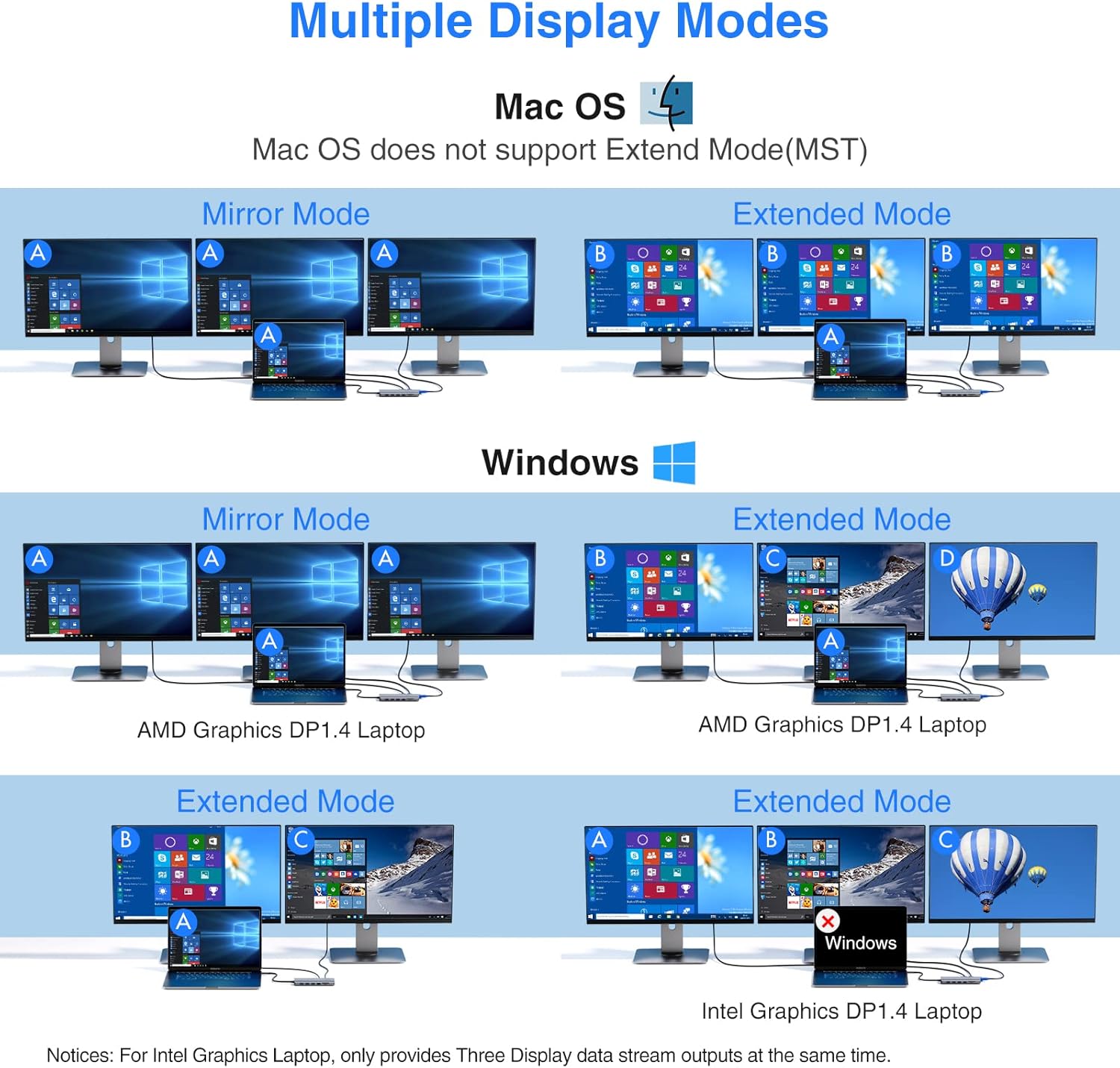
Image: Visual representation of mirror and extended display modes for both Mac OS and Windows systems.
5.2 USB Data Transfer Ports
Connect your USB devices such as external hard drives, USB flash drives, keyboards, and mice to the available USB ports.
- USB 3.0 Ports (3x): For high-speed data transfer up to 5Gbps. Ideal for external storage devices.
- USB 2.0 Ports (2x): For standard data transfer up to 480Mbps. Suitable for keyboards, mice, and other low-bandwidth peripherals.
- USB-C Data Port (1x): For data transfer up to 5Gbps.
Note: To avoid wireless interference, wired mouse and keyboard are recommended. Only one HDD/SSD can be connected simultaneously to the docking station.

Image: Data transfer capabilities of the USB 3.0, USB 2.0, and SD/TF ports.
5.3 Gigabit Ethernet Port
For a stable and fast wired internet connection, use the Gigabit Ethernet port.
- Connect an Ethernet cable from your router or modem to the RJ45 port on the docking station.
- Your laptop will automatically detect the wired network connection.
5.4 SD/Micro SD Card Readers
The integrated card readers allow for quick access to photos and files from your memory cards.
- Insert your SD or Micro SD card into the corresponding slot.
- Both SD and TF (Micro SD) slots can work simultaneously.
- Data transfer speeds up to 104MB/s.
5.5 3.5mm Audio/Mic Port
Connect your headphones, speakers, or microphone to the 3.5mm audio jack for audio input and output.
6. Maintenance
To ensure the longevity and optimal performance of your ABIWAZY docking station, follow these maintenance tips:
- Cleaning: Use a soft, dry cloth to clean the surface of the docking station. Avoid using liquid cleaners or aerosols.
- Storage: Store the device in a cool, dry place away from direct sunlight and extreme temperatures.
- Handling: Handle the docking station and its integrated cable with care. Avoid excessive bending or pulling of the cable, especially near the connector, to prevent damage.
7. Troubleshooting
If you encounter issues with your docking station, please refer to the following common problems and solutions:
| Problem | Possible Cause | Solution |
|---|---|---|
| No display output / Monitors not detected | Incorrect port connection, incompatible laptop USB-C port, cable issue, display settings. |
|
| Laptop not charging via PD port | Incompatible power adapter, insufficient wattage, laptop USB-C port does not support PD. |
|
| USB devices not recognized | Loose connection, power issue, device incompatibility. |
|
| Ethernet connection unstable or not working | Cable issue, network driver issue, router problem. |
|
| Docking station feels warm | Normal operation, heavy usage. |
|
8. Technical Specifications
| Feature | Specification |
|---|---|
| Model | 14 in 1 dock |
| Brand | ABIWAZY |
| Dimensions | 14 x 5.5 x 1.5 cm |
| Weight | 110 g |
| Material | Aluminum |
| HDMI Output 1 | Up to 4K@60Hz (DP1.4 source) |
| HDMI Output 2 | Up to 4K@30Hz (DP1.4 source) |
| VGA Output | Up to 1080P@60Hz |
| USB 3.0 Ports | 3x (Data transfer up to 5Gbps) |
| USB 2.0 Ports | 2x (Data transfer up to 480Mbps) |
| USB-C Data Port | 1x (Data transfer up to 5Gbps) |
| USB-C PD Charging Port | Up to 100W Power Delivery |
| Ethernet Port | Gigabit (10/100/1000 Mbps) |
| Card Reader | SD/MicroSD (TF), up to 104MB/s |
| Audio Port | 3.5mm Mic/Audio (2-in-1) |
| Operating System Compatibility | Windows, Mac OS |
9. Warranty and Support
9.1 Warranty Information
ABIWAZY products are manufactured to the highest quality standards. This product is covered by a limited warranty from the date of purchase. Please refer to the product packaging or the official ABIWAZY website for specific warranty terms and conditions.
9.2 Customer Support
If you have any questions, require technical assistance, or need to claim warranty service, please contact ABIWAZY customer support:
- Email: abiwazyus@hotmail.com
- Online Support: Visit the official ABIWAZY website for FAQs and support resources.
Related documents14 in 1 dock


Ask a question about this manual
Ask about setup, troubleshooting, compatibility, parts, safety, or missing instructions. Manuals+ will review the question and use this page’s manual context to help answer it.