
kimire 604S
kimire Video Camera Camcorder User Manual
Model: 604S | Brand: kimire
Introduction
Thank you for choosing the kimire Full HD 1080P 24MP Digital Video Camera Camcorder. This manual provides detailed instructions to help you set up, operate, and maintain your new camcorder, ensuring optimal performance and longevity. Please read this manual thoroughly before using the device.
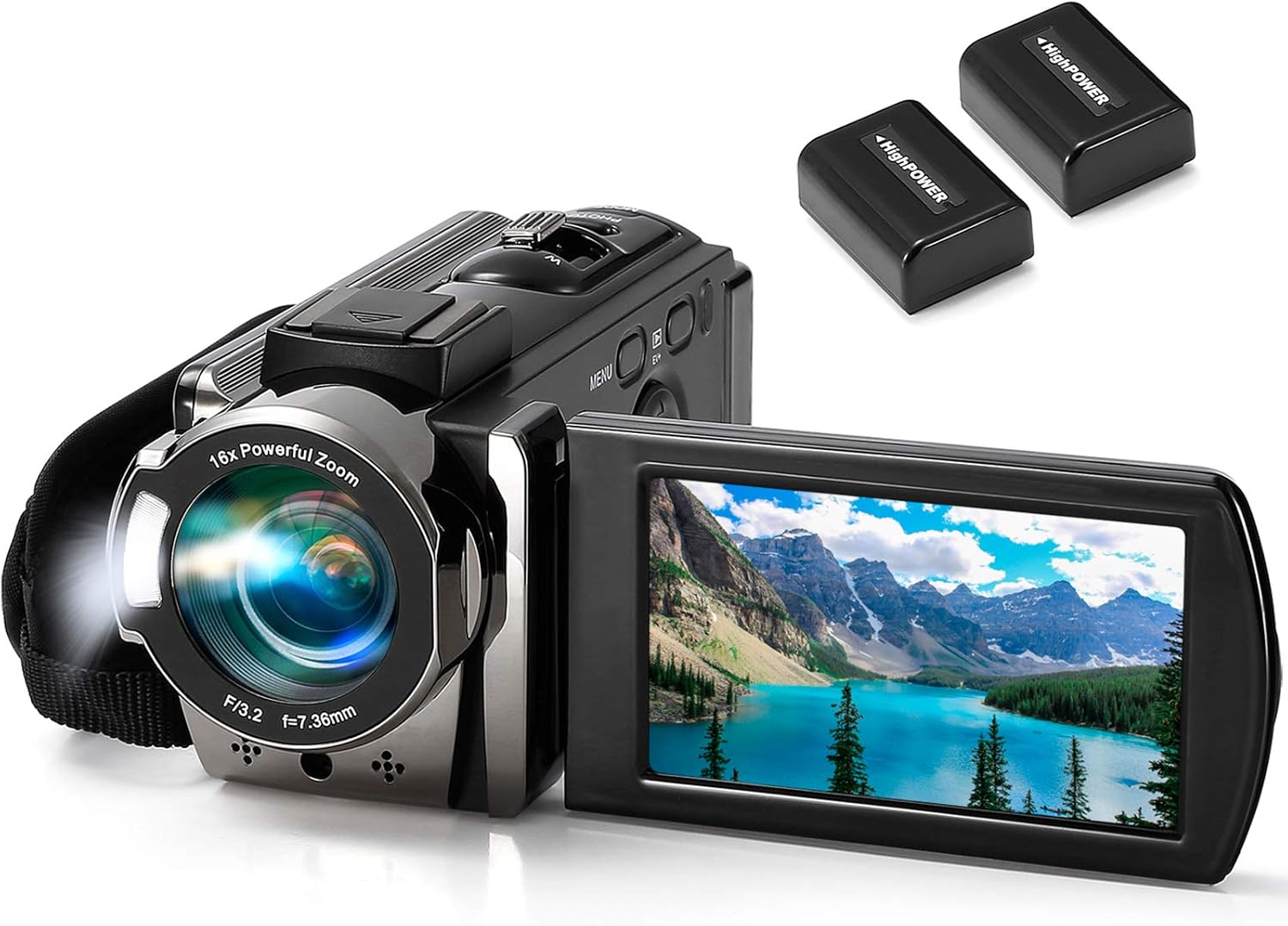
Figure 1: kimire Video Camera Camcorder with included batteries.
What's in the Box
- User Manual
- Battery (x2)
- USB Cable
- AV Cable
- Charger
- DV Bag (Carrying Case)
- Lens Cleaning Cloth

Figure 2: All accessories included with the camcorder.
Setup
1. Battery Installation and Charging
The camcorder comes with two NP FV5 batteries. For first-time use, charge the battery for more than 8 hours. The camcorder supports recording while charging, which is ideal for long video sessions.
- Insert a fully charged battery into the camera's battery compartment.
- Connect the USB cable to the camcorder and the charger, then plug into a wall outlet to charge.

Figure 3: Location of battery and SD card slots.

Figure 4: The camcorder supports recording while charging.
2. SD Card Installation and Formatting
The camcorder supports SD and SDHC cards up to 128GB (not included). It is crucial to format the SD card before its first use with the camcorder to avoid system malfunction.
- Insert the memory card into the designated slot (refer to Figure 3).
- Press the "Mode" button to enter the "Setup" page.
- Choose the "Format" option and press "OK" to confirm.
Operating the Camcorder
1. Basic Controls and Interface
Familiarize yourself with the camcorder's buttons and 3.0-inch 270-degree rotation LCD screen for easy operation.

Figure 5: Labeled diagram of camcorder parts and controls.
2. Photo and Video Modes
- To turn on the camera, press the "POWER" button.
- Press the "Mode" button to switch between "Photo", "Video", and "Setup" modes.
- How to take photos: In "Photo" mode, press the "Photo" button to capture an image.
- How to record videos: In "Video" mode, press the "START/STOP" button to begin recording. You can press the "Photo" button to pause the recording, and press "START/STOP" again to finish.
3. Digital Zoom and Image Quality
The camcorder features 16X digital zoom, 1080P 15fps video resolution, and 24MP image resolution.

Figure 6: Visual representation of video and image quality with digital zoom.
4. Playback
- Press the "Playback" button (beside the Menu button).
- Use the "Left/Right" buttons to browse through photos/videos.
- For videos, press "START/STOP" to play and "Photo" to pause.
- To adjust volume during playback, use the zoom toggle.
5. Webcam Functionality
The camcorder can be used as a webcam when connected to a computer. Download AMCAP software before using this function.
- Connect the camcorder to your computer using the USB cable.
- Operate the camera button to choose the "PC CAM" mode.
- Once the AMCAP window opens, the shooting object through the camera will be displayed, allowing for video calls.

Figure 7: Using the camcorder as a webcam for live streaming or video calls.

Figure 8: USB and AV output connections for file transfer and TV playback.
Maintenance
To ensure the longevity and optimal performance of your camcorder, keep it clean and free from dust. Use the provided lens cleaning cloth for the lens. Store the camcorder in its DV bag when not in use to protect it from scratches and impacts.
Troubleshooting
If you encounter any issues with your camcorder, please refer to the following common solutions:
- Camera not turning on: Ensure the battery is fully charged and correctly inserted.
- SD card error: Make sure the SD card is formatted correctly (see Setup section).
- Poor video/image quality: Check lighting conditions. Ensure the lens is clean.
- Webcam not recognized: Confirm "PC CAM" mode is selected and AMCAP software is installed.
- How to delete photos/videos: In Playback mode, select the item, press the "Menu" button, choose "Delete", and confirm.
Specifications
| Feature | Detail |
|---|---|
| Brand | kimire |
| Model Number | 604S |
| Video Capture Resolution | 1080p, FHD 1920x1080(15fps), HD 1280x720(30fps), 640x480(30fps) |
| Image Resolution | 24MP |
| Digital Zoom | 16X |
| Screen Size | 3.0 Inches (270 Degree Rotation LCD) |
| Storage Media | SD Card / SDHC Card (up to 128GB, not included) |
| Battery Type | NP FV5 (x2 included) |
| Connectivity | USB 2.0, TV Output |
| Special Features | Fill Light, Anti-shake, Face Capture, Beauty Function, Self-timer, Webcam Function, Pause Function |
| Item Weight | 1.19 pounds |
| Product Dimensions | 5.2 x 2 x 2.3 inches |
Warranty and Support
Specific warranty information is not provided in the available data. Please refer to the product packaging or the official kimire website for detailed warranty terms and conditions. For technical support or further assistance, please contact kimire customer service through their official channels.
Ask a question about this manual
Ask about setup, troubleshooting, compatibility, parts, safety, or missing instructions. Manuals+ will review the question and use this page’s manual context to help answer it.