
Introduction
This manual provides detailed instructions for the assembly, operation, and maintenance of your Polar Aurora K-Shaped Gaming Desk. Please read this manual thoroughly before assembly and use to ensure proper setup and to maximize the lifespan of your product. Keep this manual for future reference.
Safety Information
Please observe the following safety precautions:
- Ensure all components are present and undamaged before beginning assembly.
- Assemble the desk on a soft, clean surface to prevent scratches.
- Do not overtighten screws during assembly to avoid damaging the material.
- Keep small parts away from children to prevent choking hazards.
- Do not exceed the maximum weight capacity of 160 lbs (72.5 kg).
- Ensure the desk is placed on a stable, level surface to prevent tipping.
- When using the built-in multi-function socket, ensure connected devices do not exceed the socket's rated power.
Package Contents
Verify that all parts listed below are included in your package. If any parts are missing or damaged, please contact customer support.
- Desktop Panel (Carbon Fiber Texture)
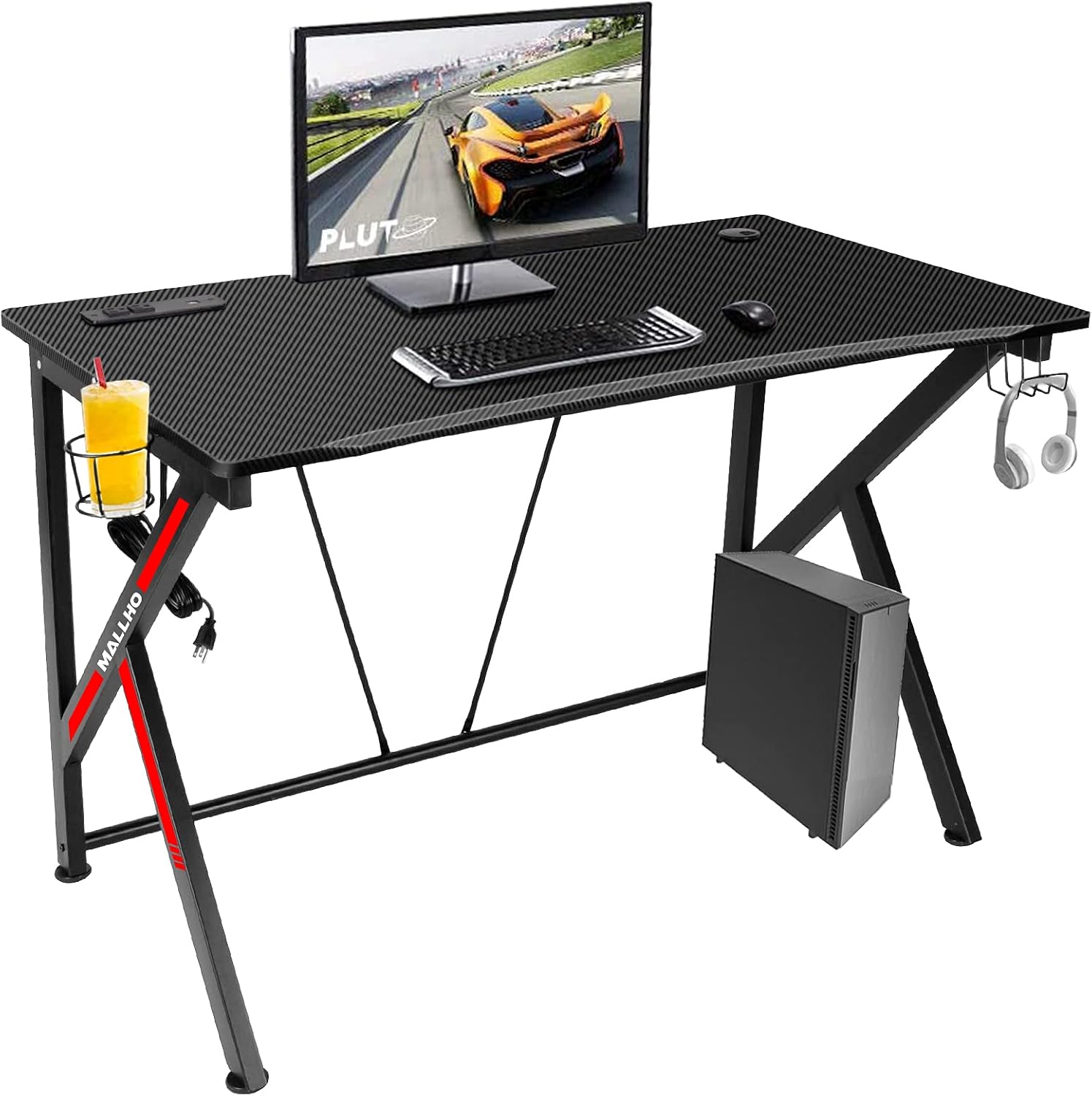
- K-Shaped Metal Frame Components
- Crossbar Support Beams
- Adjustable Foot Pads (4x)
- Cup Holder
- Headphone Hook
- Built-in Multi-function Socket (with power cord)
- Assembly Hardware (screws, bolts, Allen wrench)
- Instruction Manual
Assembly Instructions
Follow these numbered steps carefully for proper assembly. It is recommended to have two people for certain steps.
Step 1: Assemble the K-Shaped Frame
Begin by connecting the K-shaped metal frame components using the provided screws and Allen wrench. Ensure all connections are secure but do not fully tighten screws until the entire frame is assembled.
Step 2: Attach Crossbar Support Beams
Attach the horizontal crossbar support beams between the K-shaped frame legs. These beams provide additional stability to the desk structure. Tighten all frame screws once the crossbars are in place.
Step 3: Install Adjustable Foot Pads
Screw the four adjustable foot pads into the bottom of each leg of the K-shaped frame. These pads help level the desk on uneven floors and protect your flooring.
Step 4: Secure the Desktop Panel
Carefully place the carbon fiber textured desktop panel onto the assembled metal frame. Align the pre-drilled holes on the desktop with the holes on the frame. Secure the desktop to the frame using the remaining screws. Ensure all screws are tightened firmly.

Image: The fully assembled desk frame with the desktop panel secured, ready for accessory installation. Step 5: Install Cup Holder and Headphone Hook
Attach the cup holder and headphone hook to the desired locations on the sides of the desktop using the provided hardware. The headphone hook can be installed on either the left or right side.
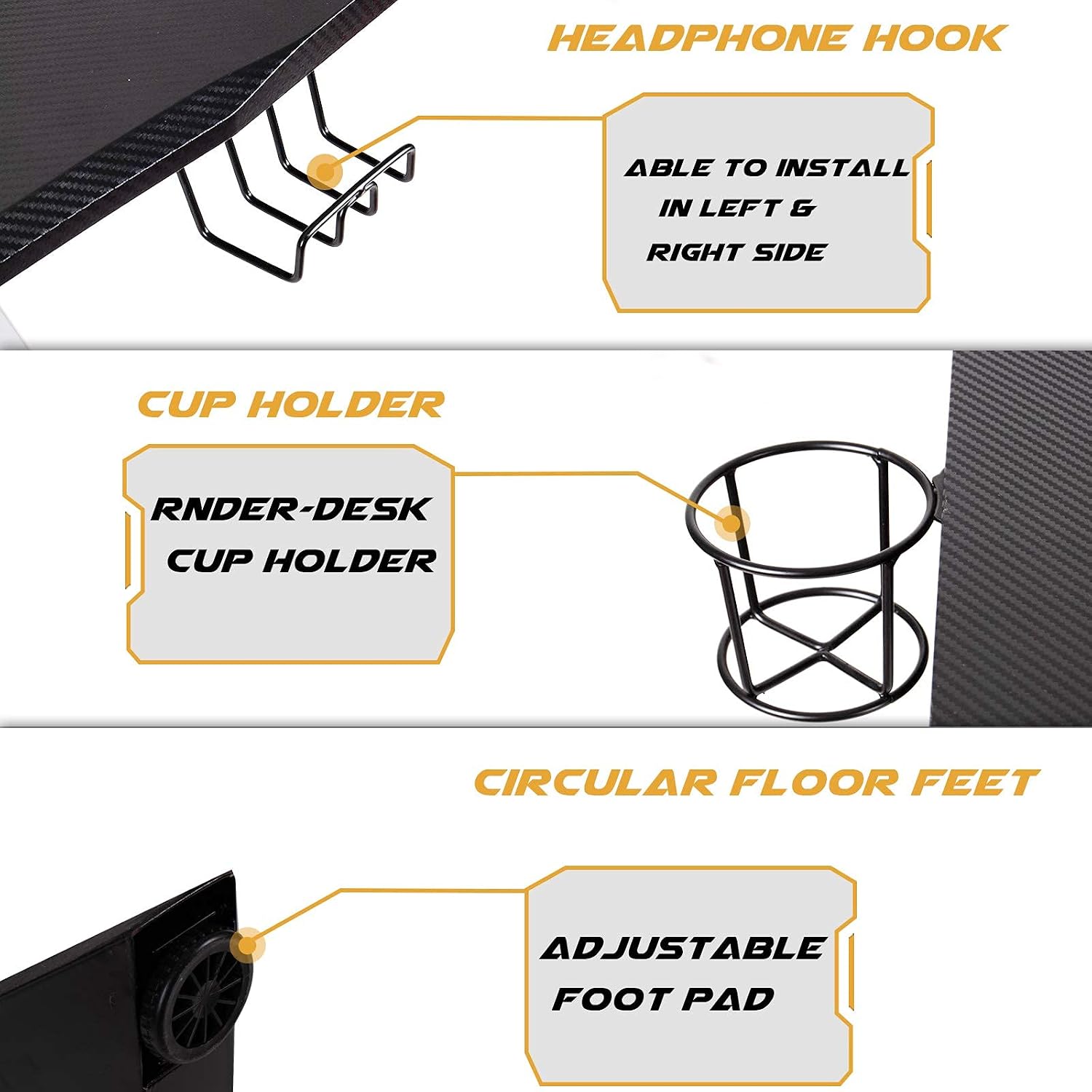
Image: Close-up of the headphone hook, cup holder, and adjustable foot pads, illustrating their attachment points. Step 6: Connect Built-in Multi-function Socket
The multi-function socket is pre-installed into the desktop. Connect its power cord to a suitable wall outlet. Ensure the power cord is routed safely to avoid tripping hazards.

Image: A detailed view of the built-in multi-function socket and cable management hole on the desk surface.
Operating Instructions
Your Polar Aurora K-Shaped Gaming Desk is designed for optimal functionality and convenience. Here's how to utilize its key features:
Using the Built-in Multi-function Socket
The desk features an integrated power strip with 2 AC outlets and 2 USB ports. This allows for convenient power access for your computer, monitor, phone, and other peripherals directly from your desk.
- Plug the desk's main power cord into a standard wall outlet.
- Connect your devices to the AC outlets or USB ports as needed.
- Do not overload the socket. Refer to the socket's specifications for maximum wattage.
Cable Management Hole
The circular cable management hole helps organize and route cables from your monitor, computer, and other devices, keeping your desktop tidy and free from clutter.
- Feed power and data cables through the cable management hole to the underside of the desk.
- Use cable ties or clips (not included) to further secure and organize cables under the desk.
Cup Holder and Headphone Hook
These accessories are designed to keep your beverages and headphones within easy reach, preventing spills and keeping your desk organized.
- Place your drink in the cup holder to prevent accidental spills on your equipment.
- Hang your headphones on the hook when not in use to keep them safe and accessible.
Adjustable Foot Pads
The adjustable foot pads allow you to stabilize the desk on uneven floor surfaces.
- Rotate each foot pad clockwise or counter-clockwise to adjust its height until the desk is stable and level.
Maintenance
To ensure the longevity and appearance of your Polar Aurora Gaming Desk, follow these maintenance guidelines:
- Cleaning the Desktop: The carbon fiber textured desktop is stain- and scratch-resistant and waterproof. Wipe with a soft, damp cloth and mild detergent if necessary. Avoid abrasive cleaners or harsh chemicals.
- Frame Care: Clean the metal frame with a soft, dry cloth. Avoid prolonged exposure to moisture.
- Hardware Check: Periodically check all screws and bolts to ensure they remain tight. Retighten if necessary to maintain stability.
- Avoid Overloading: Do not place excessive weight on the desk, as this can compromise its structural integrity.
Troubleshooting
If you encounter any issues with your gaming desk, refer to the following common problems and solutions:
| Problem | Possible Cause | Solution |
|---|---|---|
| Desk is wobbly or unstable. | Uneven floor surface; loose screws; incorrect assembly. | Adjust the foot pads until the desk is level. Check and tighten all assembly screws. Review assembly instructions. |
| Built-in socket is not working. | Power cord not plugged in; wall outlet issue; overloaded circuit. | Ensure the desk's power cord is securely plugged into a functional wall outlet. Test the wall outlet with another device. Reduce the number of devices plugged into the socket. |
| Parts do not fit during assembly. | Incorrect orientation of parts; manufacturing defect. | Double-check the assembly diagram and ensure parts are oriented correctly. Do not force parts. If a defect is suspected, contact customer support. |
Specifications
Detailed specifications for the Polar Aurora K-Shaped Gaming Desk:
| Feature | Detail |
|---|---|
| Brand | Polar Aurora |
| Model | K-Shaped Gaming Desk |
| Dimensions (L x D x H) | 45.1" x 28.6" x 30.3" (114.5 cm x 72.6 cm x 77 cm) |
| Desktop Material | Engineered Wood with Carbon Fiber Texture |
| Frame Material | Metal (K-Shaped Construction) |
| Color | Black (with Red accents) |
| Weight Capacity | 160 lbs (72.5 kg) |
| Special Features | Built-in Multi-function Socket (2 AC outlets, 2 USB ports), Cable Management Hole, Cup Holder, Headphone Hook, Adjustable Foot Pads |
| Assembly Required | Yes |

Warranty and Support
Polar Aurora stands behind the quality of its products. For specific warranty details, please refer to the warranty card included with your purchase or contact our customer support.
If you require assistance with assembly, have questions about product features, or need to report missing/damaged parts, please contact Polar Aurora Customer Support:
Website: Visit the Polar Aurora Store on Amazon
Email: Refer to your purchase documentation for direct contact information.
Phone: Refer to your purchase documentation for direct contact information.
Please have your product model number (K-Shaped Gaming Desk) and purchase date available when contacting support.