
1. Introduction
The Bigking V311 OBD2 Scanner is a diagnostic tool designed for automotive use, enabling users to read and clear vehicle fault codes, view live data streams, and perform other diagnostic functions. This device features a high-resolution color LCD screen and supports a wide range of OBD-II protocols, making it compatible with various vehicle models. Its compact design ensures ease of use and portability.
2. Product Overview
The V311 OBD2 Scanner is equipped with a color display and intuitive buttons for navigation. The main unit connects to your vehicle's OBD-II port via an integrated cable.

Figure 2.1: Front view of the Bigking V311 OBD2 Scanner. The device features a color screen displaying menu options like "OBD Diagnose", "Data View", "Review", "I/M View", "Tool Setup", and "Help". Below the screen are control buttons including "DTC", "I/M", "EXIT", "ENTER", and directional arrows.

Figure 2.2: Angled view of the Bigking V311 OBD2 Scanner, highlighting its ergonomic design and the integrated cable at the top.

Figure 2.3: Close-up view of the standard 16-pin OBD-II connector, which plugs into the vehicle's diagnostic port.
3. Setup
- Locate the OBD-II Port: The OBD-II port is typically located under the dashboard on the driver's side of the vehicle. Refer to your vehicle's owner's manual if you cannot find it.
- Connect the Scanner: With the vehicle's ignition off, firmly plug the V311 scanner's OBD-II connector into the vehicle's OBD-II port. Ensure a secure connection.
- Turn on Ignition: Turn the vehicle's ignition to the "ON" position (do not start the engine unless instructed by a specific diagnostic procedure). The scanner will power on automatically.
- Language Selection: If prompted, select your preferred language (Chinese, English, French, or German) using the directional buttons and confirm with the ENTER button.

Figure 3.1: The V311 scanner with its integrated OBD-II cable, ready for connection to a vehicle.
4. Operating Instructions
After successful connection and power-up, the main menu will appear. Use the directional arrow buttons to navigate through the menu options and the ENTER button to select.
4.1. OBD Diagnose
This function allows you to access the vehicle's diagnostic information.
- Select "OBD Diagnose" from the main menu.
- The scanner will establish communication with the vehicle's ECU.
- Once connected, you can choose from various diagnostic sub-functions:
- Read Error Codes: Displays Diagnostic Trouble Codes (DTCs) stored in the vehicle's computer.
- Clear Error Codes: Erases DTCs and turns off the Malfunction Indicator Lamp (MIL). Caution: Clearing codes without addressing the underlying issue will likely result in the codes reappearing.
- Live Data Stream: Shows real-time data from various sensors and components.
- Freeze Frame Data: Records a snapshot of vehicle conditions when a fault code is set.
- I/M Readiness: Checks the status of emission-related monitoring systems.
4.2. Data View
This option allows you to review stored data, including recorded live data streams and freeze frame data.
4.3. Review
Access previously saved diagnostic reports or data logs for analysis.
4.4. Tool Setup
Configure scanner settings such as language, unit of measurement, and display brightness.
4.5. Supported Vehicle Data (Live Data Parameters)
The V311 scanner supports reading the following vehicle data parameters:
- Engine Revolutions Per Minute (RPM)
- Calculated Load Value
- Coolant Temperature
- Fuel System Status
- Vehicle Speed
- Short-Term Fuel Trim
- Long-Term Fuel Trim
- Intake Manifold Pressure
- Injection Advance Timing
- Intake Air Temperature
- Air Flow Speed
- Absolute Throttle Position
- Oxygen Sensor Detection Voltage (associated with fuel status)
- Fuel Consumption Monitoring
- Fuel Pressure
- And other relevant data.
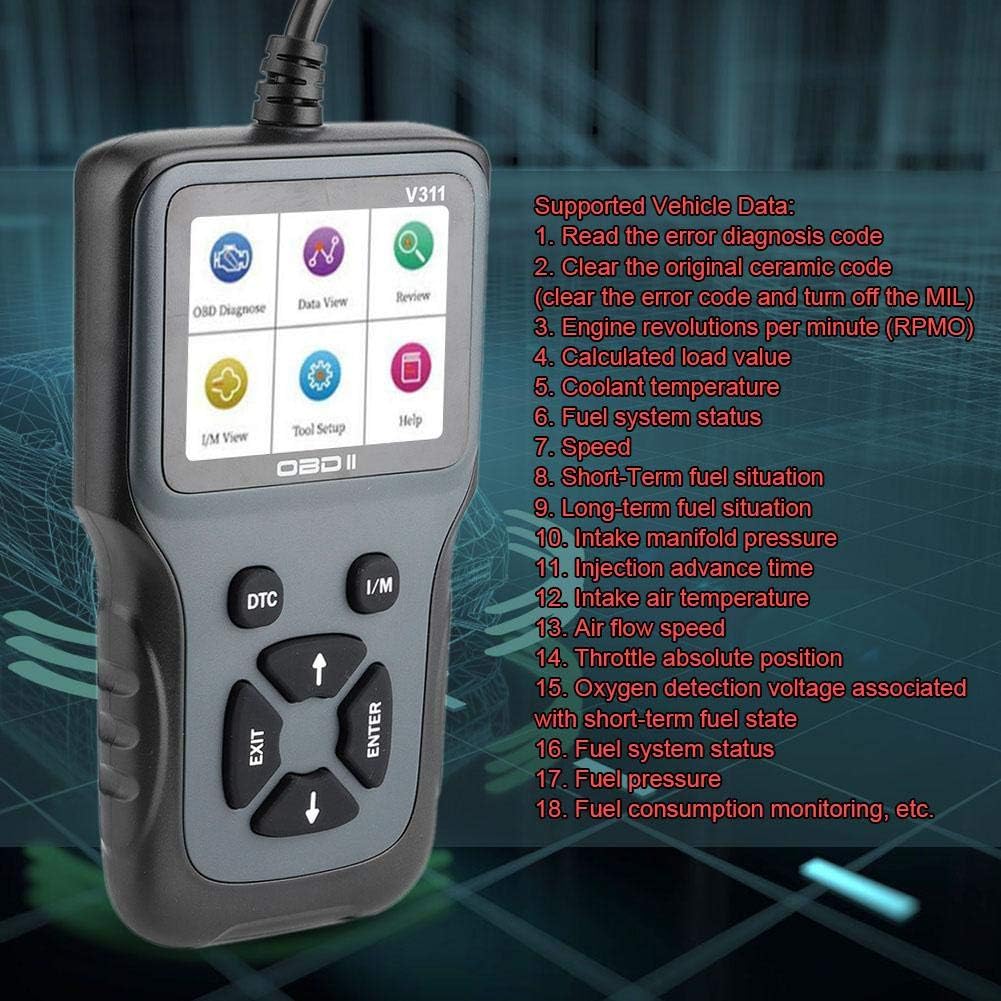
Figure 4.1: The V311 scanner screen showing a list of supported vehicle data parameters, such as RPM, calculated load value, and coolant temperature.
5. Supported Protocols
The Bigking V311 OBD2 Scanner supports 9 types of standard OBD-II/EOBD protocols, ensuring broad compatibility with most vehicles manufactured after 1996 (USA), 2001 (EU gasoline), and 2004 (EU diesel).
- SAE J1850 PWM (41.6 Kbaud)
- SAE J1850 VPW (10.4 Kbaud)
- ISO 9141-2 (5 baud init, 10.4 Kbaud)
- ISO 14230-4 KWP (5 baud init, 10.4 Kbaud)
- ISO 14230-4 KWP (fast init, 10.4 Kbaud)
- ISO 15765-4 CAN (11 bit ID, 500 Kbaud)
- ISO 15765-4 CAN (29 bit ID, 500 Kbaud)
- ISO 15765-4 CAN (11 bit ID, 250 Kbaud)
- ISO 15765-4 CAN (29 bit ID, 250 Kbaud)
6. Specifications
| Main Control Chip | F103VET6 |
| Operating Voltage | DC 8-36V |
| Working Current | 58mA |
| Operating Environment Temperature | 20 - 65 ℃ (-4 - 149 ℉) |
| Storage Temperature | -30 - 80 ℃ (-22 - 176 ℉) |
| Supported Languages | Chinese, English, French, German |
| Material | ABS |
| Item Weight | 280 g |
| Screen Size | 2.8 Inches |
7. Troubleshooting
- No Power:
Ensure the OBD-II connector is securely plugged into the vehicle's port. Check the vehicle's battery voltage; the scanner requires 8-36V. Verify the vehicle's ignition is in the "ON" position.
- Communication Error:
Confirm the vehicle supports OBD-II protocols (generally 1996 and newer for US, 2001/2004 for EU). Check for loose connections. Try the scanner on another OBD-II compliant vehicle to rule out scanner malfunction. Ensure the vehicle's ignition is on.
- Codes Not Clearing:
If fault codes reappear immediately after clearing, it indicates an underlying issue that needs to be repaired. The scanner can only clear codes; it cannot fix the problem. Address the root cause of the DTCs.
- Screen Freezes/Unresponsive:
Disconnect the scanner from the vehicle, wait a few seconds, and reconnect. If the issue persists, ensure the operating temperature is within the specified range (20-65 ℃).
8. Maintenance
- Cleaning: Use a soft, damp cloth to clean the scanner's exterior. Do not use abrasive cleaners or solvents.
- Storage: Store the device in a dry, cool place, away from direct sunlight and extreme temperatures (-30 to 80 ℃).
- Cable Care: Avoid bending or twisting the cable excessively to prevent internal damage.
9. Support
For technical assistance or inquiries regarding the Bigking V311 OBD2 Scanner, please contact Bigking customer service. The manufacturer is committed to providing professional after-sales service and technical support.
Refer to the product packaging or the official Bigking website for specific contact information.