
Samsung LS32AM702UNXZA
SAMSUNG 32-inch 4K UHD Smart Monitor User Manual
Model: LS32AM702UNXZA
1. Introduction
This manual provides comprehensive instructions for the setup, operation, and maintenance of your SAMSUNG 32-inch 4K UHD Smart Monitor. Please read this manual thoroughly before using the product to ensure safe and optimal performance.
The 32-inch M7 4K UHD Smart Monitor with Streaming TV is designed for versatile use, allowing you to work, play, and learn without the need for a traditional PC. It integrates Microsoft Office 365, mobile connectivity features like Wireless DeX and Tap View, and a built-in entertainment system with popular streaming apps.
2. Setup
2.1 Unboxing and Assembly
Carefully remove all components from the packaging. Ensure all parts are present before proceeding with assembly.

Figure 2.1: Samsung 32-inch 4K UHD Smart Monitor with included remote control.
The monitor comes with a simple stand assembly. Attach the stand neck to the base, then secure the assembled stand to the back of the monitor using the provided screws. The stand is designed for easy, tool-free attachment.
Video 2.1: Unboxing and initial setup of the Samsung Smart Monitor, demonstrating the assembly of the stand and initial power-on. (Source: All Things Tech)
2.2 Connecting Devices
The monitor offers various connectivity options. Identify the ports on the back of your monitor:
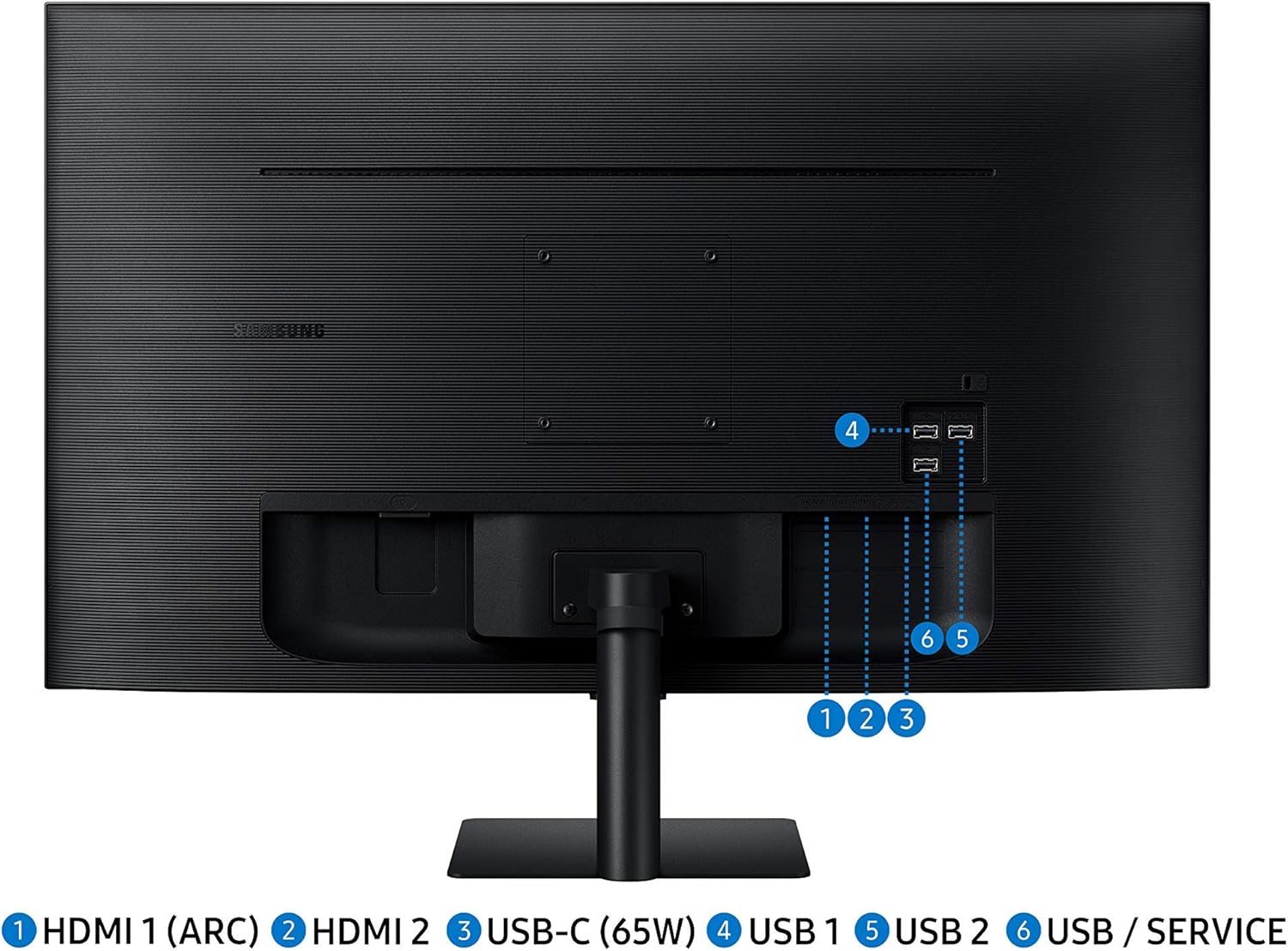
Figure 2.2: Rear view of the Samsung Smart Monitor with labeled ports: HDMI 1 (ARC), HDMI 2, USB-C (65W), USB 1, USB 2, USB / Service.
- HDMI Ports (x2): Connect your PC, gaming console, or other HDMI-enabled devices. HDMI 1 supports ARC (Audio Return Channel).
- USB-C Port (65W): Connect compatible laptops for video, data, and power delivery through a single cable.
- USB-A Ports (x3): Connect peripherals like keyboards, mice, or USB drives.
Use the provided power cable to connect the monitor to a power outlet. The monitor features Automatic Source Switch Plus, which detects newly connected devices and displays the correct signal automatically.
3. Operating the Smart Monitor
3.1 Smart Hub and Streaming
The integrated Smart Hub allows direct access to various entertainment apps without a PC. Use the included remote control to navigate the Smart Hub interface.

Figure 3.1: The Smart Hub interface showing various streaming applications like Netflix, YouTube, and HBO.
The remote control simplifies navigation and includes dedicated buttons for popular streaming services. Built-in speakers provide audio for your entertainment.
Video 3.1: Demonstration of Smart Hub features, including accessing streaming apps and navigating with the remote control. (Source: SAMIT)
3.2 Mobile Connectivity (Wireless DeX & Tap View)
Utilize Wireless DeX to experience a full PC-like environment directly from your compatible Samsung Galaxy phone. For quick mirroring, use Tap View by gently tapping your phone on the monitor's frame.

Figure 3.2: Wireless DeX allows mobile apps to be used on the large monitor screen, enhancing productivity.
Video 3.2: Instructions on how to work from home without a PC using Samsung Smart Monitor's mobile connectivity features like Wireless DeX and Office 365. (Source: SAMIT)
3.3 PC on Screen & Remote Access
The monitor supports PC on Screen features, allowing you to access Microsoft Office 365 directly or remotely connect to your office computer. This enables productivity without a dedicated PC connected to the monitor.

Figure 3.3: Remote access capabilities allow users to work on their office or school desktop from home.
3.4 Apple AirPlay 2 Integration
With AirPlay 2 built-in, you can seamlessly stream or share content from your Apple devices (iPhone, iPad, MacBook) to the monitor. This allows for a wireless dual monitor setup or easy media sharing.

Figure 3.4: Apple devices (iPhone, iPad, MacBook) wirelessly connected to the Samsung Smart Monitor via AirPlay 2.
3.5 Voice Assistant (Bixby/Alexa/Google Assistant)
The monitor supports various voice assistants, allowing you to control apps, videos, and other functions using voice commands. Simply say "Play" to start content or switch between applications.

Figure 3.5: User interacting with the monitor using voice commands for seamless control.
4. Maintenance
To ensure the longevity and optimal performance of your Smart Monitor, follow these maintenance guidelines:
- Cleaning the Screen: Gently wipe the screen with a soft, lint-free cloth. For stubborn smudges, slightly dampen the cloth with water or a screen-cleaning solution specifically designed for electronics. Avoid harsh chemicals or abrasive materials.
- Cleaning the Body: Use a soft, dry cloth to wipe the exterior of the monitor.
- Ventilation: Ensure the ventilation openings on the monitor are not blocked to prevent overheating.
- Power Management: Unplug the monitor from the power outlet during lightning storms or when left unattended for long periods.
- Remote Control: The remote control is solar-powered and can be charged via indoor sunlight, lightbulbs, or a USB-C connection.

Figure 4.1: The solar-powered remote control, designed for eco-friendly efficiency.
5. Troubleshooting
If you encounter issues with your Smart Monitor, try the following basic troubleshooting steps:
- No Power: Ensure the power cable is securely connected to both the monitor and a working power outlet.
- No Signal: Verify that the input source is correctly selected. Check all cable connections (HDMI, USB-C) between the monitor and your device. Use the Automatic Source Switch Plus feature or manually select the source.
- Remote Control Not Working: Ensure the remote control is charged. Point the remote directly at the monitor's sensor.
- Network Connection Issues: Check your Wi-Fi router and ensure the monitor is within range. Re-enter your Wi-Fi password if necessary.
- Picture Quality Issues: Adjust picture settings such as brightness, contrast, and sharpness in the monitor's menu. Ensure your source device is outputting at the correct resolution (e.g., 4K for UHD content).
For more detailed troubleshooting, refer to the full user manual available for download or contact Samsung support.
6. Specifications
| Feature | Specification |
|---|---|
| Standing screen display size | 32 Inches |
| Max Screen Resolution | 3840 x 2160 Pixels (4K UHD) |
| Refresh Rate | 60 Hz |
| Aspect Ratio | 21:9 (Ultrawide Game View) |
| Connectivity Technology | Wired (HDMI, USB-C), Wireless (Wi-Fi, Bluetooth, AirPlay 2) |
| Number of USB 2.0 Ports | 2 |
| Number of USB 3.0 Ports | 1 |
| Operating System | TizenTM |
| Item Weight | 1 pounds |
| Product Dimensions | 20.35 x 28.19 x 7.62 inches |
| Included Components | Stand, Power Cable, Remote |
7. Warranty
For detailed warranty information, please refer to the warranty card included in your product packaging or visit the official Samsung website for your region.
8. Support
For further assistance, technical support, or to download the full user manual (PDF), please visit the official Samsung support website:
You can also find the user manual PDF directly here: User Manual (PDF)