

1. Introduction
Thank you for choosing the WiMiUS Q1 Mini Android Projector. This manual provides essential information for setting up, operating, and maintaining your projector to ensure optimal performance and longevity. Please read this manual thoroughly before using the product.
2. Package Contents
Before proceeding with the setup, please verify that all items listed below are included in your package:
- WiMiUS Q1 Mini Projector
- Remote Control
- HDMI Cable
- Power Cable
- Storage Bag
- User Manual (this document)

All components included in the WiMiUS Q1 projector package.
3. Setup Guide
3.1 Placement
Place the projector on a stable, flat surface. Ensure there are no obstructions blocking the projection lens or the ventilation vents. For optimal image quality, project onto a smooth, light-colored wall or a dedicated projector screen.
3.2 Power Connection
Connect the power cable to the projector's power input port and then plug it into a power outlet.
3.3 Initial Power On
Press the power button on the projector or the remote control to turn on the device. The projector will initiate its startup sequence.
3.4 Focus and Keystone Correction
The WiMiUS Q1 features an autofocus sensor that automatically measures the distance to the screen and adjusts the focus. This allows for immediate projection without manual adjustment. For keystone correction, the projector is equipped with a 4D keystone correction function, enabling it to correct image distortion even when projected from an oblique angle.
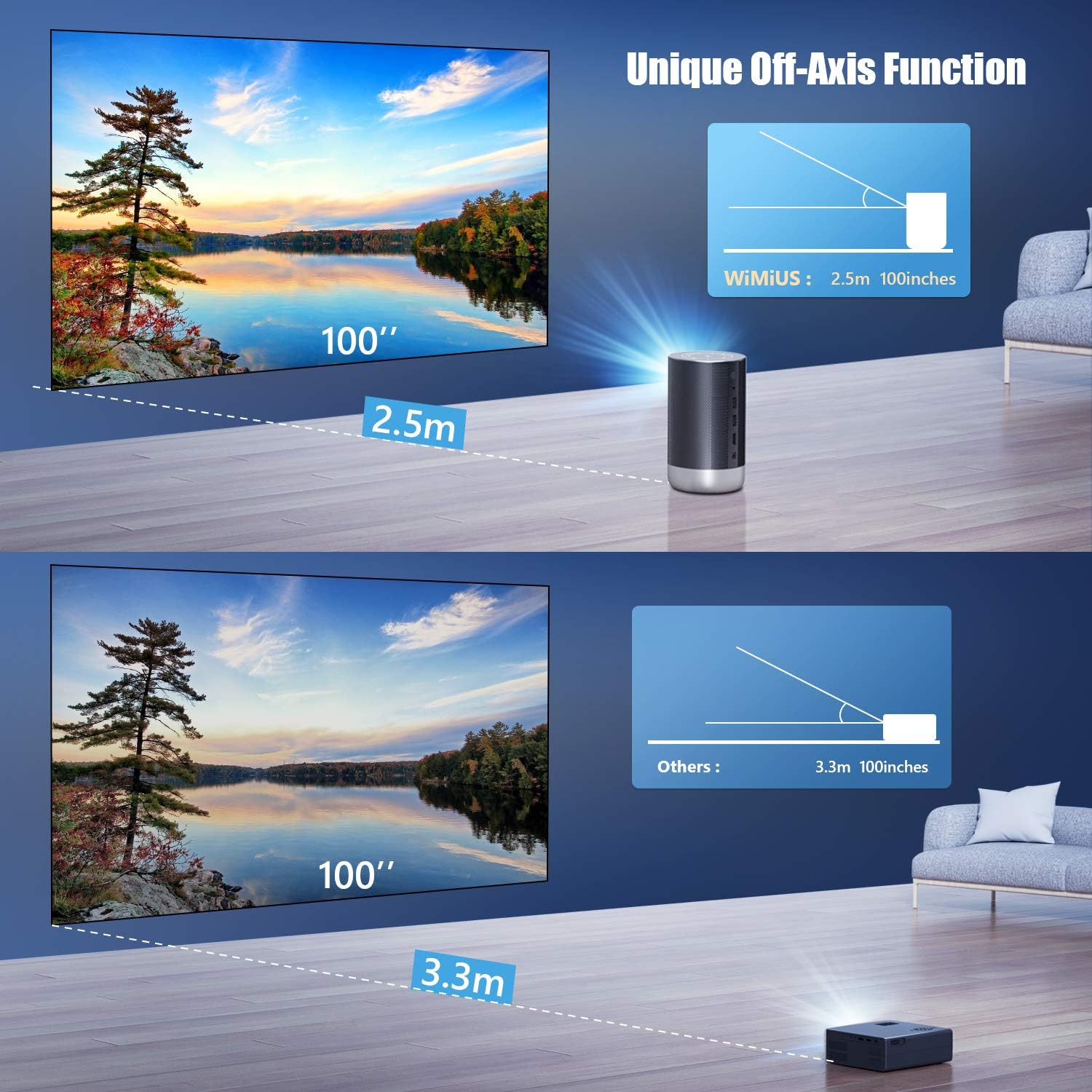
The WiMiUS Q1's unique off-axis projection function allows for flexible placement.
4. Operating Instructions
4.1 Android 9.0 System and Apps
The projector is equipped with Android 9.0, allowing direct access to over 5,000 apps like Netflix, Hulu, and YouTube without external devices. Navigate the interface using the remote control. The remote control functions best when the USB hub is plugged in.

The Android TV system allows access to a wide range of streaming applications.
4.2 Connectivity (Wi-Fi & Bluetooth)
Connect to your home network via 5G Wi-Fi for seamless streaming. The projector also supports Bluetooth connectivity for external audio devices. Note that Bluetooth speaker functionality is primarily for apps within the projector's system; direct connection with external devices like iPhones may not support Bluetooth audio output from the projector.

The projector offers convenient Bluetooth and Wi-Fi connectivity for various uses.
4.3 Image Quality and Brightness
The Q1 projector delivers native 1080P Full HD resolution with 4K support and 700 ANSI lumens brightness. This ensures vivid images and high contrast, even in environments with some ambient light. The DLP projection technology provides excellent color reproducibility.

Experience brighter and clearer images with the Q1's advanced projection technology.
4.4 Usage Scenarios
The WiMiUS Q1 is versatile for various applications, including home theater, gaming, outdoor movies, and small conference presentations.

The projector is suitable for a variety of entertainment and professional settings.
5. Maintenance
5.1 Cleaning
Regularly clean the projector lens with a soft, lint-free cloth. For the exterior, use a dry or slightly damp cloth. Avoid using abrasive cleaners or solvents.
5.2 Storage
When not in use for extended periods, store the projector in its original packaging or a protective bag in a cool, dry place away from direct sunlight and extreme temperatures.
5.3 Software Updates
Periodically check for software updates to ensure optimal performance and access to new features. However, some users have reported that updating Google services might slow down the system. Exercise caution and research before performing major system updates.
6. Troubleshooting
6.1 No Image / Blurry Image
- Ensure the projector is powered on and connected correctly.
- Verify the input source is selected correctly.
- Allow the autofocus function to complete its adjustment. If still blurry, try manually adjusting focus via the remote if an option is available.
- Check keystone correction settings if the image is distorted.
6.2 No Sound
- Check the volume level on the projector and any connected audio devices.
- Ensure external speakers are properly connected via Bluetooth or cable.
- If using Bluetooth speakers, confirm they are paired and connected. Note that Bluetooth audio may only work with apps running directly on the projector.
6.3 Apps Not Working / Slow Performance
- Ensure a stable Wi-Fi connection.
- Clear app caches or reinstall problematic apps.
- Avoid updating Google services if performance issues arise, as some users have reported this can cause slowdowns.
- Note that some apps, like Disney+, may not be natively supported and require connection via an external device (e.g., phone, laptop).
6.4 Excessive Noise
The Q1 projector is designed with a new cooling system to significantly reduce fan noise, providing a quieter viewing experience.

Enjoy a quieter movie experience thanks to the projector's optimized cooling system.
7. Specifications
| Feature | Specification |
|---|---|
| Model Number | Q1 |
| Display Resolution | 1920 x 1080 (Native 1080P, 4K Supported) |
| Brightness | 700 ANSI lumens |
| Operating System | Android 9.0 |
| Memory | 2G RAM + 16G ROM |
| Connectivity Technology | 5G Wi-Fi, Bluetooth |
| Special Features | Autofocus, 4D Keystone Correction, 3D Support |
| Recommended Use | Home Cinema, Office Use |
| Item Weight | 3.78 pounds |
| Package Dimensions | 12.71 x 9.8 x 5.35 inches |
8. Warranty and Support
WiMiUS provides a safe after-sales service for 3 years from the date of purchase. If you encounter any problems or have questions during use, please do not hesitate to contact our customer support. We are committed to responding to your inquiries within 24 hours.
For support, please refer to the contact information provided on the product packaging or the official WiMiUS website.


