
1. Introduction
This manual provides essential information for the safe and efficient operation, maintenance, and troubleshooting of your ISWEEP Robot Vacuum Cleaner YBS1806I. Please read this manual thoroughly before using the product and retain it for future reference.
The ISWEEP YBS1806I is an intelligent robot vacuum cleaner designed for automated cleaning of various floor types, including hard floors and carpets. It features powerful suction, smart navigation, and multiple cleaning modes to ensure a comprehensive cleaning experience.

Image 1.1: Top view of the ISWEEP Robot Vacuum Cleaner YBS1806I. The robot is circular with a light blue top panel and silver trim, featuring the 'iSweep' logo and a power indicator light.
2. Safety Instructions
To reduce the risk of injury or damage, read and follow all safety precautions.
- This appliance can be used by children aged 8 years and above and persons with reduced physical, sensory or mental capabilities or lack of experience and knowledge if they have been given supervision or instruction concerning use of the appliance in a safe way and understand the hazards involved.
- Children should be supervised to ensure that they do not play with the appliance.
- Cleaning and user maintenance shall not be made by children without supervision.
- Only use the original power adapter provided by the manufacturer.
- Do not use the robot in wet environments or near water.
- Keep hair, loose clothing, fingers, and all parts of the body away from openings and moving parts.
- Do not pick up large or sharp objects, liquids, or burning/smoking materials.
- Ensure the robot is turned off and unplugged before cleaning or performing maintenance.
3. Package Contents
Verify that all items are present in the package:
- ISWEEP Robot Vacuum Cleaner YBS1806I
- Charging Dock
- Power Adapter
- Remote Control
- Side Brushes (set)
- HEPA Filter (pre-installed or spare)
- Cleaning Tool
- User Manual
4. Product Overview
Robot Components
- Top Panel: Power/Start button, Wi-Fi indicator (if applicable).
- Front Bumper: Anti-collision sensors.
- Side Brushes: Sweep debris into the suction path.
- Main Brush: Agitates and lifts debris from floors.
- Dust Bin: Collects dirt and debris.
- Driving Wheels: Allow movement across various surfaces.
- Charging Contacts: Connect with the charging dock.
- Drop Sensors: Prevent falling down stairs.
Remote Control
The remote control allows you to manually direct the robot, select cleaning modes, schedule cleaning times, and initiate/pause cleaning cycles.
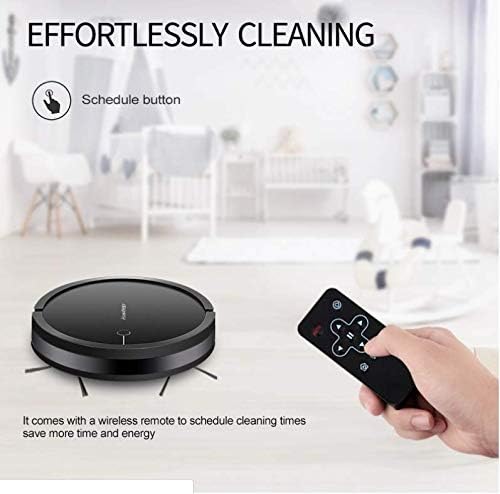
Image 4.1: The ISWEEP Robot Vacuum Cleaner shown with its remote control. The remote control has buttons for scheduling, direction, cleaning modes, and power.
5. Setup
5.1 Charging Dock Placement
- Place the charging dock against a wall in an open, uncluttered area.
- Ensure there is at least 0.5 meters (1.6 feet) of clear space on both sides of the dock and 1.5 meters (4.9 feet) in front of it.
- Plug the power adapter into the charging dock and then into a wall outlet. Ensure the power indicator on the dock illuminates.
5.2 Initial Charging
- Manually place the robot onto the charging dock, aligning its charging contacts with those on the dock.
- Allow the robot to charge completely before its first use. The indicator light on the robot will change to indicate a full charge (refer to the robot's specific indicator light behavior).

Image 5.1: The ISWEEP Robot Vacuum Cleaner automatically returning to its charging dock for recharging. The dock is placed against a wall, and the robot aligns itself for connection.
5.3 Installing Side Brushes
Press the side brushes onto the square posts at the bottom of the robot until they click into place.
6. Operating Instructions
6.1 Starting/Pausing Cleaning
- To Start: Press the power button on the robot or the 'Start' button on the remote control.
- To Pause: Press the power button on the robot or the 'Pause' button on the remote control during a cleaning cycle.
6.2 Cleaning Modes
The ISWEEP YBS1806I offers multiple cleaning modes:
- Automatic Mode: The robot intelligently navigates and cleans the entire accessible area.
- Planning Cleaning: The robot follows a systematic path for thorough coverage.
- Fixed-Point Cleaning (Spot Cleaning): The robot cleans a specific concentrated area in a spiral pattern. Useful for heavily soiled spots.
- Border Cleaning (Edge Cleaning): The robot cleans along walls and furniture edges.
Select your desired mode using the remote control.
6.3 Scheduling Cleaning
Use the remote control's scheduling function to set specific times for the robot to begin cleaning automatically. Refer to the remote control section of this manual for detailed instructions on setting schedules.

Image 6.1: The ISWEEP Robot Vacuum Cleaner illustrating its ability to pick up various debris such as hair, dust, pet fur, and larger particles with its 2000Pa suction.
7. Maintenance
Regular maintenance ensures optimal performance and extends the lifespan of your robot vacuum cleaner.
7.1 Emptying the Dust Bin
Empty the dust bin after each cleaning cycle or when the 'full' indicator (if available) illuminates. Press the release button to remove the dust bin, open it, and discard the contents.
7.2 Cleaning Filters
The robot uses a three-layer filtration system (nylon mesh, sponge, HEPA filter). Clean these filters regularly:
- Remove the filters from the dust bin.
- Tap the HEPA filter gently to remove dust. Do not wash the HEPA filter with water.
- Rinse the nylon mesh and sponge filters with water. Ensure they are completely dry before re-installing.
- Replace filters every 3-6 months, depending on usage.
7.3 Cleaning Brushes
Remove and clean the side brushes and main brush regularly to remove tangled hair and debris. Use the provided cleaning tool for easier removal of hair.
7.4 Cleaning Sensors and Charging Contacts
Wipe the anti-collision sensors, drop sensors, and charging contacts on both the robot and the charging dock with a clean, dry cloth. This prevents performance issues.

Image 7.1: The ISWEEP Robot Vacuum Cleaner illustrating its anti-collision system, which uses sensors to detect obstacles and prevent impact with furniture and walls.
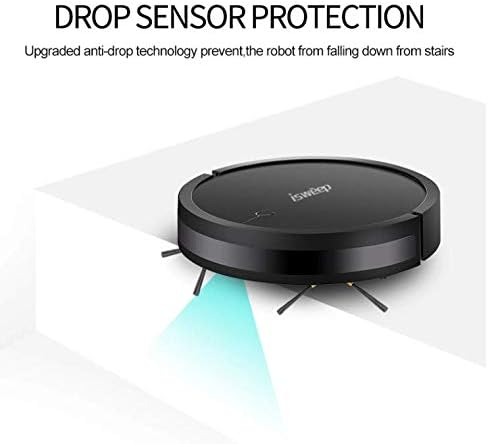
Image 7.2: The ISWEEP Robot Vacuum Cleaner demonstrating its drop sensor protection, preventing it from falling down stairs or off elevated surfaces.
8. Troubleshooting
If your robot vacuum cleaner encounters issues, refer to the following table for common problems and solutions.
| Problem | Possible Cause | Solution |
|---|---|---|
| Robot does not start | Low battery; Power switch off; Obstruction | Charge the robot; Turn on the power switch; Remove any obstructions. |
| Robot cannot return to charging dock | Dock obstructed; Robot too far from dock; Dock not powered | Ensure clear space around dock; Manually place robot on dock; Check dock power connection. |
| Poor cleaning performance | Full dust bin; Clogged filters; Worn brushes | Empty dust bin; Clean/replace filters; Clean/replace brushes. |
| Robot gets stuck frequently | Loose cables/rugs; Small gaps; Dirty sensors | Clear obstacles; Block off problematic areas; Clean sensors. |
9. Specifications
| Feature | Specification |
|---|---|
| Brand | ISWEEP |
| Model | YBS1806I |
| Suction Power | Up to 2000Pa |
| Battery Type | Lithium-Ion |
| Battery Capacity | 2200mAh |
| Runtime | 90-120 minutes (average) |
| Dust Bin Capacity | 750mL |
| Filtration System | Nylon Mesh, Sponge, HEPA |
| Navigation | Smart Navigation |
| Special Features | Anti-Collision, Anti-Fall, Self-Charging |
| Control Method | Remote Control |
| Surface Recommendation | Hard Floor, Carpets |
| Manufacturer | Shanghai Xianju Industrial Co., Ltd |
| First Available Date | Oct. 13, 2020 |
10. Warranty and Support
For warranty information and customer support, please refer to the documentation provided with your purchase or contact the retailer. Keep your proof of purchase for warranty claims.


