1. Introduction
Thank you for choosing the SilverStone Technology FX500-G 500W Flex ATX Power Supply. This power supply unit (PSU) is designed to provide stable and efficient power to your computer system, particularly in small form factor (SFF) builds and 1U rackmount server applications. Featuring 80 PLUS Gold level efficiency and a powerful single +12V rail, the FX500-G delivers 500W continuous output at 40°C for reliable 24/7 operation. This manual provides essential information for proper installation, operation, and maintenance of your new power supply.
2. Safety Information
- Always disconnect the power cord from the wall outlet before installing, removing, or cleaning the power supply.
- This power supply is designed for use in computer systems. Do not use it for any other purpose.
- Do not open the power supply casing. High voltages are present inside, and opening the unit will void the warranty and poses a risk of electric shock.
- Ensure proper ventilation around the power supply. Do not block any ventilation openings.
- Keep the power supply away from water, moisture, and extreme temperatures.
- Use only the cables provided with the power supply. Using incompatible cables may cause damage.
- If the power supply is not functioning correctly, contact SilverStone support or a qualified technician. Do not attempt to repair it yourself.
3. Package Contents
Please check the contents of your package. If any items are missing or damaged, contact your retailer or SilverStone support.
- SilverStone FX500-G Flex ATX Power Supply
- AC Power Cord
- Modular Cable Set (if applicable, otherwise attached cables)
- Mounting Screws
- User Manual

Image: SilverStone FX500-G Power Supply and its retail packaging.
4. Key Features
- Supports standard Flex ATX form factor for compact builds.
- High efficiency with 80 PLUS Gold certification.
- Equipped with Japanese primary capacitor for enhanced reliability.
- Provides 500W continuous power output at 40°C, rated for 24/7 operation.
- Features a class-leading single +12V rail for stable power delivery.
- All black exterior coating and sleeved cables for a clean aesthetic.
- Includes support for PCIe 8-pin and 6-pin connectors.
5. Installation Guide
Follow these steps to properly install your SilverStone FX500-G power supply into your computer system.
- Prepare Your System: Ensure your computer is completely powered off and unplugged from the wall outlet. Open your computer case to access the power supply mounting area.
- Remove Old PSU (if applicable): If replacing an existing power supply, disconnect all cables from the motherboard and components. Unscrew and remove the old PSU from the case.
- Mount the New PSU: Carefully slide the FX500-G into the Flex ATX power supply bay in your case. Align the screw holes on the PSU with those on the case. Secure the PSU using the provided mounting screws.
- Connect Motherboard Power: Connect the 24-pin ATX power connector to your motherboard. Ensure it clicks securely into place.
- Connect CPU Power: Connect the 4+4-pin or 8-pin EPS/ATX 12V connector to the CPU power socket on your motherboard.
- Connect PCIe Power (if needed): If your graphics card requires additional power, connect the appropriate 6-pin or 6+2-pin PCIe power connectors from the PSU to your graphics card.
- Connect SATA/Peripheral Power: Connect SATA power connectors to your storage drives (HDDs, SSDs) and optical drives. Use peripheral (Molex) connectors for other devices as needed.
- Cable Management: Route cables neatly to improve airflow and aesthetics. Use cable ties or straps if available.
- Close Case and Connect Power: Once all connections are secure, close your computer case. Connect the AC power cord to the power supply and then to a wall outlet or surge protector.

Image: Angled view of the SilverStone FX500-G power supply, showing its compact form factor and cable exit point.

Image: Rear view of the SilverStone FX500-G, highlighting the AC power inlet, power switch, and exhaust fan.
6. Operation
After successful installation, you can power on your system.
- Power On: Ensure the power switch on the back of the PSU is in the "I" (On) position. Press the power button on your computer case.
- Initial Boot: Your system should boot normally. Monitor for any unusual noises or smells. If any issues arise, refer to the Troubleshooting section.
- Power Off: To shut down your system, use the operating system's shutdown procedure. For a complete power cycle, switch the PSU's power switch to the "O" (Off) position after shutting down the system.
7. Maintenance
Regular maintenance helps ensure the longevity and optimal performance of your power supply.
- Dust Cleaning: Periodically clean dust from the power supply's fan and ventilation grilles. Use compressed air to gently blow dust out. Always disconnect the power cord before cleaning.
- Environmental Conditions: Operate the power supply in a well-ventilated area with stable room temperature. Avoid environments with excessive dust, humidity, or extreme temperatures.
- Cable Inspection: Occasionally inspect power cables for any signs of wear, fraying, or damage. Replace damaged cables immediately.
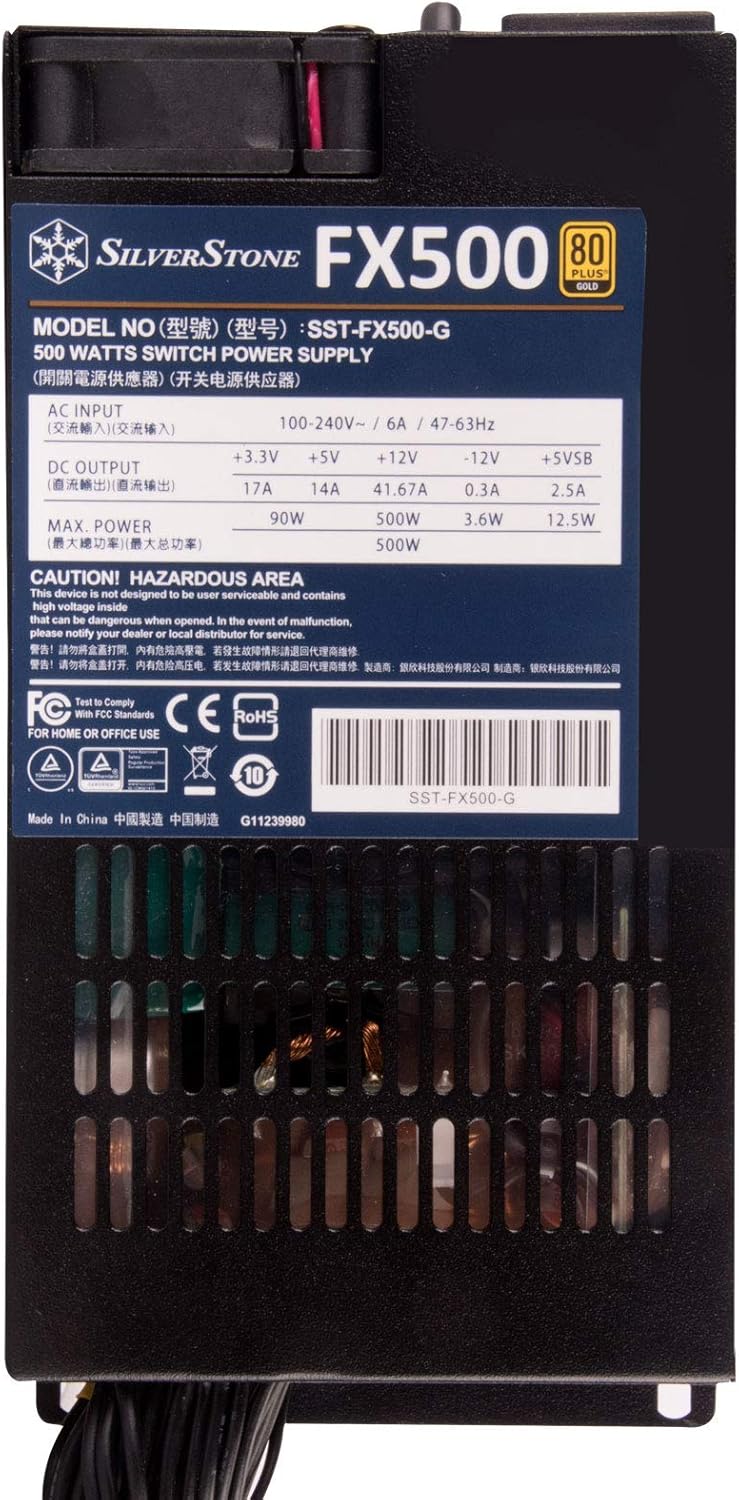
Image: Top view of the SilverStone FX500-G, showing the product label with electrical specifications and certifications.
8. Troubleshooting
If you encounter issues with your power supply, refer to the following common problems and solutions.
| Problem | Possible Cause | Solution |
|---|---|---|
| System does not power on. |
|
|
| System powers on but shuts down unexpectedly. |
|
|
| Loud fan noise from PSU. |
|
|
9. Specifications
Detailed technical specifications for the SilverStone FX500-G power supply.
| Feature | Detail |
|---|---|
| Model Name | SST-FX500-G |
| Form Factor | Flex ATX |
| Output Wattage | 500W (Continuous at 40°C) |
| Efficiency | 80 PLUS Gold certified |
| Input Voltage | 100-240V AC |
| Input Frequency | 47-63Hz |
| PFC | Active PFC |
| Cooling Method | Air (Internal Fan) |
| Dimensions (LxWxH) | 150mm x 81.5mm x 40.5mm (5.91 x 3.21 x 1.59 inches) |
| Weight | 1.3 kg (2.86 pounds) |
| Main Connector | 24-pin ATX |
| CPU Connector | 4+4-pin EPS/ATX 12V |
| PCIe Connectors | 6-pin, 6+2-pin |
| SATA Connectors | Multiple |
| Peripheral (Molex) Connectors | Multiple |

Image: Top view of the SilverStone FX500-G, showing the detailed specifications label.
10. Warranty and Support
SilverStone Technology products are designed and manufactured to the highest quality standards. In the unlikely event that you experience any issues with your FX500-G power supply, please refer to the following information.
Warranty Information
SilverStone Technology provides a limited warranty for its power supply units. The specific terms and duration of the warranty may vary by region and product. Please retain your proof of purchase for warranty claims. For detailed warranty information, including coverage and exclusions, please visit the official SilverStone Technology website or contact their customer support.
Customer Support
If you require technical assistance, have questions about your product, or need to initiate a warranty claim, please contact SilverStone Technology customer support.
- Official Website: Visit www.silverstonetek.com for product information, FAQs, and support resources.
- Contact Information: Refer to the "Support" or "Contact Us" section on the SilverStone website for regional contact details, including email and phone numbers.
When contacting support, please have your product model (FX500-G) and proof of purchase ready.


