
RK ROYAL KLUDGE 9154100f-847d-4286-812f-2a6702fd7d5c
RK ROYAL KLUDGE RK G68 Wireless Mechanical Keyboard User Manual
Model: RK G68 | Brand: RK ROYAL KLUDGE
Introduction
This manual provides comprehensive instructions for the RK ROYAL KLUDGE RK G68 65% Wireless Mechanical Keyboard. It covers setup, operation, maintenance, and troubleshooting to ensure optimal performance and user experience. The RK G68 is a versatile keyboard designed for both gaming and productivity, offering multiple connectivity options and customizable features.
Key Features
- Tri-mode Connectivity: Supports Bluetooth 5.1, 2.4G wireless, and USB-C wired connections.
- Hot-Swappable Switches: Compatible with 3-pin/5-pin MX-similar mechanical switches (Gateron, Cherry, etc.) for easy customization.
- PBT Keycaps: Durable, oil-resistant keycaps designed for long-term use and a matte texture.
- Integrated USB Ports: Features 2 built-in USB pass-through ports and a USB-C port for expanded connectivity.
- Programmable RGB Backlit: Offers a wide range of RGB lighting effects and software for customization.
- Long-lasting Battery: Equipped with a 3150mAh battery for extended wireless usage.
Package Contents
Upon unboxing your RK ROYAL KLUDGE RK G68 keyboard, please ensure all the following items are present:
- 1 x RK G68 Mechanical Keyboard
- 1 x USB Type-C Cable
- 1 x 2.4Ghz Wireless Dongle (adaptor)
- 1 x Keycap Puller
- 1 x Switch Puller
- 4 x Extra RK Switches (Red)
- 1 x User Manual

Image: Contents of the RK G68 keyboard package, including the keyboard, cables, and tools.
Setup Guide
1. Wired Connection (USB-C)
For a stable and reliable connection, use the provided USB Type-C cable to connect the keyboard directly to your computer. Ensure the switch on the back of the keyboard is set to the "OFF" position (wired mode).

Image: The RK G68 keyboard connected via its USB-C cable, highlighting the wired mode capability.
2. 2.4G Wireless Connection
The 2.4G wireless mode offers power efficiency and is ideal for computers without Bluetooth. To activate:
- Locate the 2.4G wireless dongle stored in the slot on the back of the keyboard.
- Ensure the switch on the back of the keyboard is set to "G" (2.4G wireless mode).
- Plug the 2.4G dongle into an available USB port on your computer. The keyboard will automatically connect.
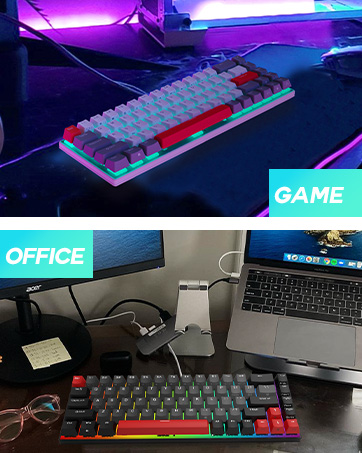
Image: The RK G68 keyboard showcasing its 2.4G wireless dongle, which can be stored in the keyboard's back slot.
3. Bluetooth 5.1 Connection
The Bluetooth 5.1 mode allows connection to up to 3 devices simultaneously. To connect:
- Ensure the switch on the back of the keyboard is set to "B" (Bluetooth mode).
- On your device (computer, tablet, smartphone), enable Bluetooth and search for new devices.
- Press FN + Q, FN + W, or FN + E to select a Bluetooth channel. The corresponding key will blink, indicating pairing mode.
- Select "RK G68" from your device's Bluetooth list to complete the pairing.
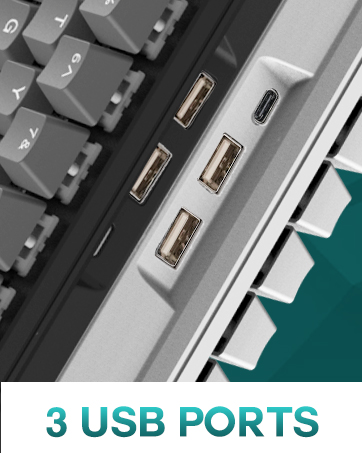
Image: The RK G68 keyboard highlighting its Bluetooth 5.1 connectivity, allowing connection to multiple devices.
Operating Instructions
Keyboard Layout and Function Keys
The RK G68 features a 65% compact layout with 68 keys, providing essential keys while saving desk space. Many functions are accessed via the FN key combinations.
- FN + 1-12: Access F1-F12 functions.
- FN + A: Switch to Mac mode.
- FN + S: Switch to Windows mode.
- FN + Enter: Toggle arrow key functionality.
- FN + Left Alt: Cycle through RGB lighting effects.
- FN + Right Alt: Adjust RGB lighting speed.
- FN + Up/Down Arrow: Adjust RGB lighting brightness.

Image: The RK G68 keyboard displaying its compact 65% layout and vibrant RGB backlighting.
RGB Backlighting Customization
The RK G68 offers extensive RGB backlighting options. Use the following combinations to customize your lighting:
- FN + \|: Cycle through 18+ preset lighting effects.
- FN + Right Alt: Adjust the speed of dynamic lighting effects.
- FN + Up Arrow: Increase backlight brightness.
- FN + Down Arrow: Decrease backlight brightness.
For advanced customization, including macros and per-key lighting, download the official software from bit.ly/RKRGBSOFT (Windows system only, run in wired mode).

Image: Screenshot of the RK G68 software interface, showing options for custom lights and macro management.
Hot-Swappable Switches
The hot-swappable design allows you to change mechanical switches without soldering. This feature enables easy customization of typing feel and sound.
- Use the provided keycap puller to remove the desired keycap.
- Use the switch puller to gently remove the switch from the PCB.
- Align the pins of the new 3-pin or 5-pin switch with the holes on the PCB and press firmly until it clicks into place.
- Replace the keycap.

Image: Close-up of the RK G68 demonstrating the hot-swappable switch feature, showing switches being removed and inserted.
Maintenance
- Cleaning: Use a soft, dry cloth to clean the keyboard surface. For keycaps, use the provided keycap puller to remove them and clean with mild soap and water if necessary. Ensure they are completely dry before reattaching.
- Battery Care: The 3150mAh battery provides long usage. To prolong battery life, avoid fully discharging the keyboard frequently. Charge it when the battery indicator is low.
- Storage: When not in use for extended periods, store the keyboard in a cool, dry place.
Troubleshooting
| Problem | Solution |
|---|---|
| Keyboard not connecting in 2.4G wireless mode. | Ensure the switch on the back is set to "G". Re-plug the 2.4G dongle. Try pairing a new dongle by long-pressing FN+'P' until the light blinks. |
| Keyboard not connecting via Bluetooth. | Ensure the switch on the back is set to "B". Make sure Bluetooth is enabled on your device. Try re-pairing by pressing FN+Q/W/E. Ensure no more than 3 devices are connected. |
| Keys are not responding or double-typing. | Check if the keyboard is in wired mode if using the cable. Ensure switches are properly seated. Consider replacing faulty switches using the hot-swap feature. |
| RGB lighting is not working or stuck. | Adjust brightness using FN + Up/Down Arrow. Cycle through effects using FN + \|. Ensure the keyboard is charged. If using software, ensure it's running in wired mode. |
| Software not recognizing the keyboard. | Ensure the keyboard is connected via USB-C cable (wired mode). The software is for Windows systems only. Download the correct software version for RK G68. |
Specifications
- Model: RK G68
- Connectivity: Bluetooth 5.1, 2.4G Wireless, USB-C Wired
- Number of Keys: 68
- Keycap Material: PBT
- Switch Compatibility: 3-pin/5-pin MX-similar mechanical switches
- Backlight: Programmable RGB
- Battery Capacity: 3150mAh
- Dimensions: 13.94 x 6.14 x 2.01 inches
- Item Weight: 1.94 pounds
- Compatible Devices: Gaming Console, Laptop, PC, Tablet, Smartphone (Mac/Windows)
Warranty and Support
For any product inquiries, technical support, or warranty claims, please contact RK ROYAL KLUDGE customer service:
- Email: support_rk_royal@163.com
- Amazon Support: Visit the RK ROYAL KLUDGE store on Amazon and click "Ask a question".

Image: Official contact details for RK ROYAL KLUDGE customer support.
Ask a question about this manual
Ask about setup, troubleshooting, compatibility, parts, safety, or missing instructions. Manuals+ will review the question and use this page’s manual context to help answer it.