

Figure 1: TaIYanG Wireless Keyboard Case with iPad.
1. Introduction and Compatibility
This manual provides instructions for the TaIYanG Wireless Keyboard Case. This product is designed to enhance your tablet experience by providing a protective case and a detachable Bluetooth keyboard.
1.1. Compatibility
The keyboard case is compatible with the following iPad models:
- iPad Air 11-inch M3 2025 (Models: A3266, A3267, A3270)
- iPad Air 11-inch M2 2024 (Models: A2902, A2903, A2904)
- iPad Air 5th Generation 10.9 inch 2022 (Models: A2588, A2589, A2591)
- iPad Air 4th Generation 10.9 inch 2020 (Models: A2072, A2316, A2324, A2325)
- iPad Pro 11 inch 1st Generation 2018 (Models: A1980, A2013, A1934)
Please check the model number on the back of your iPad before use to ensure compatibility.
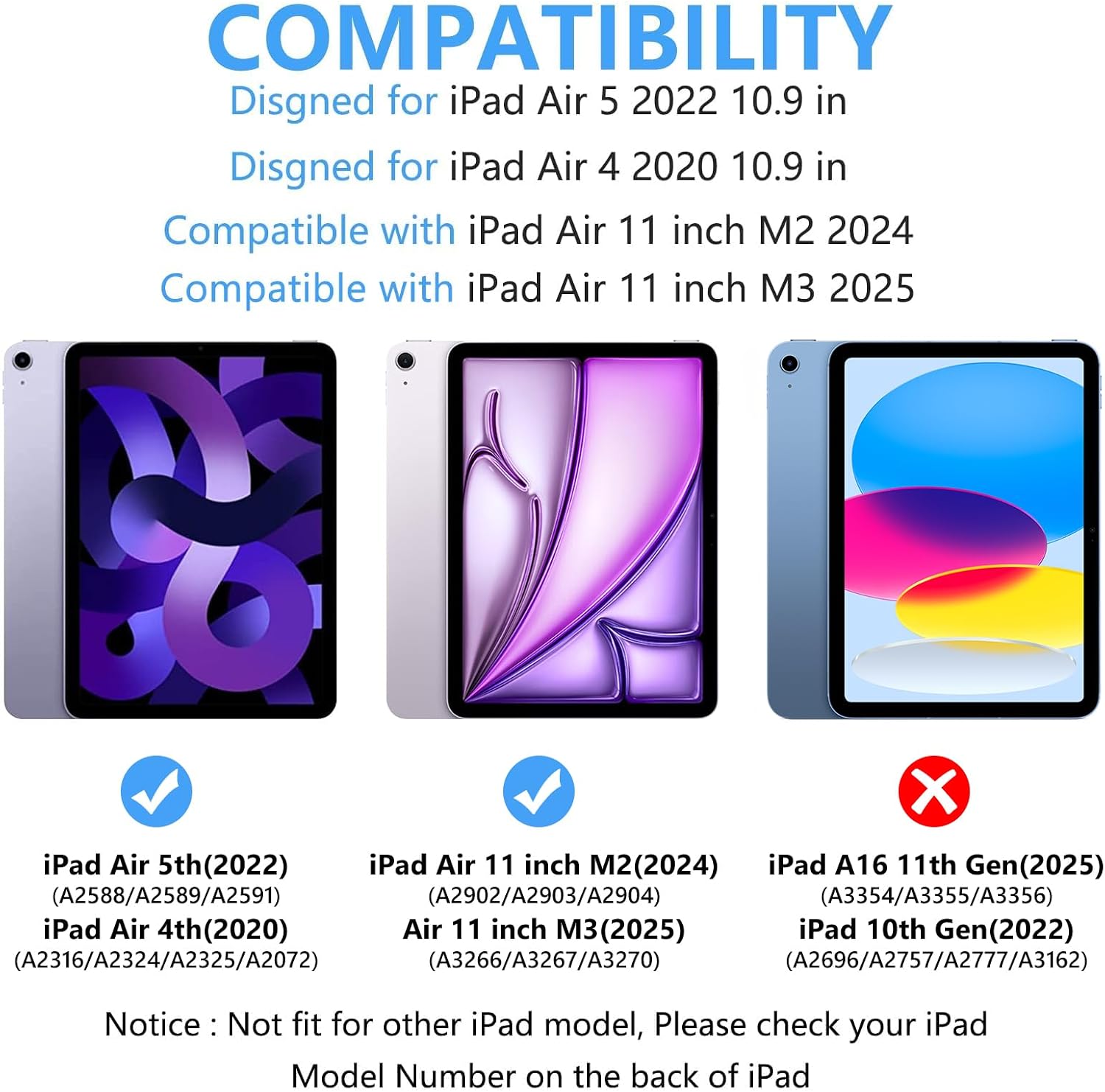
Image 1.1: Visual guide to compatible iPad models for the keyboard case.
2. Setup Instructions
2.1. Installing Your iPad into the Case
- Gently align your iPad with the soft TPU case.
- Press the iPad firmly into the case, ensuring all edges are securely fitted.
- Verify that all ports, buttons, and the camera are accessible through the precise cutouts.
Video 2.1: Demonstration of installing the iPad into the protective case and connecting the keyboard.
2.2. Connecting the Bluetooth Keyboard
- Ensure the keyboard is charged (refer to section 2.3 for charging instructions).
- Turn on the keyboard by sliding the "ON/OFF" switch to the ON position. The Bluetooth indicator light will flash.
- Press the "Connect" button on the keyboard. The Bluetooth indicator will start blinking, indicating it's in pairing mode.
- On your iPad, go to Settings > Bluetooth and turn Bluetooth ON.
- Your iPad will search for available devices. Select "Bluetooth Keyboard" from the list.
- Once connected, the Bluetooth indicator light on the keyboard will stop flashing.

Image 2.2: Steps for connecting the wireless keyboard via Bluetooth to your iPad.
2.3. Charging the Keyboard
The keyboard features a built-in 500mAh rechargeable battery. Use the provided Type-C charging cable to charge the keyboard.
- Connect the Type-C end of the cable to the keyboard's charging port.
- Connect the USB-A end to a power adapter (not included) or a computer's USB port.
- The charging indicator light will illuminate during charging and turn off when fully charged.
- Charging time is approximately 2-3 hours. A full charge provides over 80 hours of working time and 120 days of standby time.

Image 2.3: Illustrates the USB-C charging port on the keyboard.
3. Operating Instructions
3.1. Using the Detachable Keyboard
The keyboard is magnetically attached to the case, allowing for easy removal and repositioning. This enables flexible use, transforming your iPad into a laptop-like device or allowing you to use the iPad independently.
- To detach: Gently pull the keyboard away from the magnetic strip in the case.
- To reattach: Align the keyboard with the magnetic strip in the case until it snaps into place.

Image 3.1: The keyboard's detachable design offers versatility.
3.2. Keyboard Shortcuts and Functions
The keyboard includes a full row of iPadOS shortcuts for convenience:
| Key/Combination | Function |
|---|---|
| Fn + Q | Switch to Android system |
| Fn + W | Switch to Windows system |
| Fn + E | Switch to iOS system |
| Esc | Home Page |
| F1 | Search |
| F2 | Copy |
| F3 | Cut |
| F4 | Paste |
| F5 | Last Song |
| F6 | Pause/Play |
| F7 | Next Song |
| F8 | Volume Down |
| F9 | Volume Up |
| F10 | Brightness Down |
| F11 | Brightness Up |
| F12 | Lock Screen |

Image 3.2: Keyboard layout highlighting function keys and shortcuts.
3.3. Adjusting Viewing Angles
The case is designed with three indents to support your iPad at different viewing angles, providing versatility for typing, viewing, or studying.
- Position the iPad's bottom edge into one of the three grooves on the case to achieve your desired angle.
- The angles are optimized for typing (approx. 120°), viewing (approx. 125°), and studying (approx. 130°).

Image 3.3: The case offers multiple viewing angles for various activities.
3.4. Apple Pencil Holder
The case includes a built-in holder for your Apple Pencil, ensuring it is securely stored and easily accessible. This holder also accommodates the Apple Pencil cap and adapter.

Image 3.4: The integrated Apple Pencil holder keeps your stylus secure.
4. Maintenance
4.1. Cleaning the Case and Keyboard
- For the case: Wipe with a soft, damp cloth. Avoid harsh chemicals or abrasive cleaners.
- For the keyboard: Use a soft, dry cloth to clean the keys. A keyboard protective film is included to help prevent dirt and spills.
- Ensure the keyboard is powered off before cleaning.
4.2. Battery Care
- Charge the keyboard fully before first use.
- Avoid completely draining the battery frequently to prolong its lifespan.
- If storing the keyboard for an extended period, charge it to about 50% and store in a cool, dry place.
5. Troubleshooting
5.1. Keyboard Not Connecting via Bluetooth
- Ensure the keyboard is turned ON and fully charged.
- Make sure Bluetooth is enabled on your iPad.
- Press the "Connect" button on the keyboard to enter pairing mode.
- Forget the "Bluetooth Keyboard" device in your iPad's Bluetooth settings and try pairing again.
- Restart both your iPad and the keyboard.
5.2. Keys Not Responding
- Check if the keyboard is properly connected via Bluetooth (refer to section 5.1).
- Ensure the keyboard battery is not low. Charge if necessary.
- If specific keys are not working, gently clean around the keys to remove any debris.
5.3. iPad Not Sleeping/Waking Automatically
- Ensure the iPad is correctly seated in the case and the cover is fully closed.
- Check your iPad's settings for "Lock/Unlock" or "Cover Lock/Unlock" features and ensure they are enabled.
6. Specifications
| Feature | Detail |
|---|---|
| Product Dimensions | 9.84"L x 8.07"W x 0.59"H |
| Item Weight | 1.94 pounds |
| Manufacturer | TaIYanG |
| ASIN | B08JBJ9PN5 |
| Item Model Number | IPad 10.9 inch iPad Keyboard Case |
| Batteries | 1 Lithium Ion battery required (included) |
| Connectivity Technology | Bluetooth |
| Keyboard Description | Wireless Bluetooth |
| Special Feature | Chargeable, Ergonomic, Rechargeable |
| Color | Black |
| Keyboard Backlighting | Single Color support |
| Charging Time | 2-3 hours |
| Sustainable Working Time | >80 hours |
| Standby Time | 120 days |
7. Warranty and Support
TaIYanG is committed to providing quality products and superior service. For any questions or support needs regarding your keyboard case, please contact our customer service team.
Refer to the product packaging or the seller's information on the purchase platform for specific warranty details and contact methods.
What's in the Box:
- 1 x Keyboard Case for iPad Air 4th/5th Generation / for iPad Pro 11 2018
- 1 x Wireless Keyboard
- 1 x Type-C Charging Cable
- 1 x User Guide
- 1 x Keyboard Protective Film
