
1. Introduction
Thank you for purchasing the EKAT Single Din Car Stereo System. This manual provides detailed instructions for the installation, operation, and maintenance of your new car stereo. Please read this manual thoroughly before using the product to ensure proper function and to prevent damage.
2. Safety Information
- Always operate the device safely and responsibly. Distracted driving can lead to accidents.
- Do not attempt to disassemble or modify the unit. This may cause damage and void the warranty.
- Ensure all wiring connections are secure and properly insulated to prevent short circuits.
- Consult a professional for installation if you are unsure about any steps.
- Keep the unit away from water and excessive moisture.
3. Product Overview
The EKAT Single Din Car Stereo System features a 7-inch HD digital TFT LCD folding touch screen, offering a dynamic menu interface and high-fidelity audio. It includes built-in GPS navigation, Bluetooth for hands-free calling, mirror link functionality, FM radio, and support for USB/SD media playback. A backup camera is also included for enhanced safety.

Image: EKAT Single Din Car Stereo with its 7-inch retractable screen extended, displaying a multimedia interface.
Front Panel Controls and Ports

Image: Detailed view of the car stereo's front panel, showing buttons for power, volume, track control, USB/SD ports, and AUX input. The back panel displays various audio/video input/output ports, antenna port, and power/speaker port.
- Power/Mute Button: Press to turn on/off, short press to mute/unmute.
- Volume Knob: Rotate to adjust volume.
- USB Port: For USB drives and phone charging.
- SD/TF Card Slot: For media playback and GPS map data.
- AUX Input (3.5mm): For external audio devices.
- Retractable Screen: Manual pull-out and push-back mechanism.
Rear Panel Connections
- Antenna Port: Connect your car's radio antenna.
- Audio Output (RCA): For connecting external amplifiers.
- Video Input/Output (RCA): For external video sources or monitors.
- Power/Speaker Port: Main wiring harness connection.
- GPS Antenna Socket: For connecting the GPS antenna.
4. Setup and Installation
4.1 Wiring Diagram
Proper wiring is crucial for the stereo's functionality. Refer to the included wiring diagram for detailed connections. Ensure all connections are secure and correctly matched to your vehicle's wiring harness.

Image: An illustration showing the product dimensions, the main unit, and various accessories including the wiring harness, GPS antenna, and remote control.
4.2 Rear Camera Connection
The included backup camera provides a wide 170° view and is IP66 waterproof. Connect the camera as shown in the diagram below. The stereo will automatically switch to the rear view when the vehicle is in reverse gear.

Image: A wiring diagram illustrating how to connect the rear camera. It shows the camera's power wire connecting to the reversing light electrode and the video signal cable connecting to the stereo's video input.
- Connect the red wire (1) from the camera's power cable to the reversing light electrode.
- Connect the red wire (2) from the video cable to the reversing light for power.
- Connect the yellow RCA connector (6M cable) to the stereo's 'Video In' port.
- Ensure the trigger line (red wire on the video cable) is connected to the display trigger input on the stereo.
5. Operating Instructions
5.1 GPS Navigation
The unit features a built-in GPS navigation module with pre-loaded North America map data on an 8G TF card. The map card is already inserted into the SD card slot.

Image: The car stereo screen displaying a GPS navigation map with route information and controls.
- From the main menu, tap the 'Navigation' icon to launch the GPS application.
- Enter your destination using the on-screen keyboard.
- Follow the voice prompts and on-screen directions for turn-by-turn navigation.
5.2 Bluetooth Function
Connect your smartphone via Bluetooth for hands-free calling and audio streaming.
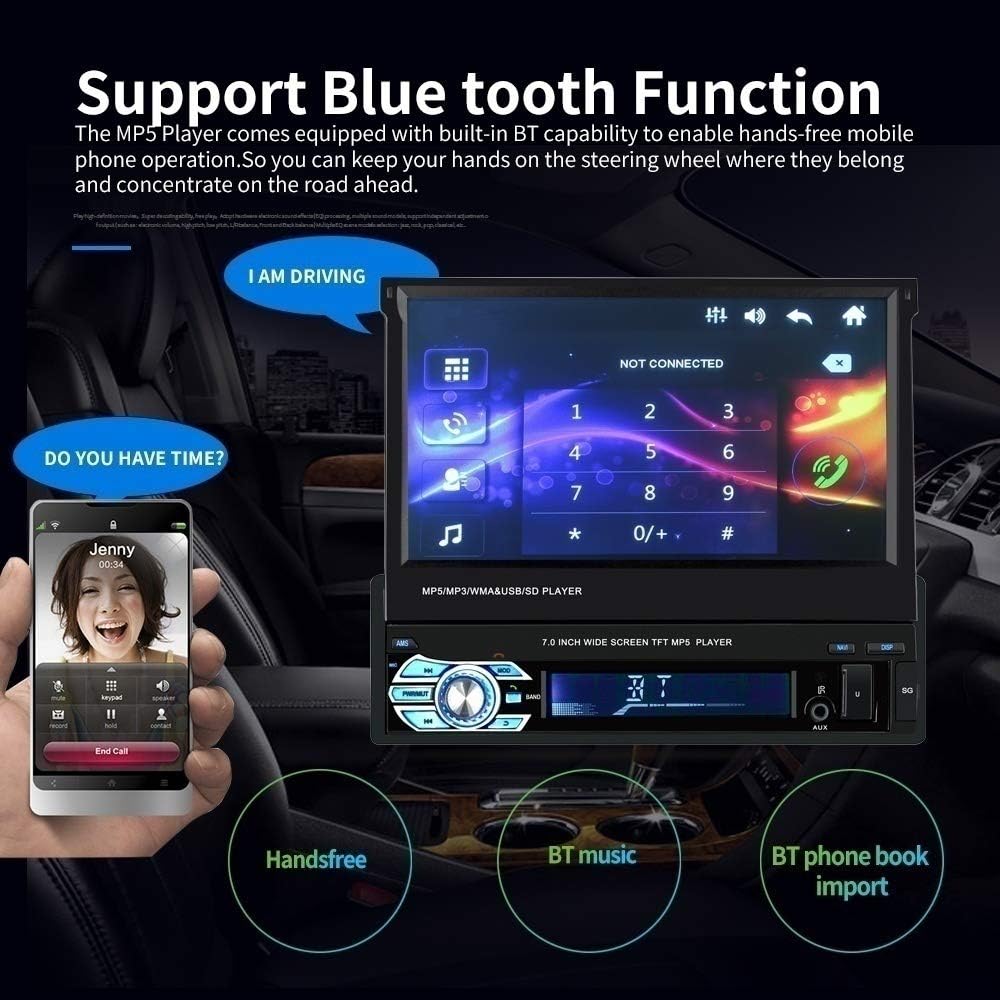
Image: The car stereo screen showing the Bluetooth interface with a dial pad, call history, and options for hands-free calling and music streaming.
- Enable Bluetooth on your mobile device.
- On the car stereo, go to the 'Bluetooth' menu.
- Search for available devices on your phone and select 'EKAT Car Stereo' (or similar name).
- Confirm the pairing code if prompted.
- Once paired, you can make/receive calls and play music wirelessly.
5.3 Mirror Link
Mirror Link allows you to display your smartphone's screen on the car stereo. Supports Android 4.0-8.0 and iPhone 7 and below.
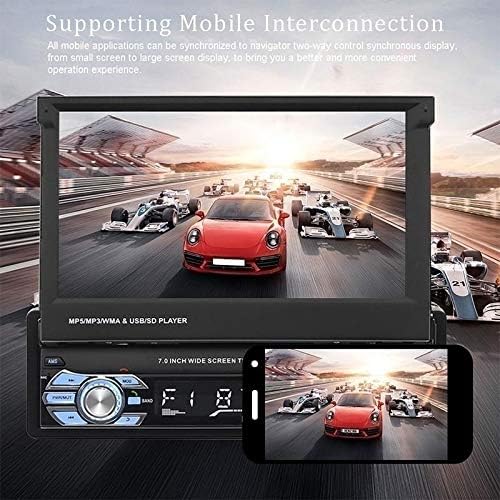
Image: The car stereo screen displaying the mirrored content from a smartphone, showing a racing game.
- Connect your phone to the stereo's USB port using its original USB cable.
- Follow the on-screen prompts on both your phone and the stereo to establish the connection.
- Once connected, your phone's screen will be mirrored on the stereo display.
5.4 FM Radio
Tune into your favorite FM radio stations.

Image: The car stereo screen displaying the FM radio interface, showing the current frequency (87.50 MHz) and controls for scanning and saving stations.
- Select the 'Radio' icon from the main menu.
- Use the on-screen controls to scan for stations or manually tune to a specific frequency.
- Save your favorite stations to the preset buttons.
5.5 Media Playback (USB/SD/AUX)
The stereo supports various media formats via USB, SD card, and AUX input.

Image: A collage showing the car stereo playing media from a TF card, a USB drive, an AUX-connected smartphone, and via Bluetooth.
- Insert a USB drive or SD card into the respective port. The unit will automatically detect and play compatible media files.
- Connect an external audio device to the 3.5mm AUX input using an audio cable. Select 'AUX' mode on the stereo.
5.6 Steering Wheel Controls (SWC)
The unit supports steering wheel controls for convenient operation without taking your hands off the wheel.

Image: The car stereo screen displaying the 'Steering Wheel Learning' interface, showing icons for various functions like call, skip track, and volume, ready to be programmed with steering wheel buttons.
- Access the 'Steering Wheel Learning' menu in the system settings.
- Follow the on-screen instructions to program your vehicle's steering wheel buttons to control the stereo functions.
6. Maintenance
- Cleaning: Use a soft, dry cloth to clean the screen and unit. Do not use abrasive cleaners or solvents.
- Software Updates: Check the manufacturer's website periodically for any available firmware updates to ensure optimal performance and new features.
- Screen Care: When retracting the screen, ensure no obstructions are present. Avoid applying excessive force.
7. Troubleshooting
If you encounter issues with your car stereo, refer to the following common problems and solutions:
- No Power:
- Check all power connections, including the fuse.
- Ensure the car's ignition is on.
- No Sound:
- Check speaker wiring connections.
- Ensure the volume is not muted or set too low.
- Verify audio source selection is correct (e.g., FM, Bluetooth, USB).
- GPS Not Working/Inaccurate:
- Ensure the GPS antenna is properly connected and has a clear view of the sky.
- Verify the map data TF card is correctly inserted.
- Bluetooth Pairing Issues:
- Ensure Bluetooth is enabled on both the stereo and your phone.
- Delete previous pairings on both devices and try pairing again.
- Move your phone closer to the stereo.
- Mirror Link Not Connecting:
- Use the original USB cable for your phone.
- Ensure your phone's operating system is within the supported range (Android 4.0-8.0, iPhone 7 and below).
- Check USB debugging settings on Android phones if applicable.
8. Specifications
| Feature | Specification |
|---|---|
| Brand | EKAT |
| Model Number | M1520 |
| Screen Size | 7 Inch HD Digital TFT LCD |
| Connectivity Technology | Auxiliary, USB, SD, Bluetooth |
| Special Features | Built-In Bluetooth, Touchscreen, GPS Navigation, Mirror Link, Rear Camera Input |
| Compatible Devices | Smartphone |
| Audio Output Mode | AUX, Stereo |
| Surround Sound Channel Configuration | 4.0 |
| Number of Channels | 4 |
| Supported Internet Services | Maps (via GPS) |
| Control Method | Touch |
| Audio Format Support | WAV, WMA |
| Video Encoding Support | H.264, MPEG-4, possibly others |
| Color | Black |
| Manufacturer | EKAT-CAR Unit |
9. Warranty and Support
For warranty information and technical support, please refer to the documentation included with your purchase or contact EKAT customer service directly. Keep your purchase receipt as proof of purchase.
You can typically find support contact information on the manufacturer's official website or through the retailer where the product was purchased.