
1. Introduction
This manual provides instructions for the douself P20 Smart Watch. It covers setup, operation, maintenance, and specifications to help you effectively use your device. The P20 Smart Watch is designed to monitor various health and fitness activities and is compatible with both Android and iOS smartphones.

Image 1.1: Front view of the douself P20 Smart Watch, showing its display with various metrics.
2. Product Overview
Key Features:
- 1.4-inch Full Touch Screen
- Multi-sport Modes for activity tracking
- 24-hour Heart Rate Monitoring
- Scientific Sleep Monitoring
- Sedentary Reminder
- Call, Message, and App Notifications
- Music and Camera Remote Control
- IP67 Waterproof Rating
- Long-lasting 170mAh Lithium Polymer Battery
Package Contents:
- 1 x douself P20 Smart Watch
- 1 x Charging Clip
- 1 x User Manual
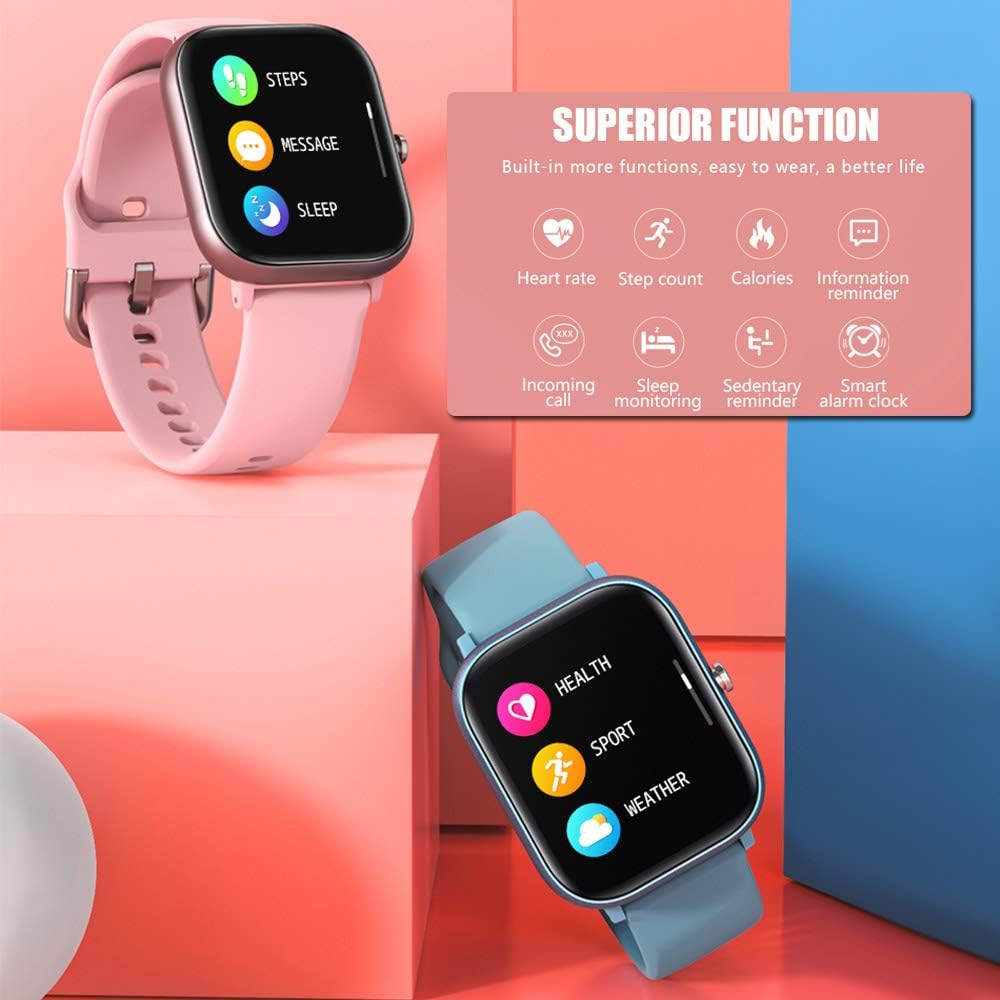
Image 2.1: Overview of the P20 Smart Watch's primary functions and available colors.
3. Setup Guide
3.1. Charging the Device
Before initial use, fully charge your P20 Smart Watch. Connect the charging clip to the charging contacts located on the back of the watch. Ensure the pins align correctly. Plug the USB end of the charging clip into a standard USB power adapter or a computer's USB port.
- Charging Time: Approximately 2.5 hours for a full charge.
- Battery Life: Up to 5-7 days of typical use, or 20 days in standby mode.

Image 3.1: The charging clip for the P20 Smart Watch.
3.2. App Installation
To unlock the full functionality of your P20 Smart Watch, download and install the companion application, "Da Fit", on your smartphone.
- For Android users: Search for "Da Fit" in the Google Play Store.
- For iOS users: Search for "Da Fit" in the Apple App Store.
Compatibility: The app requires Android 4.4 or higher, or iOS 8.0 or higher.
3.3. Pairing with Your Smartphone
- Ensure Bluetooth is enabled on your smartphone.
- Open the "Da Fit" app on your smartphone.
- Follow the on-screen instructions within the app to add a new device.
- Select "P20" from the list of available devices to establish the connection.
4. Operating Instructions
4.1. Basic Navigation
The P20 Smart Watch features a 1.4-inch full touch screen for intuitive control.
- Swipe Left/Right: Navigate through different main function screens.
- Swipe Up/Down: Access quick settings or notifications.
- Tap: Select an item or enter a function.
- Side Button: Press to return to the previous screen or wake the device.
4.2. Monitoring Functions
Heart Rate Monitoring
The watch continuously monitors your heart rate throughout the day. Access the heart rate interface on the watch to view real-time data, or use the Da Fit app for historical records and detailed analysis. Ensure the watch is worn snugly on your wrist for accurate readings.

Image 4.1: The heart rate sensor located on the back of the watch.
Sleep Monitoring
Wear the watch during sleep to automatically track your sleep patterns. It records total sleep time, deep sleep, and light sleep. Review your sleep data in the Da Fit app to understand and improve your sleep habits.
Multi-sport Modes
The watch supports various sport modes to track specific activities. Select a mode before starting your workout to record metrics such as steps, distance, and calories burned. Data can be synchronized and viewed in the Da Fit app.

Image 4.2: Displays of sleep monitoring, weather forecast, and sedentary reminder features.
4.3. Smart Features
Call and Message Notifications
Once paired with your smartphone, the watch will vibrate and display notifications for incoming calls, SMS messages, and alerts from various applications. You can reject incoming calls directly from the watch.

Image 4.3: Call alert feature on the P20 Smart Watch.
Music Control
Control music playback on your smartphone directly from your watch. Functions include play, pause, and skipping tracks.
Camera Control
Use your watch as a remote shutter button for your smartphone's camera, allowing for easier photo capture.
Weather Information
Synchronize with your smartphone to receive real-time weather forecasts directly on your watch display.
Sedentary Reminder
The sedentary reminder feature prompts you to move after periods of inactivity, promoting a healthier lifestyle.
4.4. Da Fit App Functions
The Da Fit app provides comprehensive control and data management for your P20 Smart Watch:
- Detailed recording of steps, sleep, heart rate, and exercise data.
- Music control and access to additional watch faces.
- Dial selection, message push settings, daily alarm clock management, camera control, and weather information.
- Features like 'Find the bracelet', time format settings, Do Not Disturb mode scheduling, and 'turn your wrist to brighten the screen' activation.
4.5. Supported Languages
The P20 Smart Watch supports 28 languages, including: Danish, Ukrainian, Russian, Bulgarian, Bokmal, Norwegian, Hindi, Indonesian, German, Italian, Czech, Japanese, Pushto, French, Polish, Thai, Swedish, Simplified Chinese, Traditional Chinese, Finnish, English, Dutch, Portuguese, Spanish, Vietnamese, Arabic, Korean.
5. Maintenance
5.1. Waterproofing (IP67)
The P20 Smart Watch has an IP67 waterproof rating. This means it is resistant to dust and can withstand immersion in water up to 1 meter for 30 minutes. It is suitable for daily activities such as washing hands, showering (cold water), and being exposed to rain. It is also suitable for swimming.
Caution: The watch is not designed for hot water activities like bathing in hot tubs or saunas, as steam and high temperatures can compromise the waterproof seals and cause damage.

Image 5.1: The P20 Smart Watch demonstrating its IP67 waterproofing.
5.2. Cleaning
Regularly clean your watch and strap with a soft, dry cloth. Avoid using harsh chemicals, abrasive materials, or strong detergents, as these can damage the device's finish and functionality.
6. Troubleshooting
6.1. Connection Issues
- Ensure Bluetooth is enabled on your smartphone and the watch is within range.
- Restart both your smartphone and the P20 Smart Watch.
- If the issue persists, try unpairing the device from the Da Fit app and your phone's Bluetooth settings, then re-pair it.
6.2. Inaccurate Readings (Heart Rate, Steps)
- Ensure the watch is worn snugly on your wrist, neither too tight nor too loose.
- Clean the sensor on the back of the watch to remove any dirt or debris.
6.3. Battery Not Charging
- Verify that the charging clip is correctly aligned with the watch's charging contacts.
- Ensure the USB power source (adapter, computer port) is functional.
- Check for any visible damage to the charging clip or watch charging contacts.
7. Specifications
| Feature | Detail |
|---|---|
| Model Number | P20 |
| Chip | HS6620D |
| Screen Type | TFT 1.4 inches Full Touch |
| Pixels | 240RGB*240 |
| Battery Type | 170mAh Lithium polymer |
| Charging Mode | Charging clip |
| Charging Time | Approx. 2.5 hours |
| Life Time | 5-7 days (use), 20 days (standby) |
| APP | Da Fit |
| Compatible System | Android 4.4+, iOS 8.0+ |
| Waterproof Level | IP67 |
| Wristband Size | Total length 250mm, adjustable length 155-230mm |
| Body Size | 49 * 35mm |
| Material | Body: plastic + zinc alloy; Wristband: Silicone + Stainless Steel |
| Product Dimensions | 15.8 x 7 x 2.8 cm |
| Item Weight | 120 g |
| Operating System | Android, iOS |
| Special Features | Alarm Clock, Camera |
| Wireless Communication | Bluetooth |
| Shape | Square |

Image 7.1: Physical dimensions of the P20 Smart Watch.
8. Warranty and Support
For warranty information, technical support, or any inquiries regarding your douself P20 Smart Watch, please refer to the warranty card or contact the douself customer service department. Contact details are typically provided with your product packaging or on the official douself website.