
1. Introduction
This user manual provides comprehensive instructions for the UNIWA E1801 Senior Mobile Phone. Designed with large buttons and a clear display, this phone is ideal for users seeking simplicity and essential communication features. Please read this manual carefully before using your device to ensure proper operation and longevity.
2. Package Contents
Upon opening the package, please verify that all the following items are included:
- 1 x UNIWA E1801 Mobile Phone
- 1 x BL-5C 800 mAh Battery
- 1 x Charger
- 1 x User Manual (this document)
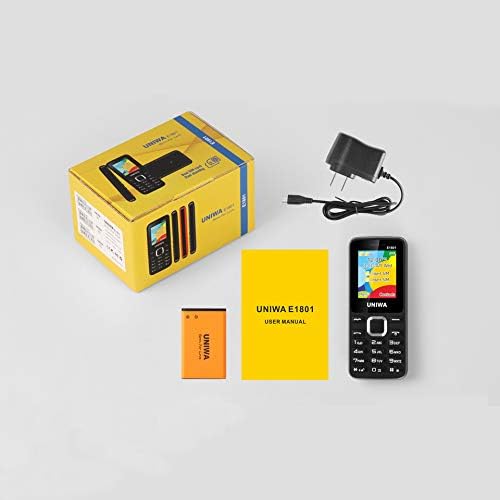
Image: Contents of the UNIWA E1801 package, including the phone, battery, charger, and user manual.
3. Device Overview
The UNIWA E1801 features a user-friendly design with large, easy-to-press buttons and a non-slip frame for comfortable handling. It includes an ergonomic keypad with plating navigation keys for intuitive operation.
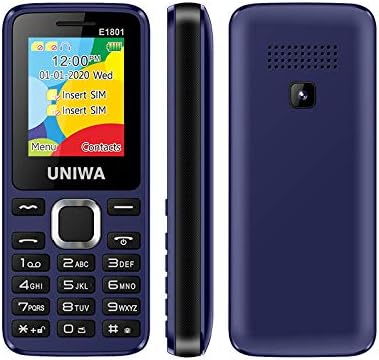
Image: Front, side, and rear views of the UNIWA E1801 phone, highlighting its compact design.

Image: Detail showing the non-slip frame of the UNIWA E1801, designed for secure grip.

Image: Close-up of the ergonomic keypad and plating navigation keys on the UNIWA E1801.
4. Setup
4.1. Battery Installation
- Remove the back cover of the phone by gently prying it open from the notch.
- Align the gold contacts of the BL-5C 800 mAh battery with the contacts in the battery compartment.
- Gently press the battery down until it clicks into place.
- Replace the back cover, ensuring it snaps securely.
4.2. SIM Card Installation
The UNIWA E1801 supports Dual SIM cards, allowing for two active phone numbers simultaneously.
- With the back cover removed and battery out (if necessary), locate the SIM card slots.
- Insert your SIM card(s) into the designated slot(s) with the gold contacts facing down and the cut corner aligned correctly.
- Gently push the SIM card until it is fully seated.
- Reinstall the battery and back cover.

Image: The dual SIM card slots of the UNIWA E1801, illustrating how SIM cards are inserted.
4.3. Charging the Device
Before first use, fully charge the phone's battery.
- Connect the charger cable to the charging port on the phone.
- Plug the charger into a standard wall outlet.
- The battery indicator on the screen will show charging status.
- Once fully charged, disconnect the charger.
5. Operating Instructions
5.1. Power On/Off
- To Power On: Press and hold the Power/End Call button until the screen lights up.
- To Power Off: Press and hold the Power/End Call button until the power-off options appear, then confirm.
5.2. Making Calls
- From the idle screen, enter the phone number using the keypad.
- Press the Call button (usually green) to initiate the call.
- To end a call, press the End Call button (usually red).
5.3. Sending Messages
- Navigate to the 'Messages' menu from the main screen.
- Select 'Write Message' or 'New SMS'.
- Enter your message using the keypad.
- Enter the recipient's number or select from contacts.
- Send the message.
5.4. Contacts
The phonebook can store up to 300 contacts.
- Adding a Contact: Go to 'Contacts' > 'Add New Contact', then enter the name and number.
- Searching for a Contact: From the 'Contacts' menu, use the navigation keys to scroll or search by name.
5.5. FM Radio
The UNIWA E1801 features a wireless FM radio, allowing you to listen to your favorite stations without needing headphones as an antenna.
- Navigate to the 'FM Radio' application from the main menu.
- Use the navigation keys to scan for available stations or manually tune to a frequency.
- Adjust the volume using the side keys (if available) or navigation keys.

Image: The UNIWA E1801 showcasing its wireless FM radio feature.
5.6. Multimedia (MP3/MP4)
The phone supports MP3 audio and MP4 video playback.
- Ensure you have a TF card (up to 16GB) inserted with your media files.
- Navigate to the 'Multimedia' or 'File Manager' menu.
- Select 'MP3 Player' or 'Video Player' to browse and play your files.

Image: Illustration of the 2030 Box Speaker on the UNIWA E1801, indicating its audio capabilities.
5.7. Camera
The phone is equipped with a 0.08 MP rear camera.
- From the main menu, select 'Camera'.
- Frame your shot using the screen as a viewfinder.
- Press the designated button (usually the center navigation key) to take a photo.
5.8. Flashlight
The built-in flashlight can be useful in low-light conditions.
- Refer to your phone's specific shortcut key or menu option to activate/deactivate the flashlight. This is often a long press on a specific number key or a dedicated button.

Image: The UNIWA E1801 demonstrating its integrated flashlight function.
5.9. Other Functions
The UNIWA E1801 includes several utility functions:
- Games: Simple pre-installed games.
- Calendar: To keep track of dates and events.
- Alarm Clock: Set multiple alarms.
- Calculator: Basic arithmetic functions.
- World Clock: View time in different time zones.
- E-book: Basic text file reader.
- WAP: Basic internet browsing (requires GPRS data plan).
- Recorder: Voice recording function.
6. Maintenance
- Cleaning: Use a soft, dry cloth to clean the phone's surface. Avoid liquid cleaners or abrasive materials.
- Battery Care: To prolong battery life, avoid extreme temperatures. Do not leave the phone charging for excessively long periods after it is full.
- Storage: If storing the phone for an extended period, ensure the battery is partially charged (around 50%) and store it in a cool, dry place.
7. Troubleshooting
| Problem | Possible Cause / Solution |
|---|---|
| Phone does not power on. | Battery is depleted. Charge the phone for at least 30 minutes. Ensure battery is correctly installed. |
| Cannot make or receive calls. | No network signal. Move to an area with better reception. SIM card not properly inserted. Reinsert SIM card. |
| Battery drains quickly. | Background applications running. Close unused applications. Battery may be old and require replacement. |
| Cannot hear caller / Caller cannot hear me. | Volume too low. Adjust call volume. Microphone/speaker blocked. Ensure no obstructions. |
If the problem persists after trying these solutions, please contact customer support.
8. Specifications
| Feature | Detail |
|---|---|
| Model Number | ECON E1801 |
| Dimensions | 108 x 45 x 14 mm |
| Weight | 68 g |
| CPU | SC6531E |
| Network Band | 2G: GSM850/900/1800/1900 MHz, GPRS |
| SIM Card | Dual-SIM, Dual-Standby |
| Phonebook Capacity | 300 numbers |
| Ringtone | 64 chords, supports MP3, Midi ringtones |
| Speaker | 2030 Speaker |
| FM Radio | Wireless FM Radio |
| Screen | 1.77 inch QQVGA Display, 160 x 128 pixels |
| Camera | 0.08 MP Rear Camera, 640 x 480 pixels |
| Multimedia | MP3, MP4 |
| Memory | Supports TF cards up to 16 GB max |
| Bluetooth | V2.1 |
| Vibrator | Yes |
| Talk Time | Up to 240 minutes |
| Standby Time | Up to 200 hours |
| Languages | English, Russian, Hebrew, Arabic, French, Spanish, Polish, German, Italian, Portuguese, Chinese |
9. Warranty and Support
For warranty information and technical support, please refer to the warranty card included with your product or contact the retailer where you purchased the UNIWA E1801. You may also visit the official UNIWA website for further assistance and updated support information.