Introduction
This manual provides comprehensive instructions for the SENGBIRCH Bluetooth Keyboard Case, designed for the iPad Air 4 (2020) and iPad Pro 11 (1st & 2nd Generation). It covers essential information regarding product setup, operation, maintenance, and troubleshooting to ensure optimal use of your device.
Package Contents
Please verify that all items listed below are included in your package:
- 1 x SENGBIRCH iPad Air 4 / iPad Pro 11 Protective Case
- 1 x Backlit Bluetooth Keyboard (QWERTZ Layout)
- 1 x USB Charging Cable
- 1 x User Manual
Compatibility
This keyboard case is compatible with the following iPad models:
- iPad Air 4 2020: Models A2316, A2324, A2325, A2072
- iPad Pro 11 1st Generation: Models A1980, A1934, A2013, A1979
- iPad Pro 11 2nd Generation: Models A2228, A2068, A2230, A2231
The Bluetooth keyboard also supports various operating systems including iOS, Windows, and Android, allowing for versatile use with other devices.
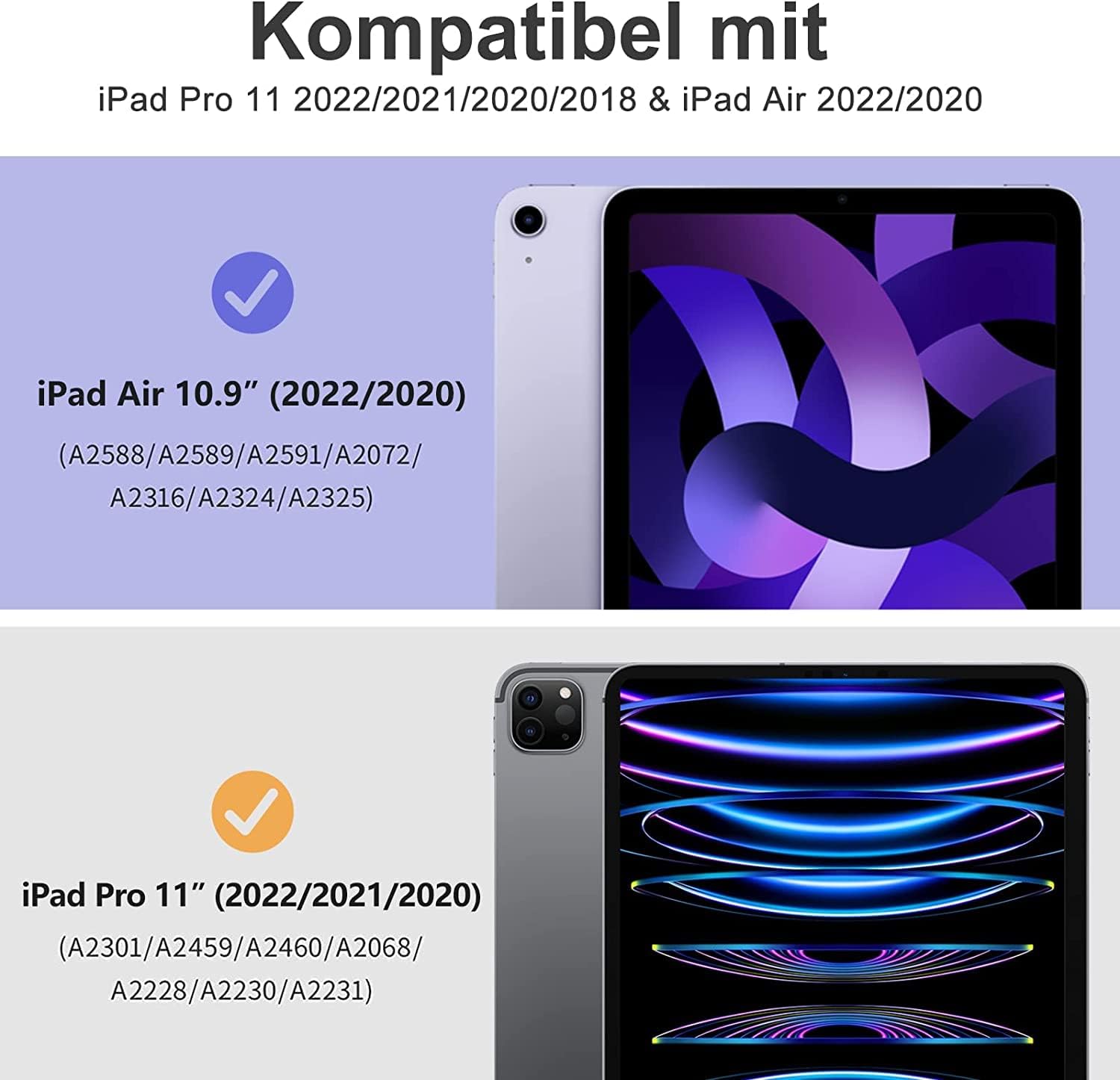
Image: Compatibility chart showing supported iPad Air 10.9 (2022/2020) and iPad Pro 11 (2022/2021/2020) models with their respective model numbers.
Setup Instructions
1. Charging the Keyboard
Before initial use, fully charge the Bluetooth keyboard using the provided USB charging cable. Connect the cable to the keyboard's charging port and a suitable USB power source. The charging indicator light will illuminate during charging and turn off when fully charged.
2. Pairing the Bluetooth Keyboard
- Ensure the keyboard is fully charged and powered on. The Bluetooth indicator light will briefly flash.
- Press and hold the "Connect" button on the keyboard to activate Bluetooth pairing mode. The Bluetooth indicator light will start flashing, indicating it is discoverable.
- On your iPad, go to Settings > Bluetooth. Turn on Bluetooth.
- Your iPad will search for available devices. Select "Bluetooth 3.0 Keyboard" from the list of devices to complete the pairing process.
- Once paired, the Bluetooth indicator light on the keyboard will turn off.

Image: Illustration of the magnetic detachable Bluetooth keyboard, showing its compatibility with various devices (tablet, laptop, iPad, phone, PC) and the location of the 'Connect' button for pairing.
3. Setting Keyboard Language (German QWERTZ)
To ensure correct key input for the German QWERTZ layout, perform the following step after successful Bluetooth pairing:
- On the keyboard, simultaneously press and hold the "Ctrl" key and the "Space" key. This action switches the keyboard to the German layout, allowing special characters like Ä, Ö, Ü, and correct Y/Z mapping.
Operating Instructions
1. Adjusting Viewing Angles
The protective case features multiple internal grooves that allow you to adjust your iPad to various viewing angles. Simply position your iPad into the desired groove for comfortable typing, viewing, or drawing.

Image: A group of people collaborating, with one person using an iPad in the SENGBIRCH keyboard case, demonstrating an adjustable viewing angle for productivity.
2. Backlight Control
The keyboard features a backlit design with multiple colors and brightness levels. Use the dedicated backlight key (often depicted as a light bulb icon) to cycle through different colors and adjust brightness. Refer to the keyboard layout image for the exact key location.
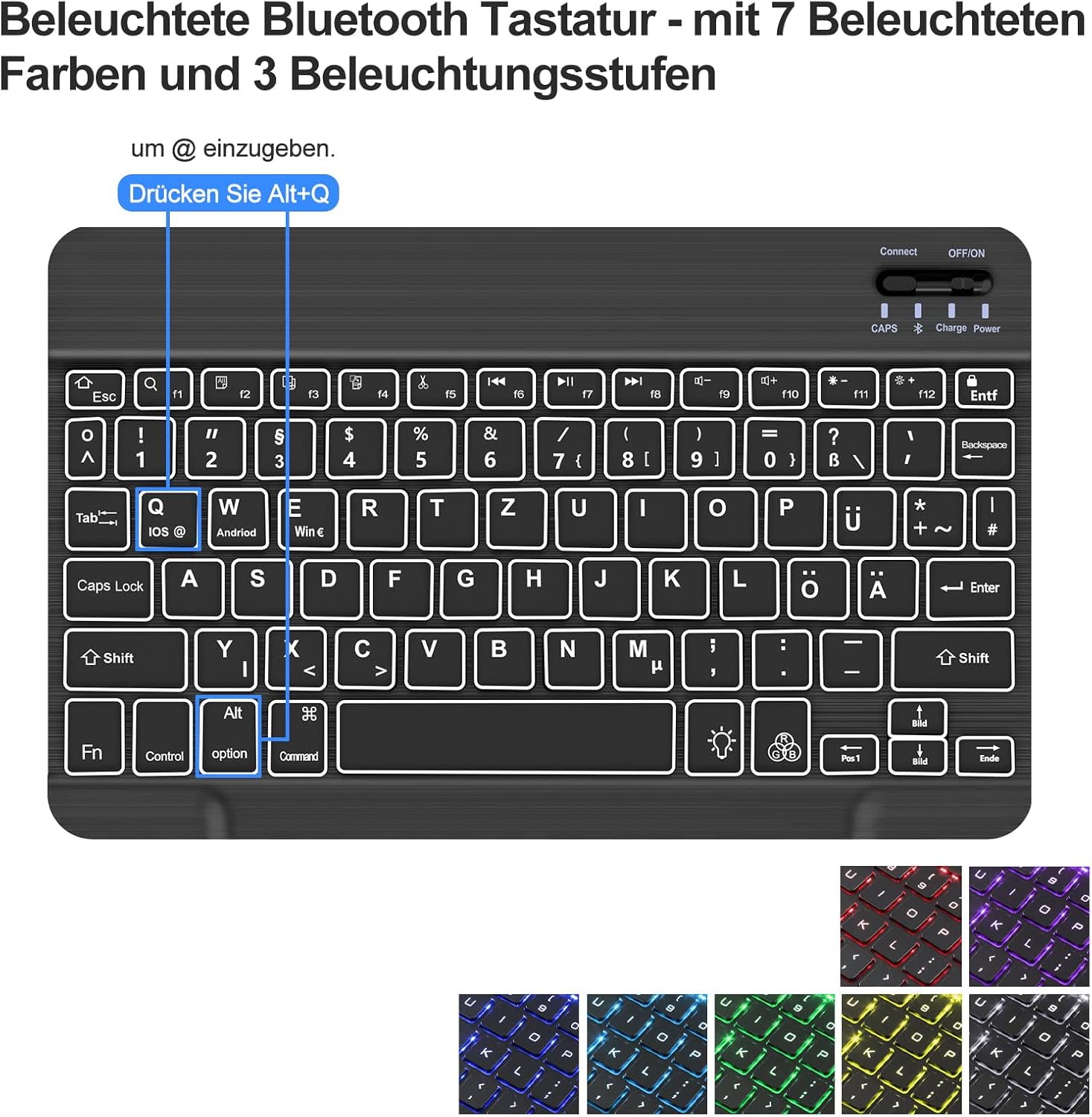
Image: Detailed view of the backlit Bluetooth keyboard, highlighting the keys for backlight control and showing examples of 7 different backlight colors and 3 brightness levels.
3. Keyboard Layout and Special Keys
The keyboard features a QWERTZ layout. Familiarize yourself with the function keys and special character combinations. For example, to type the "@" symbol, press Alt + Q.

Image: Overhead view of the SENGBIRCH keyboard case with an iPad inserted, showing the full QWERTZ keyboard layout and its backlit keys.
Maintenance
To ensure the longevity and performance of your SENGBIRCH Keyboard Case, follow these maintenance guidelines:
- Cleaning: Use a soft, damp cloth to wipe the exterior of the case and keyboard. Avoid harsh chemicals or abrasive materials.
- Storage: When not in use, store the keyboard case in a cool, dry place away from direct sunlight and extreme temperatures.
- Protection: The case is designed to protect your iPad from bumps, scratches, and minor spills. However, avoid dropping the device from significant heights or exposing it to excessive moisture.
- Keyboard Care: Do not force keys or attempt to remove them. Keep the keyboard free from dust and debris.
Troubleshooting
Keyboard Not Connecting via Bluetooth
- Check Battery: Ensure the keyboard is fully charged. Low battery can prevent successful pairing.
- Re-enable Bluetooth: Turn off and then turn on Bluetooth on your iPad and the keyboard.
- Forget Device: If previously paired, go to your iPad's Bluetooth settings, select "Bluetooth 3.0 Keyboard", and choose "Forget This Device". Then, repeat the pairing steps.
- Restart Devices: Restart both your iPad and the keyboard, then attempt pairing again.
Incorrect Key Output (e.g., Y/Z swapped, missing Ä, Ö, Ü)
- This typically indicates an incorrect keyboard language setting. After pairing, press and hold "Ctrl + Space" on the keyboard to switch to the German QWERTZ layout.
- Also, ensure your iPad's software keyboard settings are configured for German if you frequently switch between physical and on-screen keyboards.
Keyboard Backlight Not Working
- Check Battery: Ensure the keyboard has sufficient charge. Backlight functionality may be limited or disabled on low battery.
- Backlight Key: Press the backlight key (light bulb icon) to cycle through colors and brightness levels. Ensure it's not set to off.
Specifications
| Feature | Detail |
|---|---|
| Brand | SENGBIRCH |
| Model Number | SE-032 |
| Compatible Devices | iPad Air 4, iPad Pro 11 (1st & 2nd Gen) |
| Connectivity Type | Bluetooth |
| Keyboard Language & Layout | German (QWERTZ) |
| Backlight | Yes (7 colors, 3 brightness levels) |
| Rechargeable Battery | Yes (Lithium-ion) |
| Product Dimensions (LxWxH) | 27.9 x 20.9 x 3 cm |
| Item Weight | 660 grams |
Warranty and Support
SENGBIRCH provides online customer service for product inquiries and support. If you encounter any issues or have questions regarding your keyboard case, please contact us via email. Refer to your purchase documentation for specific warranty details and contact information.
For assistance, please reach out to our customer support team. We are committed to providing timely and helpful solutions.


