
1. Introduction
The TP-Link EAP235-Wall is an Omada AC1200 In-Wall Wireless Gigabit Access Point designed to provide reliable and high-speed Wi-Fi connectivity. Featuring 802.11ac Wave 2 MU-MIMO technology, it delivers dual-band Wi-Fi speeds up to 1200 Mbps to multiple devices simultaneously. This device is ideal for environments requiring dedicated Wi-Fi networks in individual rooms, such as offices, hotels, and dormitories. It integrates seamlessly into the Omada Software Defined Networking (SDN) platform for centralized management.
2. Safety Information
Please observe the following safety guidelines:
- Maximum wireless transmission rates are physical rates derived from IEEE Standard 802.11 specifications. Actual wireless transmission rate and coverage may vary due to environmental factors (building materials, obstacles), network conditions (interference, traffic density, product location), and client limitations (rated performance, connection quality).
- Actual network speed may be limited by the rate of the product's Ethernet WAN or LAN port, the network cable's supported rate, Internet service provider factors, and other environmental conditions.
3. Package Contents
Verify that your package contains the following items:
- EAP235-Wall Access Point
- Installation Guide
- Mounting Screws
4. Product Overview
The EAP235-Wall is a compact, in-wall access point designed for discreet installation. It features multiple Gigabit Ethernet ports and supports Power over Ethernet (PoE) for simplified deployment.

A white rectangular in-wall access point with the TP-Link logo and a small LED indicator.
4.1. Ports and Indicators
The device is equipped with four Gigabit Ethernet ports:
- 1x Uplink Port (802.3af/at PoE powered): Connects to your network and receives power via PoE.
- 3x Downlink Ports: For connecting wired devices. One of these ports supports PoE pass-through, providing power to a connected wired device (e.g., VoIP phone).

The bottom of the access point showing four Gigabit Ethernet ports labeled ETH0 (PoE IN), ETH1, ETH2, and ETH3 (PoE OUT), with cables connected.
An LED indicator on the front panel provides status information (e.g., power, network activity).
4.2. Key Features
- Superior Speeds with MU-MIMO: Utilizes 802.11ac Wave 2 MU-MIMO technology for efficient data transmission to multiple devices.
- Dedicated Wi-Fi Network: Designed to provide a private Wi-Fi network in each room, enhancing user experience and security.
- PoE Powered: Supports 802.3af/at PoE for power and data transmission over a single Ethernet cable, simplifying installation.
- Omada SDN Integration: Part of TP-Link's Software Defined Networking (SDN) platform for centralized cloud management.
5. Setup
5.1. Physical Installation
The EAP235-Wall is designed for in-wall installation. It can be mounted to a standard single-gang electrical/data box. Refer to the included Installation Guide for detailed mounting instructions.
5.2. Powering the Device
The access point is powered via Power over Ethernet (PoE). Connect an Ethernet cable from a PoE-enabled switch or PoE injector to the Uplink (PoE IN) port on the EAP235-Wall. No additional power adapter is required.

An image showing the EAP235-Wall installed in a wall, powered by an Ethernet cable connected to a PoE switch, demonstrating simplified installation.
5.3. Network Configuration
The EAP235-Wall can be managed in two primary ways:
- Omada SDN Controller: For centralized management of multiple Omada devices, integrate the EAP235-Wall into the Omada SDN platform. This can be done using an Omada Hardware Controller, Omada Software Controller, or the Omada cloud-based controller.
- Standalone Mode: For managing a single device, you can configure the EAP235-Wall directly via its web interface or the Omada app.
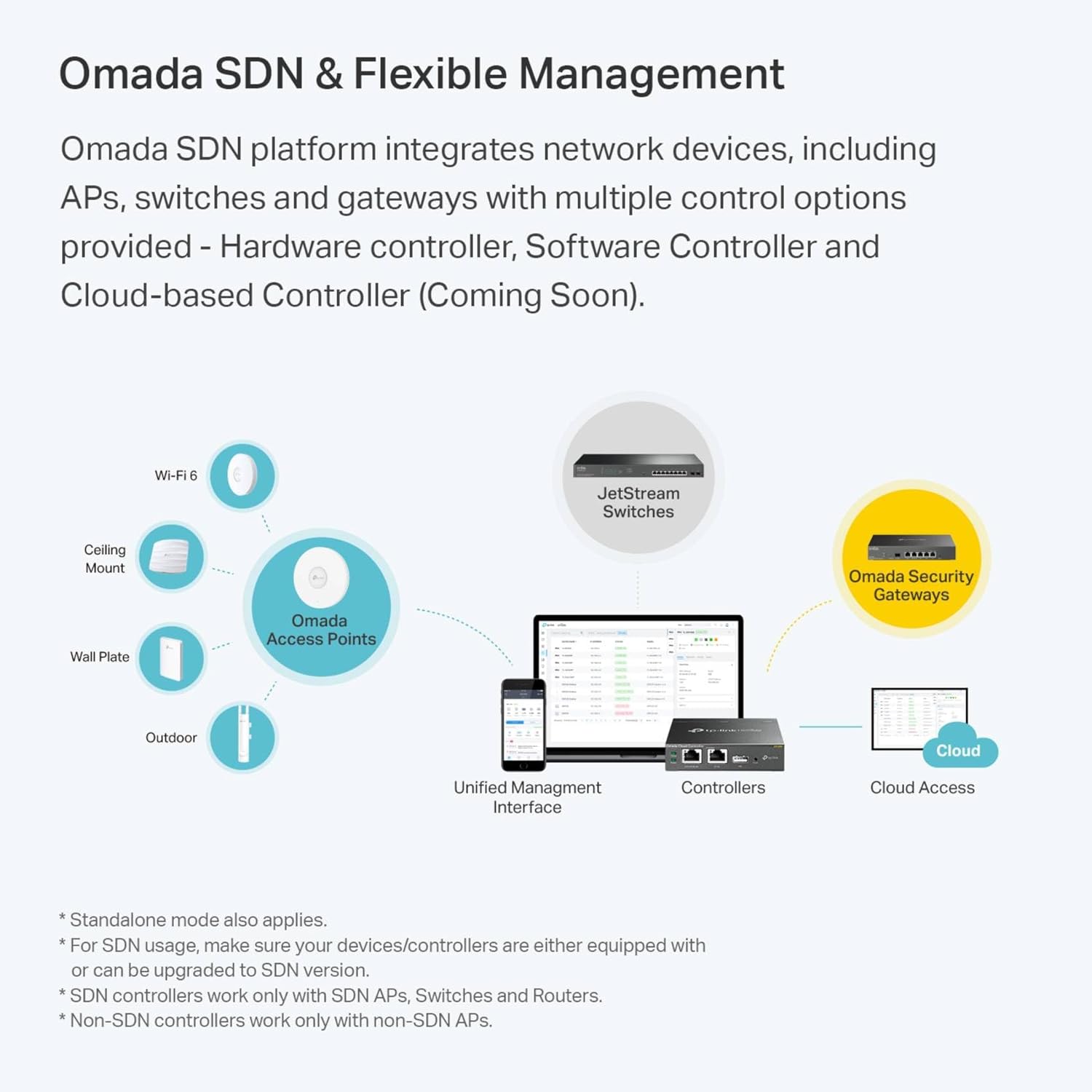
A visual representation of the Omada Software Defined Networking (SDN) ecosystem, showing various Omada devices (Access Points, Switches, Gateways) managed by different controller options (Hardware, Software, Cloud) via a unified management interface.
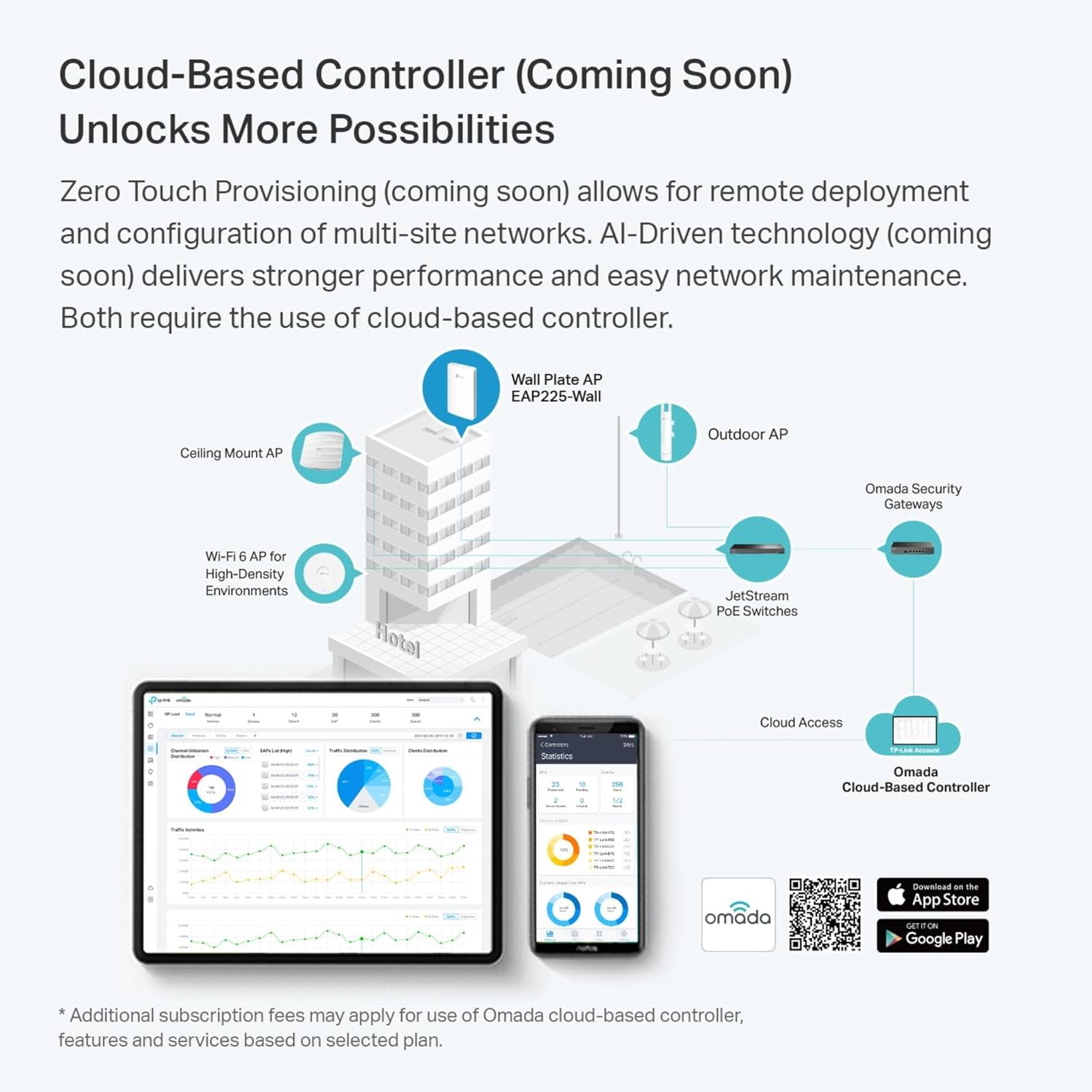
An illustration of how the Omada Cloud-Based Controller enables remote deployment and management of multi-site networks, with examples of different Omada devices in a hotel environment.
Download the Omada app for convenient management from your mobile device: TP-Link Omada App
6. Operating
Once configured, the EAP235-Wall will broadcast Wi-Fi signals on both 2.4 GHz and 5 GHz bands. Devices can connect to the network using the configured SSID and password.
6.1. Dedicated Wi-Fi Networks
The EAP235-Wall is designed to provide a dedicated and private Wi-Fi network for each room or area it serves. This ensures optimal performance and security for individual users.

Three panels depicting the EAP235-Wall providing dedicated private Wi-Fi networks in different settings: a hotel room, an office meeting room, and a dormitory room.
6.2. Connecting Wired Devices
Use the downlink Ethernet ports to connect wired devices such as computers, printers, or VoIP phones. If a connected device supports PoE, you can utilize the PoE pass-through port to power it directly from the access point.
7. Maintenance
7.1. Firmware Updates
Regularly check for and install firmware updates to ensure optimal performance, security, and access to new features. Firmware updates can typically be performed through the Omada Controller or the device's standalone web interface.
7.2. Cleaning
Clean the device with a soft, dry cloth. Do not use liquid or aerosol cleaners. Ensure the device is powered off before cleaning.
7.3. Resetting the Device
To restore the device to factory default settings, press and hold the Reset button (usually located on the back or bottom of the unit) for approximately 5-10 seconds while the device is powered on. The LED indicator will typically flash to confirm the reset.
8. Troubleshooting
If you encounter issues with your EAP235-Wall, consider the following troubleshooting steps:
- No Power: Ensure the Ethernet cable is securely connected to the PoE IN port and that the PoE source (switch or injector) is functioning correctly.
- No Wi-Fi Signal: Verify that the device is powered on and the LED indicator is showing normal operation. Check your Omada Controller or standalone settings to ensure Wi-Fi is enabled and configured correctly.
- Slow Wi-Fi Speed: Check for interference from other wireless devices. Ensure the device is placed optimally for coverage. Verify your internet connection speed. Consider adjusting channel settings or Wi-Fi modes.
- Cannot Access Management Interface: Ensure your device is connected to the same network as the EAP235-Wall. Try accessing the device's IP address directly. If using an Omada Controller, ensure the controller is running and the EAP is adopted.
For further assistance, refer to the TP-Link support website or contact technical support.
9. Specifications
| Feature | Specification |
|---|---|
| Model Name | EAP235-Wall |
| Brand | TP-Link |
| Wireless Standard | 802.11ac Wave 2 (Wi-Fi 5), 802.11b/g/n |
| Frequency Band Class | Dual-Band (2.4 GHz & 5 GHz) |
| Wireless Speed | Up to 1200 Mbps (AC1200) |
| Ethernet Ports | 4 Gigabit Ethernet Ports (1x Uplink PoE IN, 3x Downlink, 1x Downlink with PoE Pass-through) |
| PoE Support | 802.3af/at PoE |
| Special Feature | Access Point Mode, WPS |
| Connectivity Technology | Ethernet, Wi-Fi |
| Product Dimensions | 5.63 x 0.78 x 6.17 inches |
| Item Weight | 7.8 ounces (0.49 Pounds) |
10. Warranty and Support
The TP-Link EAP235-Wall comes with an industry-leading 5-year warranty. Free technical support is available from 6 AM to 6 PM PST, Monday to Friday.
For technical support, warranty claims, or additional product information, please visit the official TP-Link website or contact their customer service directly.


