
Introduction
This manual provides detailed instructions for the setup, operation, maintenance, and troubleshooting of your AOC C27G3U/BK 27-inch Full HD Curved Gaming Monitor. Please read this manual thoroughly before using the product to ensure proper functionality and to prevent damage.

Figure 1: Front view of the AOC C27G3U/BK monitor displaying a game scene.
Setup
1. Unboxing and Package Contents
Carefully remove all components from the packaging. Verify that all items listed below are present:
- AOC C27G3U/BK Monitor
- Monitor Stand (Base and Neck)
- Power Cable
- HDMI Cable
- DisplayPort Cable
- USB Upstream Cable
- Quick Setup Guide
2. Stand Assembly
- Place the monitor face down on a soft, clean surface to prevent scratches.
- Attach the stand neck to the back of the monitor until it clicks into place or is secured with screws (refer to the quick setup guide for specific screw details).
- Attach the stand base to the bottom of the stand neck and secure it with the captive screw.

Figure 2: Rear view illustrating the stand attachment area.
3. Connecting the Monitor
Connect the monitor to your computer or other devices using the appropriate cables.
- Power Connection: Connect the power cable to the monitor's power input and then to a power outlet.
- Video Connection: Use either the HDMI cable or the DisplayPort cable to connect your computer's graphics card to the corresponding port on the monitor.
- USB Hub Connection: Connect the USB upstream cable from your computer to the monitor's USB upstream port to enable the monitor's USB hub functionality.
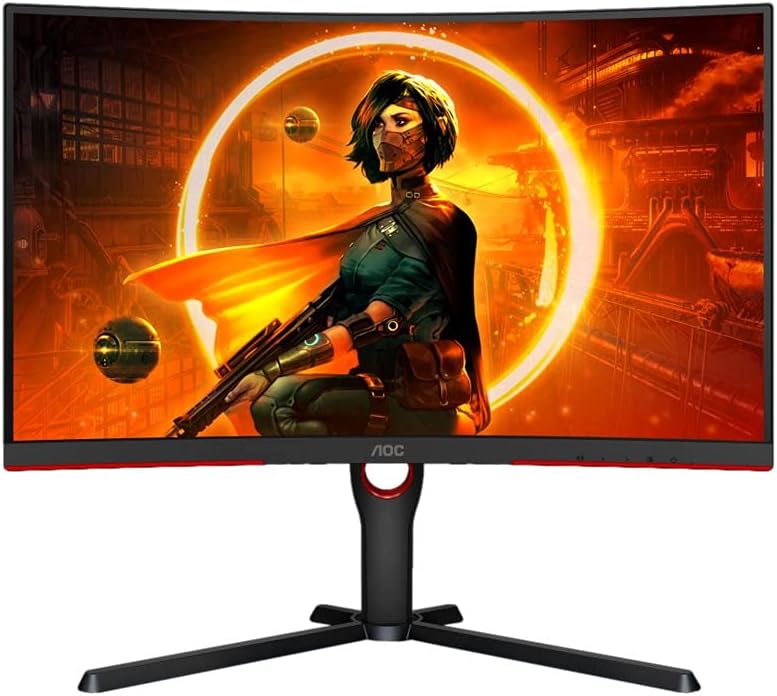
Figure 3: Rear panel connections including HDMI, DisplayPort, and USB ports.
Operating Instructions
1. Power On/Off
Press the power button located on the bottom bezel of the monitor to turn it on or off. The power indicator light will illuminate when the monitor is on.
2. On-Screen Display (OSD) Menu Navigation
The monitor features an OSD menu for adjusting various settings. Use the joystick/buttons located on the bottom bezel to navigate the menu:
- Press: Enter/Confirm selection.
- Up/Down: Navigate through menu options.
- Left/Right: Adjust values or move between sub-menus.
3. Display Settings
Adjust the following settings via the OSD menu for optimal viewing:
- Brightness/Contrast: Adjust for desired image luminosity and distinction.
- Color Settings: Select color temperature, gamma, or specific color modes (e.g., sRGB, User).
- Input Select: Manually switch between HDMI and DisplayPort inputs.
- Picture Mode: Choose from predefined modes (e.g., Standard, Game, Text, Movie).
4. Gaming Features
This monitor is equipped with features to enhance your gaming experience:
- 165Hz Refresh Rate: Provides smoother motion and reduced input lag. Ensure your graphics card and connection cable support this refresh rate.
- 1ms Response Time: Minimizes ghosting and motion blur for fast-paced games.
- FreeSync Premium: Synchronizes the monitor's refresh rate with your GPU's frame rate to eliminate screen tearing and stuttering. Enable this feature in your graphics card control panel.
- Low Input Lag: Reduces the delay between your input and the on-screen action.
Maintenance
Cleaning the Monitor
To maintain the monitor's performance and appearance:
- Always unplug the monitor from the power outlet before cleaning.
- Use a soft, lint-free cloth lightly dampened with water or a mild, non-abrasive screen cleaner.
- Do not spray cleaner directly onto the screen.
- Avoid using benzene, thinner, ammonia-based cleaners, or abrasive materials, as these can damage the screen or casing.
Troubleshooting
If you encounter issues with your monitor, refer to the following common problems and solutions:
| Problem | Possible Solution |
|---|---|
| No image on screen | Ensure power cable is securely connected. Verify video cable (HDMI/DisplayPort) is connected to both monitor and computer. Select correct input source via OSD menu. |
| Image is blurry or distorted | Check display resolution settings on your computer. Ensure it matches the monitor's native resolution (1920x1080). Adjust OSD settings like sharpness. |
| Screen flickering | Check video cable connections. Ensure refresh rate is set correctly (e.g., 165Hz). Update graphics card drivers. Disable FreeSync Premium temporarily to diagnose. |
| Colors are incorrect | Adjust color settings in the OSD menu. Reset color settings to factory defaults. Calibrate your display using operating system tools. |
| USB ports not working | Ensure the USB upstream cable is connected from the monitor to your computer. Check computer's USB drivers. |
Specifications
Key technical specifications for the AOC C27G3U/BK monitor:
| Feature | Detail |
|---|---|
| Model Number | C27G3U/BK |
| Screen Size | 27 Inches |
| Panel Type | VA |
| Resolution | 1920 x 1080 Pixels (Full HD) |
| Aspect Ratio | 16:9 |
| Curvature | 1000R Curved |
| Refresh Rate | 165 Hz |
| Response Time | 1 Millisecond (MPRT) |
| Contrast Ratio | 1000:1 |
| Brightness | 300 cd/m² |
| Connectivity | 2x HDMI 1.4, 1x DisplayPort 1.2, USB Hub (4x USB 3.2), Audio Out |
| Adaptive Sync Technology | FreeSync Premium |
| Special Features | Height Adjustment, Built-in Speakers, Blue Light Filter |
| VESA Mount Compatibility | Wall Mount (VESA standard) |
| Product Dimensions (WxHxD) | 70 x 52.4 x 26.4 cm |
| Weight | 5 kg |
| Voltage | 220V |

Figure 4: Monitor dimensions for planning your setup.
Warranty Information
Your AOC C27G3U/BK monitor comes with a manufacturer's warranty. Please retain your proof of purchase for warranty claims.
- Product Warranty: 3 Years Manufacturer Warranty.
- Spare Parts Availability (EU): 2 Years.
For detailed terms and conditions, please refer to the warranty card included in your product packaging or visit the official AOC website.
Support
If you require further assistance or have questions not covered in this manual, please contact AOC customer support:
- Visit the official AOC website for support resources, FAQs, and driver downloads.
- Refer to the contact information provided in your product's quick setup guide or warranty documentation.


