
Amazfit W2001OV1N
Amazfit Neo Smartwatch User Manual
Model: W2001OV1N
1. Introduction
The Amazfit Neo is a retro-styled fitness smartwatch designed for real-time workout tracking, heart rate monitoring, and sleep analysis. It features a durable, water-resistant design and an always-on display with exceptional battery life. This manual provides detailed instructions for setting up, operating, maintaining, and troubleshooting your Amazfit Neo smartwatch.
2. What's in the Box
- Amazfit Neo Smartwatch
- Charging Pod
- User Manual (this document)

Image: The Amazfit Neo Smartwatch, showcasing its design and the included charging pod.
3. Setup
3.1 Charging the Device
Before first use, fully charge your Amazfit Neo. Connect the charging pod to a USB power source and place the watch onto the magnetic contacts of the charging pod. The watch display will indicate charging status.

Image: The Amazfit Neo Smartwatch securely placed on its dedicated charging pod.
3.2 Installing the Zepp App and Pairing
- Download the Zepp app from your smartphone's app store (App Store for iOS or Google Play Store for Android).
- Open the Zepp app and create an account or log in.
- Navigate to 'Profile' > 'My Devices' > 'Add device' and select 'Watch' > 'Watch with a QR code'.
- On your Amazfit Neo, press the 'BACK' button to display the QR code.
- Use the Zepp app to scan the QR code displayed on your watch.
- Follow the on-screen prompts in the app to complete the pairing process.

Image: A smartphone screen displaying the Zepp app, illustrating the device pairing process.
4. Operating Your Amazfit Neo
4.1 Button Functions
The Amazfit Neo features four physical buttons for navigation and function control:
- SELECT: Confirms selections or enters sub-menus.
- BACK: Returns to the previous screen or exits a function.
- UP: Navigates upwards through menus or increases values.
- DOWN: Navigates downwards through menus or decreases values.

Image: A clear front view of the Amazfit Neo, highlighting the four physical buttons and their labels.
4.2 Key Features
- Real-Time Workout Tracking: The watch tracks steps, calories burned, and distance. You can view these metrics directly on the watch or in the Zepp app.
- Heart Rate Monitoring: The Amazfit Neo continuously monitors your heart rate 24/7. Access your current heart rate on the watch or review detailed historical data in the Zepp app.

Image: A screenshot of the Zepp app displaying heart rate monitoring data.
- Sleep Monitoring: The watch monitors your sleep patterns, including light sleep, deep sleep, and awake times. Synchronize with the Zepp app to review your sleep quality and stages.

Image: A person sleeping, wearing the Amazfit Neo, demonstrating its sleep tracking capability.
- Smart Notifications: Receive notifications for incoming calls, text messages, and alerts from various smartphone applications directly on your watch. Configure notification settings within the Zepp app.
- Alarm Clock & Timer: Set alarms and use the built-in timer function for daily tasks or workouts.
- Do Not Disturb (DND) Mode: Activate DND mode to temporarily disable notifications.
- Weather Forecast: View basic weather information directly on your watch (requires synchronization with the Zepp app and internet connection).
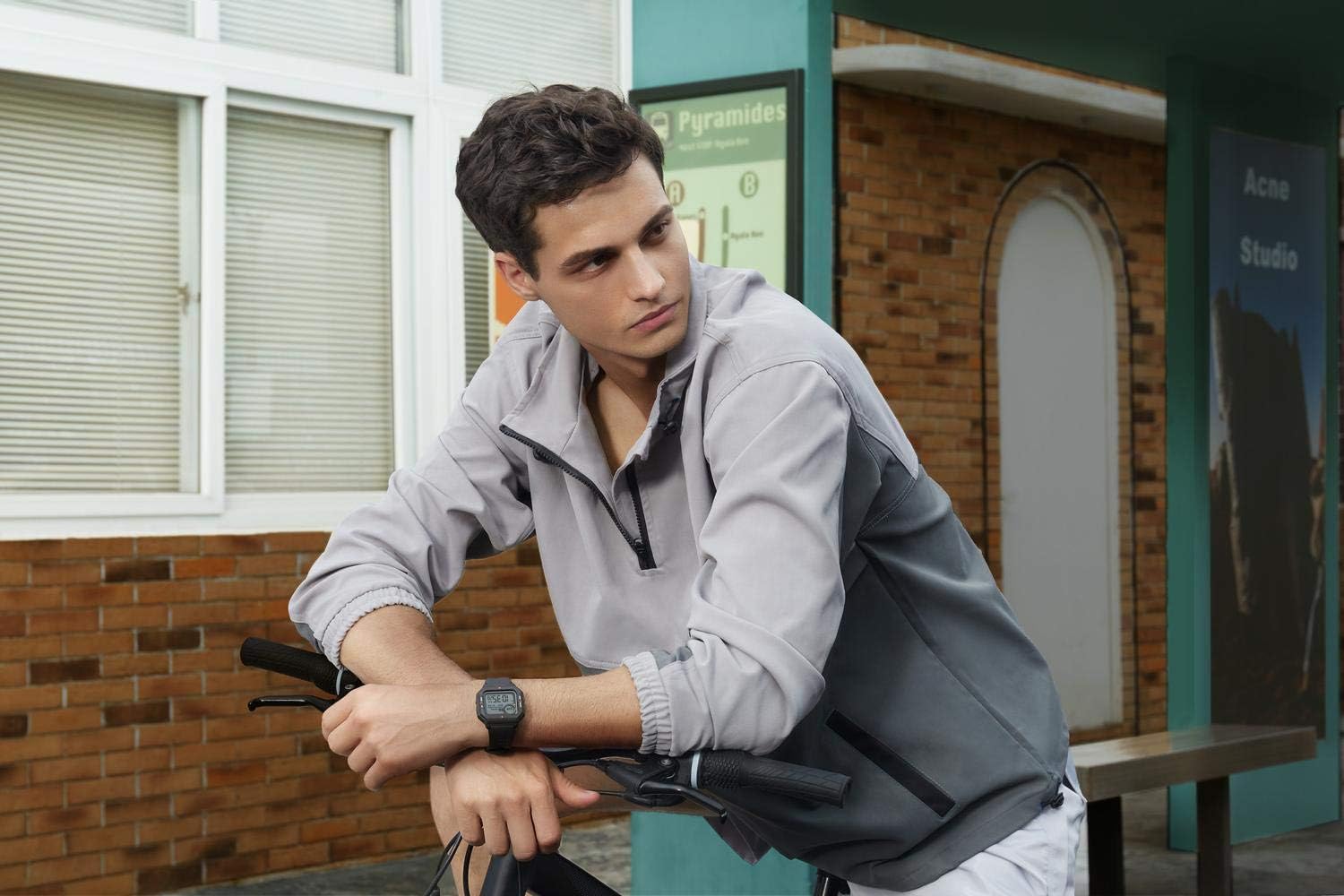
Image: A person wearing the Amazfit Neo while cycling, illustrating its use during physical activity.
5. Maintenance
5.1 Cleaning Your Watch
Regularly clean your Amazfit Neo and its strap to ensure hygiene and prolong its lifespan. Use a soft, damp cloth to wipe the watch body and strap. Avoid using harsh chemicals or abrasive materials.
5.2 Water Resistance
The Amazfit Neo is 5 ATM water-resistant, meaning it can withstand pressures equivalent to a depth of 50 meters. It is suitable for showering, swimming in shallow water, and other surface water activities. However, it is not suitable for diving or high-pressure water activities.
6. Troubleshooting
6.1 Watch Not Turning On
- Ensure the watch is fully charged. Connect it to the charging pod and a power source for at least 30 minutes.
- Press and hold the 'SELECT' button for several seconds to attempt a power-on.
6.2 Unable to Pair with Smartphone
- Ensure Bluetooth is enabled on your smartphone.
- Make sure the watch is within Bluetooth range of your smartphone.
- Restart both your smartphone and the Amazfit Neo.
- Clear the Bluetooth cache on your smartphone (Android) or forget the device in Bluetooth settings (iOS/Android) and try pairing again.
- Ensure the Zepp app is updated to the latest version.
6.3 Inaccurate Heart Rate/Sleep Data
- Ensure the watch is worn snugly on your wrist, about one finger's width from your wrist bone.
- Keep the sensor clean and free from debris.
- Avoid excessive movement during heart rate measurement.
6.4 Notifications Not Appearing
- Check notification settings within the Zepp app to ensure they are enabled for desired applications.
- Ensure the watch is connected to your smartphone via Bluetooth.
- Verify that your smartphone's notification permissions are granted to the Zepp app.
- Check if DND mode is active on the watch or smartphone.
7. Specifications
| Feature | Specification |
|---|---|
| Model Number | W2001OV1N |
| Display | 1.2-inch Always-On Display |
| Battery Life | Up to 28 days (typical usage), 37 days (basic usage) |
| Water Resistance | 5 ATM (up to 50 meters) |
| Connectivity | Bluetooth |
| Operating System | Amazfit OS |
| Dimensions | 1.59 x 1.61 x 0.46 inches (40.4 x 41 x 11.7 mm) |
| Weight | 1.13 ounces (32g) |
| Sensors | BioTracker PPG optical sensor, Accelerometer |
| Battery Type | Lithium Polymer |

Image: A diagram illustrating the precise dimensions of the Amazfit Neo Smartwatch.
8. Warranty and Support
8.1 Warranty Information
For detailed warranty information, please refer to the warranty card included with your product or visit the official Amazfit website. Warranty terms and conditions may vary by region.
8.2 Additional Support
For further assistance, frequently asked questions, or to contact customer support, please visit the official Amazfit support page or use the help section within the Zepp app.
You can also refer to the official PDF user manual for more detailed information: Download User Manual (PDF)
Related Documents - W2001OV1N
 |
Amazfit Bip U Pro User Guide: Setup, Features, and Operation Comprehensive user guide for the Amazfit Bip U Pro smartwatch. Learn about device setup, pairing, navigation, health tracking (heart rate, SpO2, sleep, stress), watch apps, workout modes, and daily maintenance. |
 |
Amazfit Bip 3 Pro User Manual A comprehensive user manual for the Amazfit Bip 3 Pro smartwatch, detailing setup, connection, basic operations, health and fitness tracking features, app functionalities, workout modes, and device settings. |
 |
Amazfit Band 5 User Manual A comprehensive guide to using the Amazfit Band 5, covering its features, functions, workout tracking, notifications, and maintenance. Learn how to navigate the interface, customize settings, and utilize all the capabilities of your wearable device. |
 |
Amazfit GTS 3 User Manual: Setup, Features, Workouts, and Health Tracking Explore the Amazfit GTS 3 smartwatch with this comprehensive user manual. Learn about pairing, basic operations, advanced features like extensive workout modes, detailed health monitoring (heart rate, SpO2, sleep), and smart notifications. Get the most out of your Amazfit GTS 3. |
 |
Amazfit GTS 2 User Manual: Features, Setup, and Operations Comprehensive user manual for the Amazfit GTS 2 smartwatch. Learn about setup, features like heart rate monitoring, sleep tracking, workouts, app usage, and watch settings. |
 |
Amazfit Active User Manual - Comprehensive Guide Explore the Amazfit Active User Manual for detailed instructions on setup, features, workout modes, health tracking, and more. Learn how to pair your device, customize watch faces, and utilize advanced functions for an optimal experience. |