
Swintec 2600i
Swintec 2600i Electronic Typewriter User Manual
Model: Swintec 2600i
Introduction
Welcome to the user manual for your Swintec 2600i Electronic Typewriter. This manual provides comprehensive instructions for setting up, operating, and maintaining your typewriter to ensure optimal performance and longevity. The Swintec 2600i is designed for efficient and precise typing, featuring automatic functions to enhance your productivity.
Safety Information
Please read and understand all safety instructions before operating the typewriter. Failure to do so may result in injury or damage to the device.
- Always connect the typewriter to a grounded power outlet.
- Do not expose the typewriter to water or excessive moisture.
- Avoid placing the typewriter in direct sunlight or near heat sources.
- Keep hands and loose clothing away from moving parts during operation.
- Unplug the typewriter from the power source before cleaning or performing maintenance.
- Do not attempt to repair the typewriter yourself. Refer to qualified service personnel.
Package Contents
Verify that all items are present in the package:
- Swintec 2600i Electronic Typewriter unit
- Power Cord
- Correction Tape (pre-installed or separate)
- Print Ribbon (pre-installed or separate)
- User Manual (this document)
Product Overview
Familiarize yourself with the components of your Swintec 2600i typewriter.
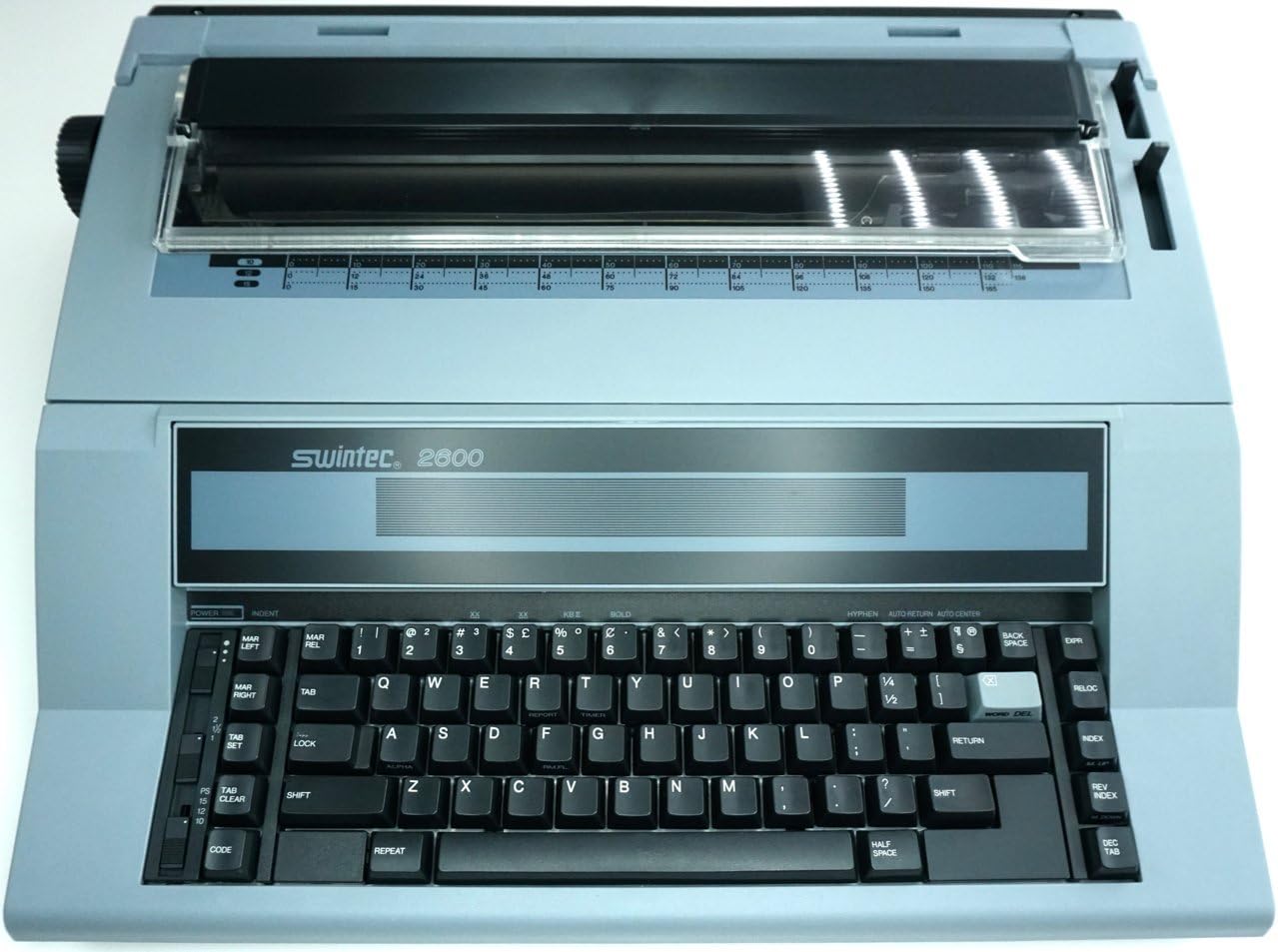
Figure 1: Top-down view of the Swintec 2600i Electronic Typewriter. This image shows the full keyboard, the paper feed area with the platen, and the display screen above the keyboard.

Figure 2: Top-down view of the Swintec 2600i Electronic Typewriter with the transparent cover over the platen area lifted. This reveals the internal mechanisms for ribbon and paper handling.

Figure 3: Angled side view of the Swintec 2600i, highlighting the platen knob on the left side used for manual paper advancement and adjustment.

Figure 4: A closer angled view of the Swintec 2600i, focusing on the right side of the keyboard and the paper feed area, showing the paper bail and guides.

Figure 5: The packaging box for the Swintec 2600 Electronic Office Typewriter, displaying the model number and brand logo.
Setup
1. Unpacking
Carefully remove the typewriter and all accessories from the packaging. Retain the original packaging for future transport or storage.
2. Power Connection
- Place the typewriter on a stable, flat surface.
- Insert the power cord into the power input port on the back of the typewriter.
- Plug the other end of the power cord into a standard electrical outlet.
3. Ribbon and Correction Tape Installation
If not pre-installed, follow these steps:
- Open the top cover of the typewriter to access the ribbon and correction tape compartments.
- Carefully insert the print ribbon cartridge according to the diagrams inside the compartment, ensuring it clicks into place.
- Install the correction tape cartridge in its designated slot, making sure the tape feeds correctly through the guides.
- Close the top cover securely.
4. Loading Paper
- Ensure the paper bail is lifted.
- Insert the paper from the back of the platen, guiding it straight until it meets resistance.
- Rotate the platen knob (usually on the left side) to feed the paper forward until the top edge is visible above the typing line.
- Adjust the paper guides to hold the paper firmly in place.
- Lower the paper bail.
Operating Instructions
1. Power On/Off
Press the POWER button, typically located on the left side of the keyboard, to turn the typewriter on or off. The display will illuminate when powered on.
2. Basic Typing
Begin typing as you would on a standard keyboard. The characters will appear on the display before being printed on the paper. This allows for corrections before printing.
3. Correction Feature
To correct a mistake:
- Press the CORRECT or BACKSPACE key to move the print head back over the error.
- The typewriter will automatically lift the ribbon and apply correction tape to cover the incorrect character.
- Type the correct character.
4. Automatic Features
The Swintec 2600i includes several automatic features:
- Automatic Centering: Use the AUTO CENTER function to automatically center text on a line.
- Automatic Return: The typewriter will automatically return the carriage at the end of a line, or you can use the RETURN key.
- Bold Typing: Press the BOLD key to activate bold printing for emphasis. Press again to deactivate.
- Margin Set: Use the MARGIN SET keys to define left and right margins for your document.
- Tab Set/Clear: The TAB SET and TAB CLEAR keys allow you to set and clear tab stops for columnar typing.
Maintenance
1. Cleaning
Regular cleaning helps maintain the typewriter's performance.
- Unplug the typewriter before cleaning.
- Use a soft, dry cloth to wipe the exterior surfaces.
- For hard-to-reach areas, use a small brush or compressed air to remove dust and debris from the keyboard and print head area.
- Do not use liquid cleaners or abrasive materials.
2. Ribbon and Correction Tape Replacement
Replace the ribbon and correction tape when print quality deteriorates or the tape runs out.
- Ensure the typewriter is powered off and unplugged.
- Open the top cover.
- Carefully remove the used ribbon and correction tape cartridges.
- Dispose of used cartridges responsibly.
- Install new cartridges as described in the "Setup" section.
- Close the top cover.
Troubleshooting
This section addresses common issues you might encounter.
| Problem | Possible Cause | Solution |
|---|---|---|
| Typewriter does not power on. | No power connection; faulty outlet. | Check power cord connection; try a different outlet. |
| Characters are faint or missing. | Ribbon is old or incorrectly installed. | Replace the print ribbon; ensure it is installed correctly. |
| Paper does not feed correctly. | Paper guides are not adjusted; paper is jammed. | Adjust paper guides; remove any jammed paper carefully. |
| Correction tape not working. | Correction tape is used up or incorrectly installed. | Replace correction tape; ensure correct installation. |
Specifications
- Brand: Swintec
- Model: 2600i (Manufacturer Part Number: Swintec2600i-cr)
- Product Dimensions: 10 x 22 x 23 inches
- Material Type: Paper (referring to compatible paper, not typewriter material)
- ASIN: B08HPYD9PR
- Date First Available: September 9, 2020
Warranty and Support
This product is offered as an Amazon Renewed item. Amazon Renewed products are professionally inspected and tested to work and look like new. If not satisfied with the purchase, renewed products are eligible for replacement or refund under the Amazon Renewed Guarantee.
For further assistance or technical support, please refer to the Amazon Renewed customer service or the original manufacturer's support channels if applicable.