
1. Introduction
Product Overview
The Texlar TS48 Pro is a versatile 2-in-1 device functioning as both a selfie stick and a tripod. It features an extendable arm and integrated foldable legs, allowing for flexible shooting options for various scenarios, from personal selfies to group photos and stable video recording.

Image: The Texlar TS48 Pro in its different modes of operation.
The Texlar TS48 Pro Selfie Stick Tripod is shown in three configurations: fully extended as a selfie stick with a smartphone, set up as a tripod with a smartphone, and folded into a compact handheld grip. This illustrates its multi-functional design.
Key Features
- 2-in-1 Functionality: Seamlessly switches between a handheld selfie stick and a stable tripod.
- Extendable Length: Extends from a compact 8 inches to an impressive 48 inches for diverse shooting angles.
- Compact & Lightweight: Weighs only 8.5 ounces, making it highly portable for travel.
- Wireless Bluetooth Remote: Includes a detachable, rechargeable remote for hands-free photo and video capture from up to 33 feet away.
- Durable Construction: Made from ABS and aluminum with rubber non-slip feet for stability and longevity.
- Universal Compatibility: Fits most smartphones (2-4 inches wide) and lightweight action cameras.
2. What's in the Box
Please check the package contents to ensure all items are present and in good condition.

Image: All components included in the Texlar TS48 Pro package.
The image displays the Texlar TS48 Pro Selfie Stick Tripod, a separate phone holder, the wireless selfie remote, a USB charging cable, and the user manual, which are all included in the product package.
- Texlar TS48 Pro Selfie Stick Tripod
- Wireless Selfie Remote
- USB Charging Cable
- User Manual
3. Setup
Charging the Remote
- Locate the USB charging port on the side of the wireless remote.
- Connect the provided USB charging cable to the remote and a USB power source (e.g., computer, wall adapter).
- The indicator light on the remote will show charging status (refer to remote's specific light behavior for full charge indication).
Pairing the Bluetooth Remote
- Ensure the remote is charged.
- Turn on the remote by pressing and holding the power button until the indicator light flashes.
- On your smartphone, go to Settings > Bluetooth and turn Bluetooth on.
- Search for available devices. The remote should appear as "TEXLAR" or a similar name.
- Select the remote to pair. The indicator light on the remote will stop flashing and remain solid once successfully paired.
Attaching Your Smartphone

Image: The adjustable phone holder for universal compatibility.
This image highlights the universal phone holder, demonstrating its ability to securely grip smartphones ranging from 2 to 4 inches in width, ensuring compatibility with most models.
- Gently pull apart the spring-loaded phone holder at the top of the selfie stick.
- Carefully insert your smartphone into the holder, ensuring it is securely gripped by both sides.
- Adjust the phone's position for desired vertical or horizontal orientation.
4. Operating Instructions
Using as a Selfie Stick

Image: The Texlar TS48 Pro extended as a selfie stick.
The image shows the Texlar TS48 Pro fully extended as a selfie stick, held by a hand, with a scenic background. This highlights its lightweight and portable design, ideal for capturing wider shots or group photos.
- Ensure the tripod legs are folded and locked into the handle.
- Pull the top section of the stick upwards to extend it to your desired length (up to 48 inches).
- Hold the handle firmly and position your smartphone for the shot.
- Press the shutter button on the Bluetooth remote to capture photos or start/stop video recording.
Using as a Tripod
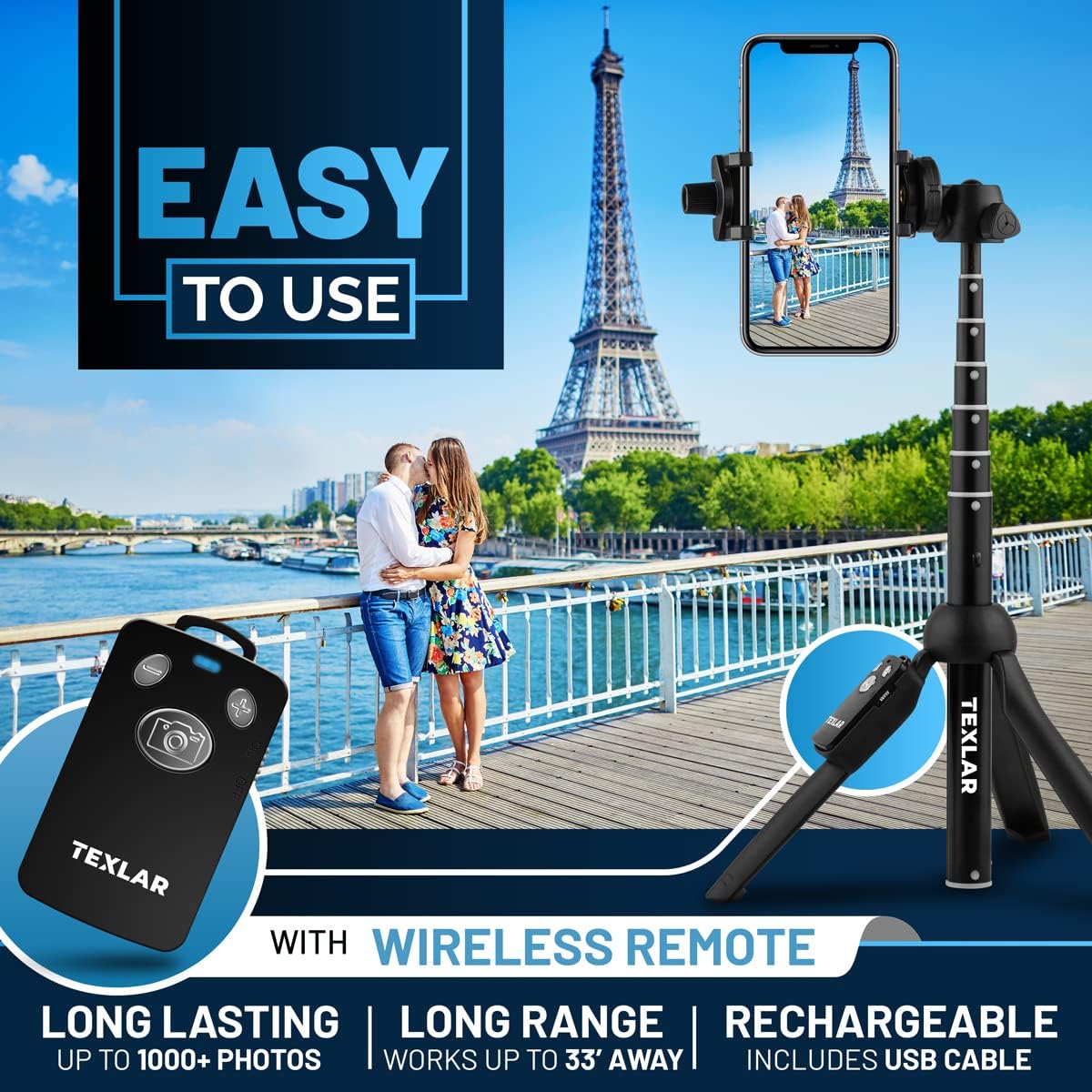
Image: The Texlar TS48 Pro set up as a tripod.
This image features the Texlar TS48 Pro in tripod mode, holding a smartphone, with the Eiffel Tower in the background. It demonstrates the stability and convenience of using the device as a tripod for hands-free photography, especially with the wireless remote.
- From the folded position, gently push the bottom of the handle to release and spread the three tripod legs.
- Place the tripod on a flat, stable surface.
- Extend the central pole to adjust the height as needed.
- Adjust the angle of your smartphone holder for optimal framing.
- Use the Bluetooth remote to capture photos or videos remotely.
Using the Bluetooth Remote
The detachable Bluetooth remote allows for convenient hands-free operation.
Image: The Texlar wireless Bluetooth remote.
The image shows the compact Texlar wireless Bluetooth remote control, highlighting its main camera button and brand logo. This remote enables remote photo and video capture when paired with a smartphone.
- Once paired, open your smartphone's camera application.
- Press the large camera button on the remote to take a photo.
- In video mode, pressing the button will start and stop recording.
- The remote has a range of up to 33 feet (10 meters).
- Note: The zoom function on the remote is only compatible with Android devices.
5. Maintenance
- Cleaning: Wipe the selfie stick and remote with a soft, dry cloth. Avoid using harsh chemicals or abrasive materials.
- Storage: Store the device in a cool, dry place away from direct sunlight and extreme temperatures. Ensure the legs are folded and the stick is retracted to its minimum length for compact storage.
- Battery Care: For optimal battery life, charge the remote regularly and avoid fully discharging it for extended periods.
6. Troubleshooting
Remote Not Connecting/Pairing
- Ensure the remote is charged and turned on.
- Make sure Bluetooth is enabled on your smartphone.
- Unpair and re-pair the remote from your smartphone's Bluetooth settings.
- Restart both the remote and your smartphone.
- Ensure no other Bluetooth devices are interfering with the connection.
Phone Not Fitting Securely
- Check if your phone's width is within the 2-4 inch compatibility range.
- Remove bulky phone cases if they prevent a secure fit.
- Ensure the spring-loaded mechanism of the phone holder is fully engaged.
Tripod Instability
- Ensure the tripod legs are fully extended and locked into position on a flat, stable surface.
- Avoid placing the tripod on uneven or slippery ground.
- In windy conditions, consider lowering the height of the extended pole for better stability.
7. Specifications
| Feature | Specification |
|---|---|
| Brand | TEXLAR |
| Model Number | TS48 PRO |
| Color | Black |
| Minimum Height | 8 inches |
| Maximum Height | 48 inches |
| Item Weight | 8.5 ounces (240.97 g) |
| Material | Acrylonitrile Butadiene Styrene (ABS), Aluminum, Rubber |
| Compatible Devices | Mobile Phone (iPhone, Android, Samsung Galaxy, LG, Google Pixel, Action Camera) |
| Phone Holder Width | 2-4 inches |
| Remote Control Range | Up to 33 feet (10 meters) |
| Batteries Included | Yes |
| Batteries Required | Yes |
| ASIN | B08HJRQYL7 |
| UPC | 858362007997 |
8. Warranty and Support
Texlar products are manufactured to the highest quality standards. For information regarding warranty coverage, product support, or technical assistance, please refer to the contact details provided on the product packaging or the official Texlar website.
Please retain your proof of purchase for any warranty claims.