
Deep Orange Data DO
Deep Orange Data 300Mbps 4G LTE Modem Wi-Fi Wireless Router User Manual
Model: DO (WE826-T/ZBT-WE826-Q)
1. Introduction
This user manual provides comprehensive instructions for the Deep Orange Data 300Mbps 4G LTE Modem Wi-Fi Wireless Router. It covers hardware installation, initial setup, operation, and troubleshooting to ensure optimal performance and connectivity for your RVs and mobile homes.
1.1 Package Contents

Figure 1.1: Contents of the Deep Orange 4G LTE Router package.
- 1 x Deep Orange 4G/LTE Router
- 4 x High-performance Antennas
- 1 x Power Adapter
- 1 x SIM Adapter Pack
- 1 x Ethernet Cable
- 1 x User Manual (this document)
2. Product Overview
2.1 Physical Features
The Deep Orange 4G LTE Router features multiple ports and indicators for easy connectivity and status monitoring.

Figure 2.1: Rear panel of the router with LAN, WAN, Reset, and DC ports.

Figure 2.2: Side panel of the router with USB and SD card slots.
- LAN Ports (LAN1-LAN4): Four 10/100 Mbps Ethernet ports for connecting wired devices.
- WAN Port: One 10/100 Mbps Ethernet port for connecting to an external modem or existing network.
- Reset Button: Used to restore factory default settings.
- DC Power Input: Connects to the included 12V/1A power adapter.
- USB Port: For connecting external devices or storage.
- SD Card Slot: For inserting an SD card for additional storage.
- Antenna Connectors: Four connectors for attaching the external Wi-Fi and 4G/LTE antennas.
2.2 LED Indicators
The router features several LED indicators on its top panel to show the device's status.

Figure 2.3: Top panel LED indicators.
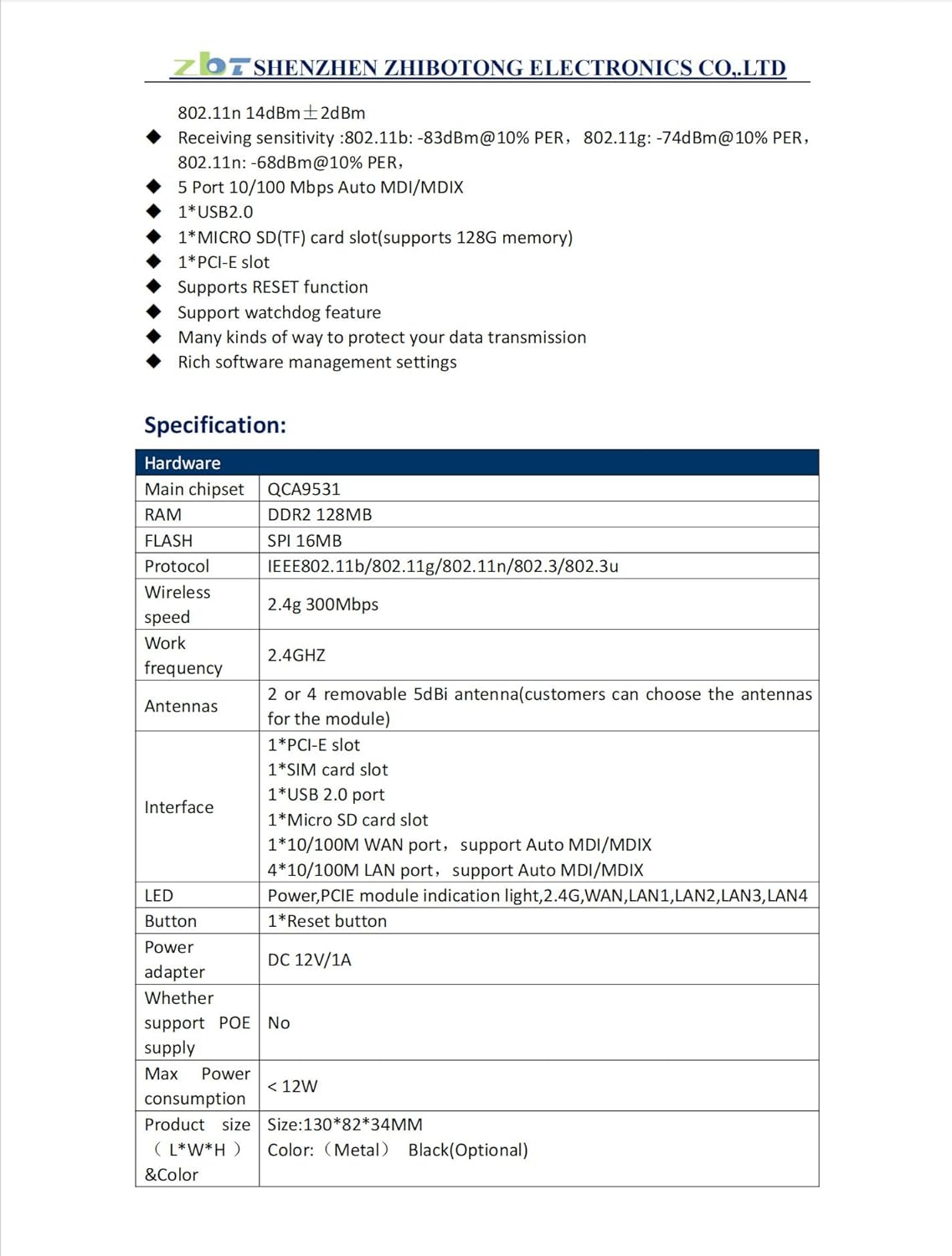
Figure 2.4: LED Indicator Status Guide.
| LED | Status |
|---|---|
| Power Led | Light when power on |
| LTE Led | Light when connecting to LTE network, flash during data transferring |
| WiFi Led | Light when WiFi is on, flash during data transferring |
| WAN Led | Light when cable is connected, flash during data transferring |
| LAN1-4 Led | Light when cable is connected, flash during data transferring |
3. Setup
3.1 Hardware Installation

Figure 3.1: Router with antennas installed.
- Attach Antennas: Screw the four high-performance antennas onto the corresponding connectors on the router. Ensure they are securely tightened.
- Insert SIM Card: Locate the SIM card slot on the side of the router. Insert your activated 4G LTE SIM card into the slot until it clicks into place. Ensure the SIM card is correctly oriented.
- Connect Power: Connect the included power adapter to the DC power input port on the router and then plug the adapter into a power outlet. The Power LED should illuminate.
- Connect Ethernet (Optional): If you wish to connect a wired device or use the WAN port, connect an Ethernet cable from your device to one of the LAN ports, or from an external modem to the WAN port.
3.2 Initial Configuration
The router is pre-configured for ease of use. For advanced settings or initial setup, access the web management interface.

Figure 3.2: Router default login information label.
- Default IP Address: 192.168.1.1
- Default Username: admin
- Default Password: admin (as indicated on the label)
- Default Wi-Fi Password: 5111FB58 (as indicated on the label)
To access the web interface:
- Connect your computer or mobile device to the router's Wi-Fi network (SSID and password are on the router label) or via an Ethernet cable to a LAN port.
- Open a web browser and enter http://192.168.1.1 in the address bar.
- Enter the default username "admin" and password "admin" when prompted.
- Upon successful login, you can configure network settings, Wi-Fi name, password, and other advanced options.

Figure 3.3: Web management interface for network settings.
Important APN Settings: For some carriers, you may need to manually configure the Access Point Name (APN) settings within the web interface under the 3G/4G section. Refer to your SIM card provider for the correct APN details.
4. Operating Instructions
4.1 Connecting Devices
- Wi-Fi Connection: On your device (smartphone, tablet, laptop), search for available Wi-Fi networks. Select the router's SSID (network name) and enter the Wi-Fi password found on the router's label or configured in the web interface.
- Ethernet Connection: Connect an Ethernet cable from your wired device (e.g., desktop computer, smart TV, gaming console) to any of the LAN ports on the router.
4.2 Network Settings
The web management interface allows for customization of your network. Key settings include:
- WAN Type: Configure how the router connects to the internet (e.g., 3G/4G, PPPoE, Dynamic IP, Static IP).
- Wi-Fi Settings: Change SSID, password, security type (WPA2-PSK recommended), and Wi-Fi channel.
- DHCP Server: Manage IP address distribution to connected devices.
- Port Forwarding/DMZ: For specific applications requiring open ports.
- Guest Mode: Enable a separate Wi-Fi network for guests, providing internet access without access to your main network.
5. Troubleshooting
This section addresses common issues you might encounter with your Deep Orange 4G LTE Router.
| Problem | Possible Cause | Solution |
|---|---|---|
| No Internet Connection | SIM card not activated or incorrectly inserted; incorrect APN settings; no cellular signal. |
|
| Cannot Access Web Interface | Incorrect IP address; device not connected to router; incorrect login credentials. |
|
| Weak Wi-Fi Signal or Slow Speeds | Router placement; interference; outdated firmware. |
|
| SIM Card Not Recognized (Mexico/Canada) | Carrier compatibility; specific APN settings required. |
|
6. Specifications
Detailed technical specifications for the Deep Orange 4G LTE Router (Model ZBT-WE826-Q).

Figure 6.1: ZBT-WE826-Q Specification Sheet (Page 1).
| Category | Specification |
|---|---|
| Model Number | ZBT-WE826-Q |
| Description | 5-Port 4G Wireless Router |
| Main Chipset | QCA9531 |
| RAM | DDR2 128MB |
| FLASH | SPI 16MB |
| Wireless Protocol | IEEE802.11b/802.11g/802.11n/802.3/802.3u |
| Wireless Speed | 2.4G 300Mbps |
| Work Frequency | 2.4GHz |
| Antennas | 2 or 4 removable 5dBi antennas (customers can choose the antennas for the module) |
| Interfaces | 1*PCI-E slot, 1*SIM card slot, 1*USB 2.0 port, 1*Micro SD card slot, 1*10/100M WAN port, 4*10/100M LAN ports |
| LED Indicators | Power, PCIE module indication light, 2.4G, WAN, LAN1, LAN2, LAN3, LAN4 |
| Button | 1*Reset button |
| Power Adapter | DC 12V/1A |
| Max Power Consumption | < 12W |
| Product Size (L*W*H) | 130*82*34MM |
| Color | Black (Optional: Metal) |
| Operating Temperature | 0℃ ~ 40℃ |
| Storage Temperature | -40℃ ~ 70℃ |
| Operating Humidity | 10% ~ 90% non-condensing |
| Storage Humidity | 10% ~ 90% non-condensing |
| Certification | CE, FCC & RoHS |
7. Warranty and Support
Deep Orange Data products are designed for reliability and performance. For warranty information, please refer to the terms and conditions provided at the time of purchase or contact our support team.
For technical assistance or inquiries, please contact:
- Email: support@deeporangedata.com
- Website: http://deeporangedata.com
Please have your product model and serial number ready when contacting support to expedite assistance.