
1. Product Overview
The youyeetoo Sipeed Maix Bit K210 is a powerful development board designed for Artificial Intelligence of Things (AIoT) and embedded image processing applications. It features the K210 (RISC-V Dual Core 64bit) intelligent computing chip, offering high performance and low power consumption. This board simplifies AIoT application programming through Micropython, making it suitable for machine vision and machine hearing tasks such as face recognition, object recognition, and microphone array applications.
The Maix Bit K210 supports various AI frameworks including tiny-yolo, mobilenet-v1, and TensorFlow Lite, allowing many TensorFlow Lite models to be compiled and executed directly on the device. Its versatility makes it ideal for a wide range of applications, from attendance and access control systems to smart robots and predictive maintenance.
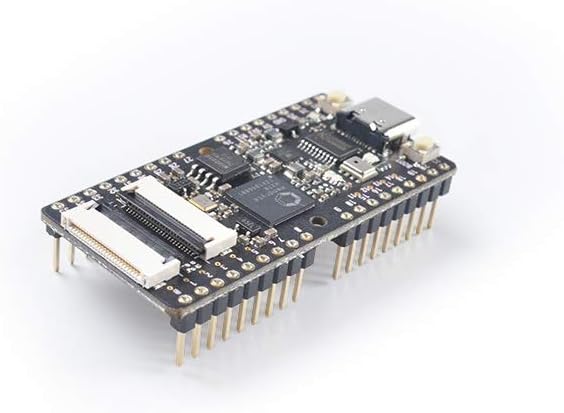
Figure 1: The Sipeed Maix Bit K210 Development Board, showcasing its compact design and various pins.
2. Kit Contents
The Maix Bit K210 development board kit typically includes the following components:
- Sipeed Maix Bit K210 Development Board
- LCD Display Module
- Camera Module
- Small screwdriver (for assembly)
- Mounting screws and standoffs

Figure 2: Overview of the components included in the Maix Bit K210 development kit.
3. Setup Instructions
Follow these steps to set up your Sipeed Maix Bit K210 development board:
- Connect the LCD Module: Carefully connect the flexible flat cable (FPC) of the LCD display module to the corresponding FPC connector on the Maix Bit K210 board. Ensure the connector is fully open before inserting the cable and then gently close it to secure the connection.
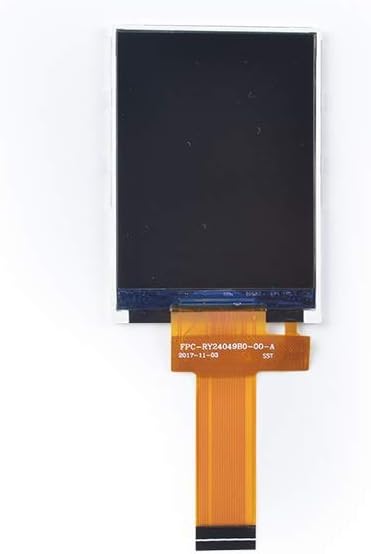
Figure 3: The LCD display module with its flexible flat cable.
- Connect the Camera Module: Similarly, connect the FPC of the camera module to its dedicated FPC connector on the Maix Bit K210 board. Ensure proper orientation and secure the connection.

Figure 4: The camera module, ready for connection to the development board.
- Assemble Components: Once both the LCD and camera modules are connected, you can mount them onto the Maix Bit K210 board using the provided screws and standoffs, if applicable, to create a compact unit.

Figure 5: The Maix Bit K210 board with both the LCD and camera modules connected.
- Power Connection: Connect the Maix Bit K210 board to your computer using a standard USB cable. This will provide power and enable communication for programming.
- Software Environment: Install the MaixPy IDE on your computer. This IDE is based on Micropython and provides the necessary tools for developing and deploying AIoT applications on the K210 chip. Refer to the official Sipeed documentation for detailed installation instructions.
4. Operating Instructions
The Maix Bit K210 is primarily operated through its integrated development environment (IDE), MaixPy.
- Programming: Use the MaixPy IDE to write and upload Micropython code to the board. The IDE provides a user-friendly interface for code editing, debugging, and flashing firmware.
- AI Applications: Leverage the K210's Neural Network Processor for AI tasks. Examples include:
- Object detection using Tiny-YOLO models.
- Image classification with MobileNet-v1.
- Face recognition and identification.
- Peripheral Interaction: The board's GPIO pins, I2C, SPI, and UART interfaces allow interaction with external sensors, actuators, and other peripherals. Consult the K210 datasheet and MaixPy documentation for pinout details and programming examples.
- Data Transfer: Data can be transferred to and from the board via the USB connection or other communication interfaces as programmed.
5. Maintenance
Proper maintenance ensures the longevity and reliable operation of your Maix Bit K210 development board.
- Cleaning: Keep the board clean and free from dust and debris. Use a soft, dry brush or compressed air to remove dust. Avoid using liquid cleaners directly on the board.
- Storage: Store the board in a dry, anti-static environment when not in use. Protect it from extreme temperatures and humidity.
- Handling: Handle the board by its edges to avoid touching sensitive electronic components. Static electricity can damage the components, so consider using anti-static precautions.
- Firmware Updates: Regularly check for firmware updates for the K210 chip and MaixPy IDE. Updates often include bug fixes, performance improvements, and new features.
6. Troubleshooting
If you encounter issues with your Maix Bit K210, consider the following troubleshooting steps:
- Board Not Powering On:
- Ensure the USB cable is securely connected to both the board and a powered USB port on your computer.
- Try a different USB cable or USB port.
- MaixPy IDE Not Detecting Board:
- Verify that the necessary USB drivers are installed on your computer.
- Check the device manager (Windows) or
lsusb(Linux) to see if the board is recognized. - Restart the MaixPy IDE and reconnect the board.
- Code Not Running/Errors:
- Review your Micropython code for syntax errors.
- Check the console output in the MaixPy IDE for error messages.
- Ensure all required libraries and modules are imported and correctly installed.
- Verify that the camera and LCD modules are correctly connected as per the setup instructions.
- Image/Video Processing Issues:
- Confirm that the camera module is properly connected and functioning.
- Check camera settings (resolution, frame rate) in your code.
- Ensure sufficient lighting for image capture.
7. Specifications
Key technical specifications for the youyeetoo Sipeed Maix Bit K210 development board:
| Feature | Detail |
|---|---|
| Processor | K210 (RISC-V Dual Core 64bit, with FPU) |
| CPU Speed | 400 MHz (up to 500 MHz) |
| RAM | LPDDR4 (64 GB listed, likely refers to memory addressable, actual on-chip SRAM is 8MB) |
| Memory Storage Capacity | 128 MB (Flash memory for firmware and data) |
| Operating System | Micropython |
| Wireless Type | Bluetooth (Note: K210 itself does not have built-in Bluetooth, this might refer to an external module or a kit variant) |
| Item Weight | 1.76 ounces |
| Product Dimensions (LxWxH) | 2.36 x 1.57 x 0.39 inches |
| Manufacturer | youyeetoo |
Note: Some specifications like "RAM: 64 GB" might refer to addressable memory space or a misinterpretation. The K210 typically has 8MB of on-chip SRAM. Please refer to official Sipeed documentation for precise memory details.
8. Warranty Information
This product is covered by a standard manufacturer's warranty against defects in materials and workmanship. The warranty period typically begins from the date of purchase. For specific warranty terms, conditions, and duration, please refer to the documentation provided with your purchase or contact youyeetoo customer support.
The warranty does not cover damage caused by misuse, accident, unauthorized modification, improper installation, or operation outside the specified environmental conditions.
9. Customer Support
For technical assistance, product inquiries, or warranty claims, please contact youyeetoo customer support through the following channels:
- Online Resources: Visit the official youyeetoo website or the Sipeed Maix documentation portal for comprehensive guides, tutorials, and community forums.
- Email Support: Refer to your product packaging or the official website for customer support email addresses.
- Retailer Support: If purchased from a retailer, their support channels may also be available.
When contacting support, please have your product model (Maix Bit K210) and purchase information readily available.