1. Introduction
This manual provides detailed instructions for the setup, operation, maintenance, and troubleshooting of your MINISFORUM U700 Mini PC. Please read this manual thoroughly before using the device to ensure proper functionality and to maximize its performance and lifespan. The MINISFORUM U700 is a compact and powerful mini computer featuring an Intel Core i5-5257U processor, designed for various applications from home entertainment to office productivity.

Figure 1.1: Front view of the MINISFORUM U700 Mini PC. This image displays the compact design of the device, highlighting the front panel with USB ports and the power button.
2. Package Contents
Verify that all items listed below are present in your package. If any items are missing or damaged, please contact customer support.
- 1x MINISFORUM U700 Mini PC
- 1x Mounting Bracket
- 1x Mini DP Cable
- 1x HDMI Cable (60cm)
- 1x Power Adapter
- 1x User Manual (this document)
3. Product Overview
The MINISFORUM U700 Mini PC features a variety of ports and indicators for connectivity and operation. Familiarize yourself with the layout before connecting peripherals.

Figure 3.1: Front and side view of the MINISFORUM U700 Mini PC, illustrating the location of various ports and buttons. This includes USB 3.0 ports, power button, and audio jack on the front.
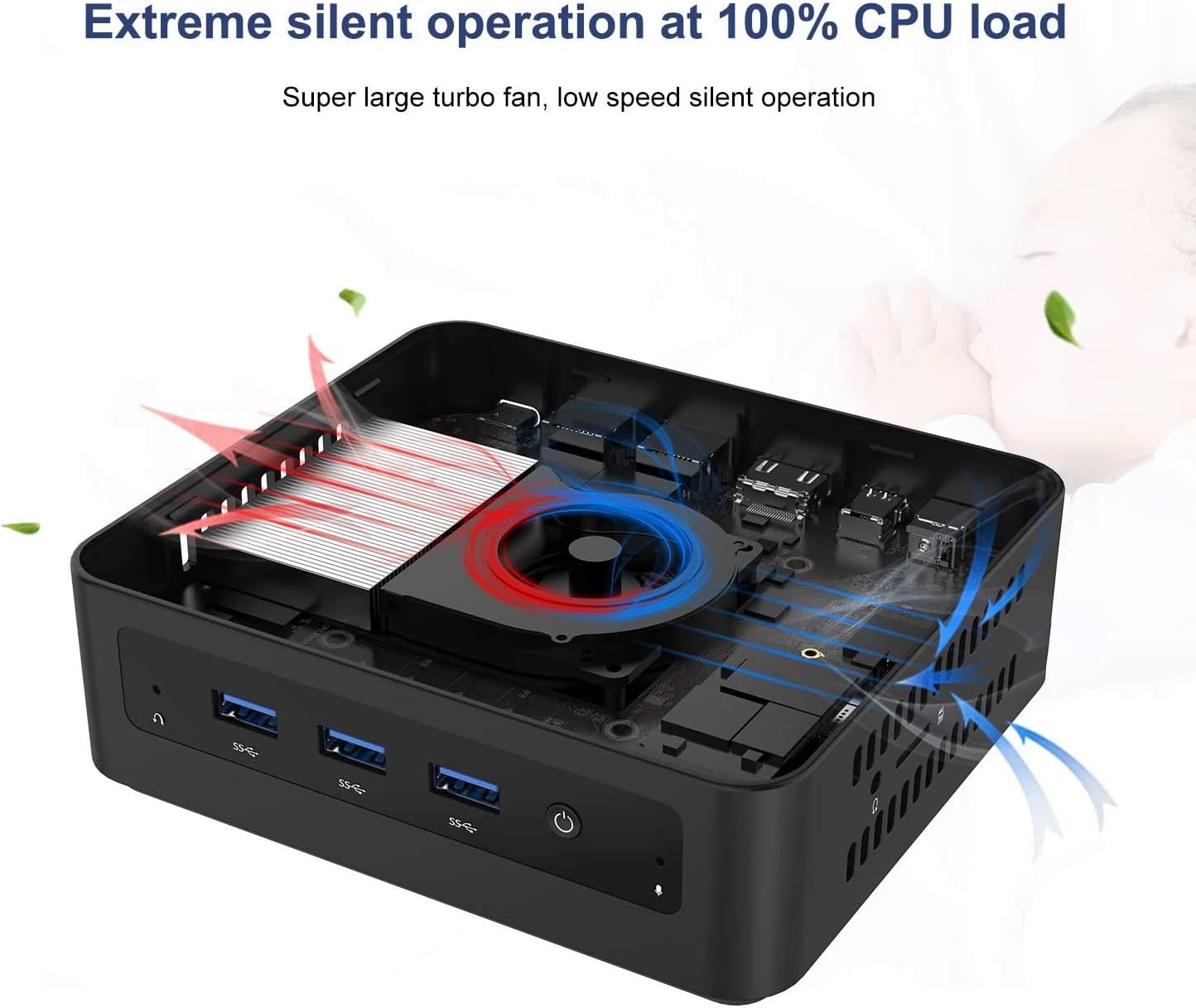
Figure 3.2: The MINISFORUM U700 Mini PC demonstrating its versatility by connecting to various devices such as monitors, projectors, surveillance cameras, POS systems, digital signage, and printers.
3.1 Port Layout
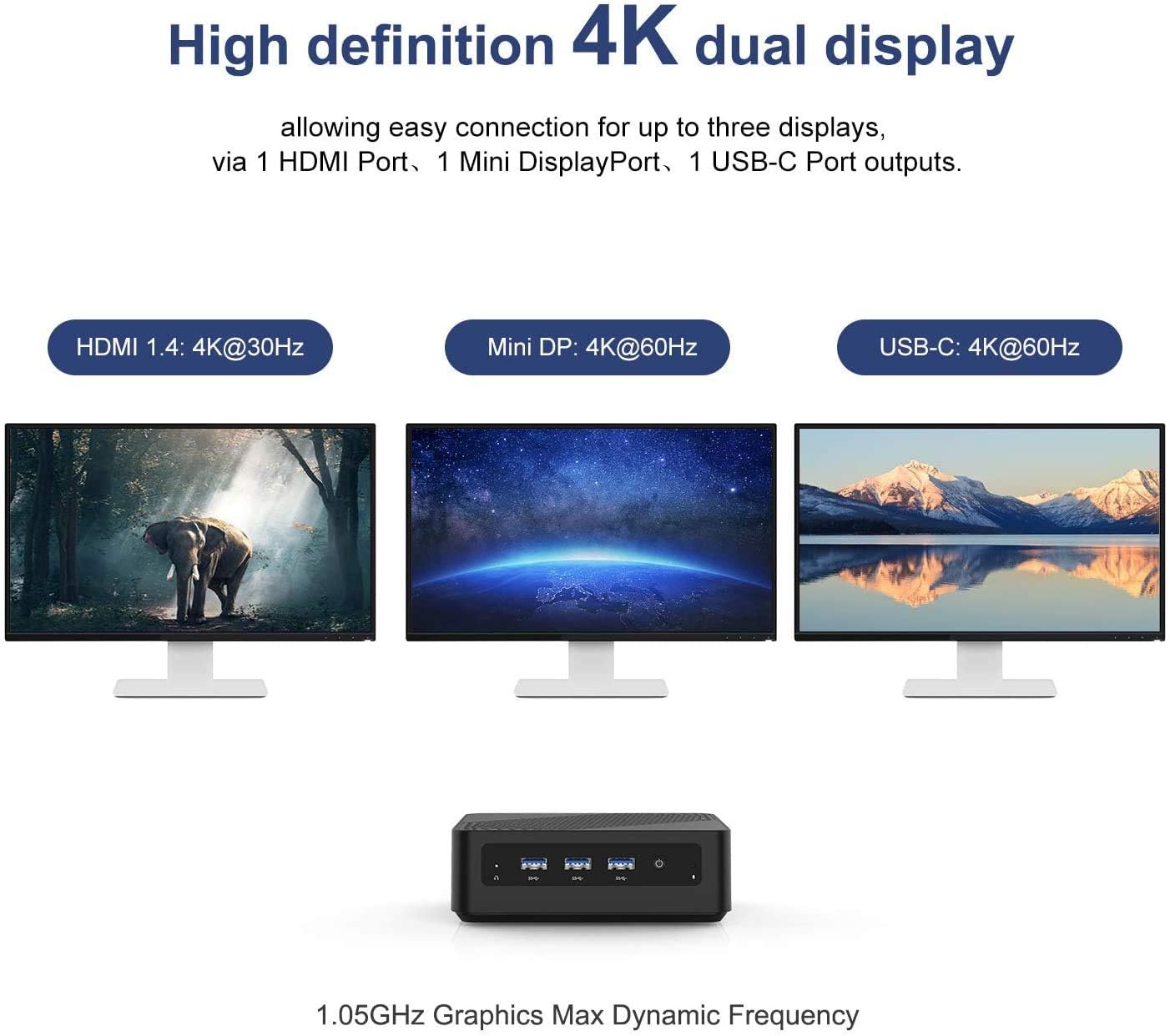
Figure 3.3: Detailed diagram of the MINISFORUM U700 Mini PC's ports and interfaces. This image provides a clear view of the front and rear connectivity options, including USB, HDMI, Mini DP, Ethernet, and power input.
- Front Panel:
- 3x USB 3.0 Ports: For connecting peripherals such as keyboards, mice, and external storage.
- 1x Power Button: To turn the device on or off.
- 1x Digital MIC: Microphone input.
- 1x Reset Hole: For system reset (use a pin).
- Rear Panel:
- 1x Power Input (DC 19V/1.9A): Connect the included power adapter.
- 1x Mini DisplayPort (4K@60Hz): Video output.
- 1x HDMI Port (4K@30Hz): Video output.
- 2x RJ45 Gigabit Ethernet Ports: For wired network connectivity.
- 1x USB-C Port (4K@60Hz): Multi-functional port for video output, data transfer, and power input.
- 1x Kensington Lock Slot: For security.
- Side Panel:
- 1x TF Card Slot: For Micro SD card expansion (up to 128GB).
4. Setup Guide
Follow these steps to set up your MINISFORUM U700 Mini PC for the first time.
- Connect Display: Connect your monitor(s) to the Mini PC using the HDMI, Mini DisplayPort, or USB-C port. Ensure the display is powered on and set to the correct input source.
- Connect Peripherals: Plug in your USB keyboard, mouse, and any other USB devices into the available USB 3.0 ports.
- Connect Network (Optional): For wired internet access, connect an Ethernet cable from your router or modem to one of the RJ45 Gigabit Ethernet ports. Wireless connectivity (802.11ac) is also available.
- Connect Power: Connect the power adapter to the DC 19V/1.9A power input port on the rear of the Mini PC, then plug the adapter into a power outlet.
- Power On: Press the power button located on the front panel of the Mini PC. The power indicator light will illuminate.
5. Operating Instructions
5.1 Power On/Off
- To Power On: Press the power button once.
- To Power Off:
- Standard Shutdown: In Windows 10 Pro, click the Start button, then Power > Shut down.
- Force Shutdown: If the system is unresponsive, press and hold the power button for approximately 5-7 seconds until the device powers off. Use this method only when necessary to prevent data loss.
5.2 Operating System
The MINISFORUM U700 Mini PC comes pre-installed with Windows 10 Pro. It also supports other operating systems such as Linux and Chromium OS. Refer to the respective operating system documentation for specific usage instructions.
5.3 Advanced Features
- Wake On LAN (WOL): This feature allows you to remotely power on the Mini PC over a network. Ensure WOL is enabled in the BIOS settings and your network adapter drivers support it.
- PXE Boot: Preboot Execution Environment (PXE) allows the Mini PC to boot from a network server. This is useful for deploying operating systems or running diagnostics. Enable PXE boot in the BIOS settings if required.
6. Storage and Memory Expansion
The U700 Mini PC offers flexible options for expanding its storage and memory capacity.
- RAM: The device includes 8GB DDR3L-1600MT/s RAM. It features two SODIMM channels, allowing for an upgrade to a total of 16GB RAM.
- M.2 NGFF 2280 SSD: Comes with a 256GB SSD, which can be upgraded to 2TB.
- 2.5-inch SATA HDD Slot: An additional slot is available for a 2.5-inch SATA HDD (not included), supporting up to 2TB. Note: Not compatible with 2.5" Samsung SSDs.
- Micro SD Card Slot: Supports Micro SD cards up to 128GB (not included).
For internal component upgrades (RAM, M.2 SSD, 2.5-inch HDD), it is recommended to consult a qualified technician or refer to specific upgrade guides provided by MINISFORUM to avoid damaging the device.
7. Triple Display Output
The MINISFORUM U700 Mini PC supports connecting up to three monitors simultaneously, providing a versatile multi-display setup for enhanced productivity or immersive entertainment.

Figure 7.1: Illustration of the MINISFORUM U700 Mini PC connected to three displays. This image demonstrates the capability for a multi-monitor setup using HDMI, Mini DisplayPort, and USB-C outputs.
You can connect displays using the following ports:
- HDMI 1.4 Port: Supports 4K resolution at 30Hz.
- Mini DisplayPort: Supports 4K resolution at 60Hz. Note: The Mini DP port does not support Mini DP to DVI/HDMI adapters; it only supports Mini DP to VGA adapters.
- USB-C Port: Supports 4K resolution at 60Hz.
After connecting your monitors, configure the display settings within your operating system (e.g., Windows Display Settings) to extend or duplicate your desktop across the connected screens.
8. Maintenance
Proper maintenance ensures the longevity and optimal performance of your Mini PC.
- Cleaning: Regularly clean the exterior of the Mini PC with a soft, dry cloth. Avoid using liquid cleaners or abrasive materials.
- Ventilation: Ensure that the ventilation openings are not obstructed. Place the Mini PC in a well-ventilated area to prevent overheating.
- Software Updates: Keep your operating system and drivers updated to ensure system stability and security.
- Environmental Conditions: Operate the Mini PC within recommended temperature and humidity ranges. Avoid extreme temperatures and direct sunlight.
Figure 8.1: Internal view of the MINISFORUM U700 Mini PC, highlighting the cooling fan and heatsink. This design contributes to silent operation even under high CPU load.
9. Troubleshooting
This section addresses common issues you might encounter with your MINISFORUM U700 Mini PC.
- No Power:
- Ensure the power adapter is securely connected to both the Mini PC and a working power outlet.
- Verify the power outlet is functional by testing it with another device.
- Try a different power adapter if available and compatible.
- No Display Output:
- Check all display cable connections (HDMI, Mini DP, USB-C) between the Mini PC and the monitor.
- Ensure the monitor is powered on and set to the correct input source.
- Test with a different display cable or monitor if possible.
- If using multiple displays, try connecting only one display at a time to isolate the issue.
- System Freezes or Crashes:
- Perform a force shutdown by holding the power button for 5-7 seconds.
- Check for overheating. Ensure ventilation is clear.
- Update operating system and drivers.
- Run system diagnostics if available in your OS.
- Slow Performance:
- Close unnecessary applications running in the background.
- Check for sufficient free storage space on the SSD.
- Scan for malware or viruses.
- Consider upgrading RAM or SSD if performance issues persist and are related to resource limitations.
- Network Connectivity Issues:
- For wired connection, ensure the Ethernet cable is properly connected and router/modem is working.
- For wireless connection, check Wi-Fi settings, ensure correct password, and that the Mini PC is within range of the Wi-Fi signal.
- Restart your router/modem.
10. Specifications
Detailed technical specifications for the MINISFORUM U700 Mini PC.
Figure 10.1: A table summarizing the key specifications of the MINISFORUM U700 Mini PC. This includes details on processor, GPU, memory, storage, and connectivity.
| Feature | Specification |
|---|---|
| Processor | Intel Core i5-5257U (3.1 GHz, 2 Cores/4 Threads, 3M Cache) |
| Graphics | Intel Iris Graphics 6100 |
| RAM | 8GB DDR3L-1600MT/s (2x SODIMM slots, upgradeable to 16GB) |
| Internal Storage | 256GB M.2 NGFF 2280 SSD (upgradeable to 2TB) |
| Storage Expansion | 1x 2.5-inch SATA HDD slot (up to 2TB, not included), 1x Micro SD card slot (up to 128GB) |
| Operating System | Windows 10 Pro (Supports Linux & Chromium OS) |
| Video Output | 1x HDMI 1.4 (4K@30Hz), 1x Mini DP (4K@60Hz), 1x USB-C (4K@60Hz) |
| Audio Output | HDMI, Mini DP, 3.5mm Audio Jack |
| Network | 2x RJ45 Gigabit Ethernet Ports, IEEE 802.11ac Dual-Band Wi-Fi, BT4.2 |
| USB Ports | 3x USB 3.0, 1x USB-C |
| Other Ports | DC Power Input, Digital MIC, Reset Hole, Kensington Lock Slot, TF Card Slot |
| Power Input | DC 19V/1.9A (via included adapter) or via USB-C Port |
| Dimensions | Approximately 8 x 5.9 x 2.7 inches |
| Weight | Approximately 2 pounds |
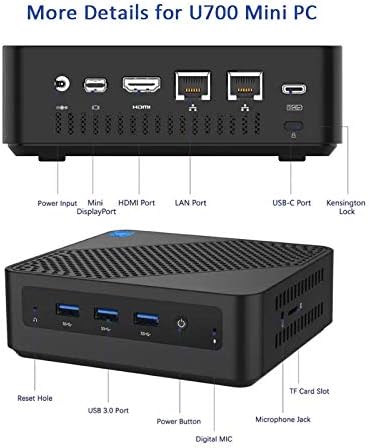
Figure 10.2: The Intel Core i5 processor logo, indicating the central processing unit powering the MINISFORUM U700 Mini PC.
11. Warranty and Support
MINISFORUM products are covered by a limited warranty. For specific warranty terms and conditions, please refer to the warranty card included with your product or visit the official MINISFORUM website.
For technical assistance, troubleshooting beyond this manual, or to inquire about warranty service, please contact MINISFORUM customer support through their official channels.
- Online Support: Visit the MINISFORUM official website for FAQs, driver downloads, and contact information.
- Email Support: Refer to your product packaging or the official website for the customer support email address.