
Important Safety Information
Please read this manual carefully before using the camcorder. Keep this manual for future reference.
- Do not expose the camcorder to water or moisture.
- Avoid dropping or subjecting the camcorder to strong impacts.
- Use only the specified batteries and charging accessories.
- Keep the camcorder away from extreme temperatures and direct sunlight.
- Do not attempt to disassemble or repair the camcorder yourself. Contact customer support for assistance.
Package Contents
Verify that all items are present in the package:
- 1 x 2.7K Video Camera Camcorder
- 1 x External Microphone
- 1 x Remote Control
- 1 x 32G SD Card
- 1 x Carrying Bag
- 1 x USB Cable
- 1 x User Manual
- 2 x 1500mAh Rechargeable Batteries

Product Overview
Key Features
- HD 4K Video & 48 Megapixel Images: Supports high-resolution video recording and crystal-clear still images.
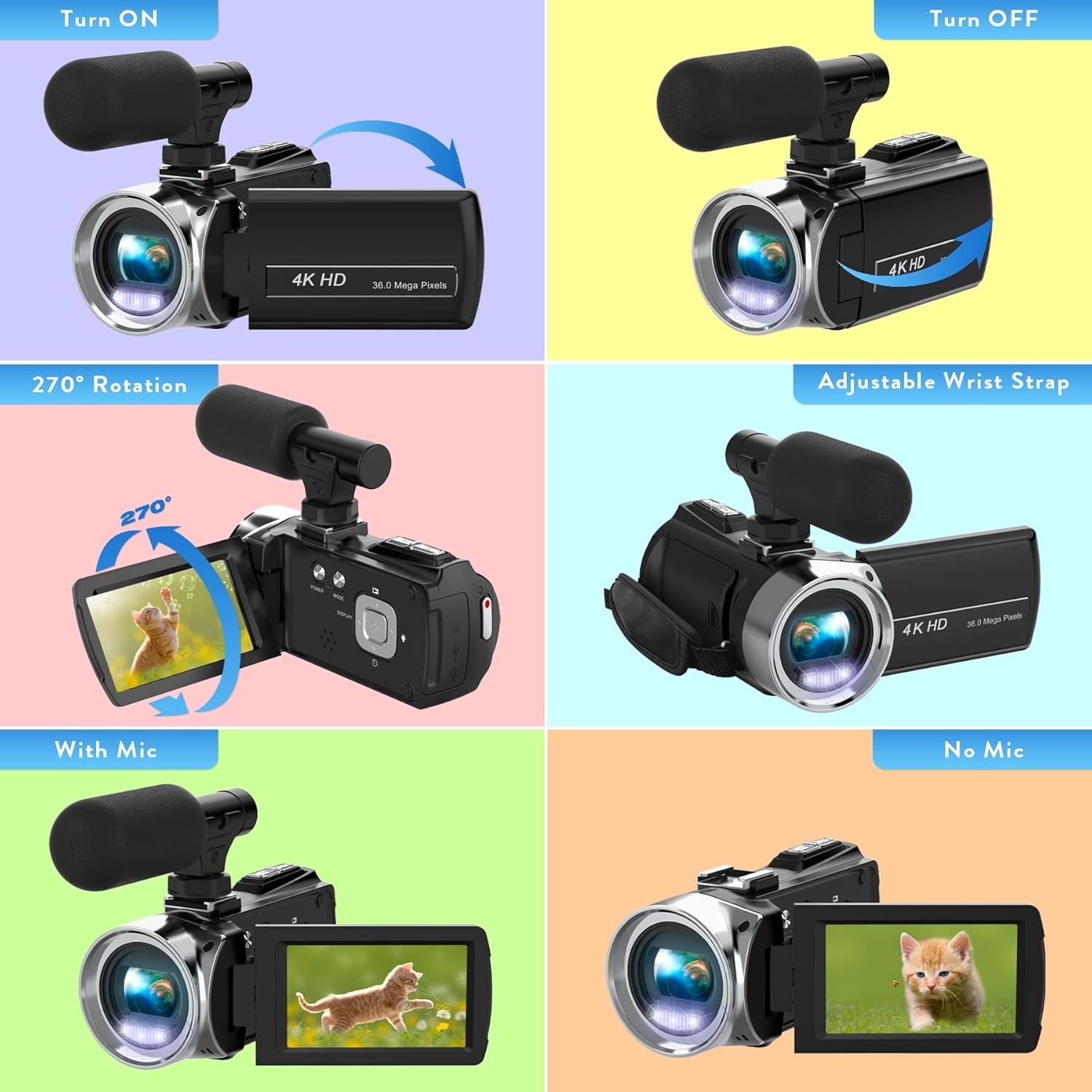
- 3.0 Inch / 270° Flip Touch Screen: Provides flexible viewing angles for easy operation and self-recording.
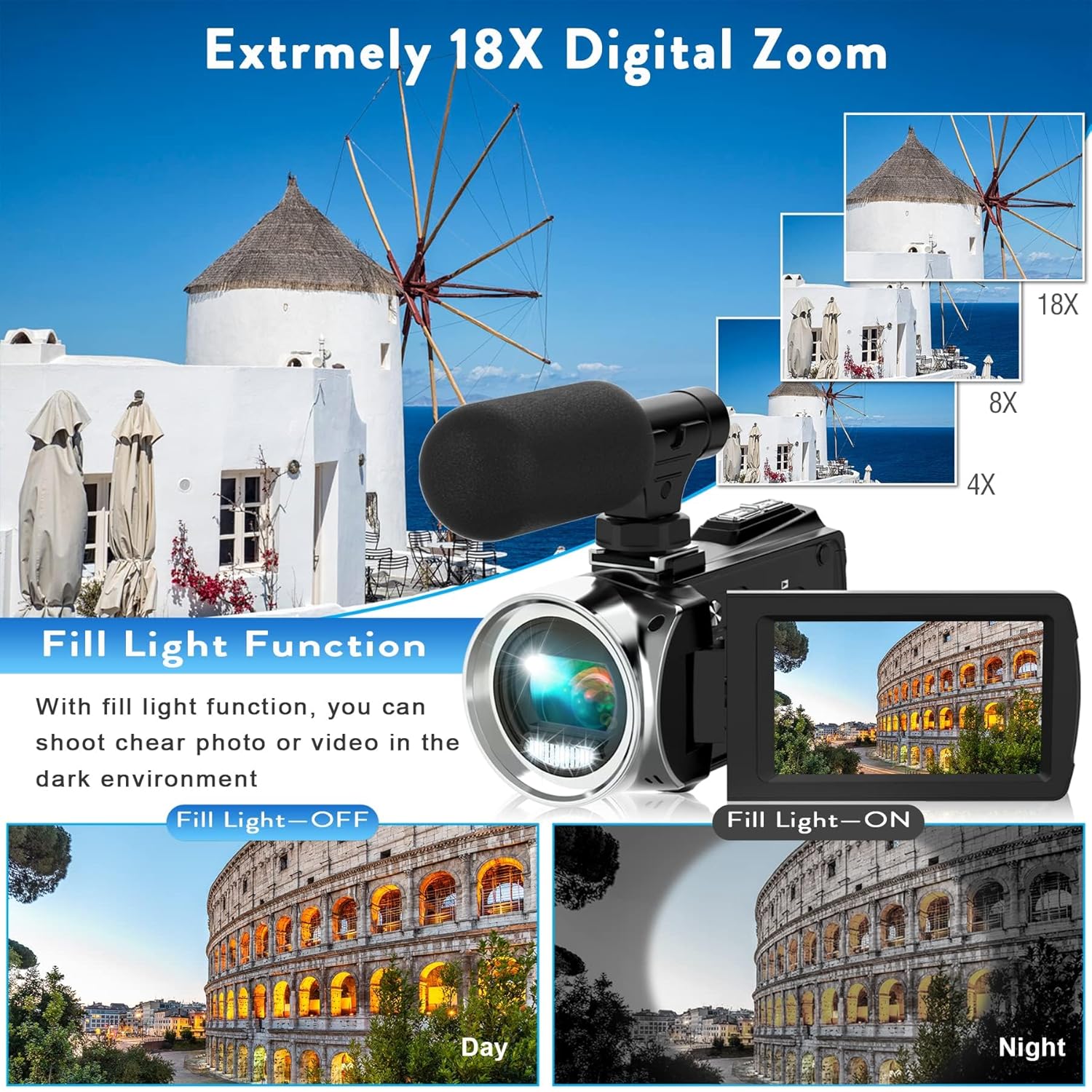
- 18X Digital Zoom: Allows for close-up shots from a distance.
- External Microphone: Enhances audio quality by picking up crisp voice from multiple directions and reducing noise.
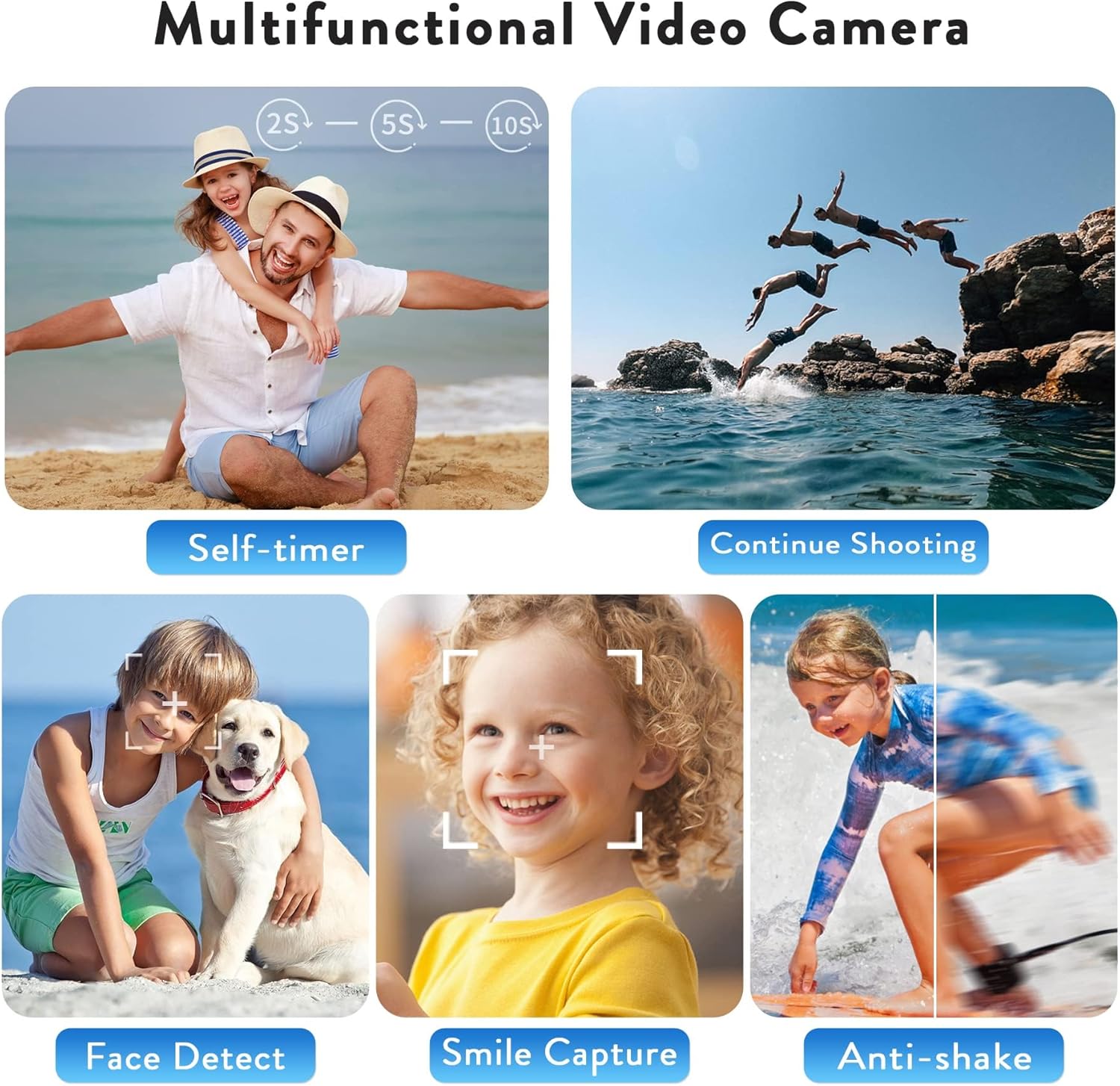
- Multifunctionality: Includes loop recording, time-lapse, self-timer, continuous shooting, pause function, ISO brightness control, TV output, smile capture, anti-shaking, and USB 2.0 connectivity.
- Webcam Function & Fill Light: Can be used as a webcam for live streaming and video calls, and features a built-in fill light for low-light conditions.
- Recording While Charging: Supports continuous operation by allowing recording while connected to a power source.
Setup
1. Inserting the Battery
- Locate the battery compartment on the bottom of the camcorder.
- Slide the battery compartment latch to open the cover.
- Insert the 1500mAh rechargeable battery, ensuring the correct orientation of the contacts.
- Close the battery compartment cover until it clicks securely into place.
2. Inserting the SD Card
- Open the battery compartment cover.
- Locate the SD card slot next to the battery.
- Insert the 32G SD card into the slot until it clicks. Ensure the card is inserted in the correct direction.
- Close the battery compartment cover.
- Important: Format the SD card before first use (see Maintenance section).
3. Attaching the External Microphone
- Locate the hot shoe mount on top of the camcorder.
- Slide the external microphone into the hot shoe mount until it is secure.
- Connect the microphone's audio cable to the 'MIC' port located on the back of the camcorder.
- Adjust the microphone's sensitivity switch (OFF/LOW/HIGH) as needed.

4. Powering On/Off
- To Power On: Open the LCD screen. The camcorder will automatically power on. Alternatively, press the 'POWER' button.
- To Power Off: Close the LCD screen. The camcorder will automatically power off. Alternatively, press and hold the 'POWER' button.
Operating the Camcorder
1. Basic Recording
- Once powered on, the camcorder will be in video recording standby mode.
- Press the 'REC/STOP' button to start recording. The recording indicator will flash.
- Press the 'REC/STOP' button again to stop recording.
2. Using the Menu and Settings
- Press the 'MENU' button to access the settings menu.
- Use the 'UP' and 'DOWN' buttons to navigate through menu options.
- Press the 'OK' button to select an option or confirm a setting.
- Key settings include: Video Resolution, Recording Sound, Exposure, White Balance, Scenes, ISO, Image Quality, Frequency, LED Indicator Light, Auto Shutdown, Volume, and Date/Time.
3. Zoom Function
- Use the 'W' (Wide) and 'T' (Telephoto) buttons on the top of the camcorder to adjust the 18X digital zoom.
4. Photo Mode
- From video standby mode, press the 'MODE' button to switch to photo mode.
- Press the 'PHOTO' button to capture a still image.
5. Special Functions
- Loop Recording: Continuously records video, overwriting the oldest files when the memory card is full.
- Time-Lapse: Captures a series of still images at set intervals and combines them into a video.
- Self-Timer: Sets a delay before capturing a photo or starting a video.
- Continuous Shooting: Takes multiple photos in quick succession.
- Pause Function: Allows pausing and resuming video recording within the same file.
- Anti-Shaking: Helps stabilize video footage.
- Fill Light: Provides additional illumination in dark environments.

Connectivity
1. Webcam Function
- Connect the camcorder to your computer using the provided USB cable.
- Select 'PC Camera' mode on the camcorder's screen.
- The camcorder can now be used as a webcam for applications like YouTube, Skype, TikTok, Facebook live streaming, or video calls.
2. TV Output
- Connect the camcorder to a TV using the USB cable.
- Select 'TV Output' mode on the camcorder.
- You can now view your recorded photos and videos on the TV screen.

Maintenance
1. Battery Charging
- Connect the camcorder to a power bank or PC using the USB cable for charging.
- The camcorder supports recording while charging, allowing for extended use.
- A fully charged 1500mAh battery provides approximately 90-120 minutes of continuous use.
2. SD Card Formatting
- It is crucial to format the SD card before its first use and periodically to maintain optimal performance.
- To format: Go to the 'MENU' settings, navigate to 'Format', and confirm.
3. Cleaning
- Use a soft, dry cloth to clean the camcorder body.
- For the lens, use a specialized lens cleaning cloth and solution to avoid scratches.
- Do not use harsh chemicals or abrasive materials.
Troubleshooting
Common Issues and Solutions
- Camcorder does not power on: Ensure the battery is correctly inserted and fully charged. Try connecting to a power source.
- Cannot record video/take photos: Check if an SD card is inserted and formatted. Ensure there is sufficient storage space.
- Poor image/video quality: Verify lighting conditions. Adjust exposure, white balance, and ISO settings in the menu. Ensure the lens is clean.
- Audio issues: Check if the external microphone is properly connected and its sensitivity is set correctly. Ensure the camcorder's internal microphone is not obstructed.
- Screen is dark in webcam mode: Ensure adequate lighting in your environment. Adjust webcam settings on your computer if applicable.
Specifications
| Feature | Detail |
|---|---|
| Brand Name | Heegomn |
| Item Model Number | TDV-1302 |
| Item Weight | 10.6 ounces |
| Package Dimensions | 6.61 x 5.55 x 3.5 inches |
| Batteries | 1 Lithium Ion batteries required (included) |
| Color Name | Black |
| Special Features | Anti-Shake, Built-In Flash, Remote Control, Slow Motion, Time Lapse |
| Photo Sensor Technology | CMOS |
| Video Capture Resolution | 2.7K |
| Maximum Focal Length | 0.01 Millimeters |
| Maximum Aperture | 2.8 Millimeters |
| Flash Memory Type | SD |
| Video Capture Format | MP4 |
| Supported Audio Format | AAC, MP3, PCM, FLAC, Dolby Digital/AC-3 |
| Screen Size | 3 Inches |
| Connectivity Technology | USB |
Warranty and Support
For warranty information or technical support, please refer to the contact details provided in the packaging or visit the official Heegomn website.
You can also visit the Heegomn Store on Amazon for more product information and customer service options.