
Introduction
This manual provides detailed instructions for the setup, operation, maintenance, and troubleshooting of your Kensington Multi-Device Dual Wireless Compact Keyboard K75502US. Please read this manual thoroughly to ensure proper use and to maximize the functionality of your device.
Package Contents
- Kensington Multi-Device Dual Wireless Compact Keyboard
- 2 AAA Batteries
- 2.4GHz USB Receiver
Setup
1. Battery Installation
- Locate the battery compartment on the underside of the keyboard.
- Open the battery compartment cover.
- Insert the two AAA batteries, ensuring correct polarity (+/-).
- Close the battery compartment cover securely.
2. Connecting the Keyboard
The keyboard supports dual wireless connectivity: 2.4GHz via USB receiver and Bluetooth (3.0 or 5.0).
2.1. 2.4GHz Wireless Connection
- Locate the 2.4GHz USB receiver, typically stored in a slot on the keyboard or included separately.
- Plug the USB receiver into an available USB port on your computer.
- Turn on the keyboard using the power switch (usually located on the side or back).
- The keyboard should automatically connect. The 2.4G indicator light (often F10 or a dedicated light) may illuminate briefly.
2.2. Bluetooth Connection
The keyboard can connect to up to two Bluetooth devices.
- Turn on the keyboard.
- Press and hold the F10 key for Bluetooth 1 or F11 key for Bluetooth 2 until the corresponding Bluetooth indicator light (often blue) begins to flash, indicating pairing mode.
- On your device (computer, tablet, or phone), navigate to Bluetooth settings.
- Search for available devices and select "Kensington Keyboard" or a similar name.
- Follow any on-screen prompts to complete the pairing process.
- Once paired, the indicator light will stop flashing and remain solid for a few seconds before turning off.
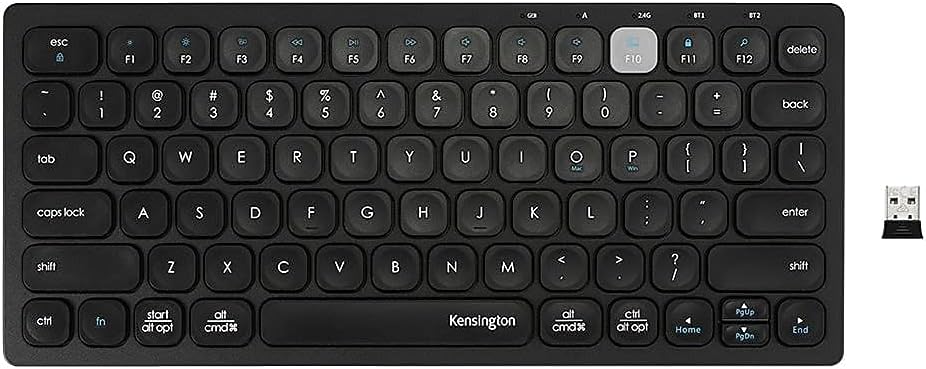
Image: Top-down view of the Kensington Multi-Device Dual Wireless Compact Keyboard, showing the key layout and the small USB receiver next to it. This illustrates the primary components for connection.
Operating Instructions
1. Switching Between Devices
The keyboard allows seamless switching between up to three connected devices (one 2.4GHz and two Bluetooth).
- To switch to the 2.4GHz connection: Press Fn + F10.
- To switch to Bluetooth Device 1: Press F10.
- To switch to Bluetooth Device 2: Press F11.
2. Hot Keys and Multimedia Functions
The keyboard features dedicated hot keys for common commands and multimedia control. These functions are typically accessed by pressing the Fn key in combination with the corresponding function key (F1-F12).
- F1-F9: May include functions such as media playback control (play/pause, next/previous track), volume control, and screen brightness, depending on the operating system.
- F12: Often used for screen lock or other system functions.
The keyboard is compatible with Windows, macOS, iOS, and Chrome OS, with hot key functionality adapting to the connected operating system.

Image: A pair of hands positioned over the Kensington Multi-Device Dual Wireless Compact Keyboard, demonstrating its compact size and ergonomic use for typing.
Maintenance
1. Cleaning the Keyboard
The keyboard is designed to resist breakdown from common cleaning and disinfecting solvents. To clean your keyboard:
- Ensure the keyboard is turned off.
- Use a soft, lint-free cloth lightly dampened with a mild cleaning solution or disinfectant (e.g., alcohol or bleach-based wipes).
- Gently wipe the surface of the keys and the keyboard body.
- Avoid excessive moisture and do not spray cleaners directly onto the keyboard.
- Allow the keyboard to dry completely before turning it back on.
2. Battery Replacement
When the low battery indicator illuminates, it is time to replace the batteries. Refer to the "Battery Installation" section under Setup for detailed steps.
Troubleshooting
- Keyboard not responding:
Ensure the keyboard is turned on and batteries are correctly installed and charged. Verify the correct connection mode (2.4GHz or Bluetooth) is selected. For 2.4GHz, try plugging the USB receiver into a different USB port. For Bluetooth, ensure the device's Bluetooth is enabled and the keyboard is paired. - Connection issues or lag:
If using the 2.4GHz USB receiver, avoid placing it directly next to other 2.4GHz wireless receivers to prevent interference. Ensure the keyboard is within the effective range of your device. For Bluetooth, try unpairing and re-pairing the keyboard. - Bluetooth pairing failure:
If your computer finds the keyboard but a PIN window does not appear, try restarting both the keyboard and your device. Ensure no other Bluetooth devices are attempting to pair simultaneously. Consult your device's operating system documentation for specific Bluetooth troubleshooting steps. - Keys not functioning correctly:
Check for any physical obstructions under the keys. If specific keys are unresponsive or exhibit unusual behavior, ensure the keyboard is clean. If the issue persists, contact Kensington support.
Specifications
| Model Number | K75502US |
| Wireless Type | 2.4 GHz Radio Frequency, Bluetooth (3.0 and 5.0) |
| Operating System Compatibility | Windows, macOS, iOS, Chrome OS |
| Power Source | Battery Powered |
| Batteries Required | 2 AAA batteries (included) |
| Item Weight | 1 pound |
| Item Dimensions (LxWxH) | 4.9 x 0.86 inches (Note: This dimension appears incomplete and may refer to height/depth. Please refer to product packaging for full dimensions.) |
| Encryption | 128-bit AES |
| Key Type | Scissor Keys |

Image: A side profile of the Kensington Multi-Device Dual Wireless Compact Keyboard, with a standard pencil placed alongside to illustrate its slim design and compact height.
Warranty and Support
For warranty information, technical support, or to view additional Kensington products, please visit the official Kensington website or contact their customer service department. Specific warranty terms may vary by region and purchase location.
You can find more information and support at the Kensington Store on Amazon.


