
Introduction
This manual provides essential information for the proper installation, operation, and maintenance of your Pioneer SPH-DA250DAB-AN 2-DIN Digital Radio. Please read this manual thoroughly before using the product to ensure correct usage and to prevent damage.
Setup
Package Contents
Verify that all items are present in the package:
- Pioneer SPH-DA250DAB-AN Main Unit
- DAB Antenna
- 2-DIN Universal Installation Frame
- Connection Cable - ISO
- Connection Cable: Rear View Camera, Mute, AUX-IN, External Video/Audio
- USB Extension Cable
- Extension Bracket
- External Microphone
Installation
The Pioneer SPH-DA250DAB-AN is designed for 2-DIN installation. Professional installation is recommended. Ensure the vehicle's power is disconnected before beginning installation. Connect all necessary cables, including the ISO connection cable, rear view camera input, AUX-IN, and external video/audio cables, to their respective ports on the main unit. Secure the unit within the dashboard using the provided installation frame and brackets.
Connecting the DAB Antenna
The included DAB antenna is essential for receiving digital radio broadcasts. Carefully follow the antenna installation diagram to ensure optimal signal reception. Typically, the antenna adheres to the inside of the windshield. Ensure proper grounding if specified in the antenna's instructions.

Image: The included DAB antenna, designed for window mounting.

Image: Diagram illustrating the correct placement and connection of the DAB antenna for optimal reception.
Initial Power On
After installation, reconnect the vehicle's power. The unit should power on automatically or by pressing the power button. Follow the on-screen prompts for initial setup, including language selection and basic audio settings.
Operation
Touch Panel Controls
The unit features a 6.8-inch capacitive touch panel with a resolution of 800x480 pixels. Navigate menus and control functions by touching the corresponding icons or areas on the screen. Adjustable button lighting, five display colors, and five background images are available for personalization.
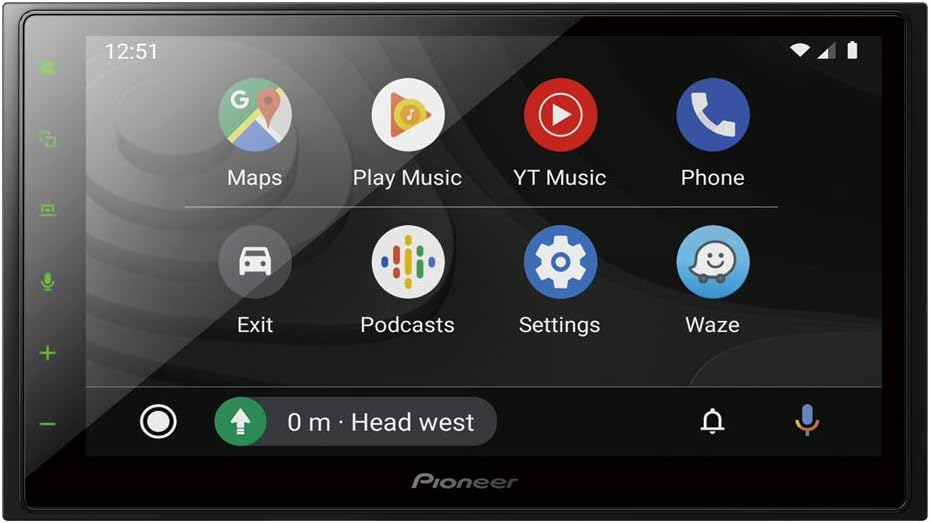
Image: The main user interface of the Pioneer SPH-DA250DAB-AN, displaying various application icons.

Image: Angled view of the unit's display, showing media playback and various function icons.
Smartphone Connectivity (Apple CarPlay, Android Auto, WebLink)
Connect compatible smartphones via a USB cable to access Apple CarPlay or Android Auto. These platforms allow for integrated use of navigation, music, messaging, and other apps directly from the unit's display. WebLink also provides access to a range of applications like YouTube and Yelp.
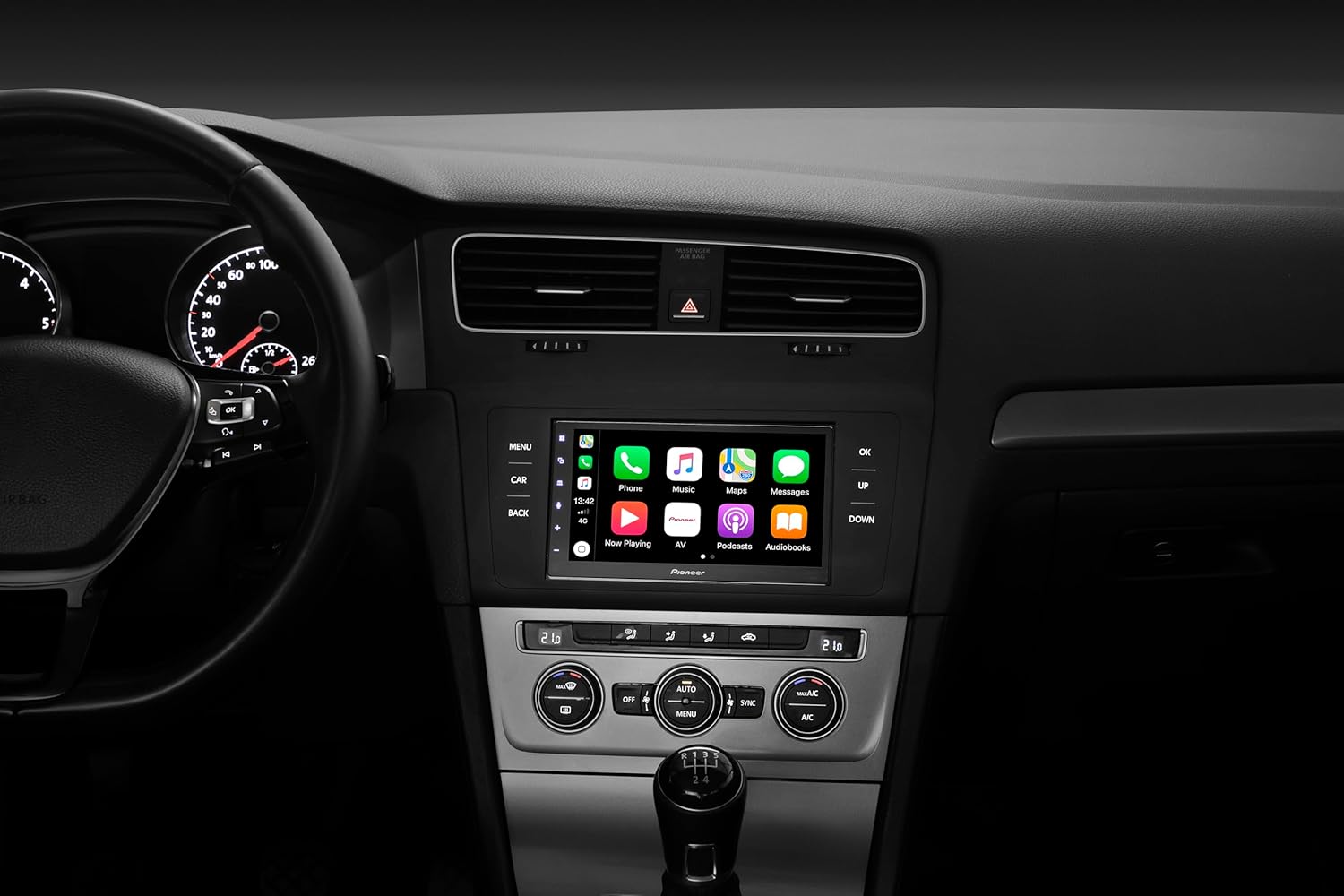
Image: The Pioneer SPH-DA250DAB-AN unit integrated into a car dashboard, displaying the Apple CarPlay interface.
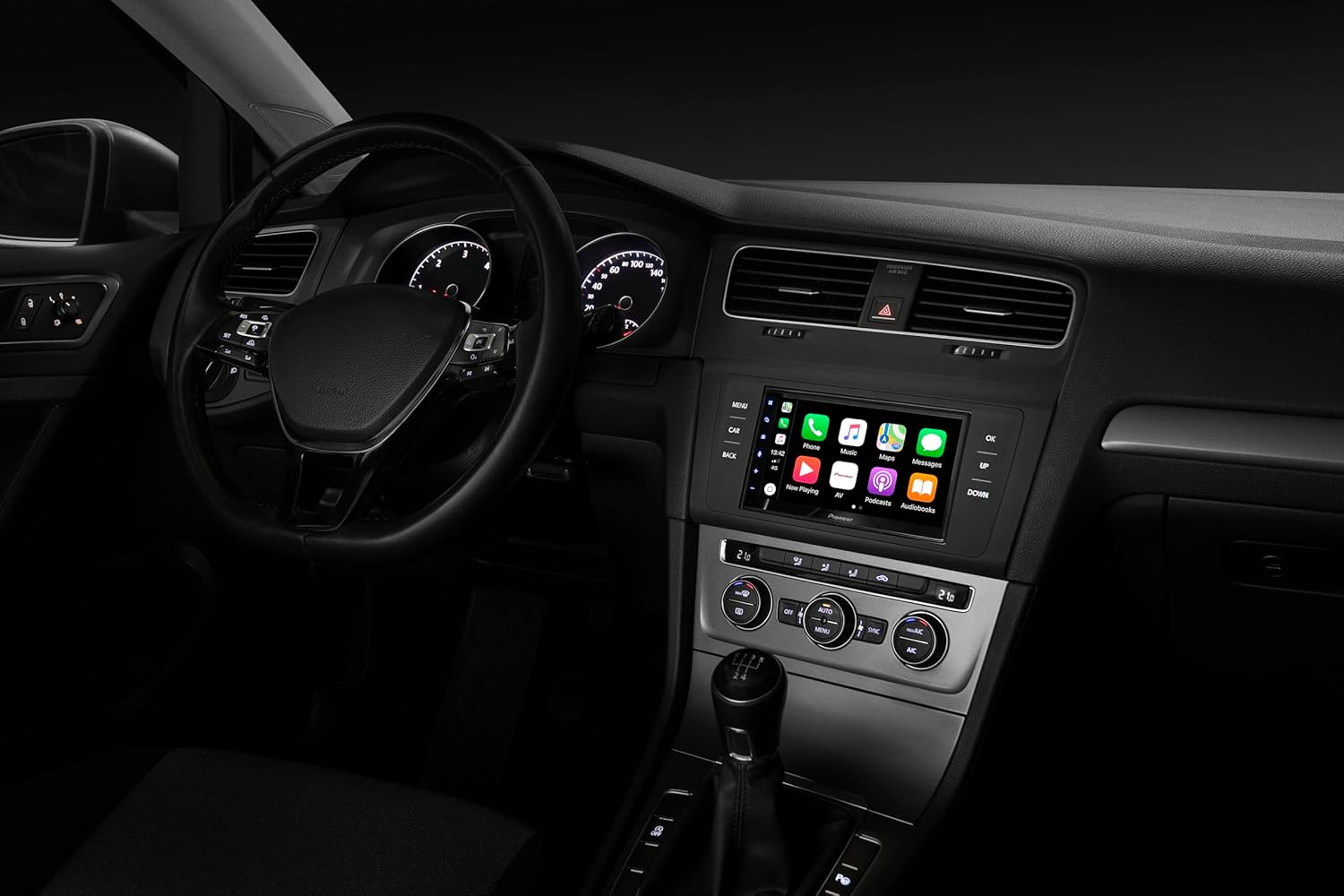
Image: The Pioneer SPH-DA250DAB-AN unit integrated into a car dashboard, displaying the Android Auto interface.
Bluetooth Hands-Free and Audio Streaming
Pair your Bluetooth-enabled phone for hands-free calling and audio streaming (A2DP). The unit supports parallel operation of two phones for calls and up to five phones for A2DP streaming. An external microphone is included for clear call quality. Phone book transmission, call history, and missed call lists are supported.
Digital Radio (DAB+)
The integrated DAB+ receiver provides access to digital radio stations with clear audio quality. The service following feature ensures a seamless transition between DAB and FM broadcasts when digital signal strength is low.
USB Media Playback
Connect a USB storage device to the rear USB interface (extension included) to play various audio formats, including WMA, MP3, AAC, WAV, and FLAC. The unit also supports Android Quick Charging 1.5A via USB.
Video Playback
The unit supports HD video playback from USB devices with NTFS compatibility. Supported video formats include Mpeg4, WMV, H.264, MKV, and FLV.
Camera Connection
The unit includes connections for two cameras, allowing for front and rear camera integration. Parking guides can be displayed on the screen to assist with maneuvering.
Audio Customization
Utilize the built-in Digital Signal Processor (DSP) with network mode (digital 3-way switch), 13-band graphic equalizer, and runtime correction for precise audio tuning. Adjustable subwoofer control and a high-pass filter are also available.
Maintenance
Cleaning the Display
To clean the capacitive touch panel, gently wipe it with a soft, dry cloth. For stubborn smudges, use a cloth lightly dampened with water or a screen cleaner specifically designed for electronic displays. Avoid abrasive materials or harsh chemicals.
General Care
Keep the unit free from dust and debris. Ensure proper ventilation around the unit to prevent overheating. Avoid exposing the unit to extreme temperatures or direct sunlight for extended periods.
Troubleshooting
Common Issues
- No Power: Check all power connections and the vehicle's fuse box. Ensure the ignition is on if the unit is wired to accessory power.
- No Sound: Verify speaker connections. Check audio settings, including volume, mute status, and fader/balance. Ensure the correct audio source is selected.
- Bluetooth Connection Issues: Ensure Bluetooth is enabled on both the unit and your smartphone. Delete previous pairings and attempt to re-pair the devices. Ensure the external microphone is connected for hands-free calls.
- Poor Radio Reception (DAB/FM): Check the DAB antenna connection and placement. Ensure the antenna is not obstructed. In some areas, digital radio signals may be weak.
- USB Device Not Recognized: Ensure the USB device is formatted correctly (e.g., FAT32, NTFS). Check that the files are in supported formats. Try a different USB device.
- Touch Screen Unresponsive: Perform a soft reset of the unit (refer to the full manual for specific instructions). Ensure the screen is clean and free of moisture.
For more detailed troubleshooting steps, please refer to the comprehensive user manual available on the Pioneer support website.
Specifications
| Brand | PIONEER |
| Model Number | SPH-DA250DABAN |
| Display | 6.8 inch Capacitive Touch Panel, 800 x 480 pixels |
| Connectivity Technology | Bluetooth, USB Type A |
| Compatible Devices | Smartphone (Apple CarPlay, Android Auto, WebLink) |
| Special Features | DAB+, Equalizer, Hands-free calling, A2DP streaming, Camera inputs |
| Audio Output Mode | Stereo |
| Output Power | 4 x 50 W max., 4 x 27 W DIN sinus |
| Preamp Outputs | 3 pairs of RCA (4V) |
| Audio Formats Supported | WMA, MP3, AAC, WAV, FLAC |
| Video Formats Supported | Mpeg4, WMV, H.264, MKV, FLV (NTFS compatible) |
| Item Weight | 1.96 Kilograms |
| Color | Black |
Warranty Information
The Pioneer SPH-DA250DAB-AN comes with a 2 Year Manufacturer Guarantee. Please retain your proof of purchase for warranty claims. For specific terms and conditions, refer to the warranty documentation included with your product or visit the official Pioneer website.
Customer Support
For further assistance, technical support, or service inquiries, please contact Pioneer customer support. You can find contact information and additional resources on the official Pioneer website. When contacting support, please have your product model number (SPH-DA250DAB-AN) and serial number available.