
1. Introduction
This manual provides essential information for the proper setup, operation, and maintenance of your JUAREZ Opus JRK692 Electronic Keyboard Piano. Please read this manual thoroughly before using the instrument to ensure optimal performance and longevity.

Figure 1: Front view of the JUAREZ Opus JRK692 Electronic Keyboard Piano.
2. Package Contents
Verify that all items listed below are included in your package:
- 1N JUAREZ Opus JRK692 Electronic Keyboard
- AC Power Adapter
- Key Note Stickers
- Music Sheet Stand
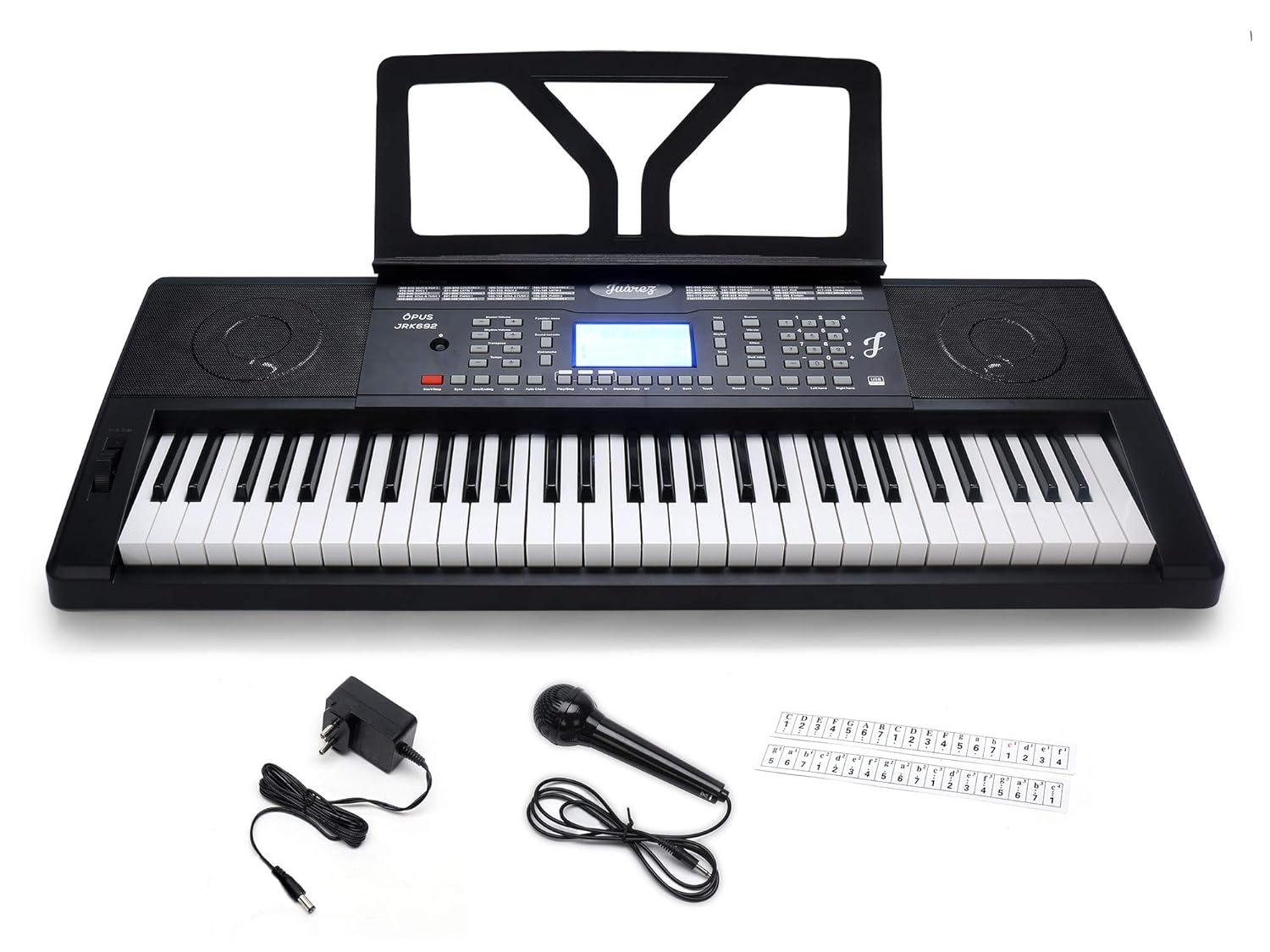
Figure 2: JUAREZ Opus JRK692 Keyboard with included accessories.
3. Setup
3.1 Power Connection
The keyboard can be powered using the included AC adapter or six 'AA' batteries (not included).
- AC Adapter: Connect the AC adapter to the DC 9V input jack on the rear of the keyboard. Plug the adapter into a standard wall outlet.
- Batteries: Open the battery compartment on the underside of the keyboard. Insert six 'AA' batteries, ensuring correct polarity. Close the compartment securely.
3.2 Music Sheet Stand Installation
Insert the music sheet stand into the designated slots on the top panel of the keyboard. Ensure it is firmly seated.

Figure 3: Keyboard with music sheet stand in place.
3.3 Key Note Stickers Application
The included key note stickers can be applied to the white keys to assist with learning. Carefully peel and place each sticker above its corresponding key, aligning it neatly.
3.4 Connecting Headphones and Audio Devices
Locate the 3.5mm headphone/output jack on the rear of the keyboard. Connect headphones for private practice or an audio cable to an external amplifier or speaker system. The keyboard also features an Audio Input Jack for connecting external audio sources.

Figure 4: Rear panel connections including power, USB, and audio jacks.
4. Basic Operation
4.1 Power On/Off
Press the POWER button to turn the keyboard on or off. The LCD display will illuminate upon power-on.
4.2 Volume Control
- Master Volume: Adjusts the overall output volume of the keyboard.
- Accompaniment Volume: Controls the volume of the rhythm and auto-accompaniment features.
- Tempo Volume: Adjusts the volume of the metronome or rhythm tempo.
4.3 Selecting Timbres (Voices)
The keyboard features 422 Timbres. Use the dedicated number pad or the TIMBRE +/- buttons to select different instrument sounds. The selected timbre will be displayed on the LCD.
4.4 Selecting Rhythms
The keyboard includes 210 Rhythms. Use the dedicated number pad or the RHYTHM +/- buttons to select a desired rhythm style. Press START/STOP to begin or end the rhythm.
4.5 Playing Demo Songs
The keyboard has 120 Demonstration Songs. Press the DEMO button to cycle through and play the demo songs. Press it again to stop.
4.6 Keyboard Percussion
Activate the Keyboard Percussion function to assign drum and percussion sounds to the keys, allowing you to play drum patterns directly on the keyboard.

Figure 5: Top view of the keyboard showing the control panel and LCD display.
5. Advanced Features
5.1 Pitch Bend
Use the PITCH BEND wheel to momentarily raise or lower the pitch of the notes being played, adding expressive effects.
5.2 Sound Effects
The keyboard includes various sound effects and functions:
- Dual Voice: Layers two different timbres to create a richer sound.
- Sustain: Extends the decay of notes, similar to a piano's sustain pedal.
- Vibrato: Adds a slight, rapid fluctuation in pitch to notes.
- Effect: Applies various digital effects to the sound.
- Transpose: Shifts the overall pitch of the keyboard up or down in semitone steps.
- Tempo Function Menu: Allows fine-tuning of the tempo for rhythms and demo songs.
- Sound Console: Provides access to additional sound parameters.
5.3 Rhythm Programming Function
This feature allows you to create and store your own custom rhythm patterns.
5.4 Record & Playback
The keyboard allows you to record your performances and play them back. This is useful for reviewing your playing or composing new pieces.
5.5 USB Music Player Function
The keyboard supports music playback from a USB disk (not included). Insert a USB disk containing MP3 files into the USB port to play music through the keyboard's speakers.
6. Learning Modes
The JUAREZ Opus JRK692 offers several modes to assist with learning:
- One-Key Function: Select a demo song, and the keyboard will play it, ignoring any playing errors. You can accompany the song by pressing any key, helping you familiarize yourself with the melody.
- Follow Function: In this mode, the keyboard waits for you to play the correct note before proceeding with the song, providing interactive guidance.
- Ensemble Function: The keyboard plays the accompaniment, and you play the main melody, allowing you to practice playing along with a full musical backing.
7. Maintenance and Care
- Cleaning: Use a soft, dry cloth to wipe the surface of the keyboard. For stubborn dirt, slightly dampen the cloth with water and a mild detergent, then wipe dry immediately. Avoid abrasive cleaners or solvents.
- Storage: Store the keyboard in a cool, dry place away from direct sunlight, extreme temperatures, and high humidity.
- Battery Replacement: If using batteries, replace all six 'AA' batteries simultaneously when the power indicator dims or the keyboard functions become erratic. Do not mix old and new batteries or different types of batteries.
- Handling: Avoid dropping the keyboard or subjecting it to strong impacts. Do not place heavy objects on top of it.
8. Troubleshooting
- No Sound:
- Check if the Master Volume is turned up.
- Ensure headphones are not connected if you intend to use the speakers.
- Verify the power connection (AC adapter or batteries).
- Keyboard Does Not Power On:
- If using the AC adapter, ensure it is securely plugged into both the keyboard and a working wall outlet.
- If using batteries, check if they are inserted correctly and are not depleted. Replace if necessary.
- Keys Not Responding:
- Restart the keyboard.
- Ensure no foreign objects are lodged under the keys.
- Distorted Sound:
- Reduce the Master Volume.
- Check connections to external audio devices if applicable.
9. Specifications
| Feature | Specification |
|---|---|
| Model Name | JRK692 |
| Number of Keys | 61 Full Size Keys |
| Display | LCD Digital Display |
| Timbres (Voices) | 422 |
| Rhythms | 210 |
| Demonstration Songs | 120 |
| Special Features | Pitch Bend, Dual Voice, Sustain, Vibrato, Effect, Transpose, Tempo Function Menu, Sound Console, Rhythm Programming, Record & Playback, One-Key / Follow / Ensemble Learning Modes |
| Connectivity | USB (for MP3 playback), Audio Input Jack, Phone / Output Jack (3.5mm) |
| Power Supply | DC 9V AC Adaptor or 6 'AA' Batteries (Not Included) |
| Item Weight | 970 Grams |
| Product Dimensions (LxWxH) | 10 x 30 x 10 cm |
10. Warranty and Support
Your JUAREZ Opus JRK692 Electronic Keyboard Piano is covered by a standard manufacturer's warranty against defects in materials and workmanship. Please refer to your purchase documentation for specific warranty terms and duration.
For technical support, service, or warranty claims, please contact JUAREZ customer service through the retailer where the product was purchased or visit the official JUAREZ website for contact information.