Introduction
This manual provides detailed instructions for the setup, operation, and maintenance of your JUAREZ Opus JRK691 61-Key Lighting Keyboard. Please read this manual thoroughly to ensure proper use and to maximize your musical experience. This keyboard is designed for beginners and musicians seeking an accessible and feature-rich instrument.
What's in the Box
Upon unpacking, please verify that all the following items are included:
- 1N JUAREZ Opus JRK691 Keyboard
- Power Adapter (DC 12V)
- Key Note Stickers
- Music Sheet Stand
Product Overview
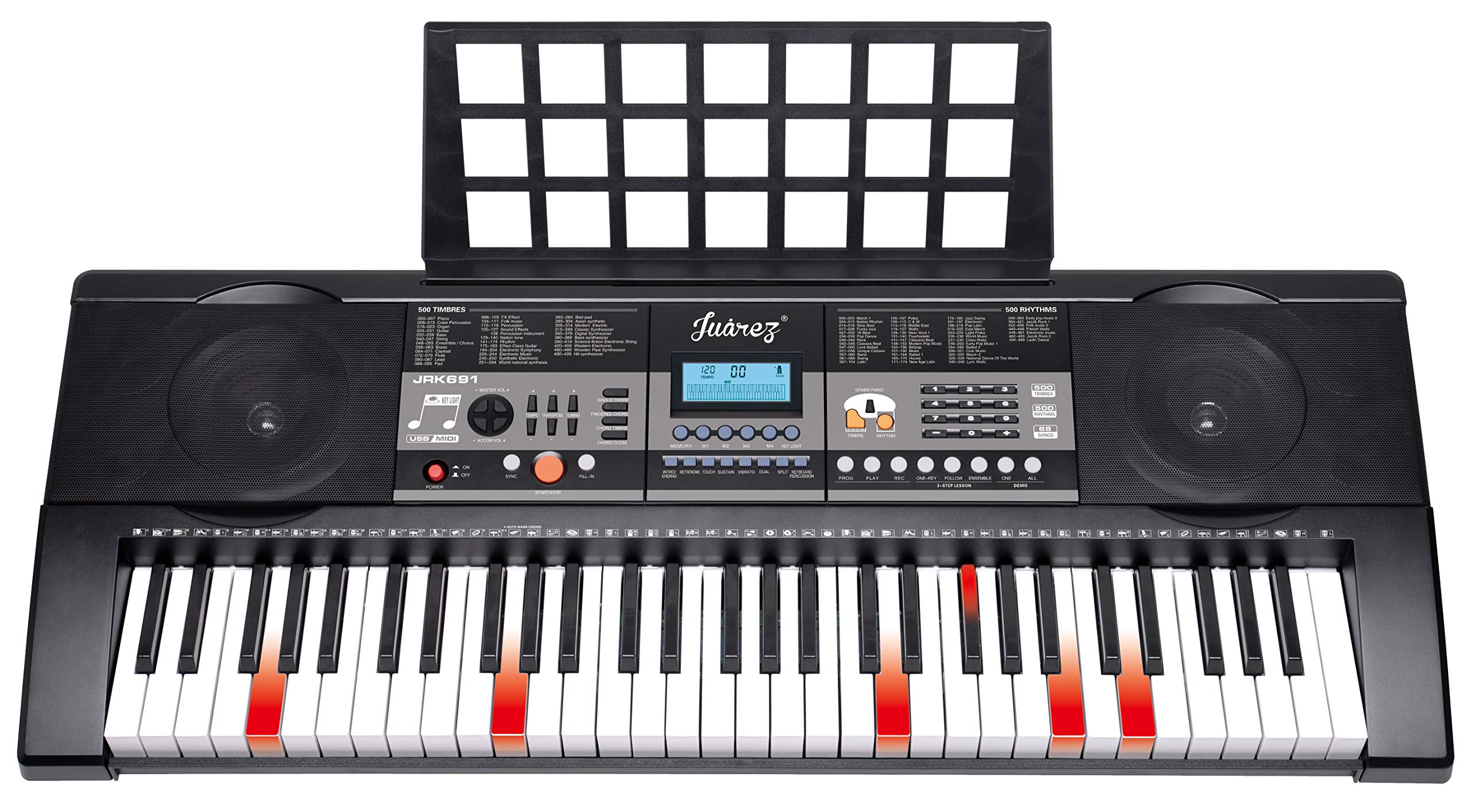
An overview of the JUAREZ Opus JRK691 61-Key Lighting Keyboard, showing the full 61 keys, control panel, and built-in speakers.
Control Panel

Detailed view of the keyboard's control panel, featuring the LCD digital display, timbre and rhythm selection buttons, volume controls, and function buttons like Record, Playback, One-Key, and Ensemble.
- LCD Digital Display: Provides visual feedback on selected timbres, rhythms, demo songs, tempo, and learning modes.
- Timbre/Rhythm Selection: Buttons and number pad for choosing from 500 timbres and 500 rhythms.
- Volume Controls: Separate controls for Master Volume and Accompaniment Volume.
- Function Buttons: Includes controls for Start/Stop, Sync, Fill-in, Intro/Ending, Metronome, Chord functions, One-Key, Follow, Ensemble, Record, Playback, Touch, Sustain, Vibrato, Transpose, Tuning, Dual, Keyboard Split, Grand Piano, and Key Lighting.
- Speakers: Integrated full-range stereo speakers for audio output.
Rear Panel Ports

Rear view of the keyboard's connectivity ports, including MIDI, Audio Input, MIC, Phones/Output, and DC 12V power input.
- USB-MIDI (APP) Jack: For connecting to external MIDI devices or computers.
- Audio Input Jack: For connecting external audio sources like MP3 players or smartphones.
- MIC Jack: For connecting a microphone.
- Phone/Output Jack: For connecting headphones for private practice or external amplifiers/speaker systems.
- DC 12V Power Input: For connecting the provided power adapter.
Setup
- Power Connection: Connect the provided DC 12V power adapter to the keyboard's DC 12V input jack located on the rear panel. Then, plug the adapter into a standard electrical outlet.
- Music Sheet Stand Installation: Insert the music sheet stand into the designated slots on the top panel of the keyboard. Ensure it is securely in place.
- Key Note Stickers (Optional): For beginners, apply the included key note stickers to the corresponding keys as indicated in the sticker guide. This visual aid can significantly assist in learning notes and finger placement.
Operating Instructions
Basic Operation
- Power On/Off: Press the POWER button on the control panel to turn the keyboard on or off.
- Master Volume Control: Use the MASTER VOLUME controls to adjust the overall output volume of the instrument.
- Accompaniment Volume Control: Use the ACCOMP VOLUME buttons to adjust the volume level of the rhythm section independently.
Sound and Rhythm Functions
- Timbres (Instrument Sounds): The keyboard features 500 different timbres. Use the dedicated timbre selection buttons or the number pad to choose your desired instrument sound. The selected timbre will be displayed on the LCD.
- Rhythms (Accompaniment Styles): The keyboard includes 500 rhythms. Select a rhythm using the rhythm selection buttons or the number pad.
- Rhythm Control:
- Press Start/Stop to begin or end the selected rhythm.
- The Sync function allows the rhythm to start automatically when you play a key.
- Press Fill-in to add a short rhythmic variation during playback.
- Use Intro/Ending to add an introductory or ending phrase to the rhythm.
- Demo Songs: The keyboard has 65 demonstration songs. Press Demo. One to play a single demo song or Demo. All to cycle through all available songs.
- Tempo Control: Adjust the speed of rhythms and demo songs using the TEMPO CONTROL buttons. Composers use tempo control to indicate the desired speed of a musical piece.
- Metronome: Activate the METRONOME function to provide a steady click track for practice.
Learning and Performance Functions
- Chord Functions:
- Single Chord: Play a single note in the bass range to trigger a full chord.
- Fingered Chord: Play specific notes in the bass range to create more complex chords. Refer to the chord chart for appropriate fingerings.
- Chord Timbre / Chord Close: Functions related to chord sound and termination.
- One-Key Function: Select any demo song. The keyboard will play the song, and you can accompany it by pressing any key. This function helps familiarize you with the song structure and note sequence, ignoring potential playing errors.
- Ensemble Function: With this function, you play the main melody while the keyboard provides background accompaniment.
- Record & Playback Mode: Press RECORD to begin recording your performance. Press PLAYBACK to listen to your recorded performance. This is useful for reviewing and monitoring your progress.
- Touch Function: The keyboard keys are touch-sensitive, meaning the volume and intensity of the sound will vary based on how hard you press the keys.
- Sustain: Activates a sustain effect, extending the decay of notes.
- Vibrato: Adds a slight pitch modulation to notes for expressive playing.
- Transpose Control: Shifts the pitch of the entire keyboard up or down in semitone steps.
- Tuning Control: Allows for fine-tuning the overall pitch of the keyboard.
- Dual / Keyboard Split Feature:
- Dual: Layers two different timbres to play simultaneously when a key is pressed.
- Keyboard Split: Divides the keyboard into two sections, allowing different timbres to be played on each section.
- Key Lighting: The keys illuminate to guide you during learning modes, providing visual cues for notes and chords.

The JUAREZ JRK691 keyboard with certain keys illuminated, showcasing the key lighting function that assists beginners in learning notes and chords.
Connectivity
- USB-MIDI (APP) Jack: Connect the keyboard to a computer or smart device using a USB cable for MIDI data transfer. This allows for use with music software or learning applications.
- Audio Input Jack: Connect external audio devices (e.g., MP3 player, smartphone) to play along with your favorite music through the keyboard's speakers.
- MIC Jack: Connect a microphone for vocal input.
- Phone/Output Jack: Connect headphones for private practice or connect to an external amplifier/speaker system for louder output.
Maintenance
- Cleaning: Wipe the keyboard surface with a soft, dry cloth. Do not use liquid cleaners, solvents, or abrasive materials, as these can damage the finish and internal components.
- Storage: Store the keyboard in a dry, dust-free environment away from direct sunlight, extreme temperatures, and high humidity.
- Power: Disconnect the power adapter from the keyboard and the electrical outlet when the instrument is not in use for extended periods.
Troubleshooting
- No Sound:
- Ensure the keyboard is powered on.
- Check that the master volume is not set to minimum.
- If headphones are connected to the Phone/Output jack, sound will only be routed through them. Disconnect headphones to enable sound from the built-in speakers.
- Verify that the power adapter is properly connected to both the keyboard and the electrical outlet.
- Keys Not Responding:
- Ensure the keyboard is powered on.
- If only specific keys are not responding, contact customer support for assistance.
- Distorted Sound:
- Reduce the master volume level.
- Check all connections to external audio devices or amplifiers for proper seating and cable integrity.
Specifications
| Feature | Description |
|---|---|
| Model Name | JRK691 |
| Number of Keys | 61 |
| Key Type | Lighting Keyboard with Touch Function |
| Display | LCD Digital Display |
| Timbres | 500 |
| Rhythms | 500 |
| Demo Songs | 65 |
| Connectivity | USB-MIDI (APP) Jack, Audio Input Jack, MIC Jack, Phone/Output Jack |
| Power Supply | DC 12V/AC Adaptor |
| Headphones Jack | 3.5mm Jack |
| Material | Plastic |
| Item Weight | 950 Grams |
| Product Dimensions | 10 x 30 x 10 cm |
| Country of Origin | China |
Warranty and Support
Warranty Information
The JUAREZ Opus JRK691 61-Key Lighting Keyboard comes with a 1-year warranty provided by Juarez. Please retain your purchase receipt or proof of purchase for all warranty claims. The warranty covers manufacturing defects and malfunctions under normal use.
Customer Support
For technical assistance, service, or warranty inquiries, please contact JUAREZ customer support. Refer to the contact information provided with your product packaging or visit the official JUAREZ website for the most up-to-date support details.