
Introduction
Thank you for choosing the seenda Rechargeable Wireless Mouse. This manual provides detailed instructions for setting up, operating, and maintaining your new mouse. Designed for comfort and efficiency, this mouse features vibrant LED lighting, quiet clicks, and adjustable DPI settings, making it ideal for various computing environments.
Setup Guide
1. Unpacking and Initial Inspection
Carefully remove the mouse and its accessories from the packaging. Ensure all components are present: the wireless mouse and the USB Nano receiver.

Image: The seenda Rechargeable Wireless Mouse in black, shown alongside its compact USB Nano receiver. The mouse features a subtle LED light strip along its base.
2. Connecting the USB Receiver
The USB Nano receiver is conveniently stored in a compartment on the bottom of the mouse. Gently slide open the compartment cover and remove the receiver.

Image: An illustration of the bottom of the seenda mouse, highlighting the location of the On/Off Switch, LED Switch Button, and the USB Receiver storage slot.
Insert the USB Nano receiver into an available USB port on your computer, laptop, or Chromebook. The mouse is driver-free and should be recognized automatically by your operating system.
Notice: If your laptop only has a Type-C port, you will need a USB to Type-C adapter (not included) to connect the receiver.
3. Charging the Mouse
Before first use, or when the battery is low, connect the mouse to a power source using the provided Type-C charging cable. The mouse features a built-in 650mAh rechargeable battery.

Image: The seenda wireless mouse connected to a charging cable. A green icon indicates a full charge, while a red icon indicates low power, with the red light flashing.
- A red light indicates charging.
- The red light will turn off when fully charged.
- An intelligent auto-sleep function and on/off switch help conserve battery life.
Operating Instructions
1. Power On/Off
Locate the On/Off switch on the bottom of the mouse. Slide it to the "On" position to activate the mouse. Slide it to the "Off" position when not in use to save battery.
2. Switching LED Lights
The mouse features 15 different LED light modes. To switch between these modes, press the dedicated LED Switch Button located on the bottom of the mouse.

Image: Two seenda wireless mice showcasing their switchable LED lights, with vibrant colors emanating from their bases.
3. Adjusting DPI (Cursor Speed)
The mouse offers 3 adjustable DPI levels: 800, 1200, and 1600. To change the cursor speed, press the DPI button located near the scroll wheel on the top of the mouse. Each press cycles through the available DPI settings.

Image: A visual representation of the seenda mouse with indicators for 800 DPI, 1200 DPI, and 1600 DPI settings, demonstrating cursor speed adjustment.
4. Ultra Quiet Click
The seenda mouse is designed with quiet click technology, reducing clicking and scrolling noise by up to 90% compared to standard mice. This feature is ideal for quiet environments such as libraries, offices, or shared living spaces.
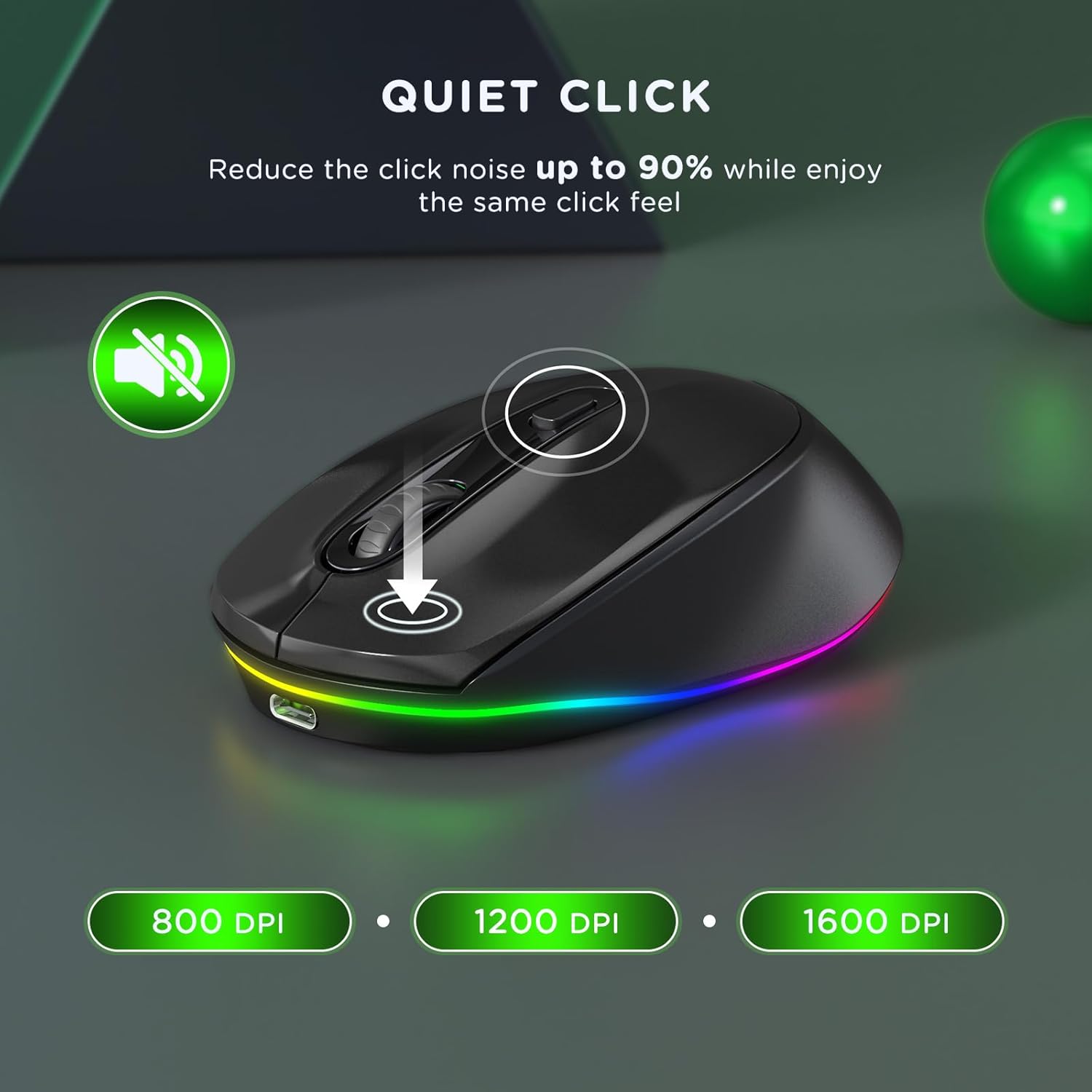
Image: The seenda mouse with a graphic indicating reduced click noise, highlighting its quiet operation.
5. Ergonomic Design
The mouse features an ergonomic design that fits comfortably in your hand, helping to prevent wrist pain during extended use.

Image: A hand comfortably resting on the seenda mouse, illustrating its ergonomic design for reduced wrist strain.
Maintenance
1. Cleaning
To clean your mouse, gently wipe the surface with a soft, dry, lint-free cloth. For stubborn dirt, slightly dampen the cloth with water. Avoid using harsh chemicals, abrasive cleaners, or excessive moisture, as these can damage the mouse.
2. Battery Care
- Recharge the mouse regularly to maintain optimal battery performance.
- Avoid fully discharging the battery frequently.
- If storing the mouse for an extended period, charge it to about 50% before storage and recharge every few months to prevent deep discharge.
Troubleshooting
| Problem | Possible Cause | Solution |
|---|---|---|
| Mouse not responding |
|
|
| LED lights not working or stuck |
|
|
| Cursor movement is erratic or slow |
|
|
Product Specifications
| Feature | Detail |
|---|---|
| Model Number | IWG-FGM02 |
| Connectivity Technology | Wireless (USB Receiver) |
| Movement Detection Technology | Optical |
| DPI Levels | 800 / 1200 / 1600 (Adjustable) |
| Battery Type | Rechargeable Lithium Ion (650mAh) |
| Charging Port | Type-C |
| Special Features | LED Lights (15 modes), Portable, Quiet Click, Ergonomic Design |
| Product Dimensions | 4.2 x 2.6 x 1.5 inches |
| Item Weight | 2.82 ounces |
| Compatibility | Windows XP/Vista/7/8/10/11, Mac OS X 10.4+, Chromebook (with USB port) |
Warranty and Support
For warranty information and customer support, please refer to the documentation included with your purchase or visit the official seenda website. You can also contact seenda customer service directly for assistance with product inquiries, troubleshooting, or warranty claims.
Official seenda Store: seenda Store on Amazon