
1. Introduction
This manual provides essential information for setting up, operating, maintaining, and troubleshooting your Dell OptiPlex 7050 Micro Computer. Designed for compact performance, this system is ideal for various computing tasks. Please read this manual thoroughly to ensure proper use and longevity of your device.
2. Setup Guide
2.1 Unboxing and Initial Inspection
Carefully remove all components from the packaging. Verify that all items listed below are present and undamaged:
- Dell OptiPlex 7050 Micro Computer
- Power Adapter
- USB Keyboard
- USB Mouse
- USB Wi-Fi Adapter (if included)
2.2 Physical Connections
Connect your peripherals to the appropriate ports on the Dell OptiPlex 7050 Micro Computer. Refer to the images below for port identification.


- Connect Display: Use an HDMI or DisplayPort cable to connect your monitor to the corresponding port on the back of the computer.
- Connect Keyboard and Mouse: Plug the USB keyboard and mouse into any available USB ports.
- Connect Power: Connect the power adapter to the power input port on the back of the computer, then plug the power cord into a wall outlet.
- Network Connection: For wired internet, connect an Ethernet cable to the RJ-45 port. For wireless internet, ensure the provided USB Wi-Fi adapter is plugged into a USB port.
2.3 Initial Boot and Operating System Setup
Press the power button on the front of the computer. The system will boot into Windows 10 Pro. Follow the on-screen prompts to complete the initial setup, including language selection, region, and user account creation.

3. Operating Instructions
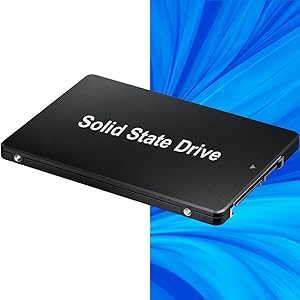
The Dell OptiPlex 7050 Micro Computer is equipped with an Intel Quad Core i5-6500T processor, 16GB DDR4 RAM, and a 256GB SSD, providing robust performance for everyday tasks.
3.1 Basic Usage
- Multitasking: The 16GB DDR4 RAM allows for smooth operation of multiple applications simultaneously.
- Web Browsing: Enjoy fast and responsive web browsing.
- Office Applications: Efficiently run productivity software such as Microsoft Office (30-day free trial included).


3.2 Display Capabilities
The Dell OptiPlex 7050 Micro supports 4K (3840x2160) dual display output via its HDMI and DisplayPort connections. This allows for:
- Expanding your workspace across two monitors.
- Mirroring content on multiple screens.
- Enjoying high-resolution visuals for compatible content.

4. Maintenance
Regular maintenance helps ensure the optimal performance and longevity of your Dell OptiPlex 7050 Micro Computer.
4.1 General Care
- Cleaning: Use a soft, dry cloth to clean the exterior. Avoid liquid cleaners directly on the device.
- Ventilation: Ensure the computer's vents are clear of obstructions to prevent overheating. Do not place the computer in enclosed spaces without adequate airflow.
- Temperature: Operate the computer in a well-ventilated area within recommended temperature ranges.
4.2 Software Updates
Regularly update your Windows 10 Pro operating system and drivers to ensure security, stability, and performance. Windows Update can be accessed via the Settings menu.
4.3 Data Backup
Regularly back up your important data to an external drive or cloud storage to prevent data loss.
5. Troubleshooting
This section addresses common issues you might encounter with your Dell OptiPlex 7050 Micro Computer.
5.1 Common Issues and Solutions
- No Power:
- Ensure the power adapter is securely connected to both the computer and a working power outlet.
- Verify the power outlet is functional by plugging in another device.
- No Display:
- Check that the monitor is powered on and the video cable (HDMI/DisplayPort) is securely connected to both the computer and the monitor.
- Try a different video cable or monitor if available.
- Slow Performance:
- Close unnecessary applications running in the background.
- Ensure Windows and drivers are up to date.
- Check for malware or viruses.
- No Internet Connection:
- For wired connection, ensure the Ethernet cable is properly connected and your router/modem is working.
- For wireless connection, ensure the USB Wi-Fi adapter is installed and drivers are up to date. Check Wi-Fi settings in Windows.
5.2 Further Assistance
If you continue to experience issues, please refer to the Dell support website or contact their customer service for advanced troubleshooting.
6. Specifications
Detailed technical specifications for the Dell OptiPlex 7050 Micro Computer:
| Feature | Specification |
|---|---|
| Model | OptiPlex 7050 Micro |
| Processor | Intel Quad Core i5-6500T (up to 3.1GHz) |
| RAM | 16GB DDR4 |
| Storage | 256GB SSD |
| Operating System | Windows 10 Pro 64 Bit (Multi-Language) |
| Graphics | Integrated Intel Graphics |
| Ports | 1 x RJ-45, 1 x HDMI, 1 x DP, 6 x USB 3.0 |
| 4K Support | Yes (3840x2160 Dual Display) |
| Dimensions (LxWxH) | 7.2 x 1.4 x 7 inches |
| Weight | 2 pounds |
7. Warranty and Support
7.1 Warranty Information
This Certified Refurbished product comes with a minimum 90-day warranty. The refurbishing process includes functionality testing, basic cleaning, inspection, and repackaging to ensure it looks and works like new.

7.2 Customer Support
For technical support, warranty claims, or additional product information, please visit the official Dell support website or contact their customer service department. Keep your product's serial number or service tag (e.g., GWLNDN2) readily available when seeking support.


