
Introduction
This manual provides detailed instructions for the setup, operation, maintenance, and troubleshooting of your AIOEXPC S5 PC Stick Mini Computer. Please read this manual thoroughly before using the device to ensure proper functionality and longevity.
The AIOEXPC S5 is a compact and powerful mini PC stick, equipped with an Atom X5-Z8350 processor and Windows 10 Pro. It supports 4K HD output, dual-band Wi-Fi, and Bluetooth 4.2, making it suitable for various applications from office work to home entertainment.
What's in the Box
- 1x S5 PC Stick
- 1x Power Adapter
- 1x HDMI Cable
- 1x User Manual (this document)

Image: The AIOEXPC S5 PC Stick shown with its power adapter, HDMI cable, and user manual, illustrating the complete package contents.
Product Overview
Familiarize yourself with the various ports and components of the AIOEXPC S5 PC Stick.

Image: A detailed diagram highlighting the different ports and features of the AIOEXPC S5 PC Stick, including USB 2.0, USB 3.0, HDMI, power port, power button, reset button, TF card slot, and indicator light.
- HDMI Plug: Connects to an HDMI port on a monitor or TV for video and audio output.
- USB 3.0 Port: For high-speed data transfer and connecting peripherals.
- USB 2.0 Port: For connecting standard USB devices like keyboards, mice, or external drives.
- Power Port: Connect the included power adapter here.
- Power Button: Press to turn the device on or off.
- Reset Button: A small button for resetting the device, often recessed.
- Micro SD Card Slot (TF Card): Supports up to 128GB for storage expansion.
- Indicator Light: Shows the device's power status.
Setup Guide
Connecting to a Display
Insert the HDMI plug of the PC Stick directly into an available HDMI port on your TV or monitor. If the port is difficult to access, use the included HDMI extension cable.

Image: The AIOEXPC S5 PC Stick plugged into the HDMI port of a television, demonstrating a typical setup scenario.
Connecting Peripherals
Connect your USB keyboard and mouse to the USB 2.0 and USB 3.0 ports on the PC Stick. You can also use Bluetooth peripherals after initial setup.
Powering On the Device
Connect the power adapter to the DC Power Port on the PC Stick, then plug the adapter into a wall outlet. Press the Power Button on the side of the PC Stick to turn it on. The indicator light will illuminate.
Initial Windows Setup
Upon first boot, you will be guided through the standard Windows 10 Pro setup process. Follow the on-screen prompts to configure language, region, network settings, and user accounts.
Operating Instructions
Connecting to Wi-Fi and Bluetooth
The PC Stick supports dual-band Wi-Fi (2.4GHz & 5GHz) and Bluetooth 4.2 for robust wireless connectivity.

Image: An illustration highlighting the dual-band Wi-Fi (2.4G/5G) and Bluetooth 4.2 capabilities of the AIOEXPC S5 PC Stick, emphasizing its wireless connectivity options.
- Wi-Fi: Navigate to Windows Settings > Network & Internet > Wi-Fi. Select your desired network and enter the password.
- Bluetooth: Go to Windows Settings > Devices > Bluetooth & other devices. Turn on Bluetooth and pair with your desired devices.
Auto-On After Power Failure
The AIOEXPC S5 PC Stick supports automatic power-on after a power outage. Follow these steps to enable this feature:
- Step 1: Power up your PC Stick and press the "Esc" key repeatedly during boot to enter the BIOS setup.
- Step 2: Navigate to the "Advanced" menu, then select "System Component" and press Enter.
- Step 3: Find and select the option "Poweron After G3" and press Enter again.
- Step 4: Select "Enabled" and then press F4 to save the changes and exit BIOS.
Storage Expansion
You can expand the storage by inserting a Micro SD card (TF Card) into the dedicated slot. The device supports cards up to 128GB.
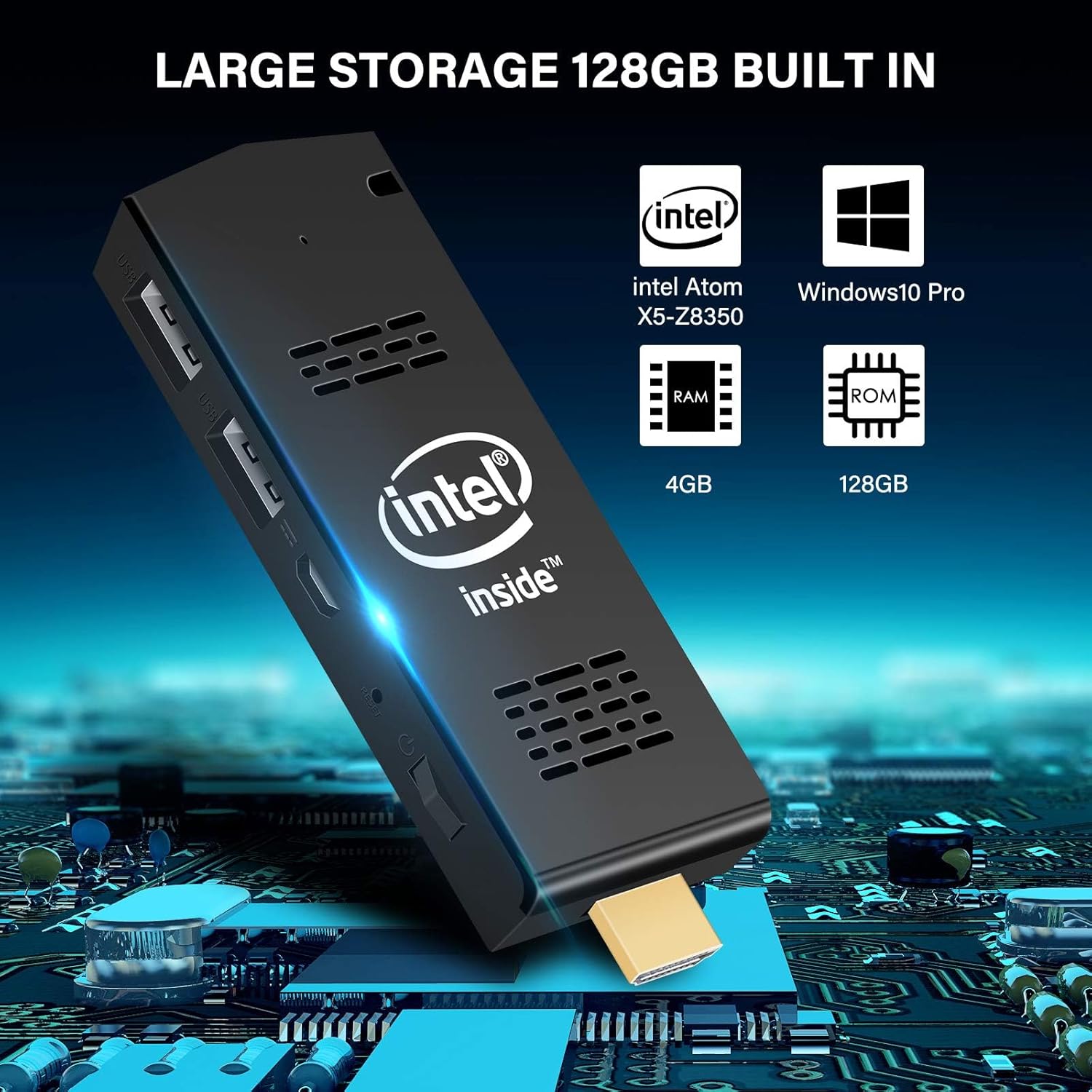
Image: A close-up view of the AIOEXPC S5 PC Stick highlighting the Micro SD card slot, indicating its support for storage expansion up to 128GB.
Maintenance and Best Practices
- Keep it Cool: Although the device has an ultra-quiet fan, ensure proper airflow around the PC Stick to prevent overheating, especially during prolonged use.
- Software Updates: Regularly update Windows and drivers to ensure optimal performance and security.
- Storage Management: To maintain performance, periodically uninstall unneeded programs and files. Consider using a Micro SD card for additional storage to keep the internal EMMC clear.
- Cleaning: Use a soft, dry cloth to clean the exterior of the device. Do not use liquid cleaners or aerosols.
- Safe Shutdown: Always shut down Windows properly before disconnecting power to prevent data corruption.
Troubleshooting
| Problem | Possible Cause | Solution |
|---|---|---|
| Device does not power on. | No power, faulty adapter, or loose connection. | Ensure the power adapter is securely connected to the PC Stick and a working power outlet. Try a different outlet. |
| No display on monitor/TV. | Incorrect HDMI connection, wrong input source on display. | Check HDMI cable connection. Ensure your TV/monitor is set to the correct HDMI input source. |
| Slow performance or freezing. | Too many applications running, low storage space, overheating. | Close unnecessary applications. Free up storage space on the C: drive. Ensure adequate ventilation around the device. Restart the PC Stick. |
| Wi-Fi or Bluetooth connectivity issues. | Driver issues, interference, incorrect settings. | Check Wi-Fi/Bluetooth settings in Windows. Restart the PC Stick and your router. Update network drivers. |
| Device does not auto-on after power failure. | Auto-on feature not enabled in BIOS. | Follow the "Auto-On After Power Failure" steps in the Operating Instructions section to enable it in BIOS. |
If you encounter persistent issues not covered here, please contact AIOEXPC customer support.
Specifications
| Component | Detail |
|---|---|
| Processor (CPU) | Atom X5-Z8350 Quad-Core (Base: 1.44 GHz, Burst: 1.92 GHz) |
| Graphics (GPU) | HD Graphics (Base: 200 MHz, Burst: 500 MHz), supports 4K HD |
| RAM | 4GB LPDDR3 |
| Internal Storage | 128GB EMMC |
| Expandable Storage | 1x Micro SD Card Slot (up to 128GB) |
| USB Ports | 1x USB 3.0, 1x USB 2.0 |
| Video Output | 1x HDMI |
| Wireless Connectivity | Wi-Fi: 2.4G/5G Dual Band, Bluetooth: BT 4.2 |
| Operating System | Windows 10 Pro (64-bit) |
| Dimensions | Approx. 3.9 x 1.5 x 0.5 inches |
| Weight | Approx. 9.6 ounces |
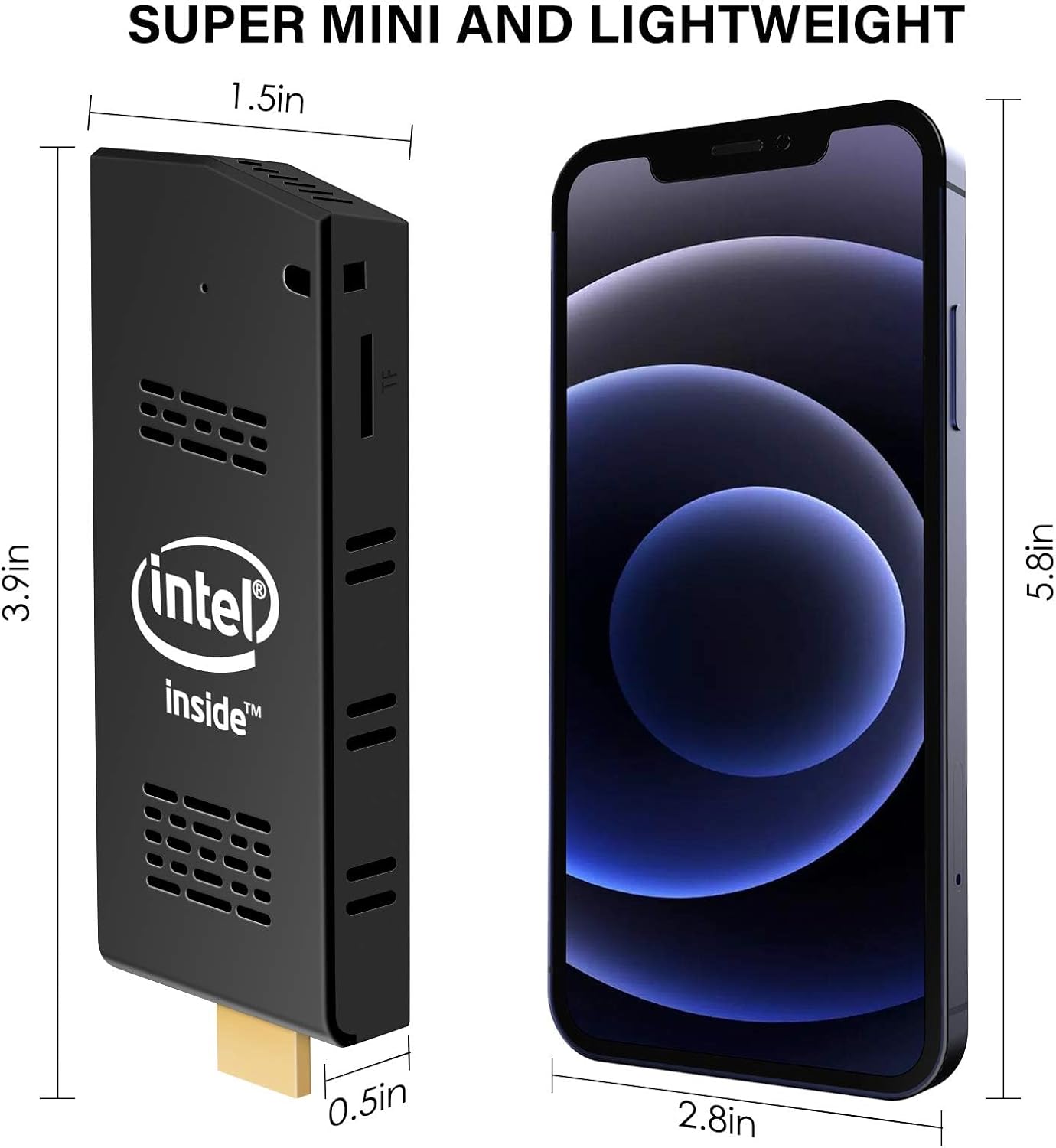
Image: A visual comparison of the AIOEXPC S5 PC Stick's compact dimensions (3.9 x 1.5 x 0.5 inches) next to a smartphone, illustrating its portability.
Warranty and Support
AIOEXPC provides customer support for its products. For warranty information, technical assistance, or further inquiries, please refer to the contact information provided with your purchase or visit the official AIOEXPC website.
For common questions and community support, you may also find helpful resources on the product's Amazon page or related online forums.
Important Note: The product description mentions "This PC Stick Support Auto-On After Power Failure". However, one customer review (R3GEBJPF0ARF57) states that this feature was not available in their model despite being advertised. Please verify this functionality upon receipt and contact support if it does not work as expected.