Introduction
This manual provides comprehensive instructions for the operation and maintenance of your MUSRUN MP3 Player (Model: k188). Designed for portability and high-fidelity audio, this device offers a range of features including Bluetooth connectivity, FM radio, voice recording, and support for various audio formats. Please read this manual thoroughly to ensure proper use and to maximize your listening experience.

Image: The MUSRUN MP3 Player shown alongside its included accessories: a sport armband, wired earphones, and various cables.
What's in the Box
Verify that all items are present in the package:
- MUSRUN MP3 Player (Model: k188)
- USB Charging Cable
- Adjustable Sport Armband
- Wired Earphones
- 3.5mm AUX Cable
- User Manual (this document)

Image: All components included with the MUSRUN MP3 Player, neatly arranged.
Setup
1. Charging the Device
Before first use, fully charge the MP3 player. Connect the provided USB cable to the player's USB port and the other end to a computer's USB port or a 5V, 0.5-2A USB wall adapter. The battery indicator on the screen will show charging status.

Image: The MP3 player's display showing battery level, emphasizing its long battery life and fast charging capability.
2. Inserting a Micro SD Card
The MP3 player has built-in memory and supports an external Micro SD card up to 128GB for expanded storage. Locate the TF Micro SD Card Slot on the side of the device. Gently insert the Micro SD card until it clicks into place.
3. Transferring Music and Files
To transfer music, audiobooks, or other files to the MP3 player:
- Connect the MP3 player to your computer using the provided USB cable.
- The player will appear as a removable disk drive on your computer.
- Drag and drop your desired audio files (MP3, WMA, APE, FLAC, WAV, AAC-LC, ACELP, OGG) or other files into the player's storage or the Micro SD card.
- Safely eject the device from your computer before disconnecting the USB cable.
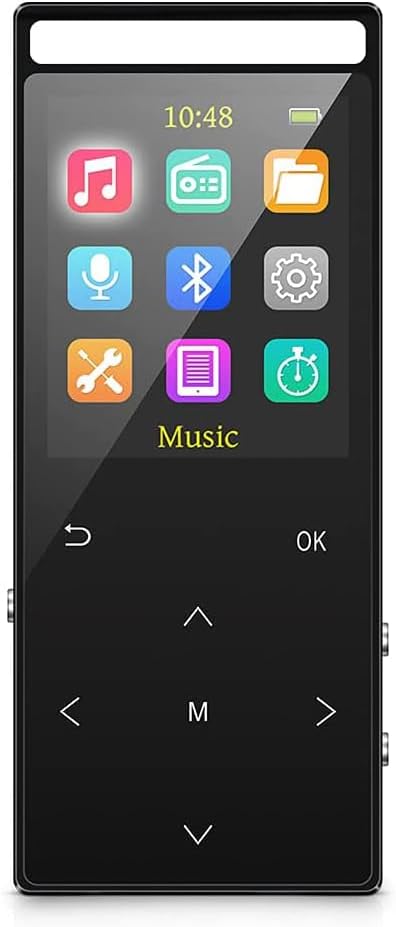
Image: Illustration of connecting the MP3 player to a computer for music transfer.
Operating Instructions
Device Layout and Controls

Image: Detailed diagram showing the location and function of each button and port on the MP3 player.
- Return Button: Navigates back to the previous screen or menu.
- Play/Pause Button: Starts or pauses playback.
- Up Button: Moves selection up in menus or increases volume (when not in menu).
- Menu (M) Button: Accesses context-sensitive options or main menu.
- Left/Previous Button: Navigates left in menus or skips to previous track.
- Right/Next Button: Navigates right in menus or skips to next track.
- Down Button: Moves selection down in menus or decreases volume (when not in menu).
- On/Off/Vol+ Button: Long press to power on/off. Short press to increase volume.
- Record/Vol- Button: Long press to start voice recording. Short press to decrease volume.
- Lock Switch: Slides to lock/unlock the buttons to prevent accidental presses.
- TF Micro SD Card Slot: For inserting an external memory card.
- Earphone Jack: 3.5mm audio output for headphones.
- Mic: Built-in microphone for voice recording.
- USB Port: For charging and data transfer.
Music Playback
- Playing Songs: Navigate to the "Music" icon on the main menu. You can browse by Artists, Albums, Genres, or Playlists. To play all songs in a folder, create folders on your PC and transfer songs into them. Playing one song from a folder will play the entire folder.
- Shuffle Play: While a song is playing, press the M button, then select "Play Mode" and choose "Shuffle" or other desired modes.
- Supported Formats: The player supports MP3, WMA, APE, FLAC, WAV, AAC-LC, ACELP, OGG.

Image: The MP3 player displaying supported audio formats and equalizer options.
Bluetooth Connectivity
The player features Bluetooth 5.2 for connecting to wireless headphones or speakers.
- From the main menu, select the "Bluetooth" icon.
- Turn on Bluetooth on the MP3 player.
- Ensure your Bluetooth headphones or speaker are in pairing mode.
- The player will scan for available devices. Select your device from the list to connect.

Image: The MP3 player demonstrating its Bluetooth connectivity with wireless headphones.
FM Radio
To use the FM radio function:
- Connect wired headphones to the earphone jack. The wired headphones act as the FM antenna. The FM function will not work without them, even if using Bluetooth for audio output.
- Navigate to the "FM Radio" icon on the main menu.
- Perform an automatic channel search.
- Use the Up/Down buttons to switch between channels. Press the M button for additional options.

Image: The MP3 player being used for FM radio, highlighting the need for wired headphones as an antenna.
Recording Functions
The MP3 player supports three types of recording:
- Line-In Record: Connect the MP3 player to a computer/phone via an audio line (3.5mm AUX cable). Play audio on the source device and start recording on the MP3 player to capture the sound.
- FM Radio Record: Record FM radio programs directly from the player.
- Voice Record: Use the built-in microphone to record voice memos. Long press the Record/Vol- button to initiate voice recording.
Other Functions
- E-book: Read text files (TXT format).
- Picture Viewer: View image files.
- Alarm Clock: Set alarms.
- Sleep Timer: Found in "Settings" under "Shutdown Setting". Set a time (max 99 minutes) after which the player will automatically turn off. This is useful for listening before sleep.
- Auto Off: Also in "Shutdown Setting". This feature turns off the player after a set period (e.g., 3, 10, or 30 minutes) of no operation to save power. If using Sleep Timer, it is recommended to disable Auto Off or set it to the longest duration (30 minutes).
Maintenance
- Cleaning: Use a soft, dry cloth to clean the device. Avoid liquid cleaners or abrasive materials.
- Battery Care: To prolong battery life, avoid fully discharging the battery frequently. Charge the device regularly. Store in a cool, dry place if not used for extended periods.
- Storage: Keep the device away from extreme temperatures, direct sunlight, dust, and moisture.
Troubleshooting
- Problem: FM radio does not work.
- Solution: Ensure wired headphones are connected. They serve as the antenna for the FM radio, regardless of whether you are using Bluetooth for audio output.
- Problem: Cannot find audio book/songs or incorrect number of songs/files.
- Solution:
- Verify that your audio files are in a supported format (MP3, WMA, APE, FLAC, WAV, AAC-LC, ACELP, OGG).
- Use the "Refresh" function under the music icon to rescan the library after adding or deleting songs.
- Problem: MP3 player scan takes a long time.
- Solution: A full scan is activated when you reinsert the memory card while the device is on, or when you use the refresh function after adding/delating songs. The more tracks saved, the longer the scan will take. This is normal behavior.
- Problem: Player is frozen or not working.
- Solution: Use a thin object (like a needle or paperclip) to press the reset button located in the microphone hole on the left side of the MP3 player. This can resolve most software-related issues.
- Problem: All songs are gone after factory settings reset.
- Solution: No, songs are retained unless you perform a "format disk" operation. Factory reset only clears settings, not user data.
Specifications
| Feature | Detail |
|---|---|
| Brand | MUSRUN |
| Model Number | k188 |
| Memory Storage Capacity | 64 GB (internal) + supports up to 128GB Micro SD |
| Connectivity Technology | Bluetooth 5.2, Aux |
| Supported Audio Formats | MP3, WMA, APE, FLAC, WAV, AAC-LC, ACELP, OGG |
| Screen Size | 1.8 Inches |
| Special Features | Built-In Speaker, Voice Recorder, Equalizer, FM Radio, E-book, Picture Viewer, Alarm Clock, Line-in Record |
| Item Weight | 2.89 ounces |
| Batteries | 1 Lithium Polymer batteries (included) |
Warranty and Support
For warranty information and technical support, please refer to the contact details provided with your purchase documentation or visit the official MUSRUN website. Keep your proof of purchase for any warranty claims.


