
1. Introduction
This manual provides detailed instructions for the setup, operation, maintenance, and troubleshooting of your Sceptre Curved 27" FHD 1080p Gaming Monitor. Please read this manual thoroughly before using your monitor to ensure proper functionality and safety.

Image: Sceptre Curved 27" FHD 1080p Gaming Monitor in a typical desk setup.
2. Package Contents
Verify that all items listed below are included in your package. If any items are missing or damaged, please contact Sceptre customer support.
- Sceptre Curved 27" FHD 1080p Gaming Monitor
- Monitor Stand (Base and Arm)
- HDMI Cable
- Power Supply and Adapter
- Philips Head Screwdriver
- Screws and Hardware Kit
- User Manual
- Warranty Information and Customer Service Card

Image: Overview of all items included in the Sceptre monitor package, including the monitor, stand components, cables, tools, and documentation.
3. Assembly
Follow these steps to assemble the monitor stand:
- Attach the metal stand arm to the plastic base. Align the tabs and gently twist until secure.
- Use the provided Philips head screwdriver and the designated base screw to fasten the stand arm to the base.
- Align the assembled stand with the mounting points on the back of the monitor.
- Insert the two remaining Philips head screws into the designated holes on the monitor's back and tighten them securely.
- Place the plastic cover over the screws on the stand arm.

Image: The Sceptre Curved 27" monitor with its dimensions labeled, showing the curved screen and the stand.
4. Connections
The monitor features various ports for connectivity. Ensure proper connection for optimal performance.
- DC IN: Connect the power adapter here.
- Audio Out: Connect external speakers or headphones.
- Audio In: Connect an audio source for the built-in speakers.
- VGA: Connect to a computer's VGA port. Supports up to 75Hz refresh rate.
- HDMI 1.4 (x2): Connect to devices with HDMI output. Supports up to 75Hz refresh rate.
- Kensington Security Lock: For securing the monitor.
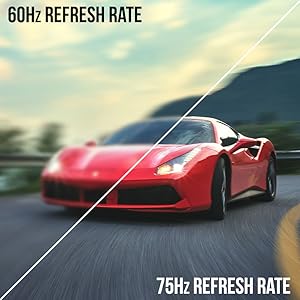
Image: Detailed view of the monitor's rear panel, highlighting the DC IN, Audio In/Out, VGA, and two HDMI 1.4 ports.
5. Operating Instructions
The On-Screen Display (OSD) menu allows you to adjust various monitor settings. Use the buttons on the back of the monitor to navigate.
OSD Menu Navigation
- Quick Start: Adjust basic settings like preset modes, aspect ratio, source, volume, Blue Light Shift, and Adaptive Sync.
- Picture: Fine-tune image settings including brightness, contrast, DCR, aspect ratio, and sharpness.
- Color: Adjust color temperature, gamma, tint, saturation, and Blue Light Shift.
- System: Configure overdrive, Adaptive Sync, sleep mode, language, OSD position, timer, transparency, mute, and factory reset.
Video: A user demonstrates the Sceptre monitor's OSD menu, showing navigation through settings like volume and input source while displaying gameplay.
6. Display Features
- 1500R Curved Display: The 1500R curvature immerses you into the content, providing a comfortable viewing experience.
- 100Hz Refresh Rate: Experience smoother visuals with a refresh rate of up to 100Hz, reducing screen tearing.
- 98% sRGB: Offers a wider color gamut for deeper and more accurate colors.
- Blue Light Shift: Reduces blue light emission to protect your eyes from fatigue and strain during extended use.
- Adaptive Sync: Synchronizes the monitor's refresh rate with your graphics card's frame rate to eliminate screen tearing and stuttering.
- FPS-RTS Game Modes: Pre-set display modes optimized for First Person Shooter (FPS) and Real-Time Strategy (RTS) games.
- Built-in Speakers: Integrated speakers provide audio without needing external devices.

Image: Visual representation of the 1500R curvature, highlighting its immersive design.

Image: A side-by-side comparison demonstrating the visual smoothness of 75Hz refresh rate versus 60Hz.

Image: A visual comparison highlighting the enhanced color accuracy of 98% sRGB compared to a conventional display.

Image: Split-screen view demonstrating the visual enhancements provided by FPS and RTS game modes.
7. Maintenance
To ensure the longevity and optimal performance of your monitor, follow these cleaning guidelines:
- Always unplug the power cable before cleaning.
- Use a soft, lint-free cloth slightly dampened with water or a mild, non-abrasive cleaner.
- Avoid using alcohol, ammonia, or abrasive cleaners, as these can damage the screen surface.
- Gently wipe the screen and exterior surfaces. Do not spray cleaner directly onto the screen.
8. Troubleshooting
If you encounter any issues with your monitor, refer to the following common solutions:
- No Power: Ensure the power cable is securely connected to both the monitor and a working power outlet. Check the power adapter and outlet.
- No Image: Verify that the video cable (HDMI or VGA) is securely connected to both the monitor and your computer/device. Ensure the correct input source is selected in the OSD menu.
- Flickering/Distorted Image: Check the video cable for damage. Try a different cable or port. Ensure your graphics card drivers are up to date. Adjust refresh rate settings in your device's display settings.
- No Audio: Check the volume settings in the OSD menu and on your connected device. Ensure external speakers are properly connected if used.
- Buttons Not Responding: Perform a factory reset through the OSD menu if accessible.
For further assistance, please refer to the full user manual or contact Sceptre customer support.
9. Specifications
| Feature | Specification |
|---|---|
| Screen Size | 27 Inches |
| Resolution | 1920 x 1080 (FHD 1080p) |
| Refresh Rate | Up to 100Hz (75Hz via HDMI/VGA) |
| Curvature | 1500R |
| Response Time | 3ms (GtG) |
| Panel Type | VA |
| Brightness | 280 nits |
| Color Gamut | 98% sRGB |
| Video Inputs | 2x HDMI 1.4, 1x VGA |
| Audio Ports | Audio In, Audio Out |
| Speakers | Built-in |
| VESA Mount | 100mm x 100mm |
| Dimensions (LxWxH) | 15.09 x 19.97 x 7.02 inches |
| Weight | 5.5 pounds |
10. Gaming Experience
The Sceptre Curved 27" monitor is designed to enhance your gaming experience with its high refresh rate, low response time, and immersive curvature.
Video: An official Sceptre video showcasing various gaming monitors, including the Curved 27" model, highlighting their features and performance in gaming scenarios.
For optimal gaming performance, ensure your device's display settings match the monitor's capabilities (e.g., 1920x1080 resolution at 75Hz).
11. Warranty and Support
Your Sceptre monitor comes with a 1-Year Limited Product Warranty. For detailed terms and conditions, please refer to the included warranty information card in your package.
For technical support, troubleshooting, or warranty claims, please contact Sceptre Customer Service. Contact information is provided on the customer service card included with your monitor.


