
Philips 70PUS8535/12
Philips 70PUS8535/12 Smart TV User Manual
Model: 70PUS8535/12
Introduction
Welcome to the user manual for your new Philips 70PUS8535/12 Smart TV. This guide provides essential information for setting up, operating, maintaining, and troubleshooting your television. Please read this manual thoroughly before using your TV to ensure safe and optimal performance.

Figure 1: Philips 70PUS8535/12 Smart TV - Front View
This image displays the Philips 70PUS8535/12 Smart TV from the front, showcasing its large screen and slim bezels. The screen displays a dynamic, colorful abstract image, highlighting the TV's visual capabilities. The TV is silver in color and rests on two minimalist feet.
Setup
1. Unpacking and Inspection
Carefully remove the TV and all accessories from the packaging. Retain the packaging materials for future transport or storage. Inspect the TV for any signs of damage. If any damage is found, do not proceed with setup and contact your retailer.
2. Stand Assembly
Place the TV screen-down on a soft, flat surface to prevent scratches. Attach the two stand feet to the designated slots on the bottom of the TV using the provided screws. Ensure the feet are securely fastened.
3. Connecting Power
Plug the power cord into the AC IN socket on the back of the TV, then plug the other end into a wall outlet.
4. Initial Setup and Network Connection
Upon first power-on, the TV will guide you through the initial setup process. This includes language selection, country, time zone, and network connection.
- Select your preferred language.
- Follow the on-screen prompts to connect to your Wi-Fi network. You will need your network name (SSID) and password.
- Accept the terms and conditions for Android TV services.
- Sign in with your Google account to access the full range of Android TV features, including the Google Play Store.
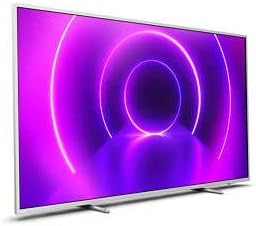
Figure 2: Philips 70PUS8535/12 Smart TV - Side View with Ports
This image provides a side view of the Philips 70PUS8535/12 Smart TV, emphasizing its thin design. Visible on the side are various connectivity ports, including USB and HDMI inputs, which are essential for connecting external devices.
Operating Your TV
1. Basic Controls
- Power: Press the power button on the remote control or on the TV to turn it on or off.
- Volume: Use the Volume Up/Down buttons on the remote to adjust the sound level.
- Input: Press the "Source" or "Input" button on the remote to switch between connected devices (e.g., HDMI 1, USB).
- Navigation: Use the directional pad and "OK" button on the remote to navigate menus and select options.
2. Smart TV Features (Android TV)
Your Philips Smart TV runs on Android, providing access to a wide range of apps and services.
- Home Screen: Access your favorite apps, live TV, and recommended content from the customizable home screen.
- Google Play Store: Download additional apps, games, movies, and TV shows.
- Voice Control: Use the built-in Google Assistant by pressing the microphone button on your remote and speaking commands.
- Streaming Services: Pre-installed apps like Netflix and YouTube are readily available. Ensure you have an active subscription for certain services.

Figure 3: Philips 70PUS8535/12 Smart TV with Ambilight
This image illustrates the Philips 70PUS8535/12 Smart TV's unique Ambilight feature. The TV is shown in a darkened room, with a vibrant purple glow emanating from behind the screen and illuminating the surrounding wall, matching the colors displayed on the screen. This enhances the viewing experience by extending the picture beyond the TV itself.
Maintenance
1. Cleaning Your TV
- Always unplug the TV before cleaning.
- Use a soft, lint-free cloth to gently wipe the screen. For stubborn marks, slightly dampen the cloth with water or a specialized screen cleaner (never spray directly onto the screen).
- Clean the TV frame and stand with a soft, dry cloth.
- Avoid using abrasive cleaners, alcohol, or solvents, as these can damage the TV's surface.
2. Software Updates
Your TV may receive software updates to improve performance and add new features. Ensure your TV is connected to the internet. Updates can usually be checked and installed via the TV's settings menu (e.g., Settings > About > System update).
Troubleshooting
Before contacting support, try the following solutions for common issues:
- No Power:
- Check if the power cord is securely plugged into both the TV and the wall outlet.
- Test the outlet with another device.
- No Picture/Sound:
- Ensure the correct input source is selected (e.g., HDMI 1).
- Check all cable connections between the TV and external devices.
- Adjust volume levels.
- Network Connection Issues:
- Restart your Wi-Fi router.
- Check Wi-Fi password.
- Try connecting via Ethernet cable if available.
- Remote Control Not Working:
- Replace batteries.
- Ensure there are no obstructions between the remote and the TV's IR sensor.
- TV is Slow/Unresponsive:
- Restart the TV by unplugging it from the power outlet for a few minutes, then plugging it back in.
- Consider performing a factory reset (Note: This will erase all settings and installed apps).
Specifications
| Feature | Detail |
|---|---|
| Brand | Philips |
| Model Number | 70PUS8535/12 |
| Screen Size | 70 inches |
| Display Technology | LED |
| Resolution | 4K Ultra HD |
| Operating System | Android |
| Connectivity | Wi-Fi, DVI, Ethernet |
| USB Ports | 2 |
| Supported Internet Services | Netflix, YouTube |
| Color | Silver |
| Energy Efficiency Class | A+ |
Note: Specifications are subject to change without notice. For the most accurate and up-to-date information, please refer to the product packaging or Philips' official website.
Warranty and Support
Your Philips 70PUS8535/12 Smart TV comes with a standard manufacturer's warranty. Please refer to the warranty card included with your product for specific terms and conditions, including the warranty period and coverage details.
For technical support, service, or warranty claims, please contact Philips customer support through their official website or the contact information provided in your product documentation. When contacting support, please have your TV's model number (70PUS8535/12) and serial number ready.
Online Resources: For additional support, FAQs, and software downloads, visit the official Philips support website.
Ask a question about this manual
Ask about setup, troubleshooting, compatibility, parts, safety, or missing instructions. Manuals+ will review the question and use this page’s manual context to help answer it.