
1. Introduction
Thank you for purchasing the HKC MR13HFP Full HD Portable Monitor. This 13-inch monitor is designed to provide a convenient second screen solution for various devices, enhancing productivity and entertainment on the go. This manual provides essential information for the safe and efficient use of your monitor, including setup, operation, maintenance, and troubleshooting.
2. Safety Information
- Read all instructions carefully before using the monitor.
- Keep the monitor away from water, moisture, and extreme temperatures.
- Do not block ventilation openings. Ensure adequate airflow around the monitor.
- Use only the power adapter and cables supplied or recommended by the manufacturer.
- Avoid placing heavy objects on the power cable or monitor.
- If the monitor emits smoke, unusual odors, or strange noises, immediately unplug it from the power source and contact customer support.
- Do not attempt to repair the monitor yourself. Refer all servicing to qualified personnel.
- Clean the monitor with a soft, dry cloth. Avoid using liquid cleaners or aerosols.
3. Package Contents
Please check the package contents upon unpacking. If any items are missing or damaged, contact your retailer.
- HKC MR13HFP Portable Monitor
- Folding Stand
- HDMI-to-HDMI Cable
- USB-C Cable
- 12V/2A Power Adapter
4. Product Overview
Familiarize yourself with the monitor's components and interfaces.

Figure 4.1: Front view of the HKC MR13HFP portable monitor on its folding stand.
4.1 Ports and Controls
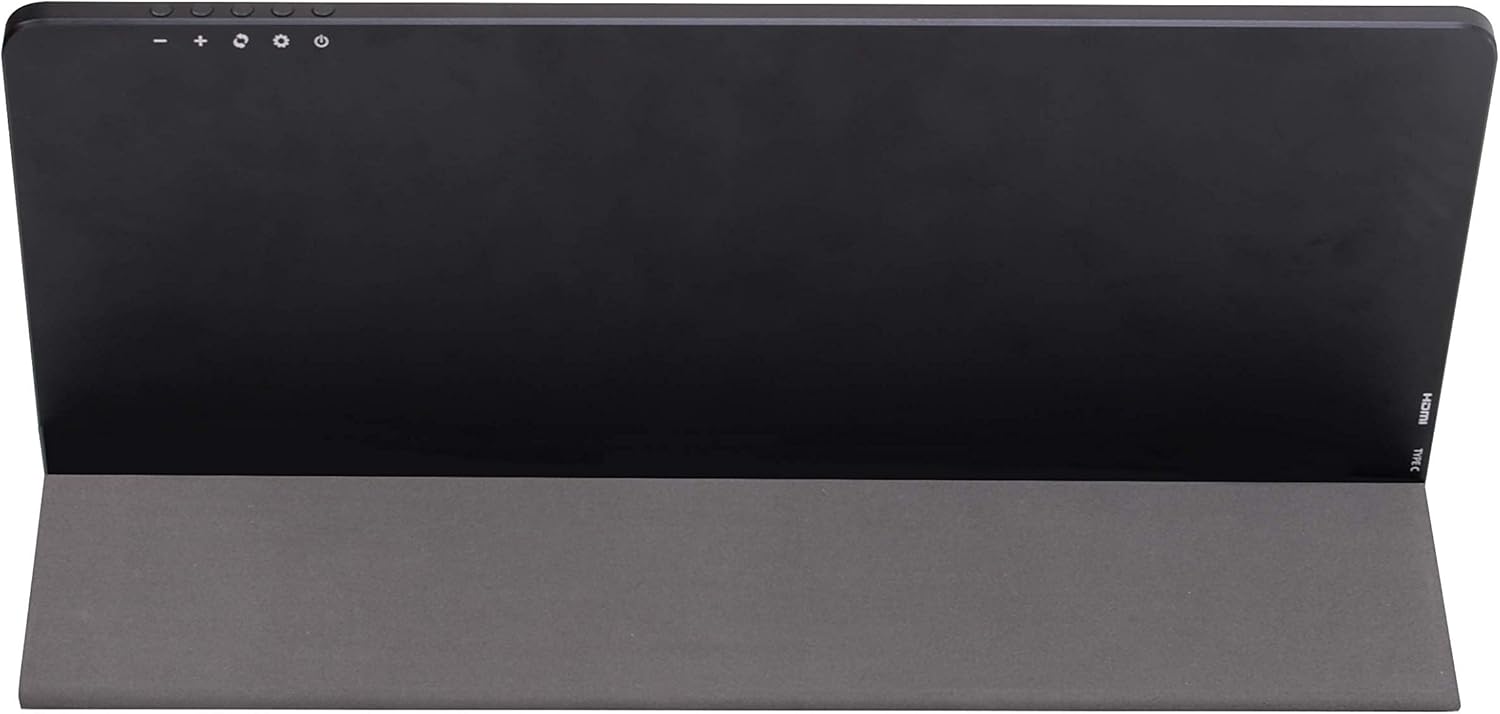
Figure 4.2: Back view illustrating the monitor's ports and control buttons.
- Power Button: Press to turn the monitor on or off.
- Menu Button: Accesses the On-Screen Display (OSD) menu.
- +/- Buttons: Navigate menu options and adjust settings (e.g., brightness, volume).
- HDMI-C Port: Connects to devices via HDMI for video and audio transmission.
- USB-C Port: Connects to compatible devices for video, audio, and power delivery (if supported by the source device).
- DC Power Input: Connects the 12V/2A power adapter for external power.
5. Setup
5.1 Using the Folding Stand
- Unfold the integrated folding stand from the back of the monitor.
- Adjust the stand to your desired viewing angle. The stand provides stable support for the monitor on a flat surface.
5.2 Connecting to a Device
The HKC MR13HFP monitor supports connections via HDMI and USB-C.
- HDMI Connection: Use the supplied HDMI-to-HDMI cable to connect the monitor's HDMI-C port to the HDMI output of your laptop, PC, or other compatible device.
- USB-C Connection: Use the supplied USB-C cable to connect the monitor's USB-C port to a compatible USB-C port on your laptop or device. Ensure your device's USB-C port supports DisplayPort Alternate Mode (Alt Mode) for video output and power delivery.
5.3 Powering the Monitor
The monitor requires external power for operation.
- Connect the 12V/2A power adapter to the DC Power Input port on the monitor.
- Plug the power adapter into a wall outlet.
- If using a USB-C connection with a device that supports power delivery, the monitor may draw power directly from the device, eliminating the need for the external power adapter in some cases. Refer to your device's specifications.
6. Operating
6.1 Power On/Off
- To turn on the monitor, press the Power Button.
- To turn off the monitor, press and hold the Power Button for a few seconds until the screen goes blank.
6.2 On-Screen Display (OSD) Menu
The OSD menu allows you to adjust various display settings.
- Press the Menu Button to open the OSD menu.
- Use the +/- Buttons to navigate through the menu options.
- Press the Menu Button again to select an option or confirm a setting.
- Use the +/- Buttons to adjust the selected setting.
- To exit the OSD menu, navigate to the 'Exit' option or wait for the menu to time out.
6.3 Common OSD Settings
- Brightness/Contrast: Adjust the overall luminance and difference between light and dark areas.
- Color Settings: Modify color temperature, hue, and saturation.
- Input Source: Manually select between HDMI and USB-C input if auto-detection fails.
- Aspect Ratio: Choose between 16:9, 4:3, or other available options.
- Volume: Adjust the audio output level if using the monitor's built-in speakers or headphone jack.
7. Maintenance
7.1 Cleaning the Monitor
- Always unplug the monitor from the power source before cleaning.
- Use a soft, lint-free cloth to gently wipe the screen and exterior surfaces.
- For stubborn marks, lightly dampen the cloth with water or a mild, non-abrasive screen cleaner. Do not spray liquid directly onto the screen.
- Avoid using alcohol, ammonia, or abrasive cleaners, as they can damage the screen or casing.
7.2 Storage
- When not in use for extended periods, store the monitor in a cool, dry place.
- Protect the screen from scratches by using a protective sleeve or the original packaging.
- Avoid placing heavy objects on the monitor during storage.
8. Troubleshooting
If you encounter issues with your monitor, refer to the following common troubleshooting steps.
| Problem | Possible Cause | Solution |
|---|---|---|
| No power | Power cable not connected; Power adapter faulty; Power outlet not working. | Ensure power cable is securely connected. Test power adapter with another device or try a different outlet. |
| No signal / Blank screen | Input cable loose or incorrect; Incorrect input source selected; Source device not outputting signal. | Check HDMI/USB-C cable connections. Ensure the correct input source is selected in the OSD menu. Verify the source device is powered on and configured to output video. |
| Flickering screen | Faulty cable; Resolution/refresh rate incompatibility; Electromagnetic interference. | Try a different cable. Adjust the resolution or refresh rate on your source device. Move the monitor away from other electronic devices. |
| No audio | Volume too low; Muted; Source device audio settings. | Increase volume via OSD menu. Check if audio is muted. Verify audio output settings on your source device. |
9. Specifications
Technical specifications for the HKC MR13HFP portable monitor.
- Brand: HKC
- Model: MR13HFP
- Screen Size: 13.3 Inches
- Resolution: 1920x1080p (Full HD)
- Panel Type: IPS
- Refresh Rate: 60Hz
- Hardware Interface: HDMI-C, USB-C
- Power Consumption: <24 Watts (Operating), <0.3 Watts (Sleep Mode)
- Weight: Approximately 808 grams
- Dimensions: Approximately 1.5 cm thickness
10. Warranty and Support
The HKC MR13HFP portable monitor comes with a standard manufacturer's warranty. Please refer to the warranty card included in your package for specific terms and conditions, including the warranty period and coverage details.
For technical support, troubleshooting assistance, or warranty claims, please contact HKC customer service through their official website or the contact information provided in your product documentation. When contacting support, please have your model number (MR13HFP) and proof of purchase ready.
