1. Introduction
This instruction manual provides detailed guidance for the PiBOX India 9-in-1 USB C Hub Dock, Model PI_9-1_MHUB_V1. It covers product features, setup procedures, operational guidelines, maintenance tips, and troubleshooting information to ensure optimal performance and longevity of your device. Please read this manual thoroughly before using the product.
2. Product Overview
The PiBOX India 9-in-1 USB C Hub Dock is a versatile adapter designed to expand the connectivity of your USB-C enabled devices. It integrates multiple essential ports into a single, compact unit.
2.1 Key Features
- 4K HDMI Output: Supports resolutions up to 4K@30Hz for external displays.
- Gigabit Ethernet (RJ45): Provides stable wired network connectivity up to 1000Mbps.
- 3 x USB 3.0 Ports: For high-speed data transfer and connecting peripherals.
- USB-C Power Delivery (PD): Allows charging of your host device up to 65W while using the hub.
- 3.5mm Audio Jack: For audio output (headphones/speakers). Microphone input is not supported.
- TF/SD Card Readers: Supports simultaneous reading and writing for microSD and SD cards.
2.2 Product Diagram
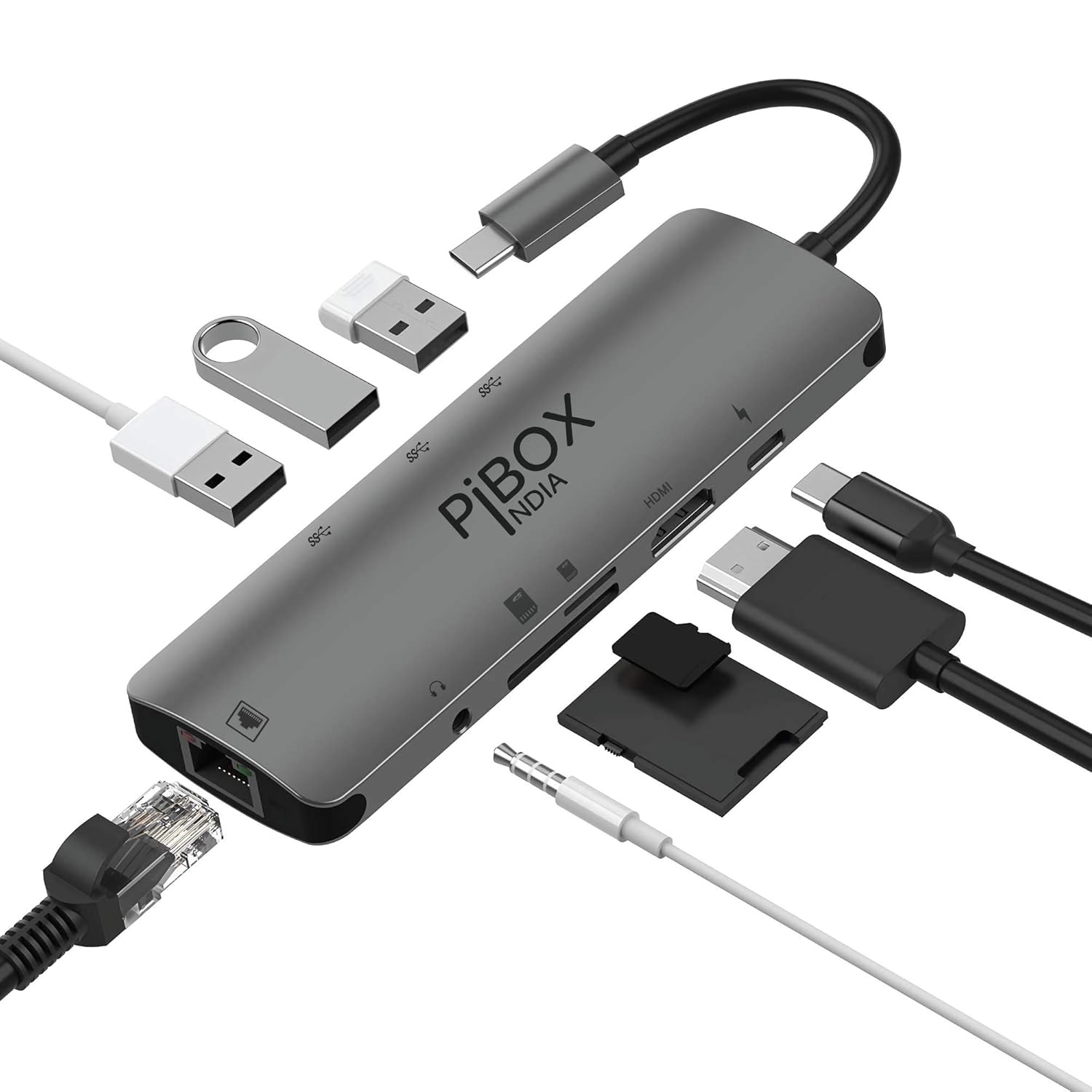
Image: The PiBOX India 9-in-1 USB C Hub Dock, showcasing its compact design and all available ports.
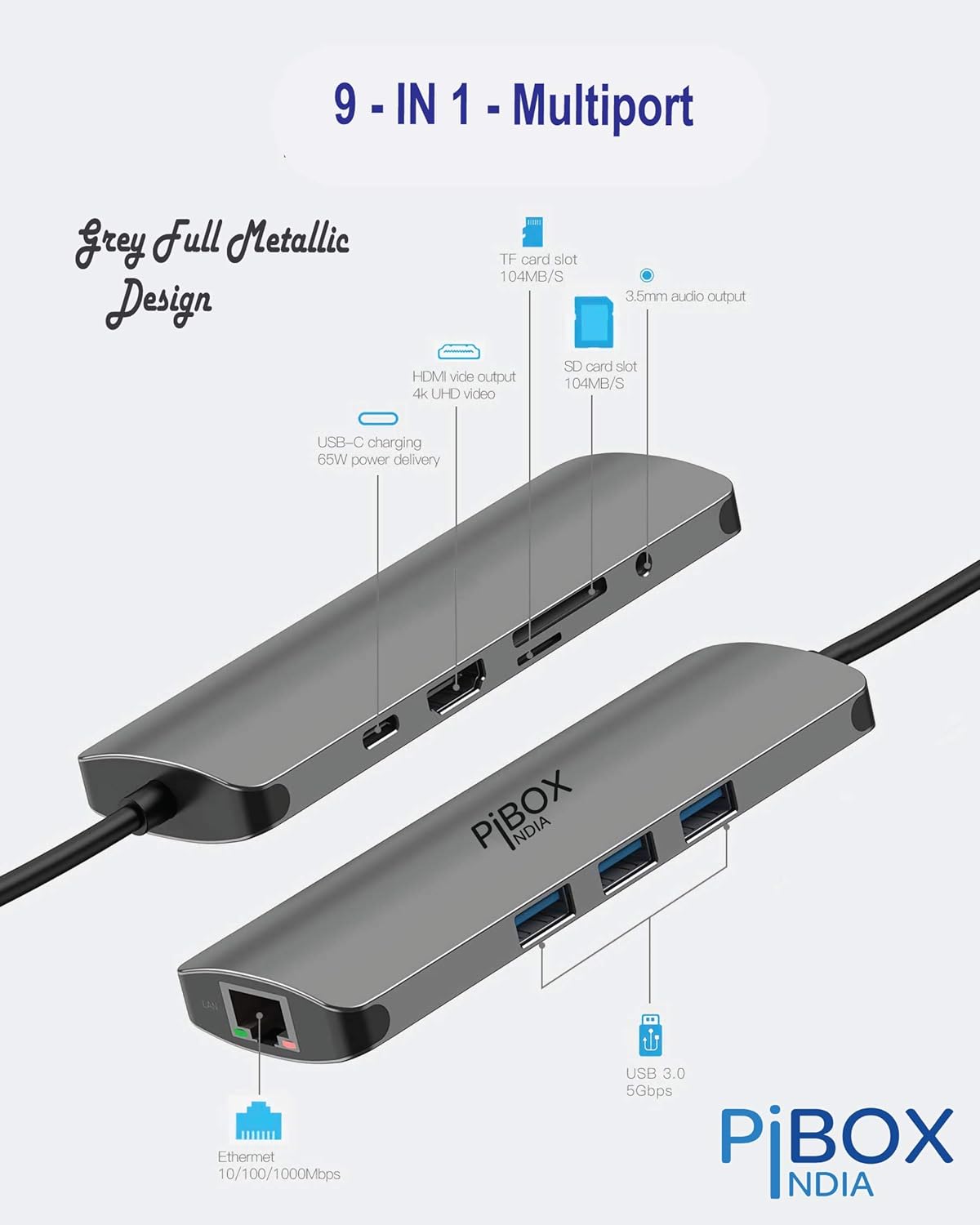
Image: A detailed view of the hub, highlighting the location and function of each of its 9 ports.
3. Compatibility
This hub is designed for use with USB-C enabled devices that support DisplayPort Alternate Mode (DP Alt Mode) for video output and Power Delivery for charging. Compatibility may vary based on device model and operating system.
3.1 Compatible Devices (Partial List)
- Laptops: Apple MacBook (Early 2015 and newer), Apple MacBook Pro (Late 2016 and newer), Apple MacBook Air (Late 2018 and newer), Apple iMac (Mid 2017 and newer), Google Chromebook Pixel, New Acer Switch Alpha 12, Dell XPS 12/13/15, Dell Latitude, Surface Book 2, HP Spectre X2/X360, Elite X2 1012/Elitebook Folio G1, HP ZBook 15 G3 Mobile Workstation, Acer Spin 7/Chromebook R13, Acer Aspire V Nitro 15, Lenovo Yoga 720/900/910/920, Lenovo Thinkpad T470/480, HUAWEI MateBook X/Par.
- Tablets: Apple iPad Pro (3rd generation) 2018/2019, Samsung Galaxy Tab S4/S5e.
- Phones (with DP Alt Mode): LG G5, LG V20, HTC 10, HTC U Ultra, Samsung Galaxy S8/S8+/S9/S9+/Note 8/Note 9/Note 10, Sumsung Chromebook Plus/Pro, Samsung Galaxy TabPro S, HUAWEI Mate 10.
Note: For Lenovo Yoga 910, always connect to the white USB-C port.
3.2 Operating System Support
- macOS 10.11 and newer
- Windows 10
- Chrome OS
3.3 Important Compatibility Information

Image: A visual guide to checking USB-C compatibility for video output on phones and laptops. Devices with a 'D' next to the USB-C symbol or a Thunderbolt symbol support video output.
To ensure video output functionality, your device's USB-C port must support DisplayPort Alternate Mode (DP Alt Mode). Not all USB-C ports support video output. Please check your device's specifications or consult the manufacturer if unsure.
4. Setup Instructions
The PiBOX India 9-in-1 USB C Hub Dock is designed for plug-and-play operation, requiring no additional drivers or software installation for most functions.
4.1 Connecting the Hub
- Connect the integrated USB-C cable of the hub to a compatible USB-C port on your laptop, tablet, or phone.
- Ensure the connection is secure. The hub should be recognized automatically by your operating system.

Image: The hub connected to a laptop, demonstrating its plug-and-play capability for various devices.
4.2 Connecting Peripherals
- HDMI Display: Connect an HDMI cable from your monitor/projector to the hub's HDMI port.
- Ethernet: Connect an RJ45 Ethernet cable from your network router/modem to the hub's Ethernet port.
- USB Devices: Plug USB peripherals (e.g., keyboard, mouse, external hard drive, USB flash drive) into the USB 3.0 ports.
- Power Adapter: For charging your host device, connect your USB-C power adapter to the hub's USB-C Power Delivery port.
- Audio Device: Plug headphones or speakers into the 3.5mm audio jack.
- Memory Cards: Insert SD or TF (microSD) cards into the respective slots.
5. Operating Instructions
5.1 HDMI Display Output
The HDMI port supports resolutions up to 4K@30Hz. You can configure your display settings for either Mirror Mode or Extend Mode through your operating system's display settings.
- Mirror Mode: Duplicates your primary screen onto the external display.
- Extend Mode: Extends your desktop across multiple displays, allowing for increased workspace.

Image: A laptop connected to an external display via the hub, demonstrating 4K video output.
5.2 USB 3.0 Data Transfer
The three USB 3.0 ports offer data transfer speeds up to 5Gbps. Connect your USB devices for fast file transfers or to use peripherals.
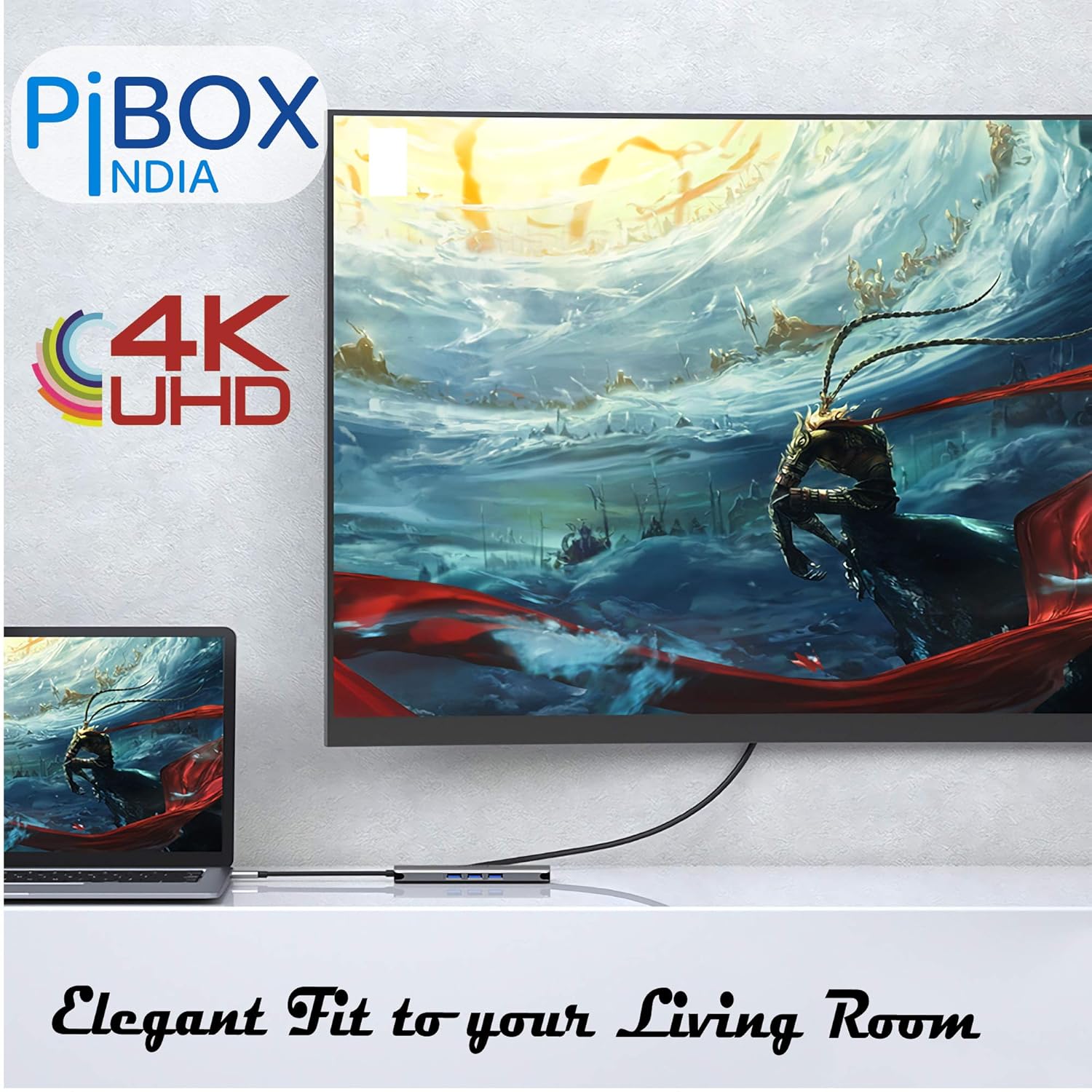
Image: Illustrates fast charging and 5Gbps data transfer through the hub.
5.3 Ethernet Connection
The RJ45 Ethernet port provides a stable and fast wired internet connection, ideal for situations where Wi-Fi is unreliable or unavailable. It supports 10/100/1000Mbps speeds.
5.4 USB-C Power Delivery
Connect your original USB-C power adapter to the hub's USB-C PD port to charge your host device while simultaneously using other hub functions. The hub supports up to 65W power delivery.
5.5 3.5mm Audio Output
The 3.5mm audio jack is for audio output only. Connect your headphones or speakers to enjoy audio from your device. Microphone input is not supported through this port.

Image: The 3.5mm audio jack on the hub, with headphones connected.
5.6 TF/SD Card Reader
Insert your TF (microSD) or SD cards into the corresponding slots. The hub allows for simultaneous access to both card types, facilitating data transfer to and from your device.
6. Maintenance
- Keep the hub in a dry environment and away from direct sunlight or extreme temperatures.
- Avoid dropping or subjecting the hub to strong impacts.
- Clean the hub with a soft, dry cloth. Do not use liquid cleaners or solvents.
- Ensure proper ventilation around the hub during extended use to prevent overheating.
7. Troubleshooting
7.1 No Display Output via HDMI
- Ensure your device's USB-C port supports DisplayPort Alternate Mode (DP Alt Mode). Refer to your device's manual or manufacturer's website.
- Check if the HDMI cable is securely connected to both the hub and the display.
- Verify that the external display is set to the correct HDMI input source.
- Try connecting the hub to a different USB-C port on your device, if available.
- Restart your host device.
7.2 USB Devices Not Recognized
- Ensure the USB device is properly inserted into the hub's USB 3.0 port.
- Try connecting the USB device directly to your host device to confirm it is functional.
- Some high-power USB devices may require external power or a direct connection to the host device.
7.3 Ethernet Connection Issues
- Check if the Ethernet cable is securely connected to both the hub and your router/modem.
- Verify that your network connection is active.
- On some operating systems (e.g., older macOS versions), you might need to manually configure network settings or install specific drivers if not automatically detected.
7.4 Hub Feels Warm During Use
It is normal for the hub to generate some heat during operation, especially when multiple ports are in use or when charging your device via Power Delivery. If the hub becomes excessively hot, disconnect it and allow it to cool down. Ensure adequate ventilation.
7.5 3.5mm Audio Jack Not Working
- Ensure your headphones/speakers are fully plugged into the 3.5mm jack.
- Check your device's audio output settings to ensure the hub's audio device is selected.
- Remember, this port supports audio output only; microphone input is not supported.
8. Specifications
| Brand | PiBOX India |
| Model Number | PI_9-1_MHUB_V1 |
| Connectivity | USB Type C |
| HDMI Output | Up to 4K@30Hz |
| Ethernet Port | RJ45, 10/100/1000Mbps |
| USB Ports | 3 x USB 3.0 (5Gbps) |
| USB-C PD Port | Up to 65W Power Delivery |
| Audio Jack | 3.5mm Audio Output (No Mic Support) |
| Card Reader | TF (microSD) and SD Card Slots |
| Operating Systems | macOS 10.11+, Windows 10, Chrome OS |
| Dimensions (LxWxH) | 10 x 10 x 10 cm |
| Item Weight | 110 g |
| Material | Aluminum |
9. Warranty and Support
9.1 Product Warranty
PiBOX India products are backed by a 15-month warranty, comprising an initial 3 months plus an additional 12 months upon product registration. Please register your product to avail the full warranty benefits.
9.2 Customer Support
For any queries, technical assistance, or warranty claims, please contact PiBOX India customer support. Friendly WhatsApp support is available for your convenience.


