
Hewlett Packard Enterprise R6M49A
HPE Networking Instant On Access Point AP22 User Manual
Model: R6M49A
Product Overview
The HPE Networking Instant On Access Point AP22 is a Wi-Fi Certified 6 access point designed for small and growing businesses. It provides faster Wi-Fi, greater capacity, and reduced latency, supporting up to 75 devices simultaneously. This device is ideal for high-traffic environments such as boutique hotels, schools, and restaurants, offering strong security requirements and easy management.

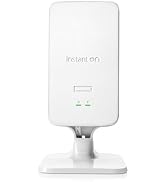
Front view of the HPE Instant On AP22 Access Point, showing the "Instant On" logo and indicator lights.
Key Features
- Wi-Fi Certified 6 (802.11ax) for superior performance.
- 2x2:2 spatial streams for improved roaming and quick client connections.
- Supports up to 75 devices, balancing performance and budget.
- 1.7 Gbps wireless throughput and 1 GbE uplink port.
- Easy setup and management via the Instant On mobile app and web portal.
- Smart Mesh support to extend wireless networks without additional cabling.
- Advanced security features including WPA3 and Cloudflare integration.
- Multi-user, multiple inputs, and multiple output (MU-MIMO) functionality.

Visual representation of the AP22's superior Wi-Fi capabilities, including 802.11ax Wi-Fi 6 and 1.7 Gbps throughput.

Details on Wi-Fi Certified 6, including OFDMA, MU-MIMO, and WPA3 security.
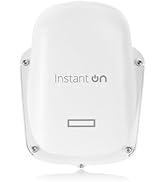
Illustration of the AP22's versatility with MU-MIMO, supporting simultaneous full-rate Wi-Fi connections for various devices.
What's in the Box
- HPE Networking Instant On AP22 Access Point
- Setup Guide
- Combined Ceiling and Wall Rail Mount Clip
- Ethernet Cable
- 12V Local Power Adapter (for R6M49A model)
Setup and Installation
The HPE Instant On AP22 is designed for quick and easy setup. You can install and configure your access point in minutes using the Instant On mobile app or web portal.
Powering Options
The AP22 can be powered using Power over Ethernet (PoE) or a local power adapter. This specific model (R6M49A) includes a 12V local power adapter and cord. If you have a PoE injector or PoE switch, you may opt for the R4W01A model which does not include the power adapter.

Rear view of the HPE Instant On AP22, detailing the power input, console port, and Ethernet port. Model information and certifications are visible. (Model: APIN0505, S/N: CNQ0KPPHVN, R4W01A)
Initial Setup Steps
- Connect Power: Plug the 12V local power adapter into the AP22 and a power outlet, or connect an Ethernet cable from a PoE source to the AP22's Ethernet port.
- Mounting: Use the included mount clip to secure the AP22 to a ceiling or wall.
- Download App: Download the HPE Instant On mobile app from your device's app store.
- Follow In-App Instructions: Open the app and follow the on-screen prompts to discover and configure your new access point. This includes setting up your Wi-Fi network name (SSID) and password.

The Instant On mobile app interface, demonstrating easy onboarding, network setup, and monitoring from anywhere.
Operating the Access Point
Once set up, the HPE Instant On AP22 provides seamless wireless connectivity. Management is primarily done through the Instant On mobile app or web portal, offering comprehensive control without subscription fees.
Network Management
- Guest Networks: Easily create separate guest networks for visitors, ensuring security and bandwidth control.
- Employee Networks: Set up secure networks for employees with appropriate access levels.
- IoT Networks: Dedicated networks can be configured for Internet of Things (IoT) devices.
- Smart Mesh: Extend your Wi-Fi coverage to hard-to-reach areas by deploying additional Instant On APs, which automatically form a mesh network without requiring Ethernet cabling to each unit.
A diagram showing how Smart Mesh Wi-Fi extends coverage, eliminating dead zones without additional Ethernet cabling.
Deployment Examples
Here are common deployment scenarios for HPE Networking Instant On Access Points:

Illustrations of network configurations: Network with a Router, Network with a Switch, Access Point as a Router, and Expand with Smart Mesh.
Maintenance
To ensure optimal performance and longevity of your HPE Instant On AP22, consider the following maintenance tips:
- Firmware Updates: Regularly check for and apply firmware updates through the Instant On app or web portal to ensure the latest features and security patches.
- Physical Cleaning: Keep the device free from dust and debris. Use a soft, dry cloth for cleaning. Ensure ventilation holes are not obstructed.
- Environmental Conditions: Operate the access point within recommended temperature and humidity ranges to prevent damage.
- Network Monitoring: Utilize the Instant On app to monitor network health and client connectivity, addressing any issues proactively.
Troubleshooting
If you encounter issues with your HPE Instant On AP22, try the following basic troubleshooting steps:
- No Power/Indicator Lights Off:
- Verify the power adapter is securely connected to the AP and the power outlet.
- If using PoE, ensure the PoE source (switch or injector) is powered on and functioning correctly.
- No Internet Connection:
- Check the Ethernet cable connection from the AP to your router/modem or switch.
- Ensure your internet service is active and your router/modem is working.
- Restart the AP by unplugging and re-plugging the power.
- Slow Wi-Fi Speed:
- Check for interference from other wireless devices.
- Ensure the AP is placed optimally, away from obstructions.
- Verify that the AP's firmware is up to date.
- Check the Instant On app for any alerts or performance issues.
- Cannot Connect to Wi-Fi:
- Ensure you are selecting the correct Wi-Fi network (SSID) and entering the correct password.
- Restart your client device (phone, laptop).
- Check the AP's status in the Instant On app.
For more advanced troubleshooting or persistent issues, refer to the HPE Instant On support documentation online or contact customer support.
Specifications
| Attribute | Value |
|---|---|
| Product Dimensions | 6.3 x 6.3 x 1.5 inches |
| Item Weight | 1.1 pounds |
| ASIN | B08FBMF85D |
| Item model number | Power Adapter Included (R6M49A) |
| Customer Reviews | 4.4 out of 5 stars (126 ratings) |
| Date First Available | August 6, 2020 |
| Manufacturer | Aruba a Hewlett Packard Enterprise company |
| Brand | Hewlett Packard Enterprise |
| Model Name | Power Adapter Included |
| Special Feature | Access Point Mode |
| Frequency Band Class | Dual-Band |
| Wireless Communication Standard | 802.11ax (Wi-Fi 6) |
| Compatible Devices | Wi-Fi Enabled |
| Frequency | 5.00 GHz |
| Recommended Uses For Product | Business |
| Connectivity Technology | Wi-Fi |
| Color | white |
Product Video Overview
Official product video for the HPE Networking Instant On AP22, highlighting its features and benefits for various business environments.
Warranty and Support
HPE Networking Instant On products typically come with a limited lifetime warranty. For detailed warranty information, please refer to the official HPE website or the warranty card included with your product.
For technical support, product documentation, and software downloads, visit the HPE Instant On Support Portal. You can also find additional resources and community forums there.
Related Documents - R6M49A
 |
HPE Networking Instant On Access Point AP11 Installation Guide Detailed installation guide for the HPE Networking Instant On Access Point AP11, covering hardware features, mounting instructions, and safety and regulatory compliance information. |
 |
HPE Aruba Networking 650 Series Access Points Installation Guide Comprehensive installation guide for HPE Aruba Networking 650 Series Campus Access Points (AP-654, AP-655), covering hardware overview, specifications, safety, and regulatory compliance. |
 |
HPE Aruba Networking 650 Serisi Erişim Noktaları Kurulum Kılavuzu HPE Aruba Networking 650 Serisi Erişim Noktaları için kurulum, donanım özellikleri, bağlantı ve teknik bilgiler içeren kapsamlı kılavuz. |
 |
Building an HPE BladeSystem: A Comprehensive Guide A step-by-step guide to building and configuring an HPE BladeSystem, covering operating environments, enclosures, interconnects, server blades, storage, management, power, cooling, and services from Hewlett Packard Enterprise. |
 |
HPE Aruba Networking SSE Test Drive Guide Explore the HPE Aruba Networking SSE platform with this test drive guide. Learn about Zero Trust Network Access (ZTNA), Secure Web Gateway (SWG), Cloud Access Security Broker (CASB), the SSE application portal, and management console for secure connectivity. |
 |
HPE OfficeConnect 1950 Switch Series Getting Started Guide This guide provides essential information for installing, configuring, and troubleshooting the HPE OfficeConnect 1950 Switch Series, including setup procedures, hardware specifications, and maintenance tips. |
Ask a question about this manual
Ask about setup, troubleshooting, compatibility, parts, safety, or missing instructions. Manuals+ will review the question and use this page’s manual context to help answer it.