
1. Introduction
This manual provides essential information for the installation, operation, maintenance, and troubleshooting of your new kilter Replacement US English Laptop Keyboard. This product is designed as a direct replacement for specific Packard Bell EasyNote and Gateway laptop models. Please read this manual thoroughly before attempting any installation or use.
2. Product Overview
The kilter Replacement US English Laptop Keyboard is a brand new, black-colored keyboard designed to restore full functionality to your compatible laptop. It features a standard US English layout, ensuring familiar typing experience.

Figure 2.1: Front view of the kilter US English laptop keyboard. This image displays the full keyboard layout, including function keys, alphanumeric keys, and the numeric keypad (if present on the model), all in a standard black finish.
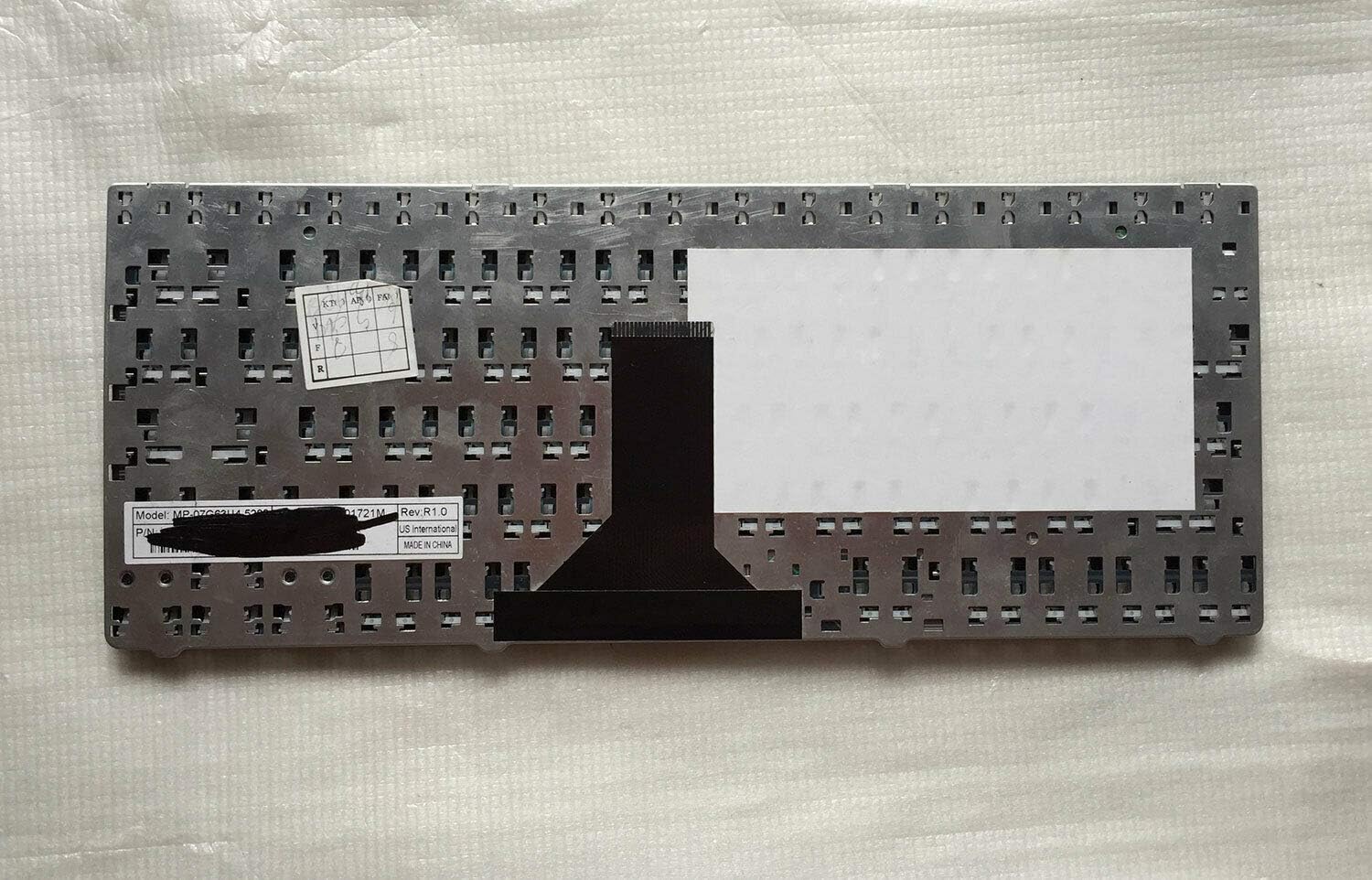
Figure 2.2: Back view of the kilter US English laptop keyboard. This image shows the metallic backing plate and the flexible ribbon cable connector, which is essential for connecting the keyboard to the laptop's motherboard.
3. Compatibility
This replacement keyboard is specifically designed to be compatible with the following laptop models:
- Packard Bell EasyNote RS65
- Packard Bell EasyNote RS66
- Gateway UC73
- Gateway UC7300
- Gateway UC78
- Gateway UC7800
- Gateway UC7308
- Gateway UC7807U
- Gateway UC7805U
- Gateway UC7808U
Please verify your laptop's model number against this list to ensure proper fit and function before proceeding with installation.
4. Setup and Installation
Replacing a laptop keyboard can be a delicate process. It is recommended that this procedure be performed by an experienced technician. If you are not comfortable performing this installation yourself, please seek professional assistance.
4.1. Safety Precautions
- Disconnect Power: Always ensure the laptop is completely powered off and disconnected from the AC adapter. Remove the battery if possible.
- Static Electricity: Take precautions against static electricity, which can damage internal components. Use an anti-static wrist strap or frequently touch a grounded metal object.
- Handle with Care: Laptop components, especially ribbon cables and connectors, are fragile. Handle them with extreme care.
4.2. General Installation Steps (Consult Laptop-Specific Guides)
The exact steps for keyboard replacement vary significantly between laptop models. It is crucial to find a specific disassembly guide or video tutorial for your exact laptop model (e.g., "Packard Bell EasyNote RS65 keyboard replacement"). The following are general steps:
- Prepare Workspace: Work on a clean, well-lit, and static-free surface.
- Access Keyboard: Depending on your laptop model, the keyboard may be secured by screws from the bottom case, clips from the top, or both. Some models require removing the top case or palm rest.
- Disconnect Old Keyboard: Carefully disconnect the ribbon cable(s) from the motherboard. These usually have a small latch that needs to be gently flipped up.
- Remove Old Keyboard: Once disconnected and unsecured, carefully remove the old keyboard.
- Install New Keyboard: Position the new kilter keyboard into place.
- Connect New Keyboard: Gently insert the new keyboard's ribbon cable(s) into their respective connectors on the motherboard and secure the latches. Ensure the cable is fully seated and not creased.
- Reassemble Laptop: Carefully reassemble your laptop, ensuring all screws and clips are properly secured.
- Test Functionality: Before fully closing the laptop, connect the AC adapter (without the battery initially) and power on to test the new keyboard. Verify all keys function correctly.
5. Operating the Keyboard
Once installed, the kilter Replacement US English Laptop Keyboard operates identically to your original keyboard. It provides standard QWERTY layout with all typical function keys (F1-F12), numeric keys, and special characters. Familiarize yourself with the layout if it differs slightly from your previous keyboard.
- Typing: Press keys firmly but gently for input.
- Function Keys (Fn): Many laptops utilize an Fn key in combination with F1-F12 keys for system functions like volume control, screen brightness, Wi-Fi toggle, etc. Refer to your laptop's original user manual for specific Fn key combinations.
- Special Characters: Use the Shift key for uppercase letters and symbols shown on the upper part of keys.
6. Maintenance and Care
Proper care will extend the lifespan of your replacement keyboard.
- Cleaning:
- Use a soft, lint-free cloth slightly dampened with water or a mild, non-abrasive cleaning solution to wipe the keycaps.
- Avoid spraying liquids directly onto the keyboard.
- Use compressed air to remove dust and debris from between the keys.
- Avoid Spills: Liquids are highly damaging to keyboards. Exercise caution when consuming beverages near your laptop.
- Gentle Use: Avoid excessive force when typing or cleaning, as this can damage key mechanisms.
7. Troubleshooting
If you encounter issues with your new keyboard, consider the following troubleshooting steps:
| Problem | Possible Cause | Solution |
|---|---|---|
| Keyboard not responding at all. | Loose or improperly connected ribbon cable. | Power off the laptop, disconnect power, and carefully re-seat the keyboard ribbon cable(s). Ensure latches are secure. |
| Certain keys not working. | Dust/debris under keys, or a faulty key mechanism. | Use compressed air to clear debris. If problem persists, the key mechanism may be faulty. |
| Keys typing incorrect characters. | Incorrect keyboard layout selected in operating system settings. | Check your operating system's keyboard language and layout settings (e.g., ensure "US English" is selected). |
| Keyboard backlight not working (if applicable). | Not all replacement keyboards support backlight, or connection issue. | Verify if your original keyboard had a backlight and if this replacement model supports it. Check backlight ribbon cable connection if separate. |
If troubleshooting steps do not resolve the issue, please refer to the Warranty and Support section.
8. Product Specifications
| Brand | kilter |
| Model Number (MPN) | MP-07G63U4-5282 |
| Compatible Models | Packard Bell EasyNote RS65, RS66; Gateway UC73, UC7300, UC78, UC7800, UC7308, UC7807U, UC7805U, UC7808U |
| Color | Black |
| Language Layout | US English |
| Condition | Brand New |
| Manufacturer | Packard International |
| ASIN | B08F9ND8VL |
| UPC | 745924988309 |
| Date First Available | February 18, 2020 |
9. Warranty Information
This kilter replacement keyboard comes with a 60-day warranty from the date of purchase. This warranty covers manufacturing defects and ensures the product is free from defects in material and workmanship under normal use.
The warranty does not cover damage caused by:
- Improper installation or handling.
- Accidental damage (e.g., liquid spills, drops).
- Unauthorized repairs or modifications.
- Normal wear and tear.
Please retain your proof of purchase for warranty claims.
10. Customer Support
For technical assistance, warranty claims, or any questions regarding your kilter Replacement US English Laptop Keyboard, please contact the seller or manufacturer through the platform where the purchase was made. Provide your order number and a detailed description of the issue to expedite support.
For general laptop repair advice, consider consulting online resources such as reputable tech forums or video tutorials specific to your laptop model.