Introduction
The WiMiUS W6 Projector is designed to provide a high-quality cinematic viewing experience with its native 1080P resolution and powerful 450 ANSI lumens brightness. This projector supports 4K content and offers versatile connectivity options, including 5G WiFi and Bluetooth. It features advanced keystone correction and zoom functions for optimal display setup.

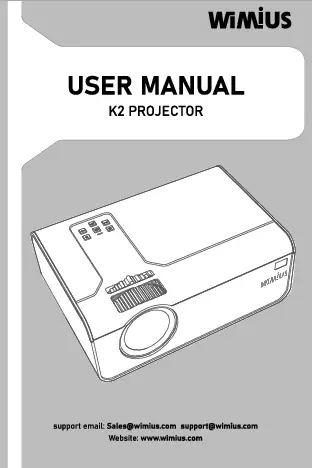
Figure 1: WiMiUS W6 Projector Overview. This image displays the main unit of the WiMiUS W6 projector, highlighting its compact design and front lens.
Package Contents
Upon opening the package, please verify that all components are present and in good condition:
- WiMiUS W6 Projector Unit
- Power Cord
- HDMI Cable
- AV Cable (RCA)
- Remote Control
- User Manual
- Cleaning Cloth
Setup
1. Placement
Place the projector on a stable, flat surface. Ensure adequate ventilation around the unit. For optimal viewing, position the projector directly in front of your projection surface (screen or wall). The ideal projection distance for an 80-120 inch screen is 8-13 feet.
2. Power Connection
- Connect the power cord to the projector's power input port.
- Plug the other end of the power cord into a standard electrical outlet.
- Press the power button on the projector or remote control to turn on the device.
3. Focus and Keystone Adjustment
After powering on, adjust the focus and keystone correction to achieve a clear and rectangular image.
- Focus Ring: Rotate the focus ring near the lens until the projected image appears sharp and clear.
- Keystone Correction: Use the keystone adjustment dial or digital keystone settings (4P/4D) to correct any trapezoidal distortion, ensuring the image is perfectly rectangular. Note that extreme keystone correction may slightly affect image clarity at the edges.
Operating Instructions
1. Connecting Input Sources
The WiMiUS W6 projector offers multiple input options:
- HDMI: Connect devices like Amazon Fire TV Stick, DVD players, Xbox, PS3/PS4/PS5, laptops, or computers using an HDMI cable.
- USB: Insert USB drives for direct media playback.
- AV (YPbPr): Use the provided AV cable to connect older devices.
- 3.5mm Earphone Jack: Connect external headphones or speakers.
Select the appropriate input source using the 'Source' button on the projector or remote control.
2. Wireless Screen Mirroring
The projector supports wireless screen mirroring for iOS, Android smartphones, iPads, and Windows 10 laptops via its 2.4G WiFi chip. Follow the on-screen instructions for your specific device to connect.
Note: Due to copyright restrictions, some streaming services like Netflix and Hulu may not support direct screen mirroring from mobile devices. For these services, it is recommended to use a dedicated streaming device (e.g., Amazon Fire TV Stick) connected via HDMI.
3. Adjusting Screen Size and Zoom
The projection size can be adjusted from 50 inches to 300 inches depending on the distance from the screen (4.5-31 feet). Use the 50% zoom function to fine-tune the image size without moving the projector.
4. Audio Output
The projector features built-in 5W HiFi stereo speakers for clear audio. For enhanced sound, connect external 2.0 speakers or a sound system via the 3.5mm earphone jack or Bluetooth.
Maintenance
- Lens Cleaning: Use the provided cleaning cloth or a soft, lint-free cloth to gently wipe the projector lens. Avoid abrasive materials or harsh chemicals.
- Dust Removal: Regularly clean the ventilation grilles to prevent dust buildup, which can affect performance and lifespan. Use a soft brush or compressed air.
- Storage: When not in use for extended periods, store the projector in a cool, dry place, protected from dust and extreme temperatures.
Troubleshooting
| Problem | Possible Cause | Solution |
|---|---|---|
| No image projected | Power cable loose, incorrect input source, lens cap on. | Check power connection, select correct input source, remove lens cap. |
| Image blurry | Out of focus, incorrect keystone adjustment. | Adjust focus ring, correct keystone settings. |
| No sound | Volume too low, external speakers not connected properly, audio format not supported. | Increase volume, check external speaker connections, ensure audio format compatibility. |
| Screen mirroring issues (e.g., Netflix) | DRM restrictions on streaming content. | Use a dedicated streaming device (e.g., Fire TV Stick) connected via HDMI. |
| Projector overheating / Fan noise | Blocked ventilation, prolonged use. | Ensure clear airflow around the projector, allow for cool-down periods. Fan noise is normal during operation. |
Specifications
| Feature | Detail |
|---|---|
| Brand | WiMiUS |
| Model Number | K2 |
| Native Resolution | 1920 x 1080P |
| Brightness | 450 ANSI Lumens |
| Supported Resolution | Up to 4K |
| Connectivity Technology | HDMI, USB, AV, 3.5mm Audio, 5G WiFi, Bluetooth |
| Projection Size | 50" - 300" (Optimal: 80-120") |
| Keystone Correction | 4P/4D Keystone |
| Zoom Function | 50% |
| Speaker Type | Built-in 5W Stereo Speaker |
| Item Weight | 3.3 pounds |
| Product Dimensions | 9.84 x 9.84 x 3.15 inches |
Warranty and Support
WiMiUS offers comprehensive support for your projector:
- Money Back Guarantee: 100% full money-back policy.
- Replacement Policy: New replacement policy available.
- Repair Service: 3-year free repair service.
- Technical Support: Lifetime technical support.
For any inquiries or assistance, please contact WiMiUS customer support via email, phone call, or through our official brand website. Responses are typically provided within 24 hours.
Visit the official WiMiUS store for more information: WiMiUS Store