
1. Introduction
Thank you for choosing the Bigvapor Bone Conduction Speaker. This innovative mini portable speaker utilizes bone conduction technology to transform various surfaces into sound-producing diaphragms, offering a unique audio experience. This manual provides essential information for setting up, operating, and maintaining your speaker.
2. Product Overview
The Bigvapor Bone Conduction Speaker is designed for versatility and portability, allowing you to enjoy music, podcasts, and calls in various settings.
Key Features:
- Bone Conduction Technology: Turns hollow objects into speakers.
- True Wireless Stereo (TWS): Pair two speakers for enhanced 2.0 surround sound.
- Compact and Portable: Mini pocket size for easy carrying.
- Multi-functional: Supports music playback, podcasts, hands-free calls, and FM radio.
- Built-in Microphone: For clear phone conversations and conference calls.
Package Contents:
- Mini Speaker
- USB Cable
- Sticker (for transducer protection/adhesion)
Speaker Components:

Image: Labeled diagram of the speaker's parts, indicating the lanyard hole, function keys, microphone hole, power button/FM radio, transducer, LED indicator, viscose, and charging port.

Image: The Bigvapor Bone Conduction Speaker highlighting its capabilities: hands-free calls, FM radio, stereo sound, and durable aluminum material construction.
3. Setup
Charging the Speaker:
- Connect the provided USB cable to the speaker's charging port (8).
- Connect the other end of the USB cable to a compatible USB power source.
- The LED indicator (6) will show charging status. A full charge typically takes a few hours.
Note: The speaker has a battery average life of 3 years. Ensure the speaker is fully charged before first use for optimal performance.
Bluetooth Pairing:
- Press and hold the Power Button/FM Radio (4) to turn on the speaker. The LED indicator (6) will flash, indicating it's in pairing mode.
- On your device (smartphone, tablet, PC), enable Bluetooth and search for available devices.
- Select "NY-168" or a similar name from the list to connect.
- Once connected, the LED indicator (6) will stop flashing and remain solid.
True Wireless Stereo (TWS) Pairing (for two speakers):
- Ensure both speakers are fully charged and turned off.
- Turn on both speakers simultaneously. They will automatically attempt to pair with each other.
- Once paired, one speaker will act as the master and the other as the slave. The master speaker's LED will flash, ready to connect to your device.
- Connect your device to the master speaker via Bluetooth as described above.
4. Operating Instructions
Basic Controls:
- Power On/Off: Press and hold the Power Button/FM Radio (4).
- Play/Pause: Short press the Function Keys (2).
- Next Track: Double press the Function Keys (2).
- Previous Track: Triple press the Function Keys (2).
- Volume Control: Volume is typically controlled via your connected device.
- Switch Modes (Bluetooth/FM Radio): Short press the Power Button/FM Radio (4) to toggle between modes.
Using Bone Conduction:
The speaker's unique feature is its ability to transmit sound through vibrations. Place the transducer (5) firmly against various hollow surfaces to experience different sound effects. Experiment with different materials and shapes to find your preferred audio quality.
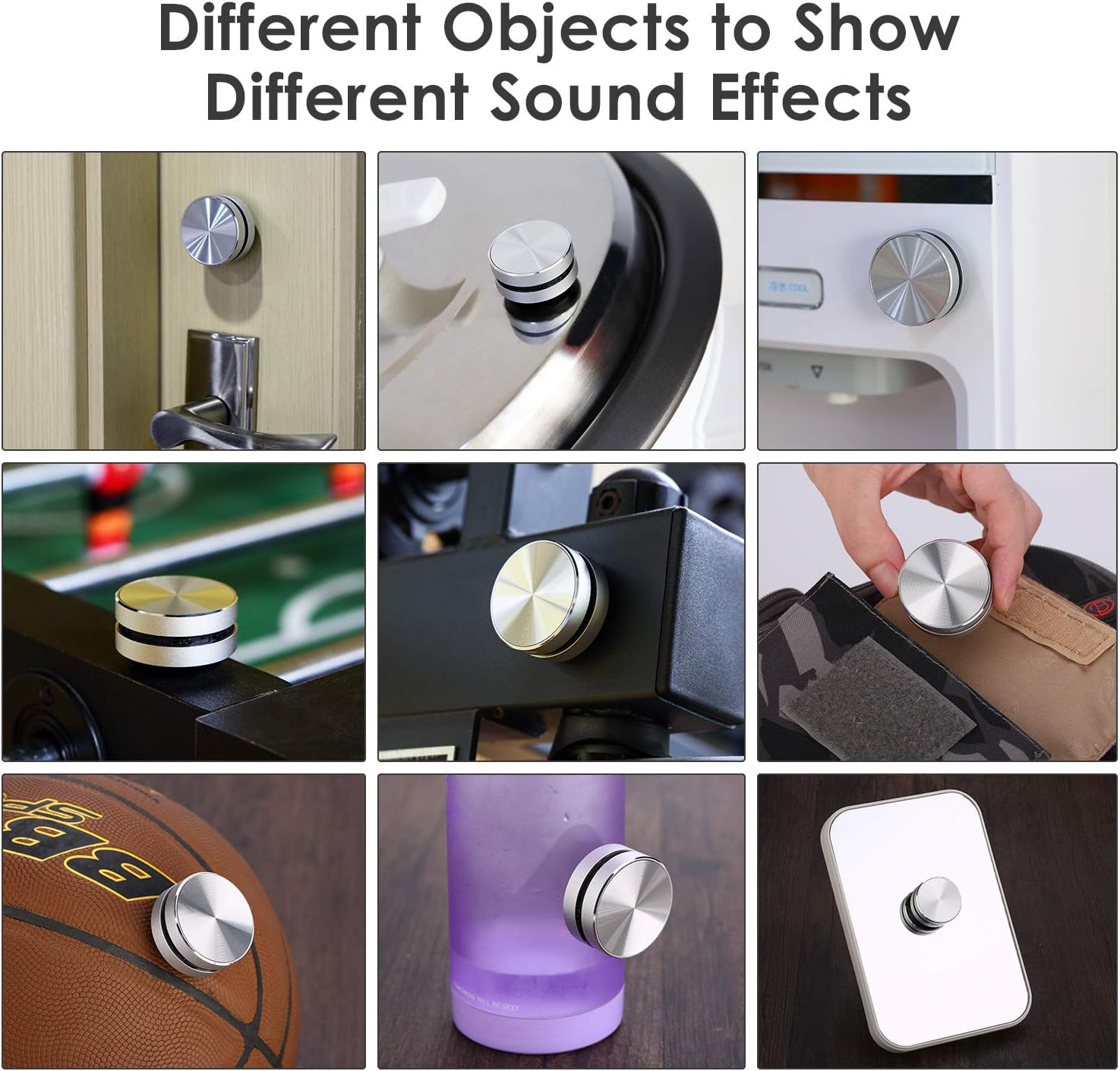
Image: The speaker shown on various objects, illustrating how different surfaces produce distinct sound qualities.
Recommended Surfaces: Thin hollow objects such as cardboard boxes, plastic containers, glass, guitars, or even dashboards can provide varied sound effects. The sound quality and volume will depend on the material and resonance of the surface.
Hands-Free Calls:
When connected to your smartphone via Bluetooth, the speaker can be used for hands-free calls. The built-in microphone (3) allows for clear communication.
- Answer Call: Short press the Function Keys (2) when a call comes in.
- End Call: Short press the Function Keys (2) during a call.
- Reject Call: Press and hold the Function Keys (2) when a call comes in.
FM Radio Function:
In FM radio mode, the speaker can scan and play local radio stations. Short press the Power Button/FM Radio (4) to switch to FM mode. Use the Function Keys (2) to scan or change stations (specific controls may vary, refer to quick start guide for detailed FM operation).
Product Demonstration Videos:
Video: Demonstration of the Bone Conduction Speaker's features and sound capabilities. (Source: EdgeProductions)
Video: Showcasing the small bone conduction speaker for various occasions with friends. (Source: XennialLife)
Video: Demonstrating how to turn various objects into a speaker using this gadget. (Source: Ashedits)
Video: A review highlighting the compact nature and performance of the bone conduction speaker. (Source: XennialLife)
5. Maintenance
To ensure the longevity and optimal performance of your Bigvapor Bone Conduction Speaker, follow these maintenance guidelines:
- Handle with Care: Avoid dropping the speaker or subjecting it to strong impacts.
- Transducer Protection: The transducer (the part that adheres to surfaces) is sensitive. Do not pull too hard on the speaker when removing it from a surface, as this can damage the base. Use the provided sticker to protect the adhesive part and ensure better grip.
- Cleaning: Use a soft, dry cloth to clean the speaker's exterior. Do not use harsh chemicals or abrasive materials.
- Storage: Store the speaker in a cool, dry place away from direct sunlight and extreme temperatures.
- Water Resistance: This product is NOT waterproof. Avoid exposure to water or high humidity.
6. Troubleshooting
If you encounter issues with your speaker, refer to the following common problems and solutions:
| Problem | Possible Cause | Solution |
|---|---|---|
| Speaker does not turn on. | Low battery or power button not pressed correctly. | Charge the speaker fully. Press and hold the power button for a few seconds. |
| Cannot pair via Bluetooth. | Speaker not in pairing mode, device Bluetooth off, or too far from device. | Ensure speaker is in pairing mode (flashing LED). Turn on Bluetooth on your device. Move speaker closer to device (within 10 meters). |
| Low or poor sound quality. | Surface not suitable for bone conduction, low volume on device, or speaker not firmly attached. | Experiment with different hollow surfaces. Increase volume on your connected device. Ensure the speaker's transducer is firmly pressed against the surface. |
| Short battery life. | Speaker not fully charged, or battery degradation over time. | Ensure speaker is fully charged. If battery life significantly decreases, consider contacting support. |
| TWS pairing fails. | Speakers not turned on simultaneously or too far apart during pairing. | Turn on both speakers at the same time. Ensure they are close to each other during the TWS pairing process. |
7. Specifications
| Feature | Detail |
|---|---|
| Brand | Bigvapor |
| Model Number | Black Bone Conduction Speaker |
| Speaker Maximum Output Power | 10 Watts |
| Frequency Response | 100 Hz |
| Connectivity Technology | Bluetooth |
| Audio Output Mode | Stereo, Surround |
| Mounting Type | Wall Mount (via adhesive) |
| Enclosure Material | Metal |
| Additional Features | Portable, Stereo Pairing |
| Controller Type | Button |
| Color | Silver |
| Battery Average Life | 3 years |
| Is Waterproof | FALSE |
| Control Method | Touch |
| Speaker Size | 3 Centimeters |
| Bluetooth Range | 10 Meters |
| Power Source | Battery Powered |
| Number of Batteries | 1 Lithium Ion battery required |
| Item Dimensions D x W x H | 1.97"D x 1.97"W x 1.97"H |
| Item Weight | 100 Grams |
| Compatible Devices | Smartphone, Personal Computer, Tablet, Television, Laptop, Gaming Console |
| Audio Driver Type | Bone Conduction Driver |
8. Warranty and Support
This product comes with a Limited Warranty. For warranty claims or technical support, please refer to the contact information provided at the point of purchase or visit the Bigvapor official website. Keep your purchase receipt as proof of purchase.