
1. Introduction
This manual provides detailed instructions for the Dpofirs V8 External Bluetooth Sound Card. This device is designed to enhance audio quality and add various effects for live streaming, recording, and other audio applications. Please read this manual thoroughly before using the product to ensure proper operation and to maximize its features.
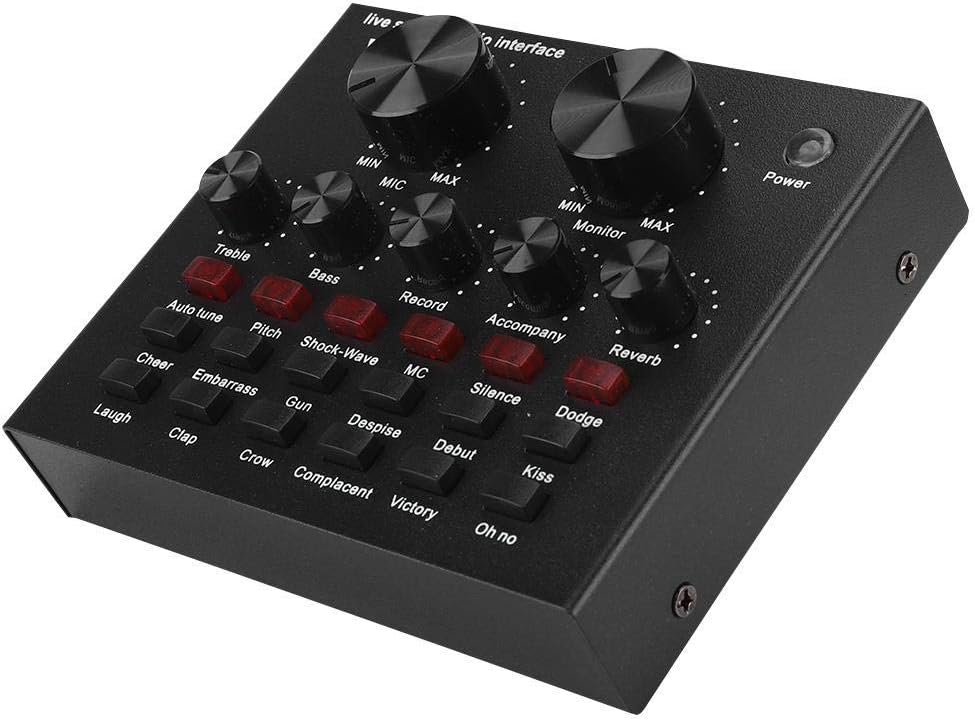
Figure 1: Angled view of the Dpofirs V8 External Bluetooth Sound Card.
2. Product Features
The Dpofirs V8 External Bluetooth Sound Card offers a range of features for versatile audio control:
- Multiple Connection Methods: Supports various setups including single or dual mobile phone live streaming, mobile phone and computer synchronous live broadcasting, computer-only live broadcasting, computer accompaniment for mobile phone live streaming, and instrument input for mobile phone live streaming.
- Audio Adjustments: Independent controls for reverb size, microphone volume, treble, bass, recording volume, music volume, and monitor volume (headphone function).
- Extensive Sound Effects: Features 112 kinds of electro-acoustic effects, 18 types of sound effects, and 6 effect modes to enrich audio output.
- Bluetooth Connectivity: Allows wireless connection to phones and tablets for music playback and accompaniment.
- Portable Design: Compact and easy to use for various applications.

Figure 2: The V8 Sound Card showcasing its wide array of sound effects and modes.
3. Package Contents
Please check the package to ensure all items are present:
- Dpofirs V8 External Bluetooth Sound Card
- USB Charging Cable
- Audio Cables (2-3 units, depending on model variation)
- User Manual (English)
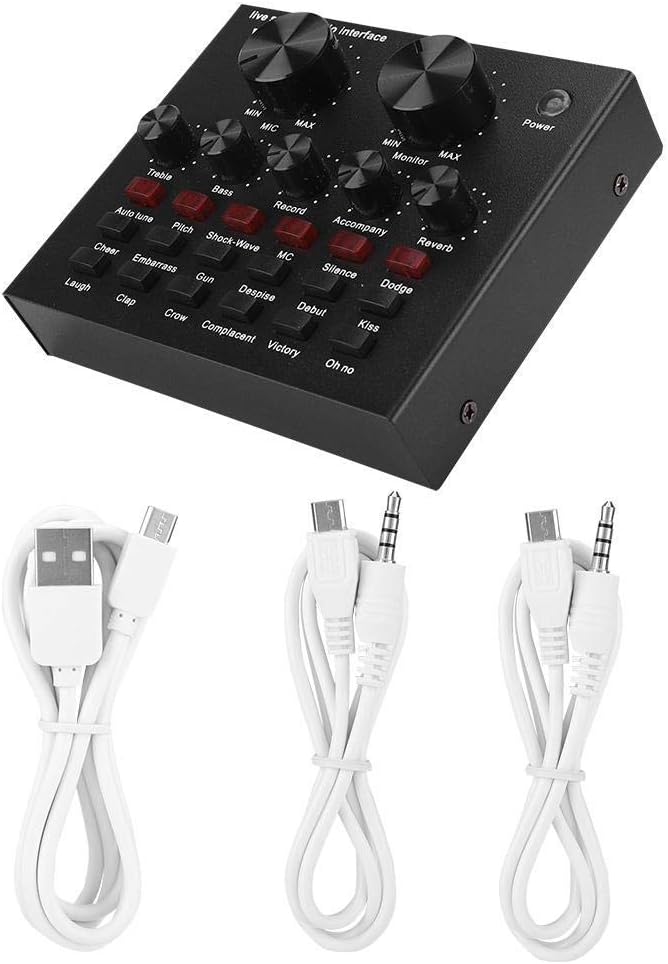
Figure 3: The V8 Sound Card and its accompanying cables.
4. Device Layout
Familiarize yourself with the controls and ports of the V8 Sound Card:

Figure 4: Front panel layout of the V8 Sound Card.
Front Panel Controls:
- MIC (Microphone Volume): Adjusts the input volume of the microphone.
- MONITOR (Monitor Volume): Adjusts the volume for headphones/earphones.
- TREBLE: Adjusts the high-frequency sound.
- BASS: Adjusts the low-frequency sound.
- RECORD: Adjusts the recording output volume.
- ACCOMPANY: Adjusts the accompaniment music volume.
- REVERB: Adjusts the reverb effect intensity.
- POWER Button: Turns the device on/off.
- Effect Buttons: Buttons for various electro-acoustic effects (e.g., Auto tune, Pitch, Shock-Wave, MC, Silence, Dodge) and sound effects (e.g., Cheer, Embarrass, Gun, Despise, Debut, Kiss, Laugh, Clap, Crow, Complacent, Victory, Oh no).

Figure 5: Rear panel layout of the V8 Sound Card.
Rear Panel Ports:
- LIVE1 / LIVE2: Output ports for connecting to mobile phones for live streaming.
- ACCOMPANY INSTRUMENT: Input port for connecting an accompaniment device or instrument.
- CHARGING: Micro USB port for charging the device.
- EARPHONE SPEAKER: Output port for connecting headphones or speakers.
- HEADSET: Input/output port for connecting a headset (microphone and headphones combined).
- CONDENSER MIC: Input port for connecting a condenser microphone.
- DYNAMIC MIC: Input port for connecting a dynamic microphone.
5. Setup
Follow these steps to set up your Dpofirs V8 Sound Card:
- Charge the Device: Connect the USB charging cable to the 'CHARGING' port on the sound card and to a USB power adapter (not included) or a computer USB port. The indicator light will show charging status.
- Connect Microphones: Connect your condenser microphone to the 'CONDENSER MIC' port or your dynamic microphone to the 'DYNAMIC MIC' port. If using a headset, connect it to the 'HEADSET' port.
- Connect Monitoring Device: Connect your headphones or speakers to the 'EARPHONE SPEAKER' port for audio monitoring.
- Connect to Live Streaming Device (Mobile Phone): Use the provided audio cables to connect the 'LIVE1' or 'LIVE2' port on the sound card to the 3.5mm audio jack of your mobile phone.
- Connect to Accompaniment Device: If using an external device for accompaniment music, connect it to the 'ACCOMPANY INSTRUMENT' port using an audio cable.
- Power On: Press and hold the 'POWER' button on the front panel to turn on the sound card.

Figure 6: Example setup with the V8 Sound Card connected to a computer and instrument.
6. Operating Instructions
Once the sound card is set up, you can begin using its various functions:
6.1. Basic Audio Control
- Microphone Volume: Rotate the 'MIC' knob to adjust your microphone's input level.
- Monitor Volume: Rotate the 'MONITOR' knob to adjust the volume heard through your headphones or speakers.
- Treble and Bass: Use the 'TREBLE' and 'BASS' knobs to fine-tune the high and low frequencies of your voice or instrument.
- Reverb: Adjust the 'REVERB' knob to control the intensity of the reverberation effect.
- Accompaniment Volume: Adjust the 'ACCOMPANY' knob to control the volume of background music or instrument input.
- Recording Volume: Adjust the 'RECORD' knob to control the output volume sent to your recording or live streaming device.
6.2. Using Sound Effects and Electro-Acoustic Modes
The V8 Sound Card features dedicated buttons for various effects:
- Electro-Acoustic Effects: Press the buttons labeled 'Auto tune', 'Pitch', 'Shock-Wave', 'MC', 'Silence', 'Dodge' to activate different vocal processing effects. Experiment to find the desired sound.
- Sound Effects: Press the buttons labeled 'Cheer', 'Embarrass', 'Gun', 'Despise', 'Debut', 'Kiss', 'Laugh', 'Clap', 'Crow', 'Complacent', 'Victory', 'Oh no' to trigger various sound bites during your live stream or recording.
6.3. Bluetooth Connection
To connect your phone or tablet via Bluetooth for accompaniment music:
- Ensure the V8 Sound Card is powered on.
- Enable Bluetooth on your mobile device.
- Search for available Bluetooth devices and select 'V8' (or similar name) from the list.
- Once connected, you can play music from your mobile device, and it will be routed through the sound card as accompaniment. Adjust the 'ACCOMPANY' knob to control its volume.

Figure 7: Bluetooth connection between the V8 Sound Card and a smartphone.
7. Troubleshooting
If you encounter issues with your Dpofirs V8 Sound Card, refer to the following common problems and solutions:
| Problem | Possible Cause | Solution |
|---|---|---|
| No sound output from headphones/speakers. | Monitor volume too low; incorrect port connection; faulty cable. | Increase 'MONITOR' volume. Ensure headphones/speakers are connected to 'EARPHONE SPEAKER' or 'HEADSET' port. Test with another cable or device. |
| Microphone not picking up sound. | Microphone volume too low; incorrect microphone port; microphone not powered (if condenser). | Increase 'MIC' volume. Ensure microphone is connected to 'CONDENSER MIC' or 'DYNAMIC MIC' port. Verify condenser microphone power if applicable. |
| Bluetooth connection fails. | Sound card not in pairing mode; device too far; interference. | Ensure sound card is on. Move mobile device closer. Restart both devices and try pairing again. |
| Sound is distorted or has static. | Volume levels too high (clipping); faulty cable; interference. | Reduce 'MIC', 'MONITOR', or 'RECORD' volumes. Replace audio cables. Move away from other electronic devices. |
| Device does not power on. | Battery depleted; faulty charging cable/adapter. | Charge the device fully. Try a different USB charging cable and power adapter. |
8. Specifications
| Feature | Detail |
|---|---|
| Model | V8 |
| Dimensions | 7.87 x 4.72 x 0.79 inches |
| Item Weight | 15.9 ounces |
| Hardware Interface | Bluetooth, USB |
| Audio Output Mode | Stereo |
| Compatible Devices | Smartphone, Headphone, Laptop |
| Platform | Android (also compatible with iOS and PC for general audio functions) |
| Electro-Acoustic Effects | 112 types |
| Sound Effects | 18 types |
| Effect Modes | 6 types |
9. Maintenance
To ensure the longevity and optimal performance of your Dpofirs V8 Sound Card, follow these maintenance guidelines:
- Cleaning: Use a soft, dry cloth to clean the surface of the device. Avoid using liquid cleaners or abrasive materials.
- Storage: Store the sound card in a cool, dry place away from direct sunlight and extreme temperatures.
- Handling: Handle the device with care. Avoid dropping it or subjecting it to strong impacts.
- Cables: Always grasp the plug, not the cable, when connecting or disconnecting. Avoid bending cables sharply.
10. Warranty and Support
Specific warranty details are typically provided with your purchase documentation or on the product packaging. For technical support, warranty claims, or further assistance, please refer to the contact information provided by your retailer or the manufacturer, Dpofirs. You may also visit the Dpofirs Brand Store on Amazon for more information.


