
JBL Horizon 2
JBL Horizon 2 Bluetooth Clock Radio Speaker User Manual
Model: Horizon 2
1. Introduction
The JBL Horizon 2 is a versatile clock radio speaker designed to enhance your bedside experience. It combines a powerful JBL Pro Sound speaker with an FM/DAB radio, a customizable alarm clock, ambient lighting, and convenient USB charging ports. This manual provides detailed instructions for setting up, operating, and maintaining your device.
2. What's in the Box
- JBL Horizon 2 Speaker
- FM Antenna
- Quick Start Guide
- Power Adapter (not explicitly listed but implied for operation)
3. Product Overview
Front View

The front of the JBL Horizon 2 features a large LCD display showing the current time, date, and alarm status. A built-in light sensor automatically adjusts the display brightness.
Top Controls

The top panel includes a multi-function rotary control knob for setting time, adjusting volume, and snoozing alarms. Additional buttons for radio presets, Bluetooth pairing, and track control are also located here.
Side Panel (Controls and USB Ports)
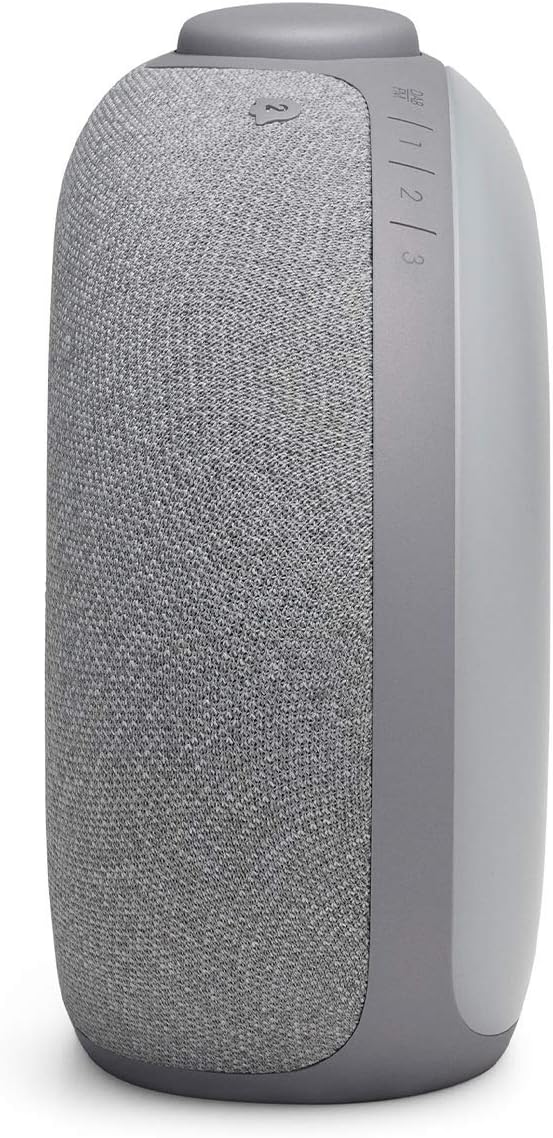
One side of the device houses playback controls (play/pause, skip track) and the Bluetooth pairing button.

The other side features two USB ports for charging external devices.
Rear Ambient Light
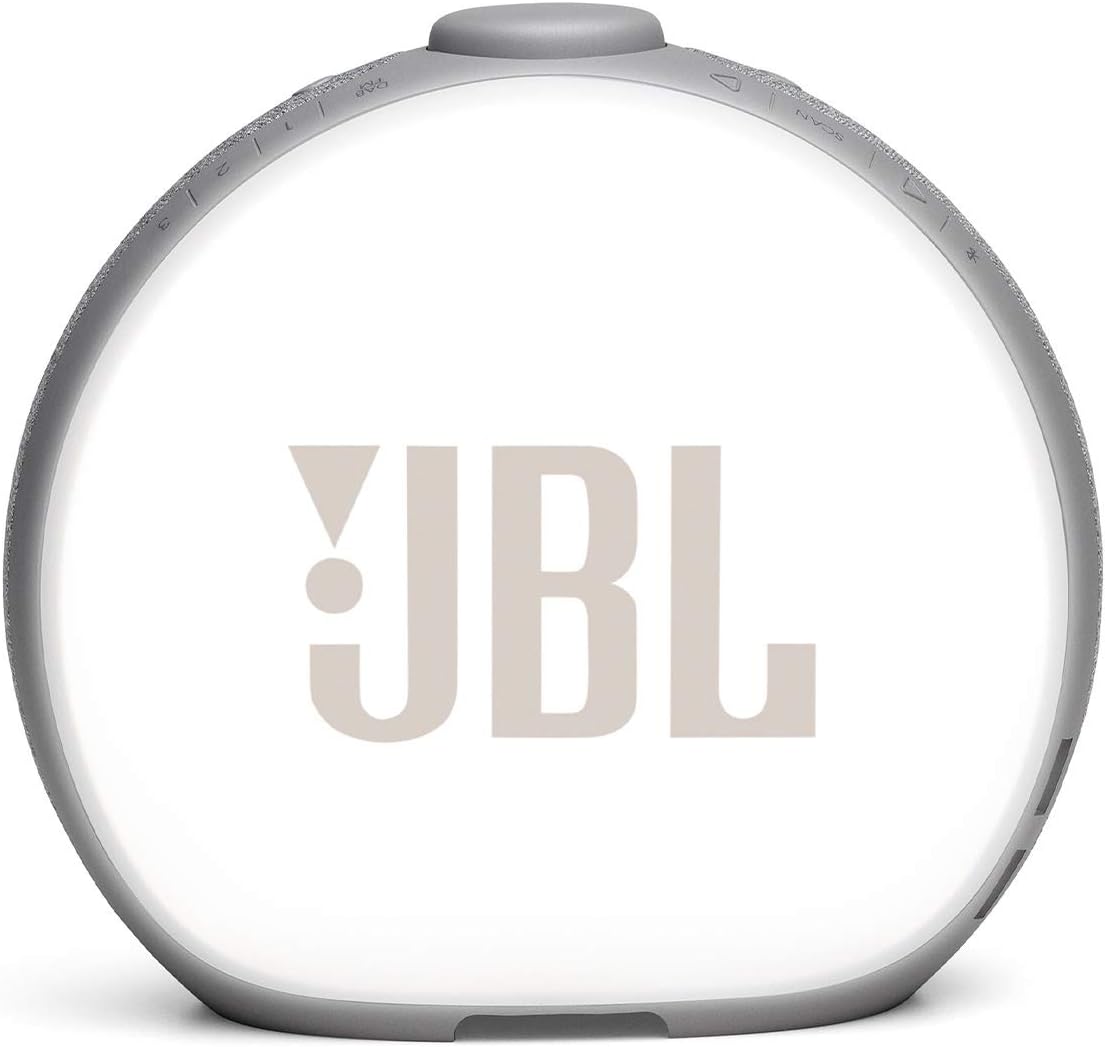
The rear of the unit features an ambient light that provides soft illumination, functioning as a nightlight.
Bottom Panel (Connections)

The bottom panel contains the power input, AUX-in port, and the FM antenna connection point. A 'SET TIME' button is also present for manual time adjustments.
4. Setup
- Connect Power: Plug the power adapter into the DC input on the bottom of the Horizon 2, then connect it to a wall outlet.
- Connect FM Antenna: For optimal FM/DAB radio reception, connect the provided FM antenna to the designated port on the bottom of the unit. Extend the antenna fully.
- Initial Time Setting: Upon first power-on, the device will attempt to synchronize the time automatically. If manual adjustment is needed, press the 'SET TIME' button on the bottom panel and use the rotary knob to set the time and date.
5. Operating Instructions
5.1 Power On/Off
The device is designed to be continuously powered. To turn off the display and audio, press and hold the rotary knob. Press it again to turn on.
5.2 Bluetooth Pairing
- Press the Bluetooth button on the side panel to enter pairing mode. The Bluetooth indicator on the display will flash.
- On your mobile device, enable Bluetooth and select 'JBL Horizon 2' from the list of available devices.
- Once connected, the Bluetooth indicator will become solid, and you can stream audio wirelessly.
5.3 FM/DAB Radio
- Switching Modes: Press the 'DAB/FM' button on the top panel to switch between FM and DAB radio modes.
- Scanning Stations: Press the 'SCAN' button to automatically scan for available radio stations.
- Manual Tuning: Rotate the rotary knob to manually tune to a specific frequency.
- Saving Presets: To save a favorite station, tune to the desired station, then press and hold one of the preset buttons (1, 2, or 3) until the display confirms it's saved.
- Recalling Presets: Briefly press the corresponding preset button (1, 2, or 3) to recall a saved station.
5.4 Alarm Settings
- Setting an Alarm: Press the Alarm 1 or Alarm 2 button on the top panel. Use the rotary knob to set the alarm time, alarm source (FM/DAB radio or built-in digital tones), and volume.
- Customizing Alarm: You can select different alarm tones or your favorite radio station as the alarm sound.
- Snooze Function: When the alarm sounds, press the rotary knob to activate snooze. The snooze duration is typically 9 minutes.
- Stopping Alarm: To turn off the alarm for the day, press the Alarm 1 or Alarm 2 button again.
5.5 Ambient Light
The ambient light on the rear of the unit can be turned on or off by pressing the light button on the top panel. It provides a soft glow suitable for a nightlight.
5.6 USB Charging
Connect your smartphone, tablet, or other USB-powered devices to the two USB charging ports on the side of the Horizon 2 to charge them conveniently.
5.7 Volume Control
Rotate the multi-function knob to adjust the audio volume for both Bluetooth streaming and radio playback.
5.8 Display Brightness
The built-in light sensor automatically adjusts the brightness of the LCD display to suit the ambient lighting conditions of the room. There is no manual override for this automatic adjustment.
6. Maintenance
- Cleaning: Use a soft, dry cloth to clean the surface of the device. Avoid using abrasive cleaners or solvents.
- Placement: Place the Horizon 2 on a stable, flat surface. Avoid placing it near heat sources, direct sunlight, or in excessively humid environments.
- Antenna Care: Ensure the FM antenna is not bent or damaged for optimal reception.
7. Troubleshooting
| Issue | Possible Cause / Solution |
|---|---|
| No power | Ensure the power adapter is securely connected to both the device and a working power outlet. |
| No sound / Low volume | Check the volume level on both the Horizon 2 and your connected Bluetooth device. Ensure the correct audio source is selected. |
| Bluetooth not connecting | Ensure the Horizon 2 is in pairing mode. Turn off and on Bluetooth on your mobile device. Try unpairing and re-pairing. |
| Poor radio reception | Ensure the FM antenna is fully extended and positioned for best reception. Try repositioning the unit. |
| Alarm not sounding | Verify that the alarm is enabled and correctly set. Check the alarm volume. |
| Display too dim/bright | The display brightness is automatically adjusted by a light sensor. Ensure the sensor is not obstructed. There is no manual brightness control. |
8. Specifications
| Feature | Detail |
|---|---|
| Brand | JBL |
| Model | Horizon 2 |
| Connectivity Technology | Bluetooth |
| Radio Bands Supported | FM, DAB |
| Display Type | LED |
| Special Features | Alarm, Radio, Smartphone-Charging, Ambient Light |
| Product Dimensions | 7"W x 6.4"H (approximate) |
| Power Source | Electrical (Battery Powered for backup, 1 Lithium Polymer battery required) |
| Material | Polycarbonate (PC), Plastic |
| Item Weight | 0.108 ounces (approximate) |
| UPC | 050036372374, 050036372411 |
| ASIN | B08DTPPZPS |
9. Warranty and Support
The JBL Horizon 2 comes with a limited warranty. For detailed warranty information, product support, or service inquiries, please refer to the warranty card included with your product or visit the official JBL support website.
You can also visit the JBL Store on Amazon for additional product information.
Ask a question about this manual
Ask about setup, troubleshooting, compatibility, parts, safety, or missing instructions. Manuals+ will review the question and use this page’s manual context to help answer it.