
1. Introduction
The StarTech.com DKT31CHVL USB-C Multiport Adapter is designed to expand the connectivity of your USB-C or Thunderbolt 3 enabled laptop, tablet, or smartphone. This compact and portable adapter provides essential ports for video output, data transfer, and wired network access, making it suitable for various environments, including travel and presentations.
This manual provides detailed instructions for setting up, operating, and maintaining your DKT31CHVL adapter, along with troubleshooting tips and product specifications.
2. Product Overview
The DKT31CHVL adapter features a variety of ports to enhance your device's capabilities. Below is an overview of the adapter and its components.

Image 1: Top-down view of the StarTech.com DKT31CHVL USB-C Multiport Adapter, showing its compact gray casing and integrated USB-C host cable.
2.1 Components
- USB-C Host Cable: Integrated 29cm (1ft) cable for connecting to your host device.
- HDMI Port: For connecting to an HDMI display, supporting resolutions up to 4K at 30Hz.
- VGA Port: For connecting to a VGA display, supporting resolutions up to 1080p.
- USB-A Port (10Gbps): For connecting USB-A peripherals.
- USB-C Port (10Gbps): For connecting USB-C peripherals.
- Gigabit Ethernet Port: For wired network connectivity.
2.2 Port Layout

Image 2: Side view of the adapter showing the Gigabit Ethernet port, a USB-C data port, and a USB-A data port. These ports facilitate high-speed data transfer and network access.
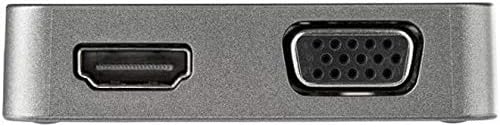
Image 3: Opposite side view of the adapter, featuring the HDMI output port and the VGA output port. These allow connection to various external displays.
3. Setup Instructions
Follow these steps to set up your StarTech.com DKT31CHVL Multiport Adapter.
- Connect to Host Device: Plug the integrated USB-C host cable from the DKT31CHVL adapter into an available USB-C or Thunderbolt 3 port on your laptop, tablet, or smartphone.

Image 4: The USB-C Multiport Adapter with its integrated cable, ready for connection to a host device. The cable provides flexibility for various setups.
- Connect Display (Optional):
- For HDMI: Connect an HDMI cable from your display to the HDMI port on the adapter.
- For VGA: Connect a VGA cable from your display to the VGA port on the adapter.
- Note: Only one video output (HDMI or VGA) can be used at a time.
- Connect USB Peripherals (Optional): Plug your USB-A or USB-C devices (e.g., mouse, keyboard, external drive) into the corresponding USB-A or USB-C data ports on the adapter.
- Connect to Network (Optional): Connect an Ethernet cable from your router or network switch to the Gigabit Ethernet port on the adapter.
- Driver Installation: The DKT31CHVL adapter supports native driver installation on most operating systems, including Windows, macOS, Chrome OS, iPadOS, iOS, and Android. Drivers should install automatically upon connection.
4. Operating Instructions
Once connected, the DKT31CHVL adapter functions as an extension of your host device's capabilities.
4.1 Video Output
- The adapter supports a single video output at a time. If both HDMI and VGA are connected, only one will be active.
- Configure your display settings on your host device to extend or mirror your screen.
- HDMI supports up to 4K (3840x2160) at 30Hz.
- VGA supports up to 1080p (1920x1080).
4.2 USB Data Transfer
- The USB-A and USB-C data ports support USB 3.2 Gen 2 (10Gbps) for high-speed data transfer.
- These ports are backwards compatible with USB 3.2 Gen 1 (5Gbps) and USB 2.0 devices.
4.3 Gigabit Ethernet
- The Gigabit Ethernet port provides a stable wired network connection up to 1000 Mbps.
- Ensure your host device's network settings are configured for a wired connection if necessary.
5. Maintenance
To ensure the longevity and optimal performance of your DKT31CHVL adapter, follow these maintenance guidelines:
- Cleaning: Use a soft, dry cloth to clean the exterior of the adapter. Avoid using liquid cleaners or solvents.
- Storage: Store the adapter in a cool, dry place away from direct sunlight and extreme temperatures when not in use.
- Handling: Avoid dropping the adapter or subjecting it to strong impacts. Do not pull on the integrated cable forcefully.
- Ventilation: Ensure the adapter has adequate ventilation during operation to prevent overheating.
6. Troubleshooting
If you encounter issues with your DKT31CHVL adapter, refer to the following common problems and solutions:
6.1 No Video Output
- Check Connections: Ensure the USB-C host cable is securely connected to your device and the HDMI/VGA cable is firmly connected to both the adapter and the display.
- Single Video Output: Remember that only one video output (HDMI or VGA) can be active at a time. Disconnect the unused video cable.
- Display Settings: Verify your host device's display settings are configured correctly (e.g., extended, mirrored, or second screen only).
- Resolution Compatibility: Ensure your display supports the output resolution from the adapter.
- Host Device Compatibility: Confirm your host device's USB-C port supports DisplayPort Alternate Mode (Alt Mode) for video output.
6.2 USB Devices Not Recognized
- Reconnect: Disconnect and reconnect the USB device to the adapter.
- Power: For high-power USB devices, ensure they have their own power source if needed, as the adapter is bus-powered.
- Host Device USB Port: Try connecting the adapter to a different USB-C port on your host device.
6.3 No Network Connection
- Cable Check: Ensure the Ethernet cable is securely connected to both the adapter and your network router/switch.
- Network Settings: Verify your host device's network settings. Ensure the wired connection is enabled and configured correctly.
- Router/Switch: Confirm your router or network switch is functioning correctly.
If these steps do not resolve the issue, please visit the StarTech.com support website for further assistance.
7. Specifications
| Feature | Detail |
|---|---|
| Model Number | DKT31CHVL |
| Brand | StarTech.com |
| Host Connector | 1x USB-C (Integrated Cable) |
| Video Output | 1x HDMI (4K 30Hz), 1x VGA (1080p) |
| USB Data Ports | 1x USB-A (10Gbps), 1x USB-C (10Gbps) |
| Network Interface | 1x Gigabit Ethernet (RJ45) |
| Operating System Compatibility | Windows, macOS, Chrome OS, iPadOS, iOS, Android |
| Power Source | Bus-powered |
| Dimensions (LxWxH) | 14.2 x 2.4 x 0.6 inches (Adapter body only) |
| Item Weight | 1.92 ounces (55 g) |
| Color | Black |
8. Warranty and Support
The StarTech.com DKT31CHVL USB-C Multiport Adapter is backed by a StarTech.com warranty. For specific warranty details, please refer to the warranty information included with your product or visit the official StarTech.com website.
For technical support, product documentation, and frequently asked questions, please visit the StarTech.com support page:


