
1. Introduction
This manual provides detailed instructions for the setup, operation, maintenance, and troubleshooting of your Bonadget PS4 Wireless Gamepad. Please read this manual thoroughly before using the product to ensure proper function and longevity.

Image 1.1: Front view of the Bonadget PS4 Wireless Gamepad. This image displays the controller's layout, including the D-pad, action buttons, analog sticks, touch pad, and central PS button.
2. Product Features
- Multiple Compatibility: Compatible with all PS4 models, iPhone devices, Android, and PC, allowing for versatile gaming across various platforms.
- Built-in Dual Shock Function: Equipped with dual vibration motors for realistic haptic feedback, enhancing the immersive gaming experience.
- Innovative Play Features: Includes a multi-touch and clickable touch pad, an integrated light bar, and a built-in speaker, offering new ways to interact with games.
- Precision Control: Enhanced analog sticks and trigger buttons provide improved accuracy and reduced response time for critical in-game moments.
- Efficient Charging: Easily recharged by connecting to a PlayStation 4 system or via the included USB charger cable.

Image 2.1: Illustration highlighting the dual motor vibration feature of the gamepad. This image visually represents the haptic feedback system that provides immersive game experiences.

Image 2.2: Illustration demonstrating the 360-degree remote sensing design of the analog sticks. This feature ensures high precision and sensitive control for accurate in-game movements.
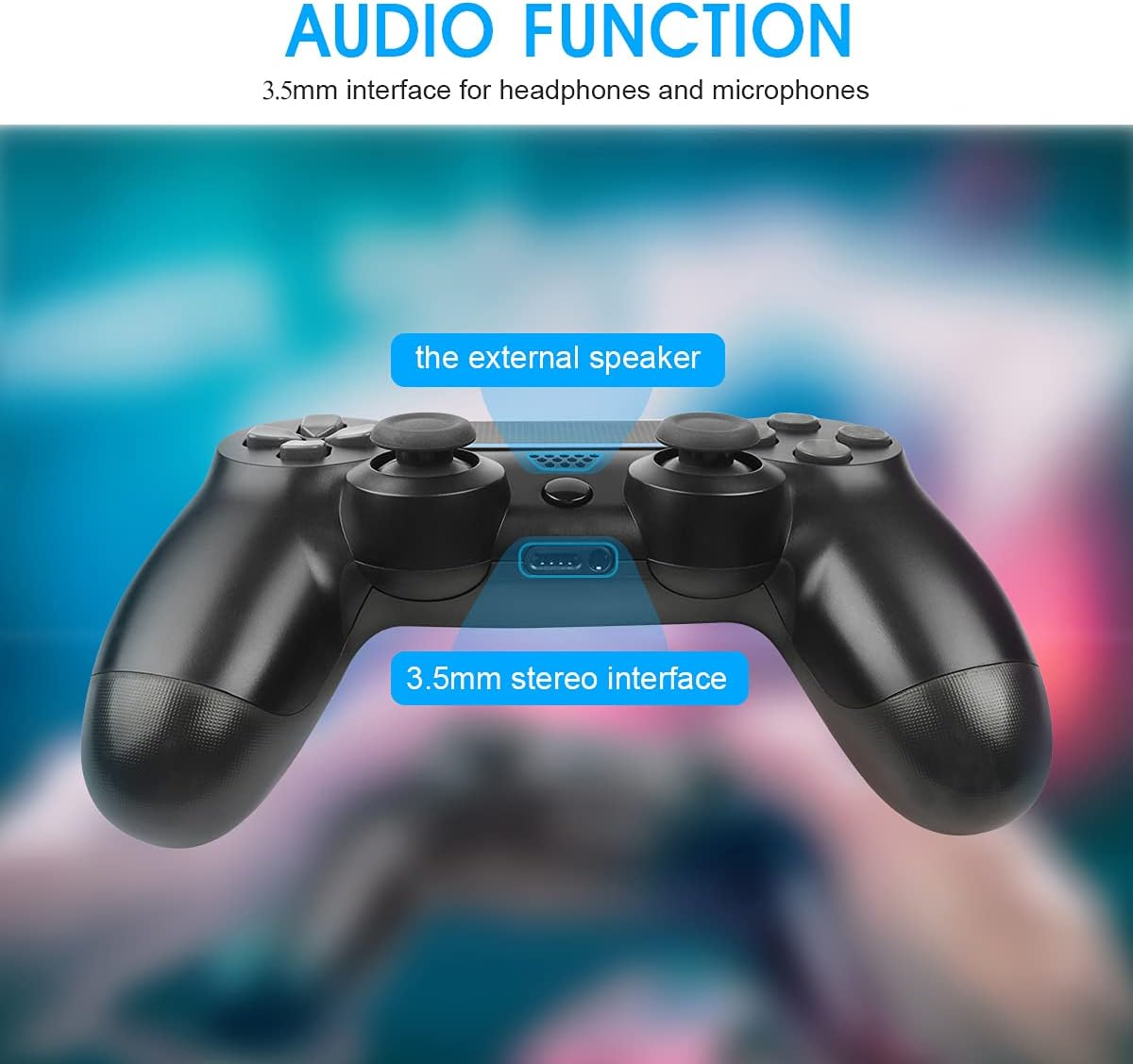
Image 2.3: Diagram illustrating the audio functions of the controller, specifically pointing out the 3.5mm stereo interface for headphones and microphones, and the external speaker location.
3. Setup and Connection
The Bonadget PS4 Wireless Gamepad supports multiple platforms. Follow the instructions below to connect your controller to your desired device.
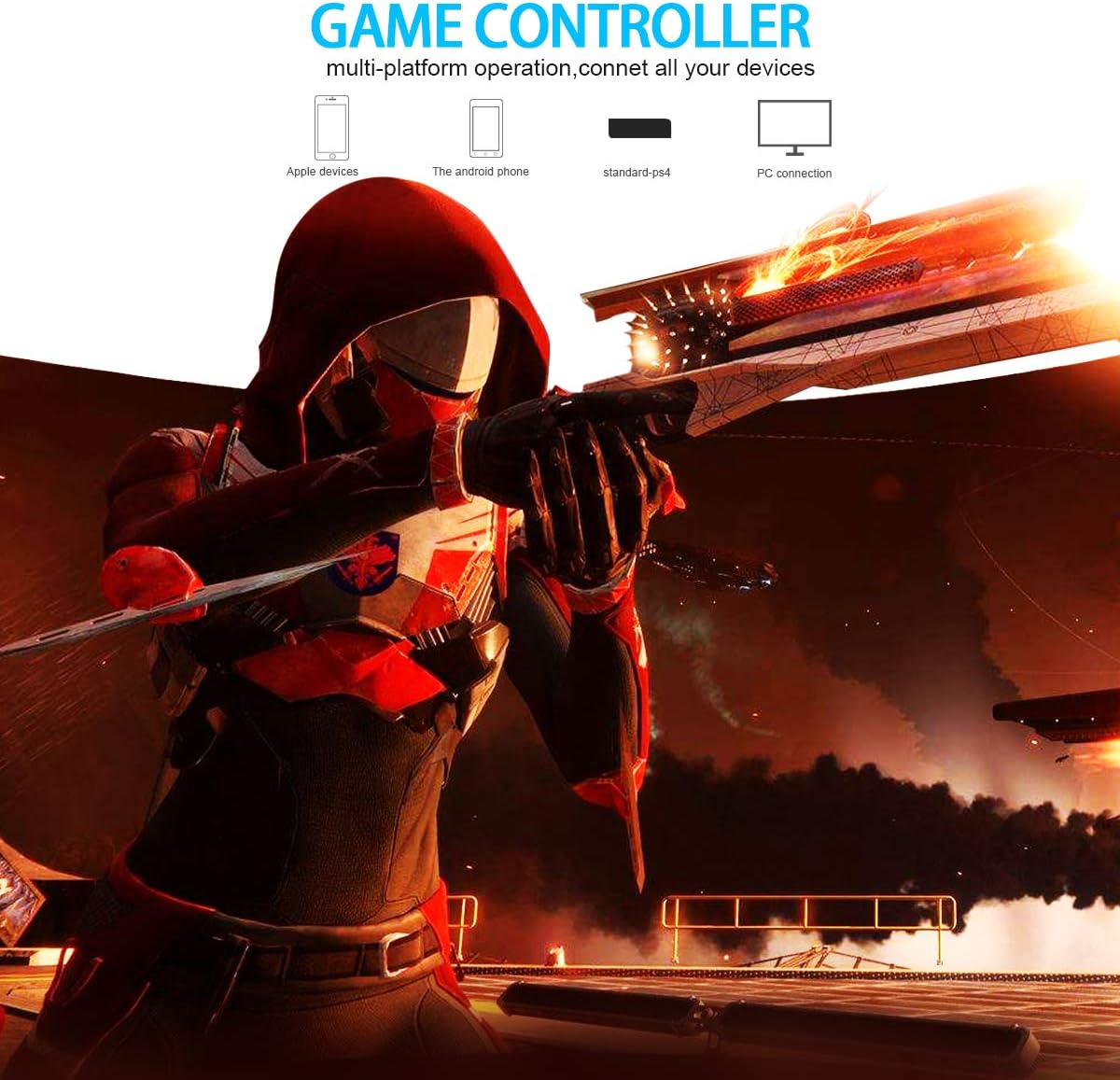
Image 3.1: Diagram illustrating the multi-platform compatibility of the gamepad, showing connections to Apple devices, Android phones, standard PS4, and PC.
3.1. Connecting to PlayStation 4
- Ensure your PS4 console is powered on.
- Connect the controller to the PS4 console using the included USB cable.
- Press the PS button on the controller. The light bar will flash and then glow steadily, indicating a successful connection.
- Once paired, you can disconnect the USB cable for wireless play.
3.2. Connecting to PC (Windows)
- Connect the controller to your PC using the included USB cable.
- The PC should automatically detect and install the necessary drivers.
- For optimal performance, ensure your PC's operating system is up to date.
- Some games may require specific controller configurations within their settings.
3.3. Connecting to iPhone/Android Devices
The controller supports Bluetooth connection for mobile devices. Specific pairing instructions may vary slightly depending on your device's operating system version.
- Ensure the controller is fully charged.
- On your mobile device, go to Bluetooth settings and enable Bluetooth.
- On the controller, press and hold the SHARE button and the PS button simultaneously until the light bar begins to flash rapidly. This indicates the controller is in pairing mode.
- On your mobile device, look for "Wireless Controller" or a similar name in the list of available Bluetooth devices and select it to pair.
- Once paired, the light bar will stop flashing and glow steadily.
4. Operating Instructions
4.1. Basic Controls
The Bonadget PS4 Wireless Gamepad features standard PlayStation controller button layouts.
- Analog Sticks: Used for movement and camera control.
- D-Pad: Directional input for menu navigation or specific game actions.
- Action Buttons (Triangle, Circle, Cross, Square): Perform in-game actions.
- Shoulder Buttons (L1, R1) and Triggers (L2, R2): Used for various in-game functions like aiming, shooting, or item usage.
- PS Button: Powers on the controller, accesses the PS4 system menu, or returns to the home screen.
- SHARE Button: Used for sharing gameplay content (PS4 only).
- OPTIONS Button: Accesses in-game menus or pause screens.
4.2. Touch Pad
The multi-touch and clickable touch pad can be used for navigation, specific game interactions, or as an additional button depending on the game.
4.3. Built-in Speaker and 3.5mm Audio Jack
The controller features a built-in speaker for enhanced audio cues in supported games. The 3.5mm stereo interface allows you to connect headphones or a headset for private audio and voice chat.
5. Charging and Battery
The controller is equipped with a rechargeable battery. To charge the controller:
- Connect the small end of the included USB cable to the charging port on the front of the controller.
- Connect the larger end of the USB cable to a USB port on your PS4 console (even in rest mode), a PC, or a compatible USB wall adapter.
- The light bar on the controller will slowly pulse orange while charging.
- Once fully charged, the light bar will turn off.
Battery Life:
- Working time: Approximately 13-15 hours on a full charge.
- Charging time: Approximately 2.5-3 hours for a full charge.

Image 5.1: Illustration depicting the controller being charged via a USB cable, alongside information on typical working time (13-15 hours) and charging time (2.5-3 hours).
6. Maintenance
- Keep the controller away from extreme temperatures, direct sunlight, and moisture.
- Avoid dropping or subjecting the controller to strong impacts.
- Clean the controller with a soft, dry cloth. Do not use chemical solvents or abrasive cleaners.
- Store the controller in a clean, dry place when not in use.
7. Troubleshooting
| Problem | Possible Cause | Solution |
|---|---|---|
| Controller does not turn on. | Low battery or no charge. | Connect the controller to a power source using the USB cable and allow it to charge for at least 30 minutes. |
| Controller does not connect to PS4/PC. | Not properly paired or USB cable issue. |
|
| Controller disconnects frequently. | Low battery, interference, or out of range. |
|
| Buttons or analog sticks are unresponsive. | Software glitch or physical damage. |
|
8. Specifications
| Brand | Bonadget |
| Model | PS4 Controller Wireless Gamepad |
| Connectivity | Wireless (Bluetooth), USB |
| Compatible Devices | PlayStation 4, PC (Windows), iPhone, Android |
| Battery Capacity | 700mAh / 3.7V |
| Working Time | 13-15 hours (approx.) |
| Charging Time | 2.5-3 hours (approx.) |
| Dimensions | 165mm x 105mm x 45mm |
| Special Features | Dual Motor Vibration, Touch Pad, Integrated Light Bar, Built-in Speaker, 3.5mm Audio Jack |
9. Warranty and Support
For any quality issues (e.g., product not working, broken, or missing components), please contact Bonadget customer support. Refer to the product packaging or the retailer's website for specific warranty details and contact information.
Contact Information: Please refer to your purchase documentation or the official Bonadget website for the most up-to-date customer support contact details.