
YEHUA 6972313151837
YEHUA HDMI Adapter Cable User Manual
Model: 6972313151837
Product Overview
The YEHUA 1080P 2-in-1 USB Type C/Micro USB to HDMI Adapter Cable is designed to connect your Android and iOS devices to a larger screen, such as a TV, projector, or monitor. This cable facilitates the mirroring of files, movies, games, photos, and applications directly from your mobile device to the display.
It features wide compatibility with various Android phones equipped with Type C or Micro USB ports, including Samsung Galaxy, HTC, LG, Google Pixels, Nokia, One Plus, Sony, Moto models, Huawei, and Xiaomi. It also supports iPhone models from iPhone 6 to iPhone 11 Pro Max.
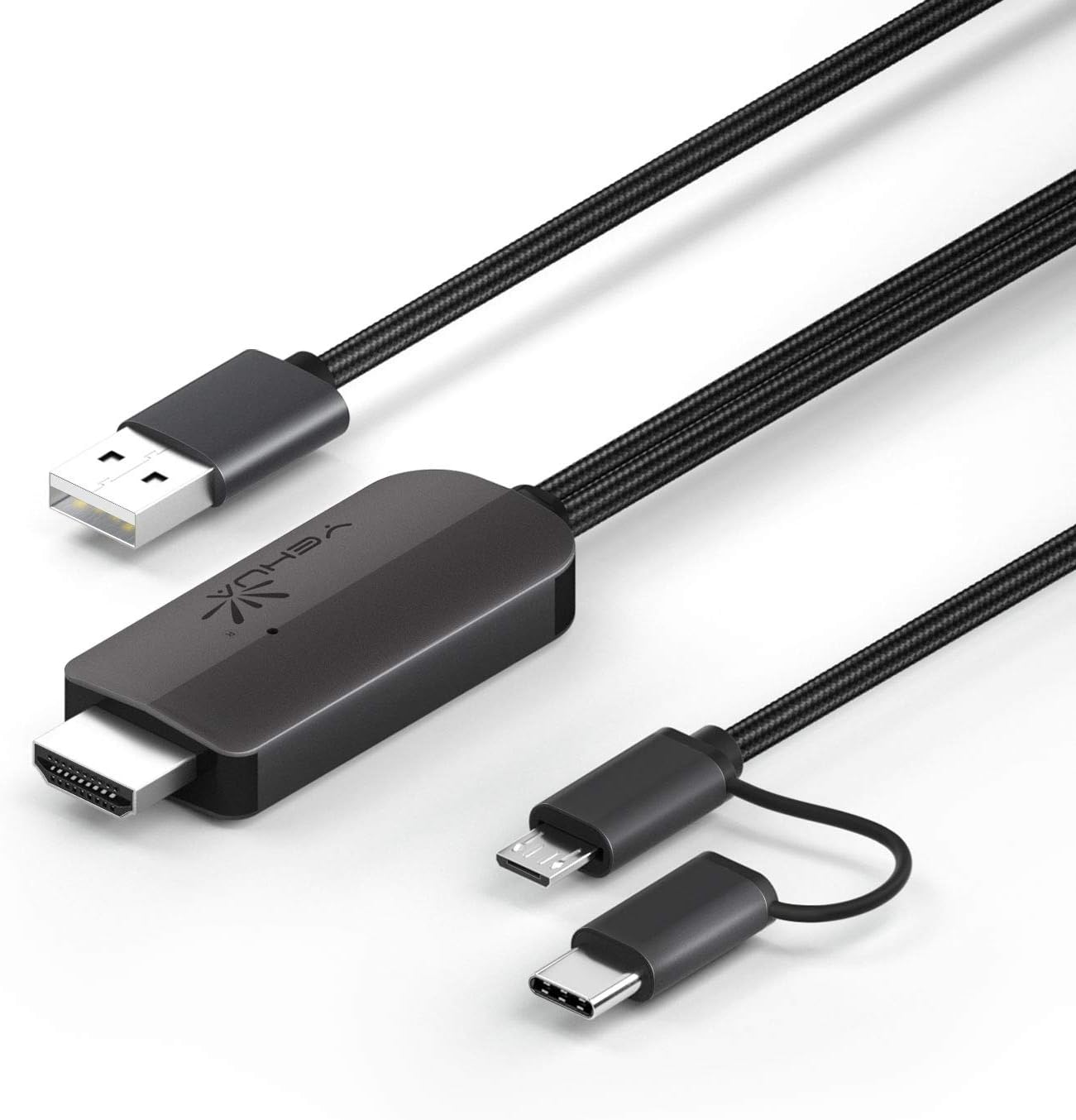
Figure 1: YEHUA HDMI Adapter Cable showing its various connectors: USB-A for power, HDMI for display output, and a combined Micro USB/USB-C for device input.
Key Features
- 1080P Resolution Support: Delivers high-definition video output for clear visuals.
- 2-in-1 Connectivity: Features both USB Type-C and Micro USB connectors for broad compatibility with Android devices.
- Bluetooth 5.0 Audio Synchronization: Ensures audio plays directly from the TV/projector without delay, addressing a common issue with older HDMI adapters for Android.
- Plug and Play (with App): Requires the "MiraPlug" application for full functionality.
- Durable Design: Features quality cords and plugs for enhanced longevity.
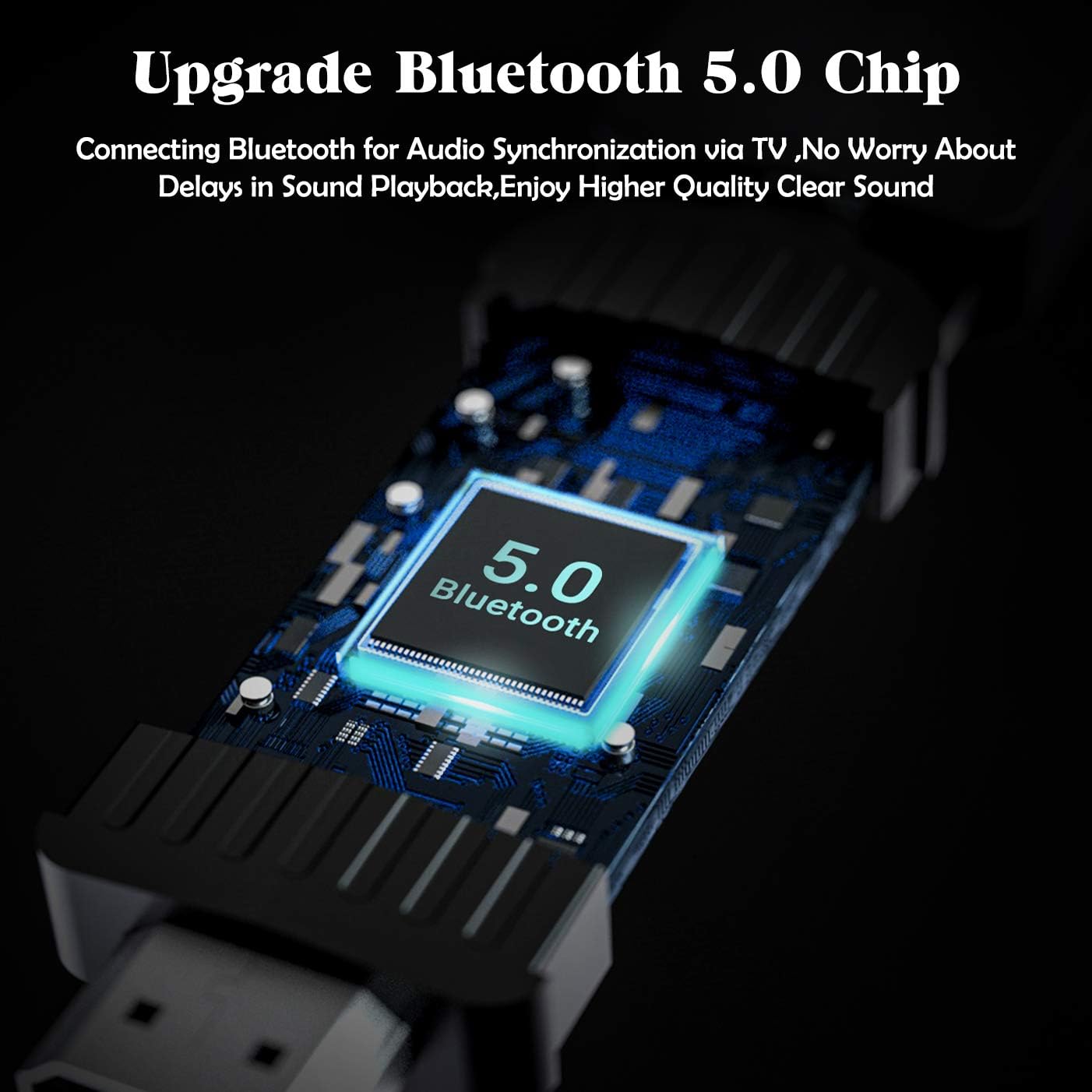
Figure 2: Visual representation of the cable's compatibility with both Type-C and Micro USB interfaces found on various Android smartphones.

Figure 3: An illustration of the upgraded Bluetooth 5.0 chip integrated into the adapter, which enables audio synchronization with the connected display.
Setup Instructions
- Power Connection: Connect the USB-A end of the YEHUA HDMI Adapter Cable to a 5V/2A (or 1A minimum) power source. This can be a USB wall charger, a power bank, or a USB port on your TV/projector. Ensure the adapter is powered before connecting your mobile device.
- HDMI Connection: Plug the HDMI connector of the cable into an available HDMI input port on your TV, monitor, or projector.
- Device Connection: Connect the appropriate mobile device connector (Micro USB or USB Type-C) to your smartphone or tablet.
- App Installation: Download and install the "MiraPlug" application from your device's app store (e.g., Google Play Store for Android, Apple App Store for iOS). This app is essential for the adapter to function correctly.
- Bluetooth Pairing (for Audio): After connecting, turn on Bluetooth on your mobile device. Search for and connect to the adapter's Bluetooth signal. This step is crucial for audio to transmit directly from the TV/projector. If Bluetooth is not connected, audio may play through your phone or other paired Bluetooth devices.

Figure 4: An overview of compatible devices and connection types for the YEHUA HDMI adapter, illustrating how phones, tablets, monitors, TVs, and projectors connect, along with power options like USB wall chargers and power banks.
Operating Instructions
Once all connections are made and the MiraPlug app is installed and running, your mobile device's screen should be mirrored to the connected display. The adapter supports 1080P resolution for clear mirroring.
- Screen Mirroring: The adapter will automatically mirror your phone's display to the TV or projector.
- Audio Output: With Bluetooth connected, audio will be routed through the TV or projector's speakers. If you prefer audio through headphones or your phone's speakers, disconnect the Bluetooth pairing with the adapter.
- App Compatibility: The adapter works with most applications for mirroring. However, please note that some streaming services (e.g., Netflix, Amazon Prime Video, Disney+) may have content protection (DRM) that prevents mirroring of their video content. You may see menus and subtitles, but the video itself might appear black.
- Gaming: The adapter provides minimal lag, making it suitable for playing mobile games on a larger screen.
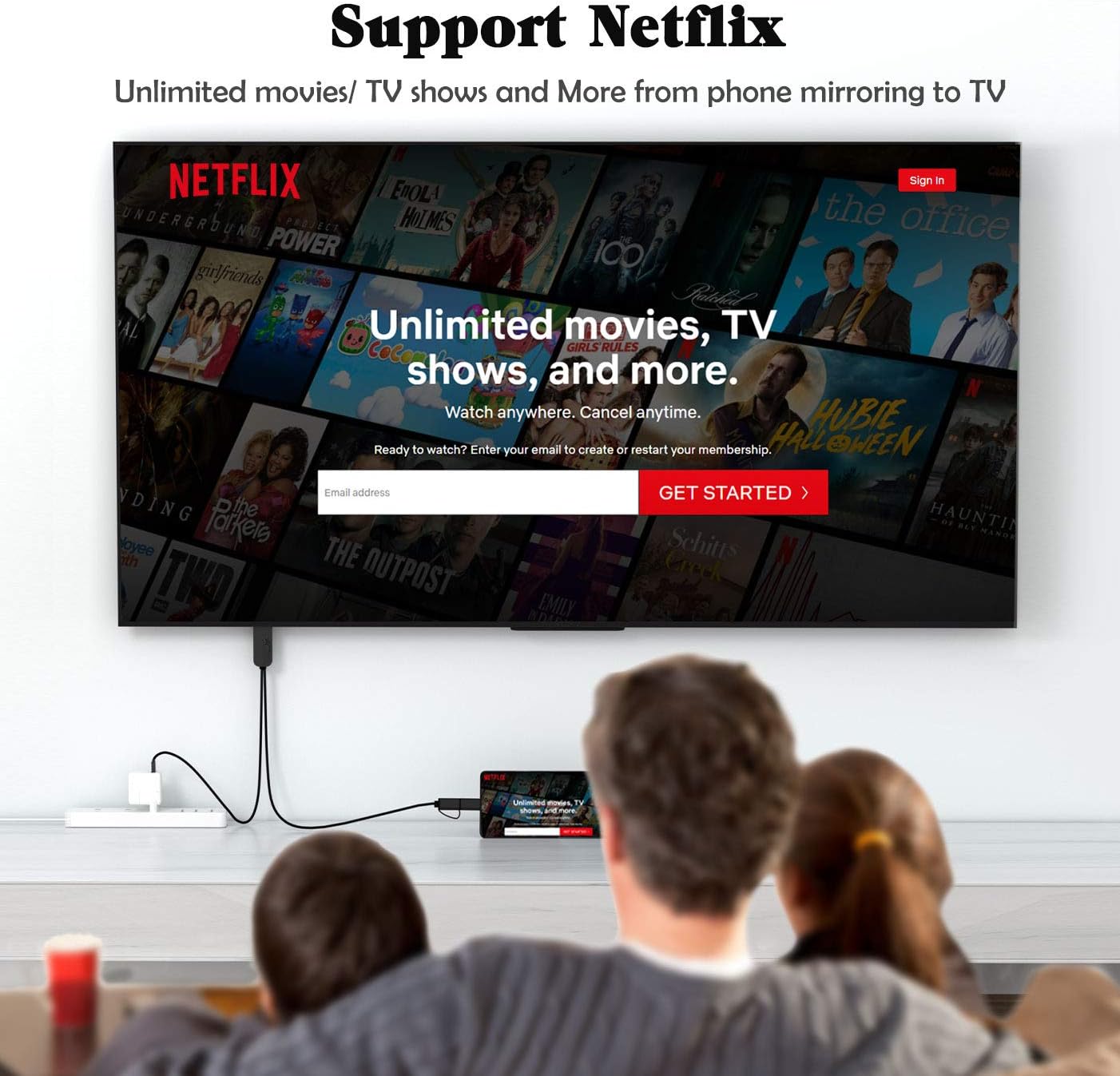
Figure 5: An example of the YEHUA HDMI adapter being used to mirror a mobile device's screen to a television, displaying a streaming service interface. Note that some streaming services may restrict video playback due to DRM.

Figure 6: A collage illustrating diverse applications of the YEHUA HDMI adapter, from casual home viewing and gaming to professional presentations and educational content sharing.
Maintenance and Care
- Storage: Store the cable in a cool, dry place away from direct sunlight and extreme temperatures.
- Cleaning: Use a soft, dry cloth to clean the cable and connectors. Do not use liquid cleaners or solvents.
- Handling: Avoid bending the cable sharply or pulling it by the cord. Always grasp the connector when plugging or unplugging.
- Heat: It is normal for the HDMI cable to become warm during extended use. This does not indicate a malfunction.
Troubleshooting
| Problem | Possible Cause | Solution |
|---|---|---|
| No display on TV/Projector. | Insufficient power supply; Incorrect HDMI input selected; MiraPlug app not running or installed; Loose connections. | Ensure the USB-A end is connected to a 5V/2A (or 1A) power source. Check if the TV/projector is set to the correct HDMI input. Verify MiraPlug app is installed and open. Reconnect all cables securely. |
| No audio from TV/Projector. | Bluetooth not paired; Phone audio settings. | Ensure Bluetooth is enabled on your phone and paired with the adapter. Check your phone's audio output settings. |
| Video content (e.g., Netflix) shows black screen. | Digital Rights Management (DRM) restrictions. | This is typically due to content protection policies of streaming services. The adapter cannot bypass these restrictions. Try mirroring content from other apps (e.g., YouTube, local videos). |
| Cable gets hot during use. | Normal operation. | This is expected behavior and does not indicate a fault. Ensure adequate ventilation around the adapter. |
Specifications
- Brand: YEHUA
- Model Number: 6972313151837
- Connector Type: HDMI, USB-A, Micro USB, USB Type-C
- Cable Type: HDMI, USB
- Compatible Devices: Cellular Phones (Android with Type-C/Micro USB, iPhone 6-11 Pro Max)
- Supported Resolution: 1080P HDTV
- Audio Synchronization: Bluetooth 5.0
- Power Input: 5V/2A (minimum 1A)
- Cable Length: Approximately 6.6 feet (2 meters)
- Color: Black
- Item Weight: 2.6 ounces
Support
For further assistance or inquiries, please refer to the official YEHUA support channels or the retailer where the product was purchased.
A user manual in PDF format is also available for download: Download User Manual (PDF)
Ask a question about this manual
Ask about setup, troubleshooting, compatibility, parts, safety, or missing instructions. Manuals+ will review the question and use this page’s manual context to help answer it.