
1. Introduction
The Samsung Galaxy Tab S6 Lite is a versatile and portable tablet designed for note-taking, drawing, and entertainment. Featuring a large 10.4-inch display and an included S Pen, it offers a seamless experience for both productivity and creative tasks. This manual provides essential information to help you get started and make the most of your device.

Figure 1: Samsung Galaxy Tab S6 Lite with S Pen
2. What's in the Box
Upon unboxing your Samsung Galaxy Tab S6 Lite, please ensure all the following items are present:
- Samsung Galaxy Tab S6 Lite Tablet
- S Pen
- Wall/USB Charger
- Quick Start Guide
3. Initial Setup
Follow these steps to set up your new tablet:
- Charge the Tablet: Connect the provided Wall/USB Charger to your tablet's USB-C port and plug it into a power outlet. Allow the tablet to charge fully before first use.
- Power On: Press and hold the Power button (located on the side) until the Samsung logo appears on the screen.
- Initial Configuration: Follow the on-screen prompts to select your language, connect to a Wi-Fi network, accept terms and conditions, and sign in with your Samsung or Google account.
- Attach S Pen: The S Pen magnetically attaches to the right side of the tablet for convenient storage and charging.

Figure 2: Tablet Front View

Figure 3: Tablet Rear View
4. Operation
4.1 Display and Audio
The Galaxy Tab S6 Lite features a 10.4-inch WUXGA+ (2000x1200) display, providing clear visuals for all your content. The tablet is equipped with dual speakers tuned by AKG and supports Dolby Atmos technology, delivering rich, immersive 3D sound for an enhanced viewing and listening experience.
4.2 S Pen Usage
The included S Pen transforms your tablet into a powerful tool for creativity and productivity. Its natural grip, low latency, and impressive pressure sensitivity make it ideal for:
- Note-taking: Jot down notes during lectures or meetings, with the ability to change colors and add searchable tags.
- Drawing and Illustration: Utilize various drawing applications for detailed artwork.
- Document Editing: Write directly onto PDFs and other documents for easy annotation.
- Navigation: Use the S Pen to navigate the tablet interface, reducing finger fatigue.
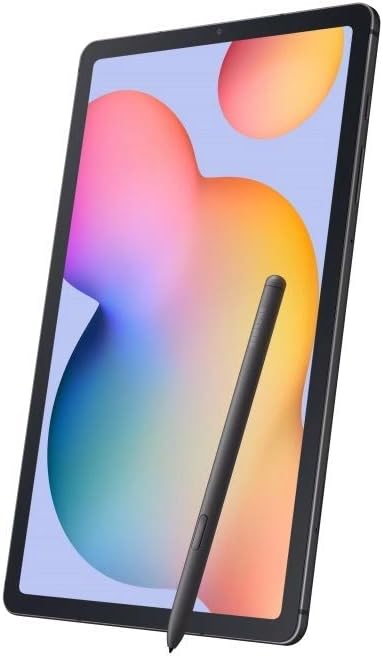
Figure 4: S Pen in Use for Drawing
4.3 Samsung DeX
Samsung DeX allows you to connect a keyboard and mouse to your tablet, transforming it into a more desktop-like environment for enhanced productivity. This feature is particularly useful for tasks requiring more precise input or multitasking with multiple windows.
4.4 Connectivity
The tablet supports Wi-Fi connectivity (802.11ac) for internet access. It also features Bluetooth 5.0 for connecting wireless accessories and a USB 2.0 Type-C port for charging and data transfer. A 3.5mm headphone jack is included for wired audio connections.
5. Maintenance
- Battery Life: The 7040mAh battery provides approximately 13 hours of average usage. For optimal battery longevity, avoid extreme temperatures and prolonged full charges.
- Cleaning: Use a soft, lint-free cloth to clean the screen and body of the tablet. Avoid abrasive materials or harsh chemicals.
- Software Updates: Regularly check for and install software updates to ensure your device has the latest features and security enhancements.
6. Troubleshooting
If you encounter issues with your tablet, consider the following general troubleshooting steps:
- Device Not Responding: Press and hold the Power button for about 10 seconds to force a restart.
- Connectivity Issues: Ensure Wi-Fi and Bluetooth are enabled and that you are within range of a strong signal. Try restarting your router or pairing your Bluetooth device again.
- App Malfunction: Close and reopen the app. If the issue persists, clear the app's cache or reinstall it.
- Slow Performance: Close unused apps, clear cache, or free up storage space.
- Factory Reset: As a last resort, you may perform a factory reset. Warning: This will erase all data on your device. Back up important data before proceeding. Navigate to Settings > General management > Reset > Factory data reset.
7. Specifications
| Feature | Specification |
|---|---|
| Standing Screen Display Size | 10.4 Inches |
| Screen Resolution | 2000x1200 (WUXGA+) |
| RAM | 4 GB |
| Hard Drive / Flash Memory Size | 64 GB |
| Processor | Exynos 9611 (10nm), Octa-core |
| Graphics Card | Mali-G72 MP3 |
| Operating System | Android 10 (with One UI 2) |
| Rear Camera Resolution | 8 MP AF (F1.9) |
| Front Camera Resolution | 5 MP (F2.0) |
| Wireless Type | 802.11ac (Wi-Fi Only) |
| Bluetooth | Bluetooth 5.0 |
| USB Port | USB 2.0 Type-C |
| Battery Capacity | 7040mAh |
| Average Battery Life | 13 Hours |
| Item Weight | 7 ounces |
| Product Dimensions | 10 x 8 x 1.5 inches |
| Color | Oxford Gray |
8. Warranty and Support
Please note that this is an International Version Without US Warranty. For support, software updates, and additional information, please visit the official Samsung support website for your region.
For further assistance or to explore more about your device's capabilities, refer to the comprehensive resources available on the Samsung support portal.