
Acer Nitro 5
Acer Nitro 5 Gaming Laptop User Manual
Model: Nitro 5
Introduction
This manual provides essential information for setting up, operating, maintaining, and troubleshooting your Acer Nitro 5 gaming laptop. Designed for high-performance gaming and demanding applications, the Acer Nitro 5 features an AMD Ryzen 5 4600H processor, NVIDIA GeForce GTX 1650 graphics, 16GB of RAM, and a 512GB PCIe SSD, all presented on a 15.6-inch Full HD display.
1. Setup
1.1 Unboxing and Initial Power-On
Carefully remove the laptop and its accessories from the packaging. Ensure all components listed in the 'What's in the Box' section are present. Before first use, connect the AC adapter to the laptop's power port and then to a power outlet. The laptop is designed to operate optimally when connected to power, especially during gaming or resource-intensive tasks.
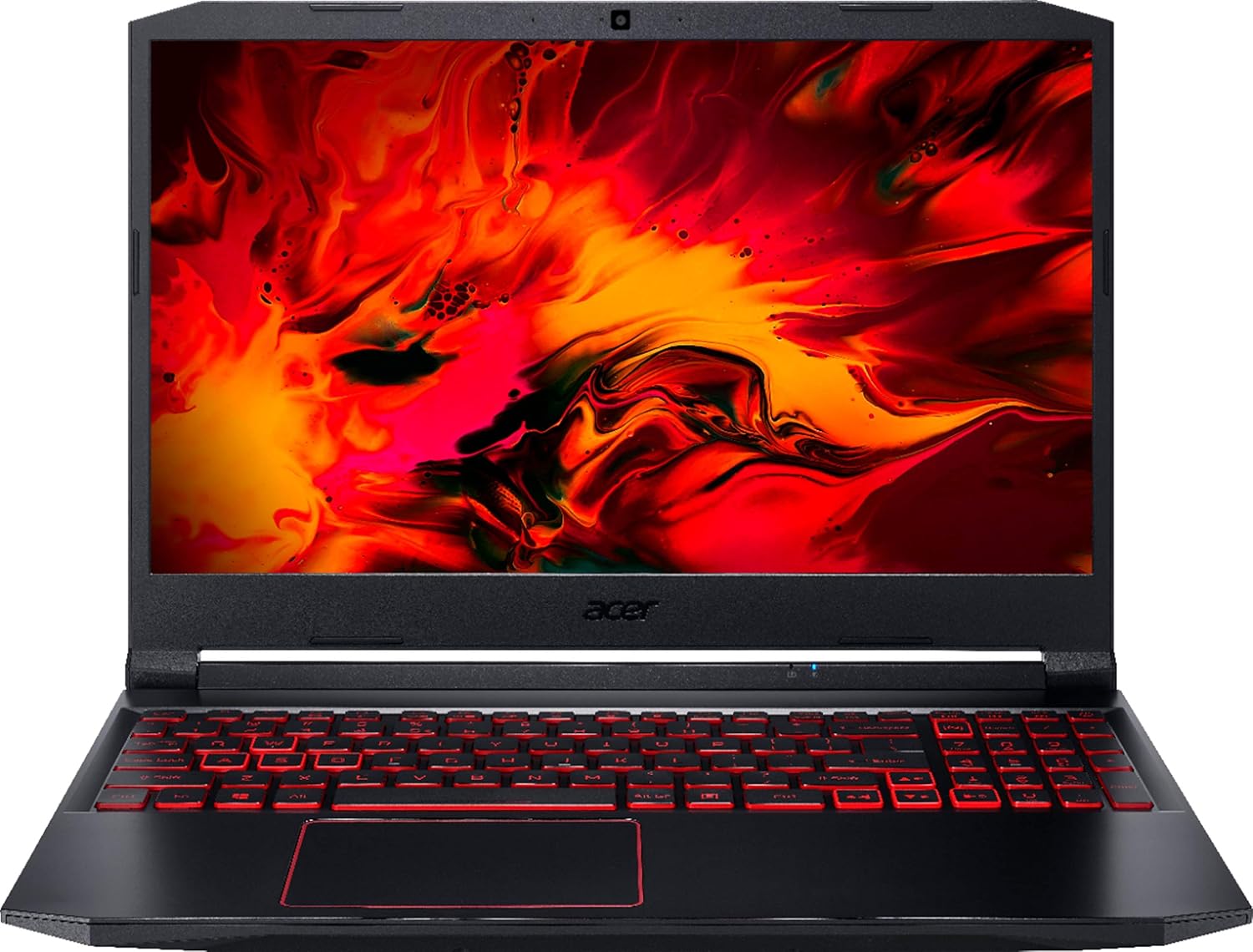
Figure 1.1: Front view of the Acer Nitro 5 laptop, displaying the screen and backlit keyboard.
1.2 First Boot and Operating System Setup
Press the power button located on the keyboard deck to turn on the laptop. Upon first boot, you will be guided through the Windows 10 setup process. Follow the on-screen instructions to configure your region, language, network connection, and user account. An active internet connection is recommended for the initial setup to download necessary updates.
1.3 Connecting Peripherals
The Acer Nitro 5 offers various ports for connecting external devices:
- USB Ports: For connecting mice, keyboards, external drives, and other USB devices.
- HDMI Port: For connecting to external monitors or TVs.
- Ethernet Port: For wired network connections.
- Audio Jack: For headphones or external speakers.

Figure 1.2: Left side of the laptop, showing various connectivity ports.

Figure 1.3: Right side of the laptop, showing additional connectivity ports.
2. Operating Your Laptop
2.1 Keyboard and Touchpad
The Acer Nitro 5 features a full-sized keyboard with a red backlit design, enhancing visibility in low-light conditions. The touchpad supports multi-touch gestures for intuitive navigation. Refer to the Windows 10 settings for customizing touchpad gestures and keyboard backlight options.

Figure 2.1: Top-down view of the keyboard and touchpad area.
2.2 Display Features
The 15.6-inch Full HD (1920 x 1080) IPS display provides vibrant colors and wide viewing angles. Acer ComfyView technology is integrated to reduce reflections and eye strain during extended use. Adjust display settings via Windows Display Settings or the NVIDIA Control Panel for optimal visual experience.
2.3 Audio and Webcam
Integrated speakers provide audio output. For enhanced audio, connect external headphones or speakers to the audio jack. The built-in webcam is suitable for video conferencing and online communication.
2.4 Networking
The laptop supports both wired (Ethernet) and wireless (WiFi 6) network connections. WiFi 6 offers faster speeds and improved performance in congested network environments. Ensure your router supports WiFi 6 for full benefits. Bluetooth connectivity is also available for wireless peripherals.
2.5 Gaming Performance
Equipped with an AMD Ryzen 5 4600H processor and NVIDIA GeForce GTX 1650 graphics, the Acer Nitro 5 is optimized for gaming. For best performance, ensure the laptop is plugged into power, and graphics drivers are up to date. Utilize the dedicated NitroSense software (pre-installed) for monitoring system performance, fan speed control, and power management profiles.
3. Maintenance
3.1 Cleaning Your Laptop
Regular cleaning helps maintain performance and longevity. Use a soft, lint-free cloth slightly dampened with water or a screen cleaner for the display. For the keyboard and chassis, use a dry or slightly damp cloth. Avoid harsh chemicals. Periodically use compressed air to clear dust from the cooling vents to prevent overheating.
3.2 Battery Care
To maximize battery lifespan, avoid fully discharging the battery frequently. If storing the laptop for an extended period, ensure the battery is charged to approximately 50-60%. Operating the laptop primarily on AC power is acceptable, but occasional battery cycles (discharging and recharging) are beneficial.
3.3 Software Updates
Keep your Windows operating system, drivers (especially graphics drivers), and Acer utilities updated. Regular updates provide performance improvements, security patches, and new features. Check for updates through Windows Update and Acer's official support website.
3.4 Storage Management
The laptop is equipped with a 512GB PCIe SSD. SSDs offer fast boot times and application loading. To maintain optimal performance, avoid filling the SSD to full capacity. Regularly delete unnecessary files and uninstall unused programs. Windows Disk Cleanup utility can assist with this.
4. Troubleshooting
This section addresses common issues you might encounter with your Acer Nitro 5 laptop.
| Problem | Possible Cause | Solution |
|---|---|---|
| Laptop does not power on. | Battery drained or AC adapter not connected properly. | Ensure AC adapter is securely connected to both laptop and power outlet. Allow battery to charge for a few minutes before attempting to power on. |
| Screen is blank or black. | Display settings issue, external monitor connected, or system crash. | Press Fn + F6 (or similar display toggle key) to cycle through display modes. Disconnect any external monitors. Perform a hard reset by holding the power button for 10-15 seconds. |
| Slow performance. | Too many applications running, insufficient RAM, or outdated drivers. | Close unnecessary programs. Check Task Manager for resource-intensive processes. Update drivers, especially graphics drivers. Ensure adequate ventilation to prevent thermal throttling. |
| Wi-Fi connection issues. | Incorrect Wi-Fi password, router issue, or driver problem. | Verify Wi-Fi password. Restart your router and modem. Update Wi-Fi drivers. Run Windows Network Troubleshooter. |
5. Specifications
| Feature | Detail |
|---|---|
| Model Name | Nitro 5 |
| Display | 15.6 Inches, Full HD (1920 x 1080 pixels), IPS, Acer ComfyView |
| Processor | AMD Ryzen 5 4600H (3 GHz) |
| RAM | 16 GB DDR4 SDRAM |
| Storage | 512 GB PCIe SSD |
| Graphics | NVIDIA GeForce GTX 1650 (Dedicated) |
| Operating System | Windows 10 |
| Wireless Connectivity | WiFi 6, Bluetooth |
| Battery Life | Approximately 6 Hours (Average) |
| Dimensions (LxWxH) | 29 x 29 x 29 inches |
| Item Weight | 29 pounds |
Note: Specifications are subject to change without notice. For the most current information, please refer to Acer's official website.
6. Warranty and Support
Your Acer Nitro 5 laptop comes with a standard manufacturer's warranty. Please refer to the warranty card included in your product packaging for specific terms and conditions, including warranty period and coverage details. Keep your proof of purchase for warranty claims.
For technical support, driver downloads, or service inquiries, please visit the official Acer support website. You may also find helpful resources and FAQs on their support pages.
Acer Support Website: www.acer.com/support
Ask a question about this manual
Ask about setup, troubleshooting, compatibility, parts, safety, or missing instructions. Manuals+ will review the question and use this page’s manual context to help answer it.