1. Introduction
The Cudy GS1010PE is an 8-Port Gigabit PoE+ Switch designed for reliable network connectivity and power delivery. It features 8 Gigabit PoE+ ports with a total power budget of 120 Watts, capable of delivering up to 30W per port. Additionally, it includes 2 Gigabit uplink ports for data transfer. This switch supports IEEE802.3af and IEEE802.3at standards, ensuring compatibility with a wide range of PoE devices such as IP phones, wired surveillance cameras, and wireless access points. Its plug-and-play design requires no software configuration, making setup simple and efficient.
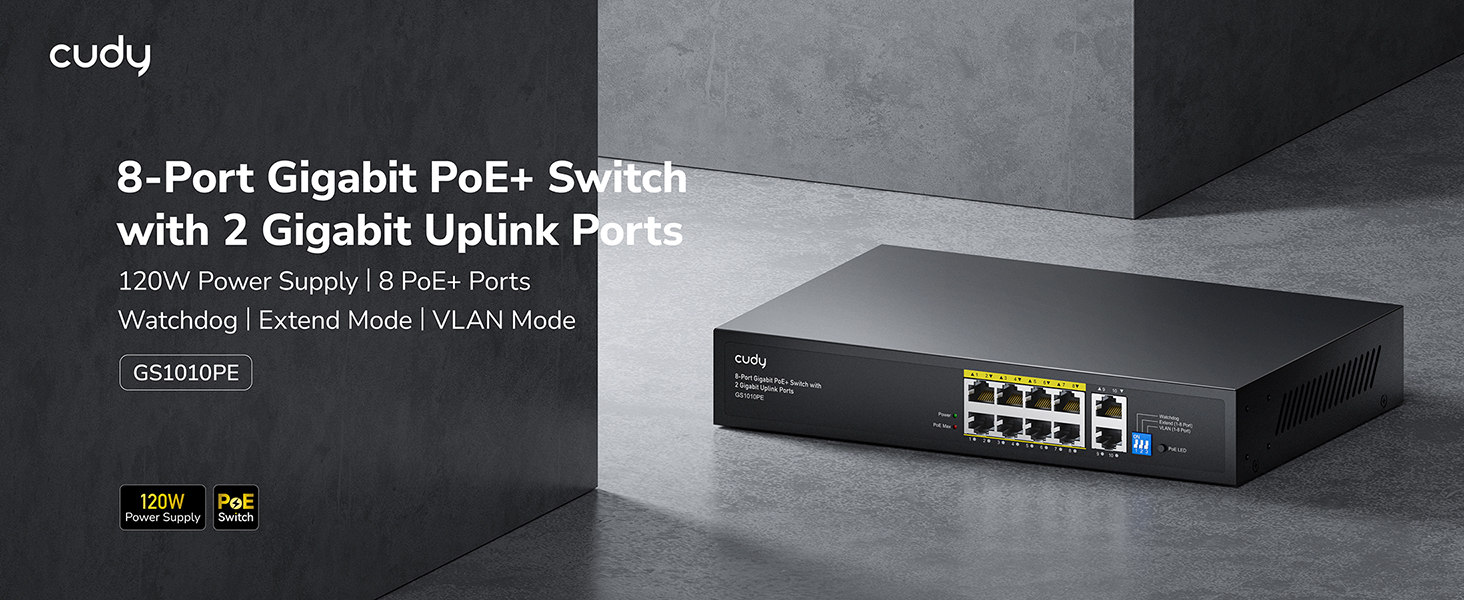
Figure 1: Cudy GS1010PE 8-Port Gigabit PoE+ Switch overview.
2. What's in the Box
Verify that all items are present in the package:
- Cudy GS1010PE 8-Port Gigabit PoE+ Switch
- Power Adapter (built-in power supply)
- Quick Installation Guide

Figure 2: Package contents for the Cudy GS1010PE switch.
3. Setup
The Cudy GS1010PE switch is designed for plug-and-play operation, requiring no complex software configuration. Follow these steps for basic setup:
- Connect Power: Plug the power cable into the switch's power input and then into a standard electrical outlet. The Power LED on the switch should illuminate.
- Connect to Network: Connect your router or main network device to one of the 2 Gigabit uplink ports (ports 9-10) using a standard Ethernet cable.
- Connect PoE Devices: Connect your PoE-compatible devices (e.g., IP cameras, VoIP phones, wireless access points) to any of the 8 PoE+ ports (ports 1-8) using Ethernet cables. The corresponding port LEDs will indicate connectivity and PoE status.

Figure 3: Basic network setup with the Cudy GS1010PE switch.
4. Operating Modes and Features
4.1. Watchdog Function
The Watchdog function continuously monitors the status of connected Power over Ethernet (PoE) devices. If an abnormality is detected on a port, the switch will automatically reset power to that specific port, helping to restore functionality without manual intervention. This ensures stable operation of your PoE devices.
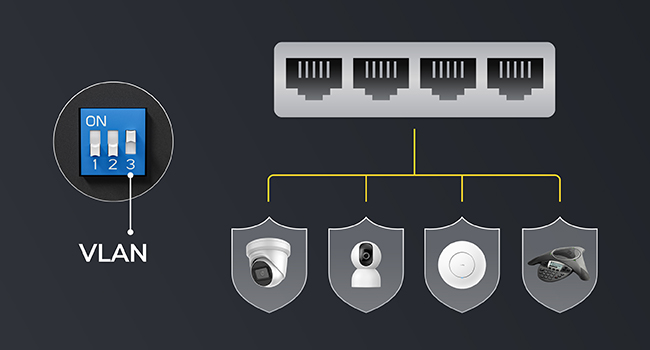
Figure 4: Watchdog function for automatic port restart.
4.2. Extend Mode
Extend Mode allows for longer PoE transmission distances. When enabled, it can extend the maximum distance for PoE devices up to 250 meters (820 feet) at a speed of 10 Mbps per port. When Extend Mode is off, the standard transmission distance is 100 meters at 10/100/1000 Mbps per port. This mode is useful for deployments where devices are located far from the switch.
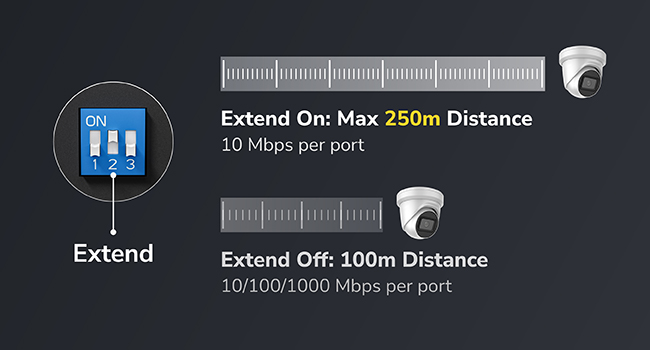
Figure 5: Extend Mode functionality for increased PoE distance.
4.3. VLAN Mode
VLAN Mode allows for the isolation of client devices connected to the switch, enhancing network security. This feature can segment the network traffic, preventing devices on one VLAN from communicating directly with devices on another, which is beneficial for separating surveillance cameras from general network traffic.

Figure 6: VLAN Mode for network segmentation and security.
4.4. PoE+ Compatibility and Power Management
The switch is compatible with both IEEE802.3af PoE (15.4 watts) and IEEE802.3at PoE+ (30 watts) devices. Its auto-sensing technology automatically detects and delivers the appropriate power to connected devices. The total PoE budget is 120 Watts across 8 ports. The intelligent power management system can detect when the power budget is nearing its limit and will automatically remove the least prioritized powered devices to maintain system stability.

Figure 7: PoE Management features including budget warning and intelligent power distribution.

Figure 8: Devices compatible with PoE+ and PoE standards.
5. Specifications
| Feature | Description |
|---|---|
| Model Number | GS1010PE |
| Number of Ports | 10 (8 PoE+ ports, 2 Gigabit Uplink ports) |
| PoE+ Ports | 8 (10/100/1000Mbps, IEEE802.3at/af) |
| Uplink Ports | 2 (Gigabit Ethernet, data only) |
| Total PoE Budget | 120 Watts |
| Max Power per PoE Port | 30 Watts |
| Data Transfer Rate | 1000 Megabits Per Second (Gigabit) |
| Interface Type | PoE, RJ45 |
| Case Material | Metal |
| Fanless Design | Yes |
| Product Dimensions | 8.74 x 3.15 x 1.81 inches |
| Item Weight | 0.19 Kilograms (6.7 ounces) |
| Upper Temperature Rating | 40 Degrees Celsius |
6. Maintenance
To ensure optimal performance and longevity of your Cudy GS1010PE switch, consider the following maintenance tips:
- Keep Clean: Regularly clean the exterior of the switch with a soft, dry cloth. Ensure ventilation openings are free from dust and debris to prevent overheating.
- Cable Management: Organize network cables to prevent strain on ports and ensure proper airflow around the device.
- Firmware Updates: Periodically check the Cudy official website for any available firmware updates. Keeping the firmware up-to-date can improve performance, add new features, and enhance security.
- Environmental Conditions: Operate the switch within its specified temperature and humidity ranges to avoid damage.
7. Troubleshooting
If you encounter issues with your Cudy GS1010PE switch, try the following troubleshooting steps:
- No Power: Ensure the power cable is securely connected to both the switch and the electrical outlet. Check if the Power LED is illuminated. If not, try a different outlet.
- No Link/Activity on Port: Verify that the Ethernet cable is securely connected to both the switch port and the connected device. Check the cable for any damage. Ensure the connected device is powered on and functioning correctly.
- PoE Device Not Receiving Power: Confirm that the connected device is PoE-compatible (IEEE802.3af or IEEE802.3at). Check the PoE LED for the specific port; a solid green usually indicates power delivery. If the PoE budget is exceeded, some devices may not receive power (refer to Intelligent Power Management).
- Slow Network Speed: Ensure all connected devices and cables support Gigabit speeds for optimal performance. Check if Extend Mode is accidentally enabled, as it limits speed to 10 Mbps.
- Intermittent Connectivity: Check for loose cable connections. The Watchdog function should automatically restart ports with issues, but if problems persist, manually restart the switch by unplugging and replugging the power.
8. Safety Information
Please read and follow these safety guidelines to prevent damage to the device or injury:
- Do not expose the device to water or excessive humidity.
- Do not attempt to open or repair the device yourself. Refer all servicing to qualified personnel.
- Ensure proper ventilation to prevent overheating. Do not block any ventilation openings.
- Use only the provided power adapter or a compatible replacement.
- Protect the device from extreme temperatures and direct sunlight.

Figure 9: The switch features robust EMC design for surge and ESD protection.
9. Warranty and Support
This Cudy product is manufactured by Shenzhen Cudy Technology Co., Ltd. For technical support, warranty information, or service inquiries, please visit the official Cudy website or contact their customer support. The product is sold by Cudy and fulfilled by Amazon, ensuring reliable service. While optional protection plans are available for purchase, please refer to the manufacturer's official documentation for standard warranty terms.
10. Product Videos
Cudy GS1010PE Specifications
This video provides a detailed overview of the specifications for the Cudy GS1010PE 8-Port Gigabit PoE+ Switch.
Need Power? Cudy 10-Port PoE Switch
This video demonstrates the power capabilities and features of a Cudy 10-Port PoE Switch, relevant to understanding the GS1010PE's power delivery.


