
EONCHARM 1315
Universal Remote Control User Manual
Model: 1315
Brand: EONCHARM
Introduction
This manual provides comprehensive instructions for the EONCHARM Universal Remote Control, designed to be compatible with a wide range of Samsung televisions. This remote offers a straightforward, plug-and-play experience, requiring no complex setup or programming. It is an ideal replacement for your original Samsung TV remote, restoring full functionality and convenience.
Product Features
- Infrared replacement remote compatible with all Samsung Smart TV, LED, LCD, HDTV, and 3D Series TVs.
- Compatible with all Samsung series TVs, including models from 2017 to 2024.
- Simple, compact, and ergonomic design for easy grip and handling.
- No programming or setup required; ready to use out of the box.
- Offers stable performance and farther transmitting distance.
- Includes dedicated shortcut buttons for NETFLIX, Prime Video, and Hulu for quick access to streaming services.
- Replaces various Samsung remote models, including BN59-01315A, BN59-01315J, BN59-01301A, BN59-01175N, BN59-01199F, AA59-00741A, AA59-00786A, AA59-00602A, BN59-01247A, AA59-00743A, BN59-01175B, AA59-00818A, AA59-00603A, BN59-01199G, and others.
Package Contents
- 1 x EONCHARM Universal Remote Control (Model 1315)
Note: AAA batteries are not included and must be purchased separately.
Setup
Battery Installation
- Locate the battery compartment on the back of the remote control.
- Slide the battery cover downwards or in the direction indicated by an arrow to open it.
- Insert two (2) AAA batteries, ensuring the positive (+) and negative (-) terminals align correctly with the markings inside the compartment.
- Replace the battery cover by sliding it back into position until it clicks securely.
Once batteries are installed, the remote is ready for immediate use with compatible Samsung TVs. No pairing or programming is required.

Operating Instructions
The EONCHARM Universal Remote Control features a standard layout with clearly labeled buttons for intuitive operation. Below is a guide to the primary functions of each button.
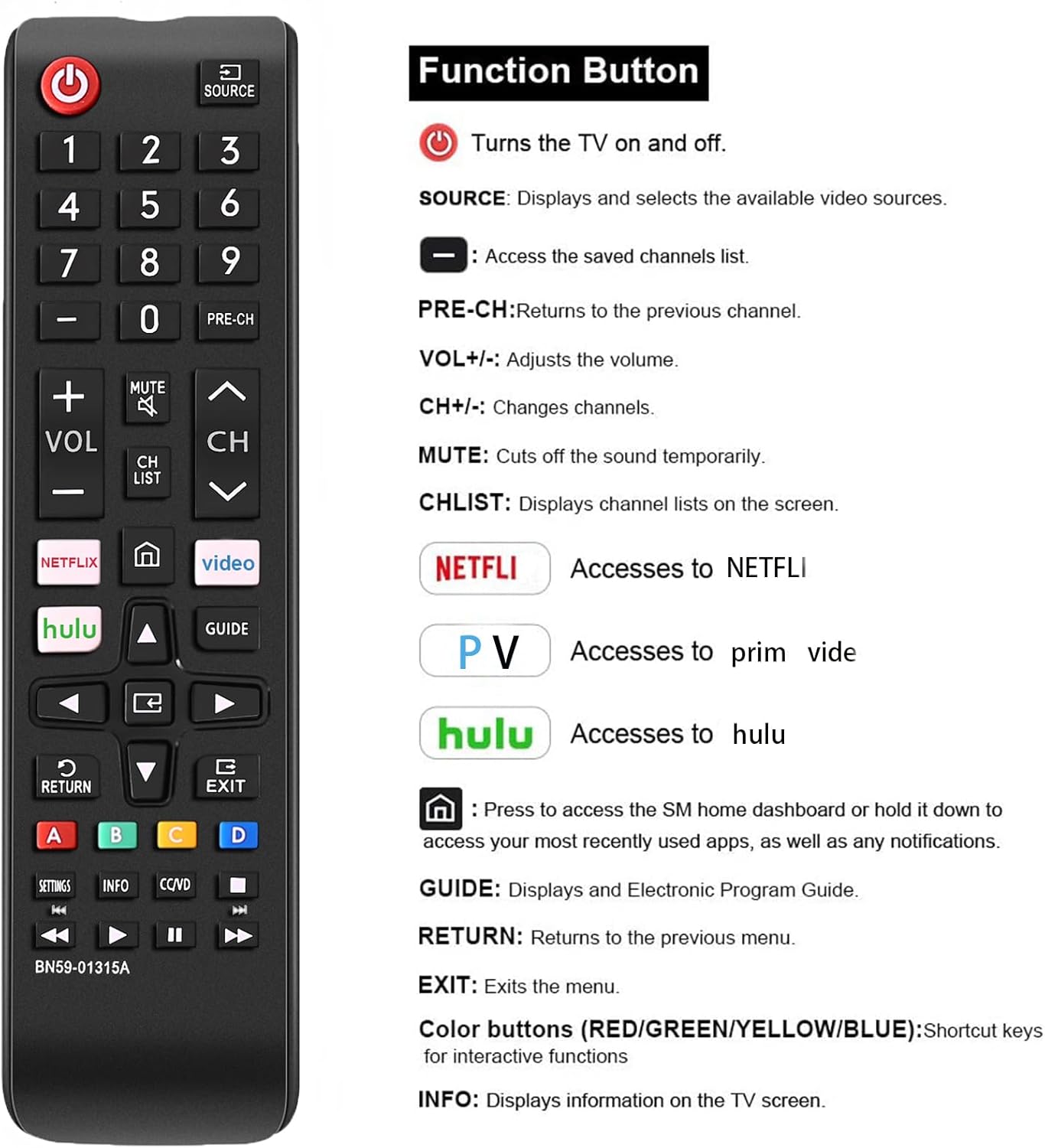
| Button | Function |
|---|---|
| POWER (⏻) | Turns the TV on and off. |
| SOURCE | Displays and selects available video sources (e.g., HDMI 1, AV, TV). |
| Number Buttons (0-9) | Directly input channel numbers. |
| PRE-CH | Returns to the previous channel. |
| VOL +/- | Adjusts the volume level. |
| CH ^/v | Changes channels up or down. |
| MUTE | Cuts the sound temporarily. |
| CH LIST | Displays channel lists on the screen. |
| NETFLIX | Directly accesses the NETFLIX application. |
| Prime Video | Directly accesses the Prime Video application. |
| Hulu | Directly accesses the Hulu application. |
| Home (⌂) | Press to access the Smart Hub home dashboard or hold it down to access your most recently used apps, as well as any notifications. |
| Navigation Arrows (Up, Down, Left, Right) | Navigate through menus and options. |
| ENTER | Confirms selections. |
| GUIDE | Displays the Electronic Program Guide (EPG). |
| RETURN | Returns to the previous menu or screen. |
| EXIT | Exits the current menu or application. |
| Color Buttons (A, B, C, D) | Shortcut keys for interactive functions, specific to TV content or applications. |
| SETTINGS | Accesses TV settings menu. |
| INFO | Displays information about the current program or content. |
| CC/VD | Activates Closed Captions/Video Description. |
| Media Control Buttons (Play, Pause, Stop, Rewind, Fast Forward) | Controls media playback. |

Compatibility
This EONCHARM Universal Remote Control is designed for broad compatibility with Samsung televisions. It supports:
- All Samsung Smart TV models.
- Samsung LCD, LED, HDTV, and 3D Series TVs.
- Samsung TVs from various years, including 2017, 2018, 2019, 2020, 2021, 2022, 2023, and 2024 series.
- Common screen sizes such as 43, 50, 55, 58, 65, and 75 inches.
It is a direct replacement for many original Samsung remote models, ensuring seamless integration without the need for complex setup procedures.


Maintenance
Battery Replacement
When the remote control's performance degrades (e.g., reduced range, unresponsive buttons), it is likely time to replace the batteries. Follow the battery installation steps outlined in the Setup section.
Cleaning
To clean the remote control, use a soft, dry cloth. For stubborn dirt, slightly dampen the cloth with water or a mild, non-abrasive cleaner. Do not use harsh chemicals or abrasive materials, as these can damage the remote's surface or internal components. Avoid getting moisture into the battery compartment or any openings.
Storage
Store the remote control in a cool, dry place away from direct sunlight, extreme temperatures, and high humidity. If the remote will not be used for an extended period, it is advisable to remove the batteries to prevent leakage and potential damage.
Troubleshooting
- Remote not responding:
- Ensure batteries are inserted correctly with the correct polarity.
- Replace old or depleted batteries with new AAA batteries.
- Ensure there are no obstructions between the remote and the TV's infrared sensor.
- Point the remote directly at the TV's sensor.
- Buttons are sticky or unresponsive:
- Clean the remote control as described in the Maintenance section.
- If the issue persists after cleaning and battery replacement, the remote may be damaged and require replacement.
- Remote controls some functions but not others:
- Verify that your TV model is a Samsung TV. This remote is specifically designed for Samsung TVs.
- Ensure the TV's firmware is up to date, as some older TVs might have limited compatibility with newer remote features.
Specifications
| Feature | Detail |
|---|---|
| Product Dimensions | 2.36 x 1.97 x 3.1 inches |
| Item Weight | 2.11 ounces |
| Model Number | 1315 |
| Batteries Required | 2 AAA batteries (not included) |
| Brand | EONCHARM |
| Special Feature | Ergonomic design |
| Color | Black |
| Max Number of Supported Devices | 50 (refers to internal capability, designed for Samsung TVs) |
| Compatible Devices | Television (Samsung TVs) |
Warranty and Support
For information regarding warranty coverage or technical support, please refer to the product packaging or contact the retailer from whom you purchased the EONCHARM Universal Remote Control. Keep your proof of purchase for any warranty claims.
Ask a question about this manual
Ask about setup, troubleshooting, compatibility, parts, safety, or missing instructions. Manuals+ will review the question and use this page’s manual context to help answer it.