
Caixun EC55S1UA
Caixun EC55S1UA 55 inch 4K UHD HDR Smart TV User Manual
Model: EC55S1UA
1. Introduction
Welcome
Thank you for choosing the Caixun EC55S1UA 55 inch 4K UHD HDR Smart TV. This manual provides essential information for the proper setup, operation, and maintenance of your new television. Please read this manual thoroughly before using the product and keep it for future reference.
Product Overview
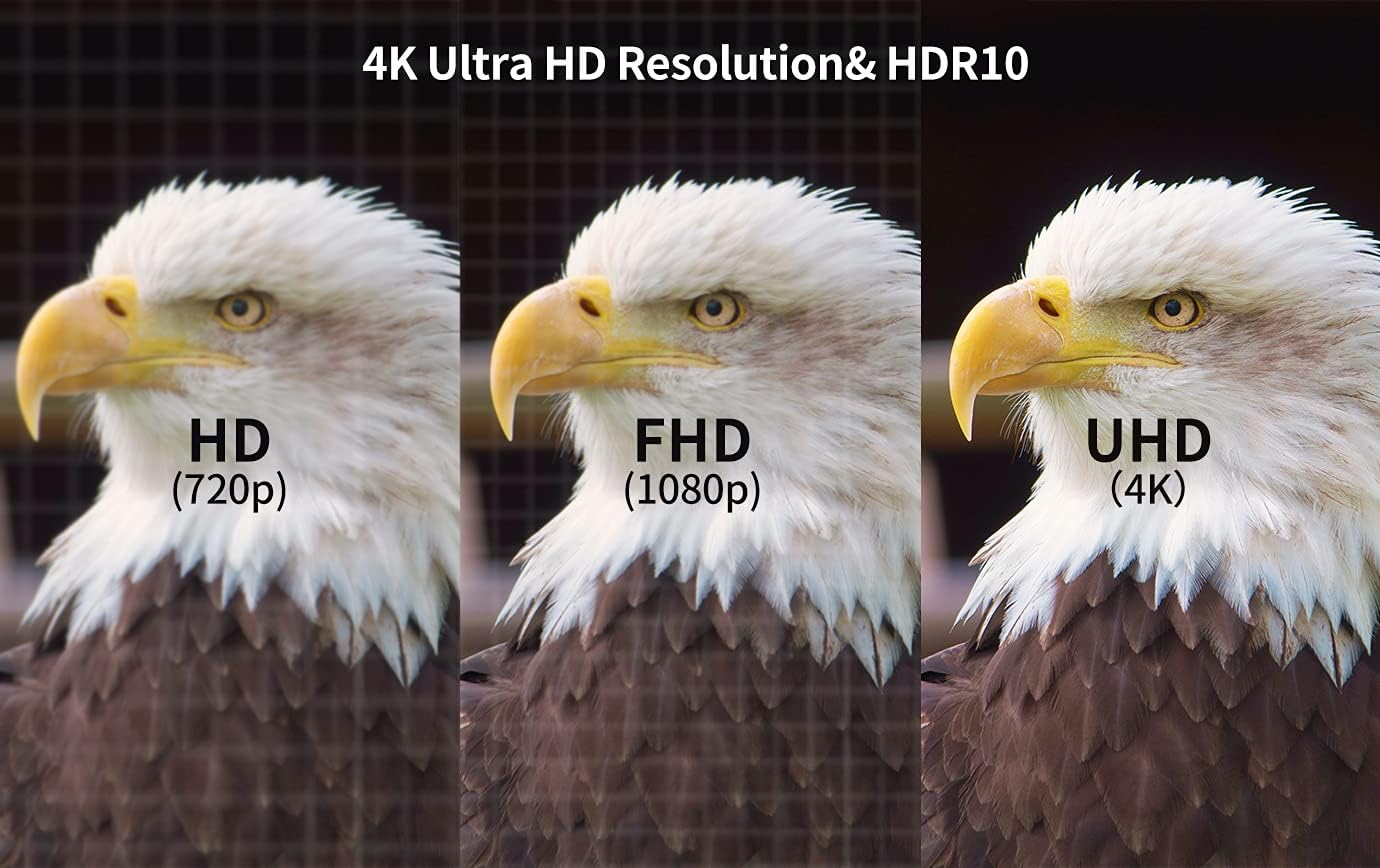
The Caixun EC55S1UA is a 55-inch 4K UHD Smart TV featuring Android 9.0, HDR10 technology, and integrated Wi-Fi. It offers access to popular streaming services like Netflix and YouTube, supports Dolby Audio, and includes multiple HDMI and USB ports for versatile connectivity. Enjoy a stunning visual experience with its ultra-high resolution display.

2. Safety Information
Important Safety Instructions
- Read these instructions.
- Keep these instructions.
- Heed all warnings.
- Follow all instructions.
- Do not use this apparatus near water.
- Clean only with dry cloth.
- Do not block any ventilation openings. Install in accordance with the manufacturer's instructions.
- Do not install near any heat sources such as radiators, heat registers, stoves, or other apparatus (including amplifiers) that produce heat.
- Do not defeat the safety purpose of the polarized or grounding-type plug. A polarized plug has two blades with one wider than the other. A grounding type plug has two blades and a third grounding prong. The wide blade or the third prong are provided for your safety. If the provided plug does not fit into your outlet, consult an electrician for replacement of the obsolete outlet.
- Protect the power cord from being walked on or pinched particularly at plugs, convenience receptacles, and the point where they exit from the apparatus.
- Only use attachments/accessories specified by the manufacturer.
- Use only with the cart, stand, tripod, bracket, or table specified by the manufacturer, or sold with the apparatus. When a cart is used, use caution when moving the cart/apparatus combination to avoid injury from tip-over.
- Unplug this apparatus during lightning storms or when unused for long periods of time.
- Refer all servicing to qualified service personnel. Servicing is required when the apparatus has been damaged in any way, such as power-supply cord or plug is damaged, liquid has been spilled or objects have fallen into the apparatus, the apparatus has been exposed to rain or moisture, does not operate normally, or has been dropped.
3. Setup
Unpacking
- Carefully open the packaging box.
- Remove the TV and all accessories from the box.
- Inspect the TV for any damage. If damaged, do not proceed with setup and contact customer support.
Stand Installation
If you plan to place the TV on a flat surface, you will need to attach the included stands. Ensure the TV is placed on a soft, clean surface (like a blanket) to prevent screen damage during installation.
- Identify the left and right stand pieces.
- Align each stand with the corresponding screw holes on the bottom of the TV.
- Secure the stands using the provided screws. Do not overtighten.
Wall Mounting (Optional)
For wall mounting, please refer to the instructions provided with your wall mount kit. Ensure the wall mount is compatible with the VESA mounting pattern of your TV (refer to specifications section). Professional installation is recommended for wall mounting.
Connecting Peripherals
Your Caixun TV offers various ports for connecting external devices. Refer to the diagram below for port locations and types.

- HDMI (x3): Connect Blu-ray players, game consoles, cable/satellite boxes, and other HDMI-enabled devices.
- USB 2.0 (x2): Connect USB flash drives for media playback.
- AV IN (x1): Connect older devices using composite video and stereo audio cables.
- RJ45 (Ethernet) (x1): Connect to your wired home network for internet access.
- OPTICAL (x1): Connect to a soundbar or home theater system for digital audio output.
- Headphone Jack (x1): Connect headphones for private listening.
- ATV & DTV (x1): Connect an antenna for over-the-air broadcast channels.
Initial Power On and Setup Wizard
After connecting the power cord, press the power button on the remote control or the TV. The TV will guide you through the initial setup process.
- Language Selection: Choose your preferred language.
- Network Setup: Connect to your Wi-Fi network or a wired Ethernet connection.
- Google Account Sign-in: Sign in with your Google account to access Android TV features, download apps, and use Google Assistant.
- Channel Scan: If using an antenna, perform a channel scan to find available broadcast channels.
- Privacy Settings: Review and adjust privacy settings as desired.
4. Operating
Remote Control Overview
The included remote control allows you to navigate your TV's features. Familiarize yourself with the button layout.
Basic TV Functions
- Power On/Off: Press the Power button on the remote.
- Volume Control: Use the Volume +/- buttons.
- Channel Selection: Use the Channel +/- buttons or the number pad.
- Input Source: Press the Input button to switch between HDMI, AV, TV, and other sources.
- Navigation: Use the directional pad and OK button to navigate menus.
Smart TV Features (Android TV)
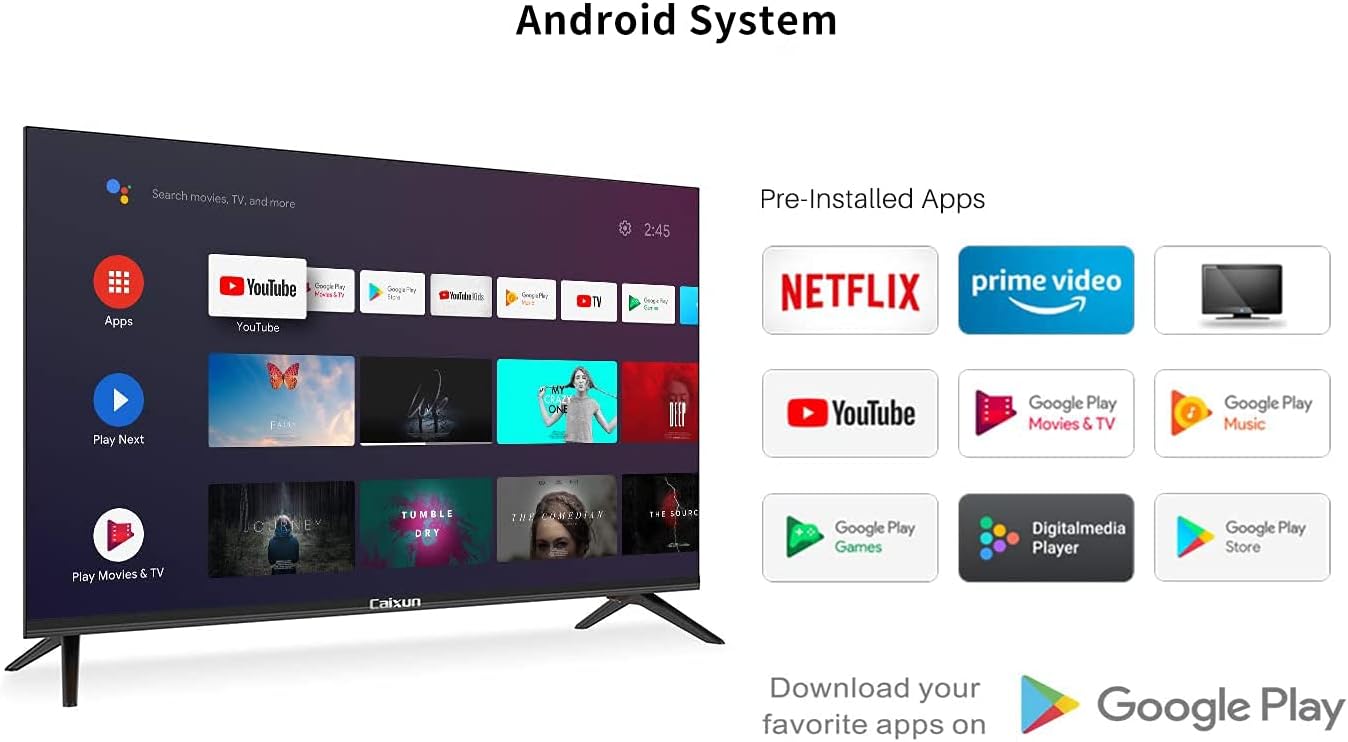
Your Caixun TV runs on Android 9.0, providing a smart and intuitive user experience. Access a wide range of apps and services.

- Home Screen: Press the Home button to access the main Android TV interface.
- Apps: Navigate to the 'Apps' section to view pre-installed applications or download new ones from the Google Play Store.
- Google Play Store: Browse and install thousands of apps, games, movies, and music.
Voice Control (Google Assistant)
Your TV comes with Google Assistant built-in, allowing you to control your TV and smart home devices using your voice.
- Press the Google Assistant button (microphone icon) on your remote.
- Speak clearly into the microphone on the remote.
- Examples: "Open Netflix," "Search for action movies," "What's the weather like?"
Chromecast Built-in
Easily cast movies, shows, photos, and more from your phone, tablet, or laptop directly to your Caixun Android TV.

- Ensure your mobile device or computer is connected to the same Wi-Fi network as your TV.
- Open a Chromecast-enabled app (e.g., YouTube, Netflix) on your device.
- Tap the Cast icon within the app and select your Caixun TV.
Picture and Sound Settings
Customize your viewing and listening experience through the TV's settings menu.
- Picture Modes: Select from preset modes (e.g., Standard, Vivid, Movie, Sport) or customize brightness, contrast, color, and sharpness.
- Sound Modes: Choose audio presets (e.g., Standard, Music, Movie, Speech) or adjust bass, treble, and balance.
- Dolby Audio: Your TV supports Dolby Audio for enhanced sound quality. Ensure this is enabled in audio settings for compatible content.
5. Maintenance
Cleaning Your TV
- Always unplug the TV before cleaning.
- Use a soft, dry, lint-free cloth to wipe the screen and cabinet.
- For stubborn marks, lightly dampen the cloth with water or a mild, non-abrasive screen cleaner. Never spray cleaner directly onto the screen.
- Avoid using abrasive cleaners, waxes, or solvents.
Software Updates
Your TV may receive software updates to improve performance and add new features. It is recommended to keep your TV's software up to date.
- Ensure your TV is connected to the internet.
- Navigate to Settings > Device Preferences > About > System update.
- Follow the on-screen prompts to check for and install any available updates.
6. Troubleshooting
Common Issues and Solutions
| Problem | Solution |
|---|---|
| No power | Ensure the power cord is securely plugged into the TV and a working electrical outlet. Check the power outlet with another device. |
| No picture, but sound is present | Check the input source. Ensure the connected device is powered on and functioning correctly. Try a different HDMI cable. |
| No sound, but picture is present | Check the volume level. Ensure Mute is not activated. Check audio output settings (e.g., internal speakers, optical). |
| Remote control not working | Replace the batteries. Ensure there are no obstructions between the remote and the TV's IR sensor. |
| Cannot connect to Wi-Fi | Ensure your Wi-Fi router is on and working. Re-enter the Wi-Fi password. Try restarting your router and TV. |
| Apps are slow or crashing | Close unused apps. Clear app cache (Settings > Apps > [App Name] > Clear cache). Restart the TV. |
7. Specifications
Technical Specifications
| Category | Specification |
|---|---|
| Panel | |
| Display Type | DLED |
| Aspect Ratio | 16:9 |
| Resolution | 3840*2160 (4K UHD) |
| Brightness | 250cd/m2 |
| Contrast | 3000:1 |
| Viewing Angle | 178°* 178° |
| Display Colors | 16.7M |
| System Configuration | |
| OS | Android 9.0 |
| CPU | ARM CA55 Quad core with TEE 1.2GHz |
| GPU | Mali470MP3 |
| DDR (RAM) | 1.5G |
| eMMC FLASH (Storage) | 8G |
| WIFI | IEEE 802.11a/b/g/n/ac + BT |
| RJ45 Network | 10/100M auto-identification and DHCP |
| Inputs/Connections | |
| HDMI 2.0 | x 3 |
| USB 2.0 | x 2 |
| AV IN | x 1 |
| RJ45 | x 1 |
| OPTICAL | x 1 |
| Headphone Jack | x 1 |
| ATV & DTV | x 1 |
| General | |
| Screen Size | 55 Inches (140 cm diagonal) |
| Item Dimensions (L x W x H) | 122.9 cm x 71.4 cm x 8.5 cm (without stand) |
| Package Dimensions | 131.06 x 80.52 x 14.99 cm |
| Item Weight | 15.01 kg (packaged) |
| Color | Black |
| Mounting Type | Wall Mount / Tabletop |
8. Warranty and Support
Warranty Information
Your Caixun EC55S1UA Smart TV comes with a 1-year warranty. Please refer to the warranty card included in your product packaging for detailed terms and conditions. Keep your proof of purchase for warranty claims.
Customer Support
If you encounter any issues not covered in this manual or require further assistance, please contact Caixun customer support. Refer to the contact information provided on your warranty card or the official Caixun website for the most up-to-date support details.