
1. Introduction
The SUMEE USB Bluetooth 5.0 Adapter Dongle provides Bluetooth connectivity to your Windows PC or laptop, enabling wireless communication with various Bluetooth-enabled devices. This compact adapter supports Bluetooth 5.0 technology, offering stable and efficient data transfer for a seamless wireless experience.

A compact USB Bluetooth 5.0 adapter dongle.
2. Product Features
- Bluetooth 5.0 Technology: Equipped with the latest Bluetooth 5.0 for faster speeds and extended range.
- Wide Compatibility: Supports Windows 10, 8, 8.1, and 7 for PC and laptop use.
- Versatile Device Support: Connects to Bluetooth speakers, headphones, headsets, keyboards, mice, and game controllers.
- Compact Design: Mini-sized USB adapter, ideal for travel and discreet use.
- Efficient Data Transfer: Offers high-speed data transfer up to 3 Mbps.
- Extended Range: Wireless transmission range up to 20 meters (65 feet) in open spaces.
- Dual-Mode Support: Features dual-mode, low power consumption, simple pairing, and good anti-jamming capabilities.
- Plug & Play: Designed for easy installation and use, though driver installation may be required for some systems.

Image highlighting the key features of the Bluetooth 5.0 adapter.
3. Package Contents
Please verify that all items are present in your package:
- 1 x SUMEE USB Bluetooth 5.0 Adapter Dongle
- 1 x Driver Installation CD
- 1 x User Manual
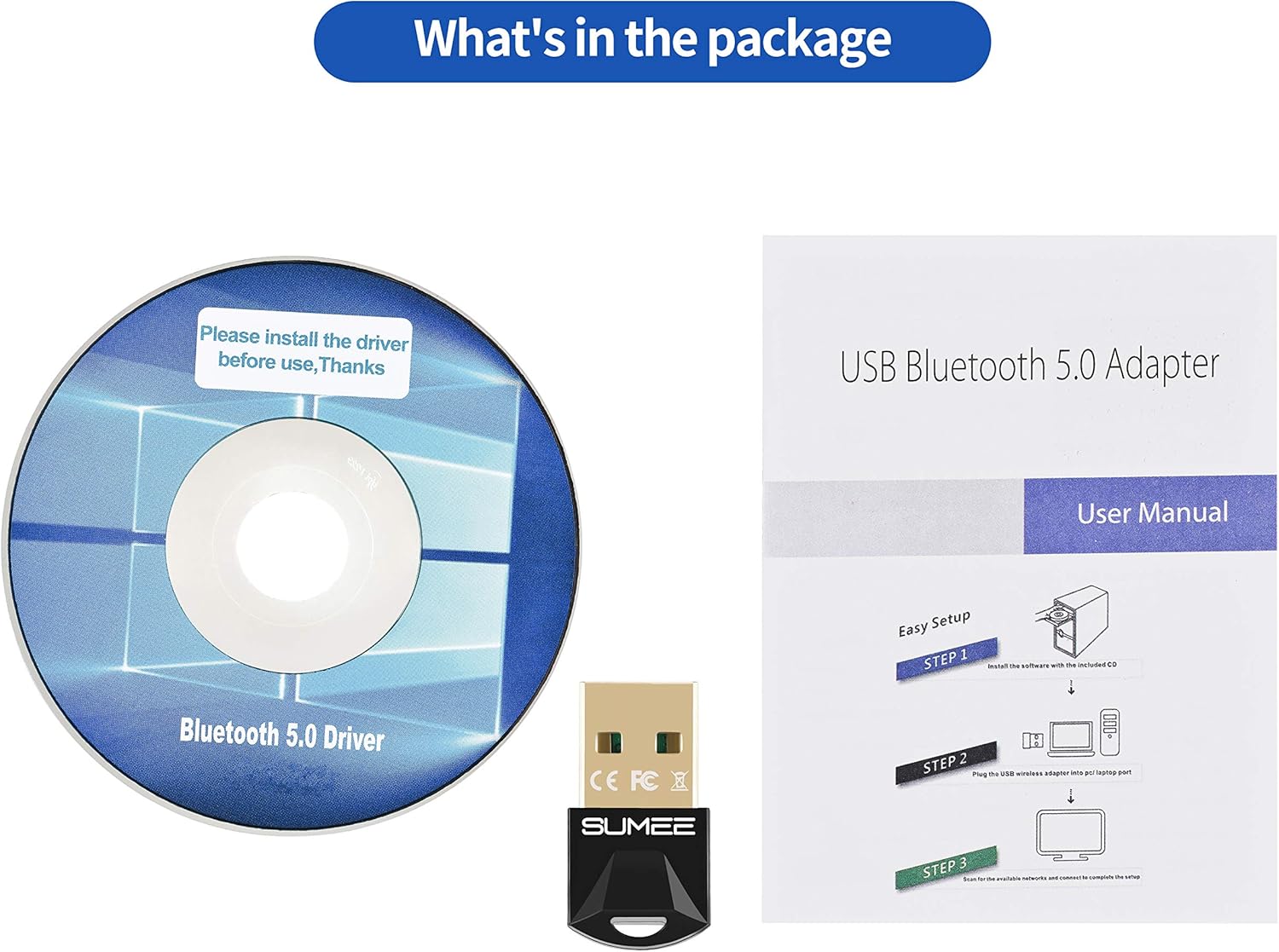
Image showing the adapter, driver CD, and user manual included in the package.
4. Setup & Installation
Follow these steps to install your SUMEE USB Bluetooth 5.0 Adapter Dongle:
- Disable Existing Bluetooth: Before plugging in the adapter, ensure all existing built-in or third-party Bluetooth devices on your computer are disabled. This prevents potential conflicts.
- Insert the Adapter: Plug the SUMEE USB Bluetooth 5.0 Adapter into an available USB port on your PC or laptop.
- Install Drivers:
- Using the CD: Insert the provided driver installation CD into your computer's optical drive. Navigate to the CD content and double-click the `Setup.exe` file to begin installation. Follow the on-screen instructions.
- Downloading Drivers: If your computer lacks an optical drive or if the CD is unavailable, you may need to download the Realtek Bluetooth 5.0 driver (RTL8761b) from the manufacturer's official support website. Search for "Realtek Bluetooth 5.0 Driver RTL8761b" online to find reliable download sources.
- Restart Computer: After the driver installation is complete, restart your computer to ensure all changes take effect.
- Verify Installation: After restarting, go to your computer's Device Manager. Under the "Bluetooth" section, you should see the "Generic Bluetooth Adapter" or "Realtek Bluetooth Adapter" listed without any error symbols.

Image showing the compact size of the adapter and its compatibility with Windows operating systems.
5. Operating Instructions
Once the adapter is installed and your computer has restarted, you can begin pairing Bluetooth devices:
- Enable Bluetooth: Ensure Bluetooth is turned on in your computer's settings. You can usually find this under "Settings" > "Devices" > "Bluetooth & other devices."
- Add a Device: Click on "Add Bluetooth or other device" and select "Bluetooth."
- Pair Your Device: Put your Bluetooth device (e.g., headphones, speaker, mouse) into pairing mode. It should appear in the list of available devices on your computer. Select your device and follow any on-screen prompts to complete the pairing process.
- Connect and Use: Once paired, your device should connect automatically. You can then use it for audio, data transfer, or input, depending on the device type.

Visual guide to various devices compatible with the Bluetooth adapter.
Usage Scenarios
The SUMEE USB Bluetooth 5.0 Adapter supports a variety of applications:
- Audio Streaming: Connect Bluetooth headphones or speakers for music, calls, and multimedia.
- Input Devices: Pair Bluetooth keyboards and mice for a clutter-free workspace.
- Gaming: Connect compatible game controllers for wireless gaming.
- Data Transfer: Transfer files between your computer and Bluetooth-enabled smartphones or tablets.

Diagram illustrating the adapter's long transmission distance of up to 20 meters in open spaces.
6. Maintenance
To ensure optimal performance and longevity of your SUMEE USB Bluetooth 5.0 Adapter:
- Keep the adapter clean and free from dust.
- Avoid exposing the adapter to extreme temperatures or moisture.
- Do not force the adapter into a USB port.
- Store in a safe place when not in use, especially if transporting your laptop.
7. Troubleshooting
If you encounter issues with your SUMEE USB Bluetooth 5.0 Adapter, try the following solutions:
- Device Not Recognized: If your computer displays a "device not recognized" error after a reboot, try uninstalling the device from Device Manager, unplugging the adapter, and then plugging it back in. Reinstall drivers if necessary.
- Bluetooth Not Appearing: Ensure you have disabled any built-in Bluetooth on your computer before installing the SUMEE adapter. Conflicting Bluetooth radios can prevent proper function.
- Pairing Issues: Make sure your target Bluetooth device is in pairing mode and within the adapter's range (up to 20m in open air).
- Driver Issues: Verify that the correct Realtek Bluetooth 5.0 driver (RTL8761b) is installed. If issues persist, try uninstalling and reinstalling the driver.
- Intermittent Connection: Ensure the adapter is plugged into a front USB port if possible, as rear ports on some desktop cases might have signal interference.
8. Specifications
| Feature | Specification |
|---|---|
| Brand | SUMEE |
| Model Number | BT501 |
| Hardware Interface | Bluetooth 5.0, USB |
| Color | Black |
| Compatible Devices | Desktop, Laptop, Keyboard, Mouse, Headphones, Speakers, Game Controllers |
| Data Link Protocol | USB |
| Data Transfer Rate | Up to 3 Megabits Per Second |
| Compatible Operating System Family | Windows |
| Minimum Required Operating System Version | Windows 10, Windows 7, Windows 8, Windows 8.1 |
| Transmission Range | Up to 20m (65ft) in open space |

Diagram illustrating the Realtek chip, highlighting stable data transfer rates.
9. Warranty & Support
This product comes with a 24-Month Warranty. For any issues or support needs, please contact SUMEE customer service. Step-by-step installation guides and troubleshooting assistance are available to ensure your convenience and satisfaction.